Add or remove modules for your community
Install the CAD, Training, the Staff Panel and the rest from your control panel, and what happens to your data when you remove one.
Modules are the parts of LonexOne your community uses, like the CAD, Training or the Staff Panel. Every module is included in your plan, so you can install as many as you like and your bill stays the same. They all share the same people, departments and ranks, which means you only set those up once.
This article covers how to install a module, how to remove one, and what happens to your data when you do.
Before you start#
You need to be the owner of the community, or have a role with the Install and remove modules permission. If you can't see Install modules in your control panel, ask your community owner to give you that permission under Roles & permissions.
Install a module#
- Sign in at lonexone.com and open your community's control panel.
- At the bottom of the left sidebar, click Install modules. You can also click Manage on the Modules card on your Overview page.
- Find the module you want and click Install.
- You'll see a message at the top of the page saying the module was installed, and its card now shows Installed.
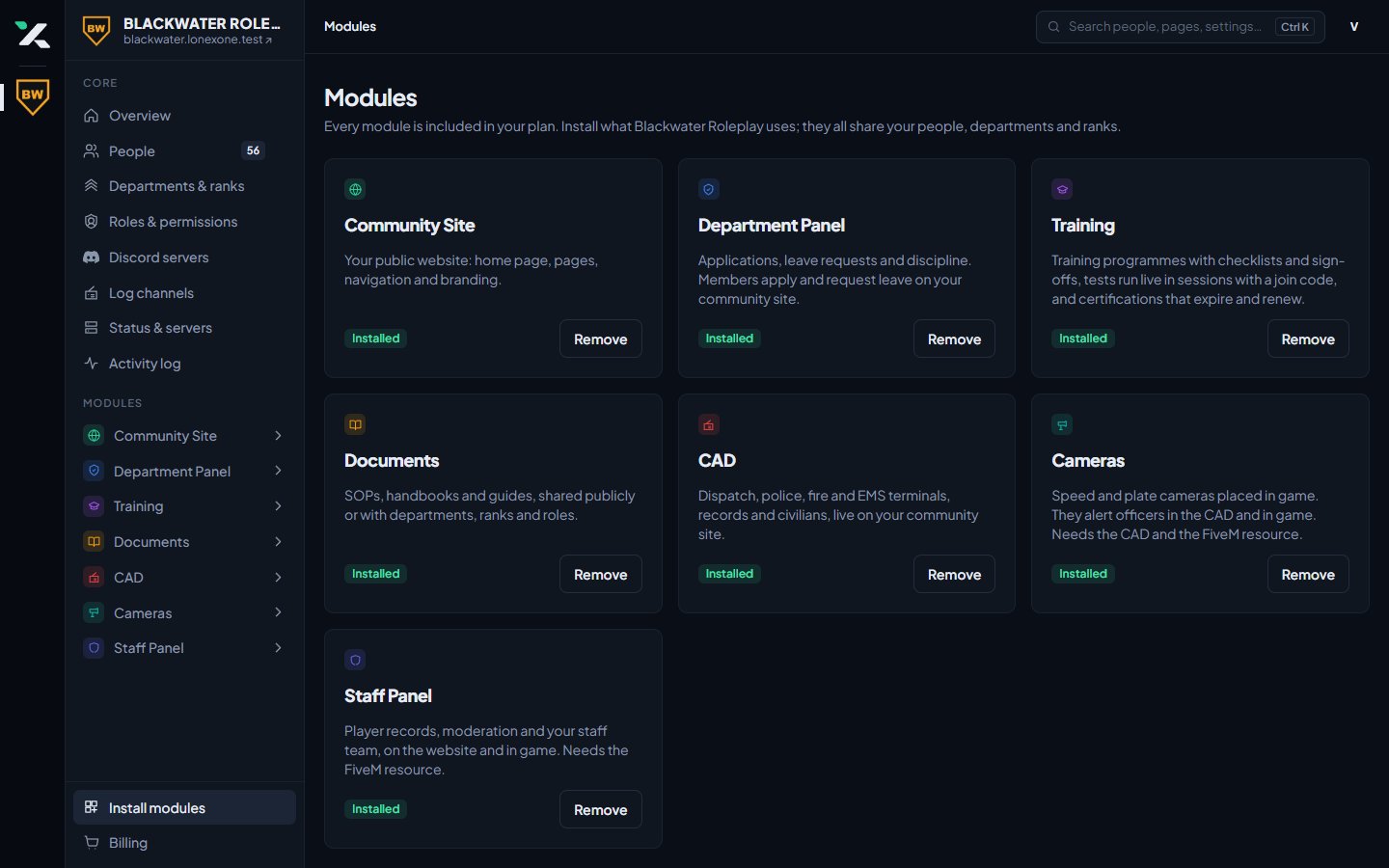
The module now appears under Modules in the left sidebar. Click its name to open its pages. For example, installing the CAD gives you CAD settings, Warrants, Reports and more.
Most modules work best after you've set up your departments and ranks. If you haven't done that yet, start with Departments & ranks in the sidebar.
What each module does#
| Module | What it gives you |
|---|---|
| Community Site | Your public website: home page, pages, navigation and branding. This one is installed for you. |
| Department Panel | Applications, leave requests and discipline. Members apply and request leave on your community site. |
| Training | Training programmes with checklists and sign-offs, tests run live in sessions with a join code, and certifications that expire and renew. |
| Documents | SOPs, handbooks and guides, shared publicly or with departments, ranks and roles. |
| CAD | Dispatch, police, fire and EMS terminals, records and civilians, live on your community site. |
| Cameras | Speed and plate cameras placed in game that alert officers in the CAD and in game. Needs the CAD and the FiveM resource. |
| Staff Panel | Player records, moderation and your staff team, on the website and in game. Needs the FiveM resource. |
| Mechanics | The loading screen players see while they join your server, and a spawn selector to choose where they start. |
| Integrations | Connects ESX, QBCore or QBox to the CAD, so game characters, vehicles and licences come across. Needs the CAD and the FiveM resource. |
| Forums | Discussion forums on your community site, with categories you set up and who can see and post in each. |
Some modules start out in beta. A beta module only shows on the Install modules page once LonexLabs has switched it on for your community. Ask in the LonexLabs Discord if you'd like to try one.
Modules that need another module#
Cameras works on top of the CAD, so the CAD has to be installed first. If you try to install Cameras without it, you'll see this message:
Install the CAD first: Cameras works on top of it.
Install the CAD, then go back and install Cameras.
The Staff Panel and Cameras both use the LonexOne FiveM resource to talk to your game server. You can install them before the resource is running, but nothing will come through from the game until it is.
Remove a module#
- Open your control panel and click Install modules at the bottom of the left sidebar.
- Find the module and click Remove.
- You'll see a message saying the module was removed.
There is no "are you sure?" step. The module is removed as soon as you click Remove, so check you've picked the right card first.
When you remove a module:
- It disappears from the sidebar for everyone in your control panel.
- Members can no longer use it on your community site. For example, removing the CAD takes away the Open CAD button, and removing the Department Panel stops members applying or requesting leave.
- Any module that depends on it is removed too. Removing the CAD also removes Cameras.
- Your bill doesn't change, because every module is part of the same plan.
Your data is kept#
Removing a module doesn't delete anything. Records, settings, reports, training results and everything else stay saved. If you install the module again later, it picks up exactly where you left it.
Something not working?#
A staff member can't see a module I installed. Each module's pages only show to people whose roles have that module's permissions. Open Roles & permissions, edit their role, and turn on the permissions they need for that module.
I can't see Install modules in my sidebar. Your role doesn't have the Install and remove modules permission. Ask your community owner to add it.
I removed a module by mistake. Click Install on the same card. Everything comes back as it was.
See also
Can't find what you need?
Open a ticket in our Discord and someone from the team will help. Found a bug, or missing a feature? Tell us on the feedback board.