Go on duty in the CAD
Sign on with your department and callsign, skip the panel screen with a default, go off duty, and fix the messages that stop you signing on.
Before you can take calls, run plates or dispatch units, you need to sign on in the CAD. Signing on tells everyone which department you're working for and what callsign you're using, and it starts your shift so your hours are counted on the roster.
This article walks you through going on duty, going off duty, and what to do if the CAD won't let you sign on. If you only want to play as a civilian, you don't need to sign on at all.
Before you start#
To go on duty you need to:
- Be a member of the community. You become one the first time you sign in on the community's website.
- Be on the roster of a police, fire, EMS or dispatch department.
- Have the status Active or In training in that department. If you're on leave of absence, suspended or inactive, you won't be able to sign on until your status changes.
You can sign on as a dispatcher if you're in a dispatch department, or if your role has the Use the dispatch console permission.
Go on duty#
-
Go to your community's website and sign in.
-
Click Open CAD on the home page. You can also go straight to your community's address with /cad on the end, for example yourcommunity.lonexone.com/cad.
-
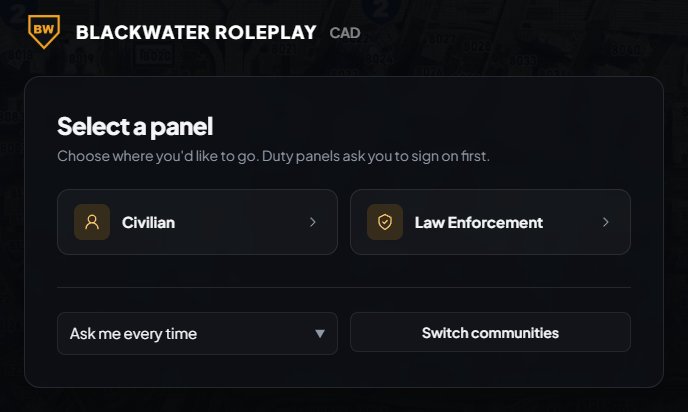
On the Select a panel screen, pick the panel you want to work: Law Enforcement, Fire, EMS or Dispatch. You'll only see the ones your departments allow.
-
Under Department, pick the department you're working for. If you're in more than one department of the same type, they're all listed here with your rank next to each.
-
Check your Callsign. It's filled in from the roster for the department you picked. Change it if you're using a different one for this shift.
-
If you see Division, you can pick one if you're working as part of a division, like traffic or K9. Leave it on No division if not. If the division uses its own callsign, update the callsign box too.
-
Fire and EMS only: if you see Apparatus, pick the engine, ambulance or other apparatus you're riding. Leave it on Not riding an apparatus if you're not.
-
Click Go on duty.
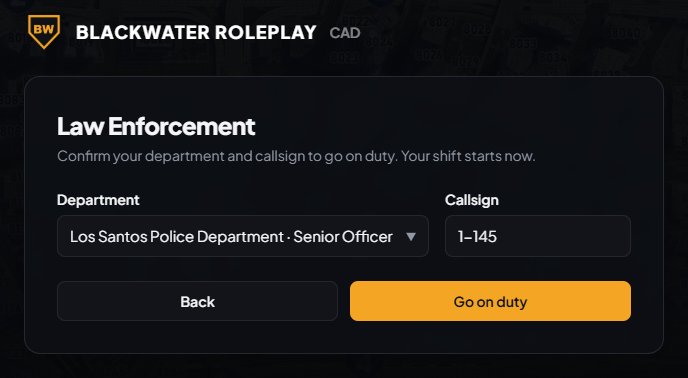
Your duty screen opens and your shift starts straight away.
Depending on how your community has set up the CAD, you'll either start out of service, or in service and ready for calls. If you start out of service, change your status when you're ready to take calls.
Skip the panel screen next time#
If you always sign on to the same panel, you can make the CAD open it for you.
- On the Select a panel screen, find the box at the bottom that says Ask me every time.
- Change it to the panel you want, for example Open Law Enforcement by default.
Next time you open the CAD, it takes you straight to the sign on form for that panel. If you want a different panel, click Back on the form to get to the full list. To go back to choosing every time, set the box to Ask me every time.
Go off duty#
When your shift is over, sign off so your hours stop counting and dispatch knows you're gone. Where the button is depends on which CAD design you're using:
- Modern: click Go off duty at the right end of the bar along the top.
- Classic: dispatchers click Go off duty at the top of the screen. Units click the exit icon in their unit panel.
- Realistic: open the menu and click Go Off Duty, or click the exit icon in the quick buttons.

You'll be asked to confirm. If you were attached to a call, you're taken off it, and your shift ends.
While you're on duty you can't open the Civilian panel. Go off duty first, then pick Civilian from the panel list.
Signing on in game#
If your community uses the LonexOne FiveM resource, you can also go on duty from inside the game with /onduty, and go off duty with /offduty. Your community can rename these commands, so check with your staff if they don't work.
Your community can also turn on two rules that affect signing on:
- Sign on only while in game. Police, fire and EMS units have to be on one of the community's game servers to sign on, even from the website. Dispatchers can always sign on from anywhere.
- Sign off when leaving the game. If you leave the game server, you're signed off the CAD and your shift ends.
Something not working?#
I don't see any duty panels, only Civilian. You'll see the message Join a police, fire, EMS or dispatch department to go on duty in the CAD. This means you're not on the roster of a department that uses the CAD, or your status there is leave of absence, suspended or inactive. Ask your department's leadership to check the roster.
It says "Join one of the community's game servers first". Your community only lets units sign on while they're in game. Join one of the game servers, then sign on again on the website, or use /onduty in game.
It says "Join this community to use its CAD". You're signed in to LonexOne, but not as a member of this community yet. Sign out, then click Sign in at the top of the community's website and sign in again. Signing in there is what adds you to the community.
I got signed off without doing anything. A supervisor may have signed you off. If they did, your screen tells you why. You'll also be signed off if your community uses Sign off when leaving the game and you left the game server. Sign on again when you're ready.
My callsign is wrong every time. The callsign is filled in from the roster. Ask your department's leadership to update it there, and it'll be right the next time you sign on.
See also
Can't find what you need?
Open a ticket in our Discord and someone from the team will help. Found a bug, or missing a feature? Tell us on the feedback board.