Import a Word file, PDF or Google Doc
Bring your existing SOPs and handbooks into Documents from a Word file, a PDF, a shared Google Doc, or an HTML, Markdown or text file, then check and publish them.
If your SOPs already live in Word files, PDFs or Google Docs, you don't have to copy them out by hand. Import them and each one becomes a new draft document, with its headings, formatting and pictures brought across. Pictures are copied into your community's own storage, so the document keeps working even if the original file is moved or deleted.
Before you start#
You need the Write and edit documents permission.
Import a file#
-
In the left sidebar, under Documents, click Documents.
-
Under the list of documents, click Import a Word file, PDF or Google Doc.
-
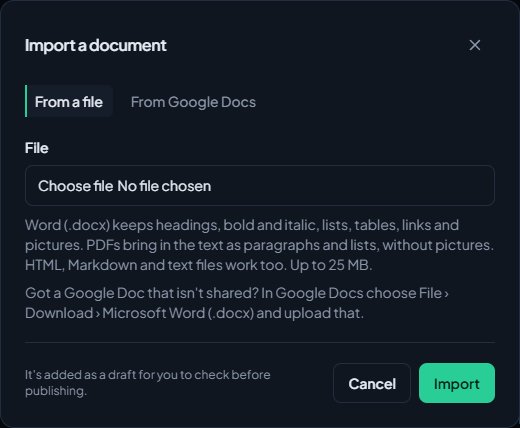
On the From a file tab, choose your file.
-
Click Import.
The new document opens in the editor as a draft.
Import a Google Doc#
-
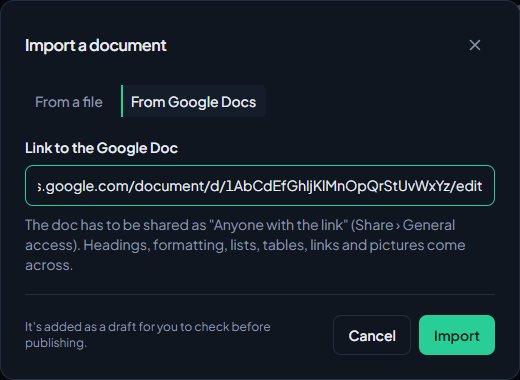
In Google Docs, click Share and set General access to Anyone with the link.
-
Copy the doc's link from your browser's address bar.
-
In the editor, click Import a Word file, PDF or Google Doc.
-
Click the From Google Docs tab.
-
Paste the link into Link to the Google Doc.
-
Click Import.
If you can't share the doc publicly, open it in Google Docs and choose File, Download, Microsoft Word (.docx). Then import that file instead.
What comes across#
| From | What's kept |
|---|---|
| Word (.docx) | Headings, bold, italic, underline and strikethrough, lists, tables, links, alignment and pictures. |
| Google Docs | Headings, formatting, lists, tables, links and pictures. |
| The text, as paragraphs and lists. Pictures and layout aren't brought in. | |
| HTML (.html, .htm) | The page's content. Pictures built into the file are copied across. Pictures linked from other websites stay as links. |
| Markdown (.md, .markdown) | Headings, formatting, lists, links and the rest of the Markdown. |
| Text (.txt) | Paragraphs, and lines starting with a bullet or number become lists. |
Files can be up to 25 MB.
A few things change on the way in:
- The editor has three heading sizes, so smaller headings become Heading 3.
- Up to 60 pictures are copied per document, each up to 8 MB, as PNG, JPG, GIF or WebP. Any others are left out.
- A very long file is cut short, so only the first part comes in.
If anything was left out, the editor says so at the top when the draft opens.
- The document's title comes from the file's own title if it has one, like Word's Title style or a PDF's title. Otherwise it's the file name.
After importing#
The document is added as a draft at the end of your list, not inside any other document. Nobody else can see it until you publish it.
- Read it through and tidy up anything that didn't come across as you wanted.
- Click Settings to choose its department, category and Who can read it. See Share a document with departments, ranks or roles.
- Drag it into a section if it belongs inside another document.
- Click Publish.
See Write and publish a document for the rest of the editor.
Something not working?#
It says "That doc isn't shared publicly." The Google Doc isn't set to Anyone with the link. Change its sharing, or download it as a Word file and import that.
It says "Paste the link to a Google Doc, like https://docs.google.com/document/d/…/edit" The link isn't a Google Docs document link. Copy it again from the address bar while the doc is open. Google Sheets and Slides can't be imported.
It says "Google Docs could not be reached." Google didn't answer in time. Try again, or download the doc as a Word file and import that.
It says "Upload a Word (.docx), PDF, HTML, Markdown or text file." The file type isn't supported. Old Word files (.doc) need saving as .docx first.
It says "That Word file couldn't be opened. Save it again as .docx and try once more." The file is damaged or isn't really a .docx. Open it in Word, choose Save as, pick Word Document (.docx) and import the new file.
It says "That PDF couldn't be read. It may be password-protected or damaged." Remove the password from the PDF, or export a fresh copy, and try again.
It says "That PDF has no text to import." The PDF is scanned pages, which are pictures with no text to copy. Import the original document instead, if you have it.
It says "There was nothing in it to import." The file has no text, tables or pictures that could be read.
It says "Files can be up to 25 MB." Make the file smaller, for example by shrinking its pictures, and try again.
Some pictures are missing. Pictures over 8 MB, in other formats, or past the first 60 are left out, and the editor tells you how many when the draft opens. Add them with Insert then Upload image in the editor.
See also
Write and publish a document
Write SOPs, handbooks and guides in the document editor, organise them into sections, publish them to your community site, and bring back an older version.
Share a document with departments, ranks or roles
Choose who can read each document: everyone, community members, one department, specific ranks (and the ranks above them) or specific panel roles.
Can't find what you need?
Open a ticket in our Discord and someone from the team will help. Found a bug, or missing a feature? Tell us on the feedback board.