Share a document with departments, ranks or roles
Choose who can read each document: everyone, community members, one department, specific ranks (and the ranks above them) or specific panel roles.
Not every document is for everyone. A public rules page can be read by guests, a patrol SOP only by your police department, and a supervisor's handbook only by sergeants and above. Each document has its own Who can read it setting, and people only see the documents they're allowed to.
Before you start#
You need the Write and edit documents permission for the document's department.
Change who can read a document#
- In the left sidebar, under Documents, click Documents.
- Pick the document from the list on the left.
- Click Settings at the top.
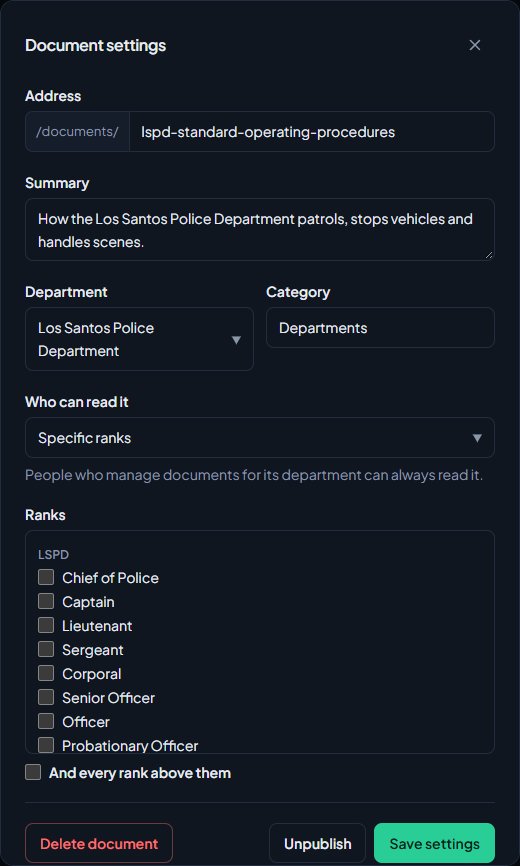
- Under Who can read it, pick one of the options below.
- If you picked Specific ranks or Specific panel roles, tick the ones you want.
- Click Save settings.
You'll see Settings saved. The change takes effect straight away, even if the document has unpublished edits.
| Option | Who can read it |
|---|---|
| Everyone, including guests | Anyone who visits your site, signed in or not. |
| Community members | Anyone who has signed in to your site and joined your community. |
| Members of its department | Members of the department picked under Department. |
| Specific ranks | People who hold one of the ranks you tick. |
| Specific panel roles | People with one of the control panel roles you tick, under Roles & permissions. |
Whatever you pick, people who manage documents for its department can always read it. So can the owner and administrators.
Share with ranks, and the ranks above them#
When you pick Specific ranks, the ranks are listed by department.
- Tick the ranks that should read it.
- Tick And every rank above them to include every more senior rank in the same department as well.
For example, tick Sergeant and And every rank above them, and lieutenants, captains and everyone above can read it too. Rank order comes from Departments & ranks. See Set up ranks and their order.
Who counts as a department member#
For Members of its department and Specific ranks, someone counts if they're on the department's roster with the status Active, In training or Leave of absence. People who are Suspended or Inactive lose access until their status changes back.
What new documents start with#
- A new document is readable by Community members. If you can only write documents for a department, it starts in your department as Members of its department.
- A sub-document, made with Add sub-document, starts with the same department and reading settings as the document it's in.
A sub-document can only be read by people who can read every document above it. If the one above is private to a department, a sub-document set to Everyone, including guests is still only read by that department. Changing who can read a document doesn't change the settings of the documents inside it, but it does change who can reach them.
What people see without access#
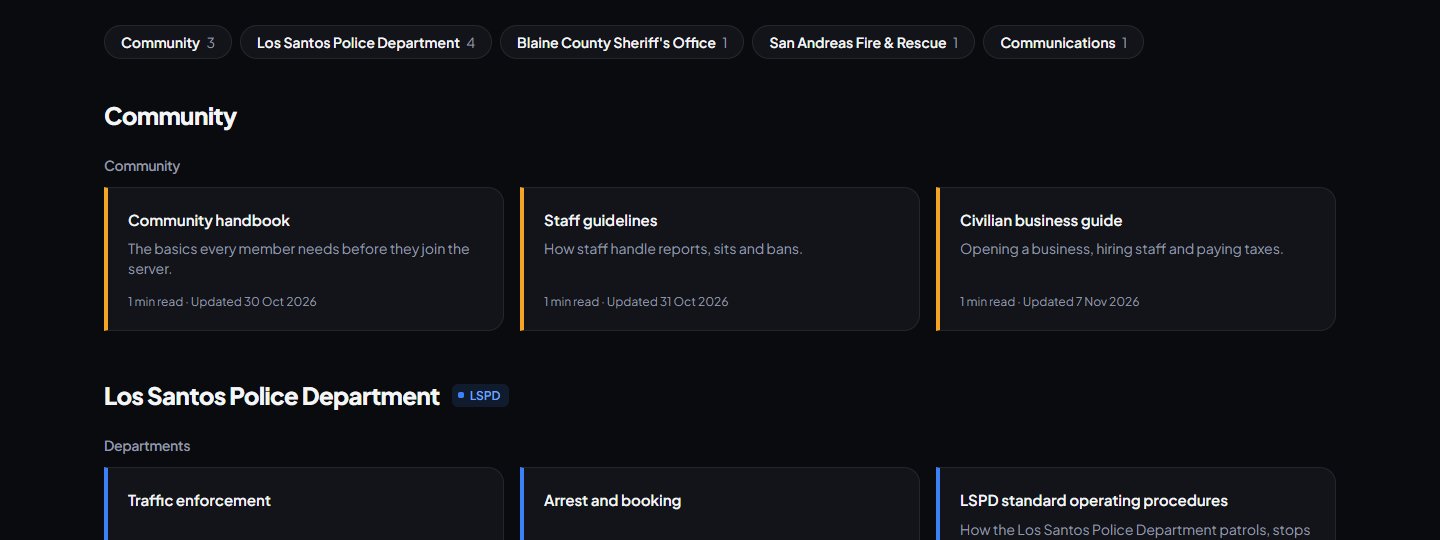
- On the Documents page, documents they can't read simply aren't listed. Guests see Some documents are only for members. Sign in to see them. when something is hidden from them.
- If a guest opens the link to a document they can't read, they're asked to sign in.
- If a signed-in member opens a link to a document they can't read, they get a page not found.
- In a section, the side menu only lists the documents that person can read.
If you write for one department#
If your Write and edit documents permission is limited to a department:
- you only see that department's documents in the editor
- Department has to be one of yours, and None (community-wide) isn't offered
- you can only pick ranks from your departments
Something not working?#
It says "Pick a department." Members of its department needs a department. Pick one under Department. If you only write for some departments, you always have to pick one.
It says "Pick at least one rank." or "Pick at least one role." Tick at least one rank or role, or choose a different option.
It says "You can only pick ranks in departments you manage documents for." One of the ticked ranks is in a department your permission doesn't cover. Untick it.
A member can't see a document they should. Check their roster status and rank in the document's department. If the document is shared with ranks, check whether And every rank above them needs ticking.
The list says "No ranks yet." or "No roles yet." There are no ranks or roles to pick, or none in the departments you write for. Create them under Departments & ranks or Roles & permissions first.
See also
Write and publish a document
Write SOPs, handbooks and guides in the document editor, organise them into sections, publish them to your community site, and bring back an older version.
Import a Word file, PDF or Google Doc
Bring your existing SOPs and handbooks into Documents from a Word file, a PDF, a shared Google Doc, or an HTML, Markdown or text file, then check and publish them.
Set up ranks and their order
Add a department's ranks, put them in order from highest to lowest, give each rank its own callsigns, promotion requirements and permissions, and choose how it shows on the public roster.
Create a role and choose what it can do
Make a role like Staff or Department command, tick the permissions it gives, hand it to people, and understand how roles work alongside ranks and administrators.
Can't find what you need?
Open a ticket in our Discord and someone from the team will help. Found a bug, or missing a feature? Tell us on the feedback board.