Set up ranks and their order
Add a department's ranks, put them in order from highest to lowest, give each rank its own callsigns, promotion requirements and permissions, and choose how it shows on the public roster.
Every department has its own rank ladder, from the highest rank at the top to the lowest at the bottom. The order matters: promotions move people one rank up the ladder, and staff whose access is limited to a department can only manage people and ranks below their own.
Each rank can also have its own callsigns, requirements someone has to meet before they're promoted into it, permissions everyone at that rank gets, and settings for the public roster.
Before you start#
You need a role or rank with the Edit departments, ranks, divisions and certifications permission. Owners and administrators have it already.
If your permission is limited to one department, you can add ranks there, but you can only edit, move or delete ranks below your own rank. Only people with the permission for the whole community can change a rank's permissions.
Add a rank#
- Click Departments & ranks in the left sidebar and open the department.
- In the Ranks box, type the rank's Name, like Probationary Officer. Up to 60 characters.
- Optional: type an Abbreviation, like PO. Up to 16 characters.
- Click Add rank.
You'll see Added followed by the rank name. New ranks start at the bottom of the ladder.
Add your ranks from the highest to the lowest, Chief first. Each new rank goes below the last one, so they end up in the right order without moving them.
Put ranks in order#
The Ranks box lists the highest rank first.
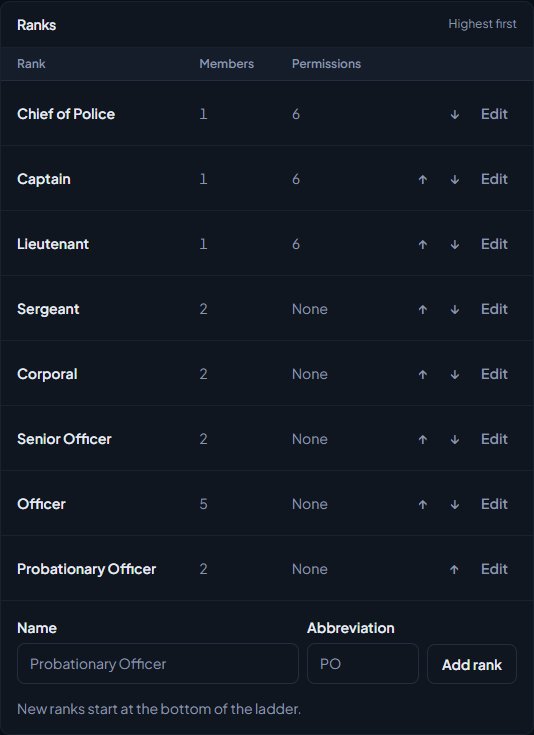
- Click the up arrow next to a rank to move it one place higher.
- Click the down arrow to move it one place lower.
The change saves straight away.
Edit a rank#
- In the Ranks box, click Edit next to the rank.
- Change the settings you need. They're explained below.
- Click Save changes.
You'll see Saved followed by the rank name.
Name#
The Abbreviation fills {rank_short} in Discord nicknames, and shows on chips next to people's names.
Callsigns#
Give the rank its own callsigns, like 1-S-{n} numbered 1 to 20 for sergeants.
| Setting | What it does |
|---|---|
| Format | The callsign pattern for this rank. {n} is where the number goes. Leave it blank to use the department's format. |
| From | The first number. |
| To | The last number. Leave it blank for no limit. |
Callsigns only change on promotion if Callsigns follow rank is turned on in the department's settings.
Promotion requirements#
What someone needs before they can be promoted into this rank. Leave a box blank to skip it.
| Setting | What it means |
|---|---|
| Days in the rank below | How long they've held the rank below this one. |
| Hours on duty | Hours on duty they need... |
| In the last (days) | ...within this many days. 30 if you leave it blank. |
| Certifications | Certifications they must hold. Tick the ones you want. |
| No active discipline in the department | They mustn't have active discipline in this department. |
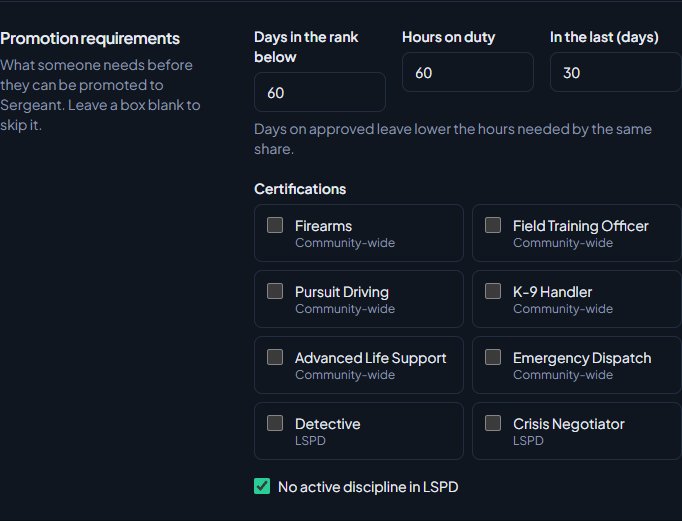
Days on approved leave lower the hours needed by the same share. If someone doesn't meet the requirements, changing their rank is blocked with a message starting Not ready for and the rank name, which lists what's missing. Someone with community-wide roster access can still promote them by ticking Promote anyway if requirements aren't met (give a reason) and typing a reason. To see who meets them, see See who's ready for promotion.
Permissions#
Tick the permissions everyone at this rank gets inside the department. Only permissions that can be limited to a department are listed. To start from another rank's permissions, pick it under Copy from another rank and click Replace with these or Add these. Nothing changes until you save.
Rank permissions apply while the member's status is Active, In training or Leave of absence. See Limit a permission to one department.
Choose how a rank shows on the public roster#
At the bottom of the rank's edit page, under Public roster:
- Optional: type a Section, like Command Staff. Ranks next to each other with the same section are grouped under it.
- Optional: pick an Insignia, like Three chevrons or Two stars.
- Under Positions, type how many people this rank can hold, like 1 for a Chief. Leave it blank for no limit. If the rank has a callsign format with a To number, the positions are set by the callsign range instead.
- Under Open positions, pick what visitors can do with an empty position: Nothing, just show them as open, Apply, using the department's application form, or Letter of interest, for people already in the department.
- Click Save roster settings.
Apply only shows while the department has an open application form. Letters of interest go to anyone with the Review letters of interest permission.
Delete a rank#
- Click Edit next to the rank.
- Scroll to Delete rank at the bottom.
- If anyone holds the rank, tick the box to remove it from them.
- Click Delete rank and confirm.
People who held the rank stay in the department with no rank until someone gives them a new one. Discord roles linked to the rank are taken away.
Something not working?#
I can't see Edit or the arrows next to a rank. Your permission is limited to this department and the rank is at or above your own. Ask someone with community-wide access.
The permission boxes are greyed out. It says Only people who manage every department can change rank permissions. Your Edit departments, ranks, divisions and certifications permission is limited to a department. Ask your community owner.
It says "Include {n} where the number goes, like 1-S-{n}." The callsign format needs {n} in it. Leave Format blank to use the department's format instead.
It says "The last number must be at least the first." To is lower than From. Swap them or change one.
It says members "hold" the rank when I try to delete it. Tick the box to remove the rank from them, then click Delete rank again.
See also
Create a department
Set up a police, fire, EMS, dispatch or civilian department with its name, type, colour, callsigns and Discord nickname, choose who can see its roster, set membership limits, and delete a department.
See who's ready for promotion
Use the Promotions page to find everyone who meets the requirements for their next rank, and everyone one requirement away, then promote them from the list.
Limit a permission to one department
Give department leaders access to their own department only, with a department role, rank permissions or division leads, and how the rank rule stops a sergeant changing a captain.
Promote, demote or transfer a member
Move someone up or down one rank from the roster, jump them straight to any rank, promote anyway when they miss a requirement, and transfer them to another department.
Can't find what you need?
Open a ticket in our Discord and someone from the team will help. Found a bug, or missing a feature? Tell us on the feedback board.