See who's ready for promotion
Use the Promotions page to find everyone who meets the requirements for their next rank, and everyone one requirement away, then promote them from the list.
The Promotions page checks everyone in a department against the requirements of their next rank. It shows two lists: people who meet every requirement, and people who are one requirement short. It saves you going through the roster one person at a time before a promotion round.
Before you start#
- The Department Panel module needs to be installed.
- You need the Add members, change ranks, callsigns and status permission. You'll only see departments where you have it, and only people ranked below you if your access is limited to a department.
- The ranks need promotion requirements. Ranks without any are left off the page, because everyone would qualify.
Set the requirements on a rank#
Requirements belong to the rank someone is being promoted to. You set them on each rank's edit page under Promotion requirements. You need the Edit departments, ranks, divisions and certifications permission for this.
-
Click Departments & ranks in the sidebar and open the department.
-
Click Edit next to the rank you want to set requirements for.
-
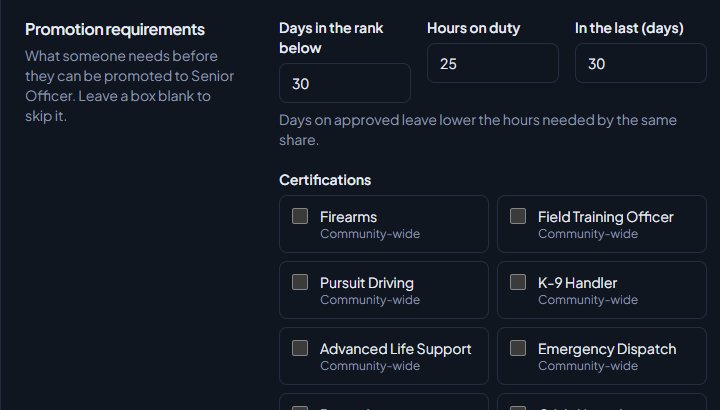
Under Promotion requirements, fill in the ones you want. Leave a box blank to skip it.
-
Click Save changes.
| Requirement | What's checked |
|---|---|
| Days in the rank below | Days since their last rank change, or since they joined if they've never changed rank. Up to 3,650. |
| Hours on duty and In the last (days) | Hours on duty in that many days. The window is 30 days if you leave it blank. Days on approved leave lower the hours needed by the same share, so 10 hours over 30 days with 15 days of leave needs 5. |
| Certifications | Every certification you tick. Expired and revoked ones don't count. If they're in training for a missing one, that's shown too. |
| No active discipline in the department | No discipline records that are still active. Expired and revoked records don't count. |
| Open position | Checked by itself when the rank has a set number of positions, or its own callsign range with an end. It fails when every position or callsign is taken. |
You set the number of positions under Public roster on the same rank page. See Set up ranks and their order for the rest of the rank settings.
Open the Promotions page#
- In the left sidebar, under Department Panel, click Promotions.
- If you manage more than one department, pick one from the list at the top.
You'll see two tables:
- Ready for promotion: people who meet every requirement for their next rank.
- One requirement away: people who meet all but one. The Missing column shows which, for example Hours in the last 30 days 6 of 10.
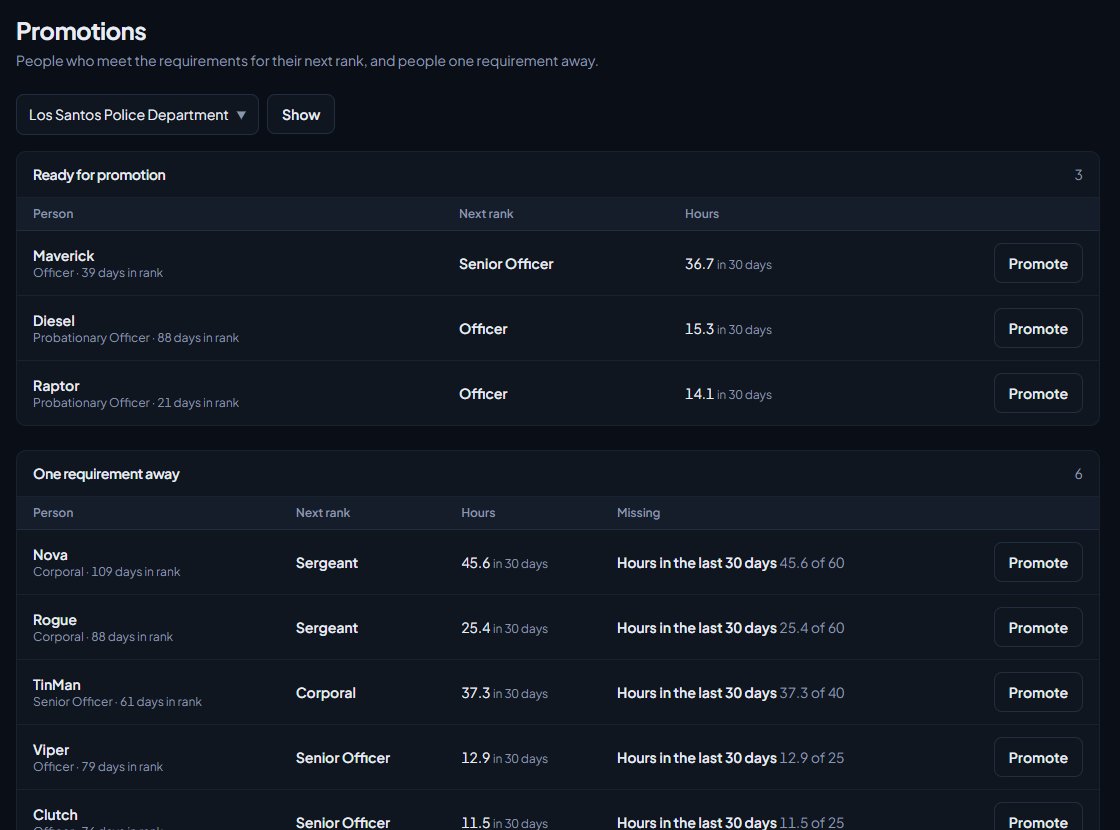
Each row shows the person, their current rank and days in it, the Next rank and their Hours in the rank's window. Both lists are sorted with the highest rank first, then the longest time in rank.
You can also see a person's progress on their profile. The Promotion card shows the next rank and how many requirements they've met. Click it to see each one.
Promote from the list#
For someone under Ready for promotion:
- Click Promote on their row.
They move up one rank straight away. Their callsign, Discord roles and nickname follow, the same as promoting from the roster.
For someone under One requirement away, if you manage every department:
- Click Promote on their row.
- Type a reason. It's required, and it's saved with the requirement they missed.
- Click Promote anyway.
If your access is limited to one department, you won't see a button on this list. They'll move to Ready for promotion once they meet the last requirement.
Promoting from this page doesn't ask for a reason on the ready list. If you want a reason in their history, use Promote on the roster instead, where you can add one.
Who isn't listed#
- People on the top rank.
- People whose next rank has no requirements.
- People missing two or more requirements.
- People who are suspended, inactive or have left. Active, in training and on leave members are checked.
- People ranked at or above you, if your access is limited to a department.
Something not working?#
"You don't manage the roster in any department." Your role doesn't have the Add members, change ranks, callsigns and status permission anywhere. Ask your community owner to add it under Roles & permissions.
Both lists are empty. Either nobody qualifies yet, or the ranks have no promotion requirements. The note at the bottom of the page reminds you: Only ranks with promotion requirements are listed.
Someone's hours look too low. Hours count from every shift source: the CAD, the web clock, Discord voice, in game and shifts added by staff. Shifts members log from the website only count once they're approved. See Track shifts and hours.
Open position fails but there's space. If the rank has its own callsign range, the check also needs a free callsign in that range. Free one up, or widen the range on the rank.
See also
Promote, demote or transfer a member
Move someone up or down one rank from the roster, jump them straight to any rank, promote anyway when they miss a requirement, and transfer them to another department.
Set up ranks and their order
Add a department's ranks, put them in order from highest to lowest, give each rank its own callsigns, promotion requirements and permissions, and choose how it shows on the public roster.
Track shifts and hours
Where shifts come from, how to see who's on duty and everyone's hours against their quota, clock someone out, add or fix a shift by hand, and approve shifts members log themselves.
Create certifications
Set up the qualifications your members can hold, like pursuit driving or field training, for one department or the whole community, with an optional expiry, and see where they're used.
Issue and revoke discipline
Give warnings, strikes, suspensions and terminations, choose when they expire and whether the member sees them, revoke them, and set up automatic actions like suspending at three strikes.
Can't find what you need?
Open a ticket in our Discord and someone from the team will help. Found a bug, or missing a feature? Tell us on the feedback board.