Track shifts and hours
Where shifts come from, how to see who's on duty and everyone's hours against their quota, clock someone out, add or fix a shift by hand, and approve shifts members log themselves.
Every time someone in a department goes on duty, LonexOne records a shift. Shifts add up to the hours you see on the roster, on people's profiles, on the Shifts & activity page and in your reports. They're also what weekly quotas, promotion hour requirements and inactivity rules are worked out from.
Before you start#
- The Department Panel module needs to be installed.
- To see shifts and hours, you need View shifts, hours and activity. To clock people out, add, edit or delete shifts, approve logged shifts and change shift settings, you need Edit shifts and set activity rules.
- If your permission is limited to one department, you only see that department, and you can only change shifts for people ranked below you.
Where shifts come from#
| Source | How it starts and ends |
|---|---|
| CAD | Going on duty in the CAD starts a shift, including signing on in game with the LonexOne FiveM resource. Going off duty ends it. |
| Staff duty | Going on staff duty with the Staff Panel starts a shift in the departments chosen for this in the Staff Panel's settings. |
| Web clock | Members click Clock in and Clock out on the Shifts page of their member area on your community website. They can Pause and Resume too. Paused time doesn't count. |
| Discord voice | Time in a voice patrol channel you've set for the department. The shift ends when they leave the channel. |
| Added by staff | A shift you add by hand. |
Only members who are Active or In training can go on duty, from any source.
To add a voice patrol channel, open Shifts & activity, click Settings, and pick a channel under Voice patrol channels. Your Discord server needs to be connected with the bot in it. Members already in the channel need to leave and rejoin for it to start counting.
See who's on duty#
-
In the left sidebar, under Department Panel, click Shifts & activity.
-
The On duty now tab lists everyone with an open shift, longest first, with how long they've been on and where the shift came from. Paused shifts are marked Paused.
-
Use the department list to show one department.
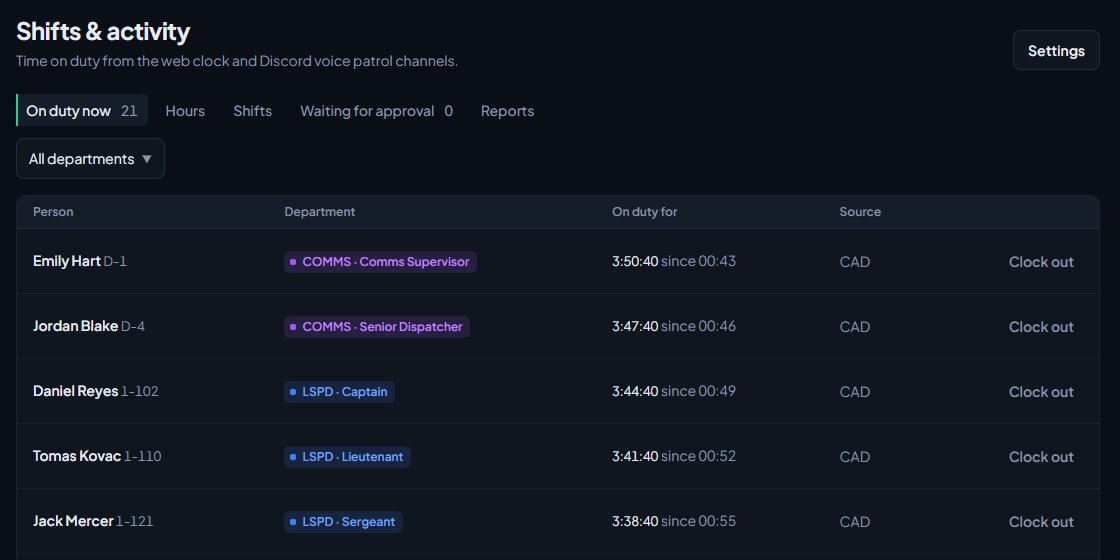
If someone forgot to clock out, click Clock out on their row and confirm. Their shift ends now.
See everyone's hours#
-
Click the Hours tab.
-
Pick a department. If you've chosen All departments, the first one is shown.
-
Pick the period: This week, Last 7 days, This month or Custom. Weeks run Monday to Sunday.
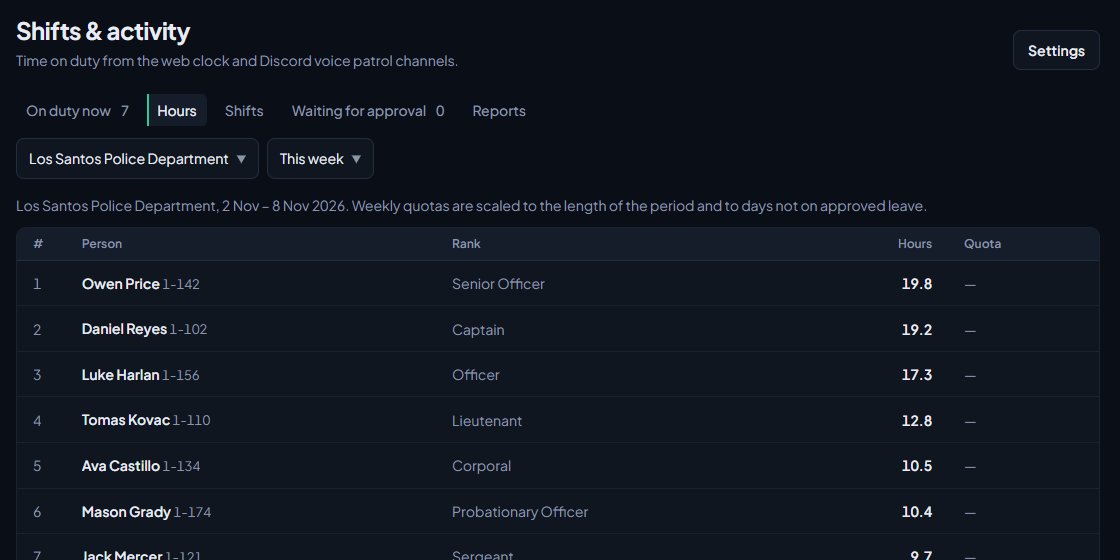
Everyone in the department is listed with their hours, most first, and their quota status:
| Quota status | Meaning |
|---|---|
| Quota met | They've done at least their rank's quota for the period. |
| Behind quota | They haven't yet. |
| On leave | They were on approved leave for the whole period. |
Weekly quotas are set per rank under Settings, see Set activity rules and catch inactive members. For periods other than a week, the quota is worked out per day. Days on approved leave lower it, so a 10 hour quota with 2 days of leave needs about 7.1 hours that week.
Find a shift#
- Click the Shifts tab.
- Search by name or callsign, or pick a source.
Each shift shows the person, department, start and end, length, source and who added it if it was added by hand. Shifts closed by your longest shift setting are marked Closed automatically.
Add a shift by hand#
You can only do this in departments set to Manual allowed under Settings.
-
On the Shifts tab, click Add a shift.
-
Pick the Person.
-
Fill in Started (UTC) and Ended (UTC).
-
Click Add shift.
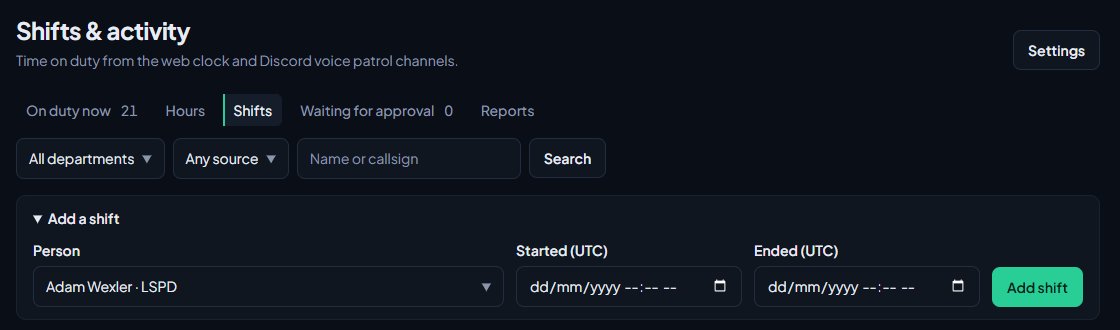
Times on this page are in UTC, not your local time. Convert before you type them in. The form shows the current UTC time to help.
A shift can be at most 24 hours, can't end in the future, and can't overlap another of their shifts in the same department.
Edit or delete a shift#
- Find the shift on the Shifts tab and click Edit.
- Change the times and click Save, or click Delete and confirm.
Open shifts can't be edited. Click Clock out now first. In departments set to Automatic only, you can clock people out and delete shifts, but not change their times.
Every change you make to a shift is recorded in the activity log.
Approve shifts members log#
In departments set to Manual allowed, members can log a past shift from the Shifts page of their member area. They click Log a past shift, fill in the times and an optional note, and click Send for approval. Shifts can be from the last 30 days, up to 24 hours long, and can't overlap their other shifts.
- Click the Waiting for approval tab. The number on the tab is how many are waiting.
- Optionally type a note in Note to them (optional).
- Click Approve or Deny.
Approved shifts count towards their hours straight away. We let the member know the outcome and your note, on the channels they chose.
Something not working?#
"LSPD only counts automatic shifts, from the clock, Discord voice and the CAD." The department is set to Automatic only. Change it to Manual allowed under Settings if you want to add hours by hand.
"Clock them out before editing the shift." The shift is still open. Click Clock out now, then edit it.
"That overlaps another of their shifts in LSPD." The times cross another shift. Check the Shifts tab for that person and fix or delete the other one first.
"The shift can't end in the future." Remember the times are in UTC.
Voice time isn't counting. Check the channel is listed under Voice patrol channels in Settings and isn't marked Not found. The member has to be Active or In training, and needs to rejoin the channel after you add it.
Someone's shift is still open from yesterday. Click Clock out on the On duty now tab, then edit the end time if you allow manual shifts. To stop this happening, set a Longest shift in Settings.
See also
Set activity rules and catch inactive members
Choose whether hours can be added by hand, cap how long a shift can run, set weekly hour quotas for each rank, and flag or set inactive anyone who goes too long without a shift.
Export shift reports
Build a shift report for any department, division, rank and period, read its totals and charts, print it or save it as a PDF, and download the report or every shift as a spreadsheet.
See who's ready for promotion
Use the Promotions page to find everyone who meets the requirements for their next rank, and everyone one requirement away, then promote them from the list.
Go on duty in the CAD
Sign on with your department and callsign, skip the panel screen with a default, go off duty, and fix the messages that stop you signing on.
Connect your Discord server
Add the LonexOne bot to your main Discord server, put its role in the right place, and fix the messages you might see while connecting.
Can't find what you need?
Open a ticket in our Discord and someone from the team will help. Found a bug, or missing a feature? Tell us on the feedback board.