Set activity rules and catch inactive members
Choose whether hours can be added by hand, cap how long a shift can run, set weekly hour quotas for each rank, and flag or set inactive anyone who goes too long without a shift.
Each department has its own shift settings. They decide how hours are counted, how many hours each rank should do a week, and what happens to people who stop showing up. Set them once and LonexOne keeps an eye on activity for you.
Before you start#
- The Department Panel module needs to be installed.
- You need the Edit shifts and set activity rules permission in the department.
Open the shift settings#
-
In the left sidebar, under Department Panel, click Shifts & activity.
-
Click Settings at the top right.
-
If you manage more than one department, pick the department from the list.
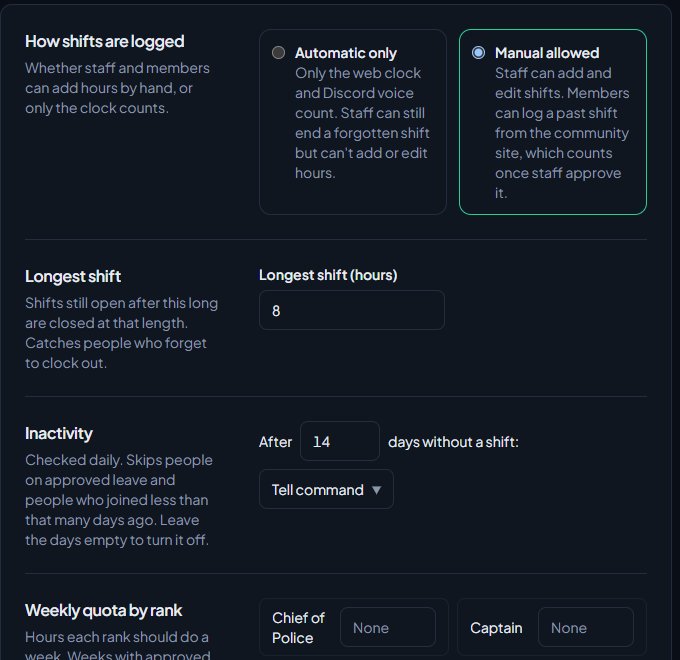
Every setting below is saved with the Save button at the bottom of the form, except voice patrol channels, which save as you add them.
How shifts are logged#
| Option | What it means |
|---|---|
| Automatic only | Only shifts from going on duty count. Staff can still end a forgotten shift or delete one, but can't add hours or change times. Members can't log past shifts. |
| Manual allowed | Staff can add and edit shifts. Members can log a past shift from the community website, and it counts once staff approve it. This is the default. |
If you switch to Automatic only while members have logged shifts waiting, you can only deny those, not approve them.
Longest shift#
Type a number of hours, from 1 to 72, in Longest shift (hours). Any shift still open after that long is closed at exactly that length and marked Closed automatically. This catches people who forget to clock out or go off duty. Leave it blank for no limit.
Open shifts are checked every five minutes.
Weekly quota by rank#
Each rank in the department has a box. Type the hours that rank should do each week, from 1 to 168, or leave it blank for no quota.
Quotas show on the Hours tab of Shifts & activity, on reports, and to members on their Shifts page, as Quota met, Behind quota or On leave. Days on approved leave lower the quota for that week by the same share, so 10 hours a week with 2 days of leave needs about 7.1 hours.
Quotas are a guide. Missing one doesn't change anyone's status by itself. Use the inactivity rule below if you want LonexOne to act.
Inactivity#
The inactivity rule finds people who haven't had a shift in a set number of days.
- Type the number of days, from 1 to 365, in the box after After.
- Pick what happens after days without a shift:
- Tell command: posts a list of the inactive members, with their callsigns, to the department's shift log channel.
- Set inactive: changes their status to Inactive.
- Click Save.
To turn it off, clear the days box and save.
The check runs once a day. It looks at members who are Active or In training and skips:
- people who joined the department less than that many days ago,
- people who've had approved leave at any point in that time,
- people who are on duty right now.
Each person is only flagged once for each quiet spell. They're flagged again only if they do a shift and then go quiet again.
Inactive members lose the department's Discord roles until they're back. Someone set inactive by this rule can still go on duty, and as soon as they do, or have a logged shift approved, they go back to the status they had before. You can also set them back yourself on their profile. See Change a member's status.
For Tell command to reach anyone, the department needs a Discord log channel for Shifts. See Post logs to Discord channels.
Voice patrol channels#
Time spent in these Discord voice channels counts as a shift in the department.
- Under Voice patrol channels, pick a channel from Add a channel. Channels are grouped by server.
- Click Add.
You'll see a message saying time in that channel now counts. Members already sitting in the channel need to leave and rejoin for it to start counting.
To stop a channel counting, click Remove next to it. Anyone on a voice shift in the department is clocked out.
If a channel shows Not found, it's been deleted in Discord or the bot can't see it any more.
Something not working?#
"Pick what happens to inactive members." You typed a number of days but didn't choose Tell command or Set inactive.
"Connect a Discord server with the bot first." Voice patrol channels need a connected Discord server with the LonexOne bot in it. See Connect your Discord server.
"That channel isn't in a connected server." The channel couldn't be found. Refresh the page and pick it again.
Couldn't load channels from a server. The bot can't read that server's channels. Check it's still in the server and has permission to see the voice channels.
Nobody is being flagged as inactive. Check the days and action are both saved, and remember the check runs once a day. People with approved leave in the window, or who joined recently, are skipped.
Someone was set inactive while they were away. Inactivity only skips approved leave. Ask members to request leave before they go, see Approve leave requests.
See also
Track shifts and hours
Where shifts come from, how to see who's on duty and everyone's hours against their quota, clock someone out, add or fix a shift by hand, and approve shifts members log themselves.
Export shift reports
Build a shift report for any department, division, rank and period, read its totals and charts, print it or save it as a PDF, and download the report or every shift as a spreadsheet.
Change a member's status
What Active, In training, Leave of absence, Suspended and Inactive each mean, how to change someone's status, and which statuses LonexOne changes for you.
Approve leave requests
How members ask for leave of absence, how to approve or deny it, how leave starts and ends on its own, ending leave early, and seeing who's away on the leave calendar.
Post logs to Discord channels
Choose which Discord channel each event goes to, give departments their own channels, filter and colour CAD posts, and send a test message.
Can't find what you need?
Open a ticket in our Discord and someone from the team will help. Found a bug, or missing a feature? Tell us on the feedback board.