Approve leave requests
How members ask for leave of absence, how to approve or deny it, how leave starts and ends on its own, ending leave early, and seeing who's away on the leave calendar.
Members ask for leave of absence (LOA) from their department on your community website. You approve or deny it in the control panel. Once leave is approved, LonexOne puts them on leave of absence on the first day and back to their old status when it ends, so nobody has to remember to do it by hand.
Approved leave also counts in their favour: it lowers their weekly hours quota and promotion hour requirements for those days, and stops your inactivity rule from flagging them.
Before you start#
- The Department Panel module needs to be installed.
- You need the Approve and deny leave requests permission. If it's limited to one department, you'll only see requests from that department, and you can only approve or deny requests from people ranked below you.
How members request leave#
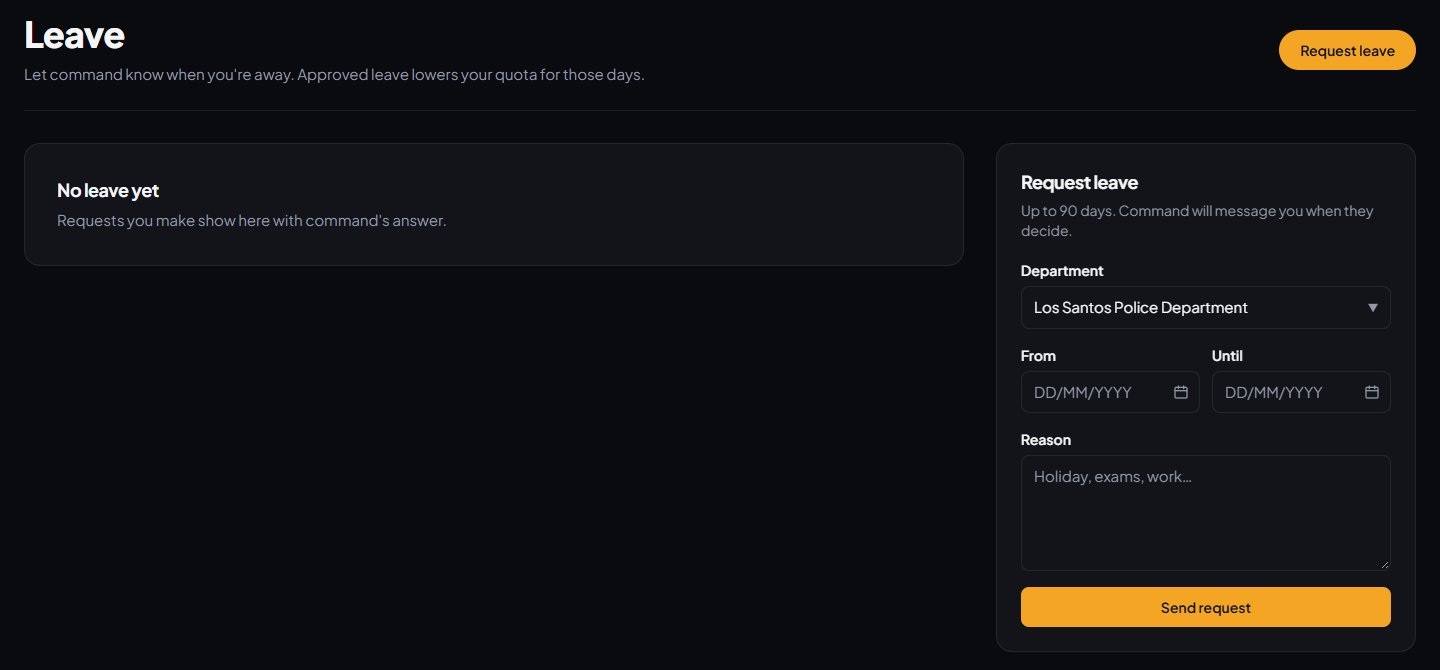
Members go to Leave in their member area on your community website (the address ends in /me/leave) and click Request leave. They pick:
- the Department, if they're in more than one,
- From and Until dates,
- a Reason, which is required.
The rules:
- They have to be Active or In training in the department.
- Leave can't start in the past.
- Leave can be at most 90 days, counting both the first and last day.
- It can't overlap leave they've already requested or had approved in that department.
They can cancel a request while it's pending, or after it's approved as long as it hasn't started yet.
Review requests#
-
In the left sidebar, under Department Panel, click Leave requests.
-
The Pending tab shows requests waiting for review, earliest start date first.
When someone asks for leave, everyone who can approve it gets a Leave to review notification, on the site or by Discord DM as they've chosen.
-
If you review more than one department, pick one from the list to narrow it down.
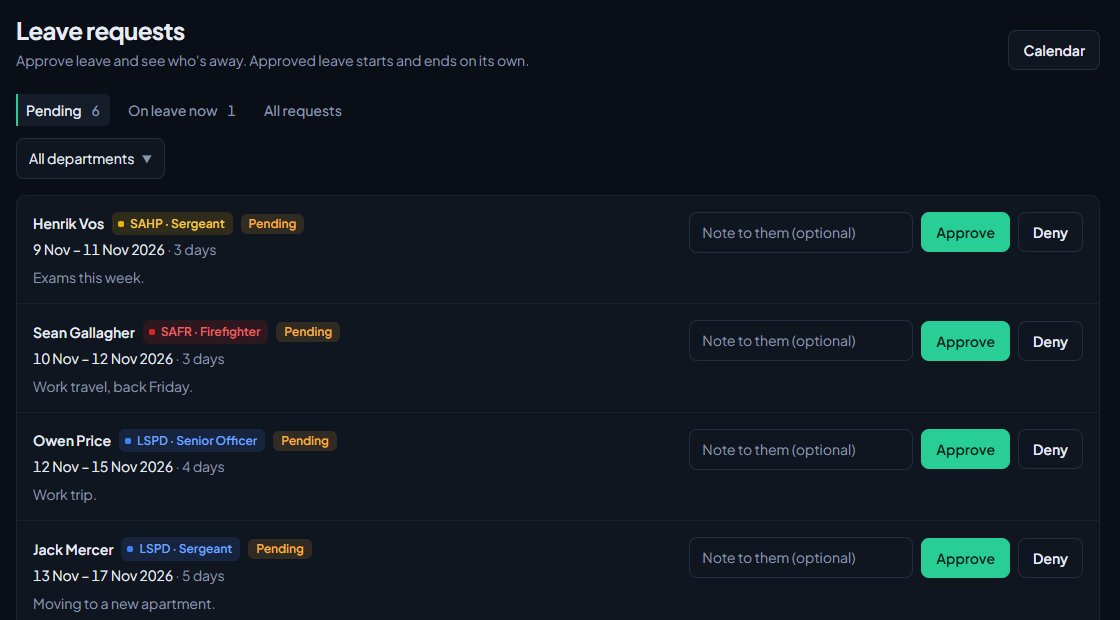
Each request shows the member, their department and rank, the dates, how many days, and their reason. If a pending request's start date has already passed, you'll see Already started next to it.
Approve or deny#
- Optionally type a note in Note to them (optional). They'll see it.
- Click Approve or Deny.
The member is told the outcome along with your note, on the site, by email or by Discord DM, depending on the Leave requests notification setting they've chosen.
If the leave has already started when you approve it, they're put on leave of absence straight away.
What happens during leave#
| When | What happens |
|---|---|
| The start date arrives | Their status changes from Active or In training to Leave of absence. Their history says Leave of absence until the end date. |
| While they're on leave | They keep their Discord roles and rank permissions, but can't go on duty, clock in or log shifts. |
| The day after the end date | They go back to the status they had before. |
Leave is checked every hour, so the change can take up to an hour after midnight to happen.
Leave never overrides a suspension or an inactive status. If someone is suspended or inactive when their leave starts, they stay that way, and they aren't moved back when the leave ends.
End leave early#
If someone comes back before their leave is due to end:
- On Leave requests, click the On leave now tab.
- Find them and click End leave early.
- Confirm.
Their leave ends today and they go back to the status they had before. You'll see Ended leave for Sam.
The leave calendar#
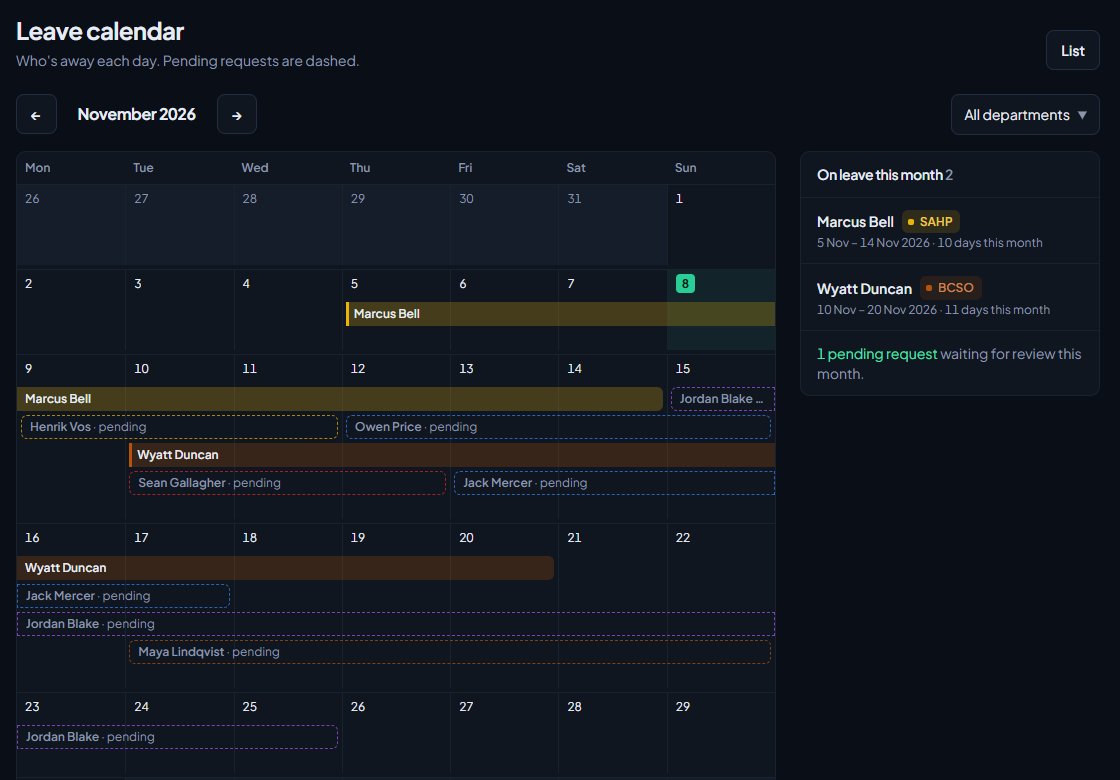
Click Calendar at the top of Leave requests to see who's away each day, a month at a time. Pending requests are shown dashed, so you can see clashes before you approve. Use the arrows to move between months, This month to jump back, and the department list to show one department. Click List to go back.
All requests#
The All requests tab shows every request, newest first. Use the status list to show only Pending, Approved, Denied, Cancelled or Ended ones. Reviewed requests show who approved or denied them, when, and the note they left.
You'll also find a person's leave on their profile, under People.
Something not working?#
"That request has already been reviewed." Someone else approved or denied it first, or the member cancelled it.
"That leave has already finished. Deny it instead." The end date has passed, so there's nothing left to approve. Deny it, and add a note if you want it on record.
"They're no longer in LSPD." The member has left or been removed from the department since they asked.
"Only leave that has started can be ended early." The leave hasn't begun yet. If it's no longer needed, ask the member to cancel it from their Leave page.
A member says they can't request leave. They need to be Active or In training in the department. Members who are suspended, inactive or already on leave can't request more. Check their status on their profile.
I set someone to Leave of absence by hand and it never ended. Only leave from an approved request ends on its own. Change their status back yourself, see Change a member's status.
See also
Change a member's status
What Active, In training, Leave of absence, Suspended and Inactive each mean, how to change someone's status, and which statuses LonexOne changes for you.
Set activity rules and catch inactive members
Choose whether hours can be added by hand, cap how long a shift can run, set weekly hour quotas for each rank, and flag or set inactive anyone who goes too long without a shift.
See who's ready for promotion
Use the Promotions page to find everyone who meets the requirements for their next rank, and everyone one requirement away, then promote them from the list.
Choose what members are notified about
Pick which notifications go out on the site, by email and by Discord DM for each kind of update, see what members can turn off themselves, and check for Discord DMs that didn't arrive.
Can't find what you need?
Open a ticket in our Discord and someone from the team will help. Found a bug, or missing a feature? Tell us on the feedback board.