Connect your Discord server
Add the LonexOne bot to your main Discord server, put its role in the right place, and fix the messages you might see while connecting.
Connecting your Discord server lets LonexOne look after it for you. Once the LonexOne bot is in your server, it can give people Discord roles that match their department, rank and certifications, set their nicknames from the roster, and post logs like promotions and new CAD calls to your channels.
This article covers connecting your main server, getting the bot's role in the right place, and disconnecting a server. Everything else (role links, nicknames, log channels) is set up after this.
Before you start#
You need:
- To be the owner of the community, or have a role with the Connect Discord servers and link Discord roles permission.
- The Manage Server permission in the Discord server you're connecting. Discord only lets people with it add a bot.
- To be signed in to LonexOne with the same Discord account you'll use to approve the bot.
Connect your main server#
- Open your community's control panel.
- Click Discord servers in the left sidebar.
- Under Main server, click Add main server.
- Discord opens. Pick the server you want to connect and approve the bot.
- You're sent back to the Discord servers page, with the message Server connected.
Your server now shows under Main server, with its name and ID.
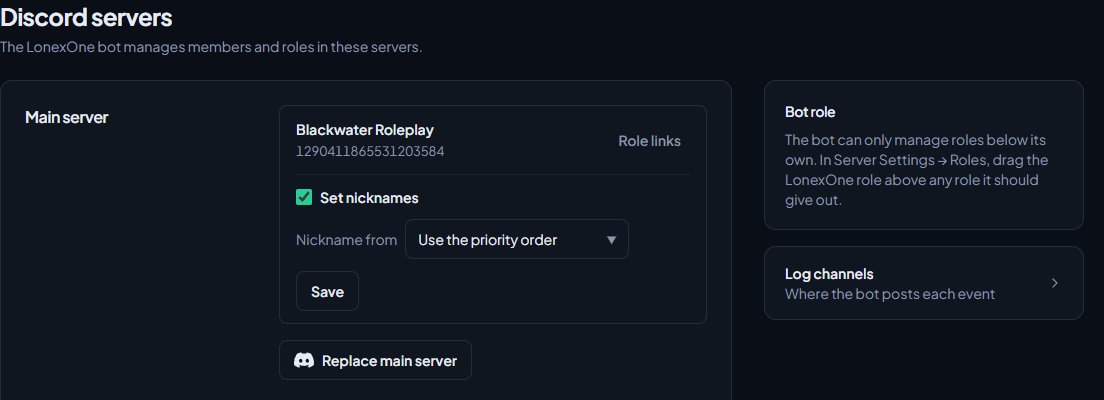
You have 10 minutes from clicking Add main server to finish in Discord. After that, the request expires and you'll need to start again.
Move the bot's role up#
Discord only lets a bot manage roles that sit below its own role. When the bot joins, Discord gives it a role called LonexOne, usually near the bottom of the list. Move it up so it can give out your roles.
- In Discord, open your server's Server Settings, then Roles.
- Drag the LonexOne role above every role you want LonexOne to give out, like your department and rank roles.
The bot can never give out a role that's above its own, or a role managed by Discord or another bot (for example a server booster role). Keeping the LonexOne role near the top of your list avoids most problems.
What the bot is allowed to do#
When you approve the bot, Discord asks for these permissions:
| Permission | Why LonexOne needs it |
|---|---|
| Manage Roles | To give and take away roles you've linked. |
| Manage Nicknames | To set nicknames from the roster, if you turn that on. |
| View Channels | To list your channels on the Log channels page. |
| Send Messages | To post logs and notices. |
| Embed Links | Logs are posted as embeds. |
If you take any of these away in Discord later, the matching feature stops working. The Role links page warns you when Manage Roles or Manage Nicknames is missing.
If the bot leaves your server#
If someone kicks the bot, the server stays listed in LonexOne but shows a Bot not in server tag. Nothing is synced there until it's back.
- On the Discord servers page, find the server with the Bot not in server tag.
- Click Add the bot.
- Discord opens on that server. Approve the bot again.
Your role links and settings for that server are still there.
Replace your main server#
If you move to a new Discord server, click Replace main server under Main server and approve the bot in the new server. The new server becomes your main server, and your old main server stays connected as a child server, so you need a free child server slot. See Use more than one Discord server for what that means.
Disconnect a server#
- On the Discord servers page, find the server.
- Click Disconnect, then confirm.
The bot leaves the server straight away and you'll see a message saying so. Any role links for that server are removed with it. Roles people already have in Discord stay on them.
Disconnect only shows on your main server when you have no child servers. To remove your main server, first click Make main on another server, then disconnect the old one.
What to do next#
- Link Discord roles to departments and ranks
- Set nicknames from the roster
- Post logs to Discord channels
Something not working?#
It says "Please approve the bot with the same Discord account you are signed in with." You approved the bot in Discord with a different account from the one you're signed in to LonexOne with. Switch to the right account in Discord (or sign in to LonexOne with the account that runs the server), then try again.
It says "That server is already connected to another LonexOne community." A Discord server can only belong to one community. If it should belong to this one, disconnect it from the other community first. If you can't, message us in the LonexLabs Discord.
It says "Discord connection was cancelled." You closed Discord or clicked cancel before approving the bot. Click Add main server again.
It says "Discord connection failed. Please try again." Something went wrong between Discord and LonexOne. Wait a moment and try again.
I see "This Discord connection request has expired. Please start again from your community." More than 10 minutes passed between clicking the button and approving the bot. Go back to Discord servers in your control panel and start again.
My server isn't in Discord's list. Discord only lists servers where you have the Manage Server permission. Ask the server owner to give it to you, or to connect the server themselves.
I can't see Discord servers in the sidebar. Your role doesn't have the Connect Discord servers and link Discord roles permission. Ask your community owner to add it under Roles & permissions.
See also
Link Discord roles to departments and ranks
Give people Discord roles automatically for their department, rank, division, status, certifications and community roles, and take them away when that changes.
Set Discord nicknames from the roster
Have the bot rename members in Discord to match their callsign, name and rank, choose which department wins for people in several, and switch it off again.
Use more than one Discord server
Connect department and division servers alongside your main one, what the main server is used for, and how to switch which server is main.
Post logs to Discord channels
Choose which Discord channel each event goes to, give departments their own channels, filter and colour CAD posts, and send a test message.
Fix Discord roles that aren't syncing
Read the Latest sync results, fix the bot's role and permissions, and sort out members who aren't getting or losing the Discord roles you linked.
Can't find what you need?
Open a ticket in our Discord and someone from the team will help. Found a bug, or missing a feature? Tell us on the feedback board.