Link Discord roles to departments and ranks
Give people Discord roles automatically for their department, rank, division, status, certifications and community roles, and take them away when that changes.
Role links connect a Discord role to something in LonexOne, like a department, a rank or a certification. While someone holds that thing, they have the Discord role. When they stop holding it (they're demoted, leave the department or their certification runs out), the role comes off. You set it up once and the roster keeps Discord up to date from then on.
This article covers what you can link, how to link and unlink roles, and when changes reach Discord.
Before you start#
- Connect your Discord server first. See Connect your Discord server.
- You need to be the owner, or have a role with the Connect Discord servers and link Discord roles permission.
- Create the roles you want in Discord, and make sure the LonexOne role sits above them in Server Settings, then Roles.
What you can link a role to#
| Link it to | Who gets the role |
|---|---|
| All members | Anyone who is a member of your community. Removed when they leave. |
| Everyone in a department | Members of that department who are active, in training or on leave. |
| A status in a department | Members with that status: Suspended, On leave, In training or Inactive. |
| On duty | Members of that department while they're on duty. |
| Discipline in a department | Members with an active Verbal warning, Written warning, Strike or Suspension in that department. |
| A rank | Holders of that rank while active, in training or on leave. |
| A division | Members of that division while active, in training or on leave. |
| A certification | People who hold that certification and whose certification hasn't expired. If the certification belongs to a department, not while they're suspended or inactive there. |
| A community role | Anyone you've given that role under Roles & permissions. |
Status and discipline links let you swap roles. For example, link your Suspended Discord role to "Suspended" in your police department. A suspended member loses the department role (because suspended members don't count as active, in training or on leave) and gets the Suspended role instead.
While someone is suspended or inactive in a department, they lose that department's roles: the department role, their rank and division roles, and roles for certifications that belong to the department. Their Discord nickname stays. Roles they have for other reasons, like a community role or another department they're active in, stay too. When their status goes back to active, in training or on leave, the roles come back straight away.
You can link more than one Discord role to the same thing, and the same Discord role to more than one thing.
Link a role from the Role links page#
The Role links page shows everything you can link for one Discord server.
-
Click Discord servers in the left sidebar.
-
Next to your server, click Role links.
-
Find the row you want. Rows are grouped under Everyone in the community, each department (with Status and discipline, Ranks and Divisions), Certifications and Community roles.
-
Click Add roles… in that row.
-
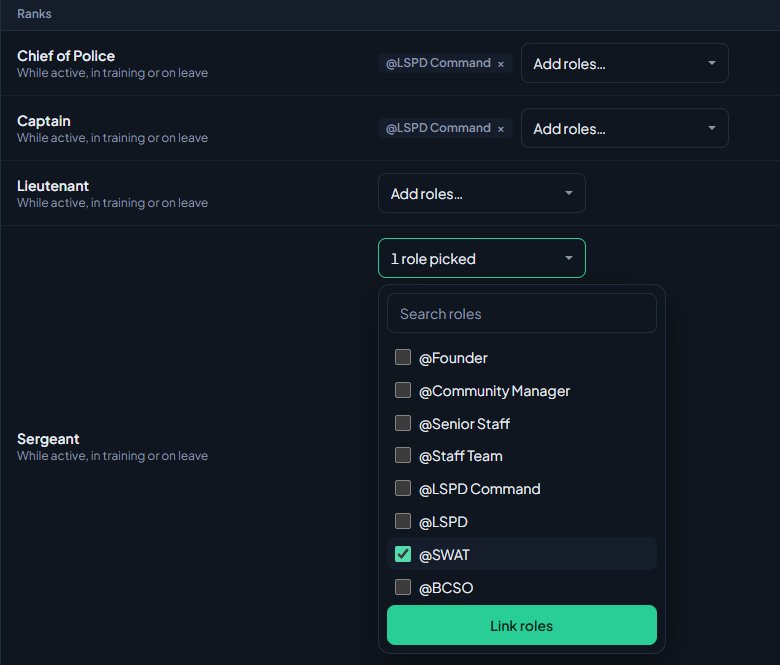
Tick one or more Discord roles. You can type in the search box to find one.
-
Click Link roles.
You'll see a message like @Patrol linked to Officer in LSPD. Everyone who already holds that rank is queued to get the role straight away.
Link a role from a department, rank or division#
You can also link roles while you're editing a department, rank or division.
- Click Departments & ranks in the left sidebar and open a department.
- Click Edit department, or Edit next to a rank or division.
- Scroll down to Discord roles. There's a box for each connected server.
- For a department, pick who gets it from the first dropdown, for example Everyone in LSPD or Suspended.
- Click Add roles…, tick the roles and click Link roles.
At the bottom of that section, All role links takes you to the full Role links page.
Unlink a role#
- Find the role's tag in the row it's linked to, either on the Role links page or in the Discord roles section.
- Click the × on the tag.
You'll see a message like @Patrol unlinked from Officer in LSPD. It is being removed from 12 people.
To unlink several roles at once on the Role links page, click Change roles… in the row. The roles already linked are ticked. Untick the ones you don't want, or click Untick all, then click Save roles. You can tick new roles in the same go.
After you link or unlink a role, the page stays where you were, so you don't have to scroll back down.
The rules LonexOne follows#
- Roles that aren't linked are never touched. Roles you give by hand stay exactly as they are.
- A linked role only comes off someone if LonexOne gave it to them. If someone already had the role before you linked it, or a staff member gave it to them by hand, LonexOne leaves it on them.
- @everyone and roles managed by Discord or another bot can't be linked, so they're not offered.
- Roles at or above the bot's own role can't be given. They show in the picker greyed out with above the bot.
When changes reach Discord#
- Straight away (within a minute or so) when someone joins or leaves a department, is promoted or demoted, changes status, goes on or off duty, gets or loses a certification or community role, or gets discipline.
- Every night, LonexOne checks every member again, in case anything was missed.
- Whenever you like, by clicking Sync everyone now at the top of the Role links page. You'll see Queued a role sync for 40 people. Results appear below as they finish.
The Latest sync box on the Role links page shows how the last sync went for each person. See Fix Discord roles that aren't syncing if anything shows as failed.
Check which roles the bot can give#
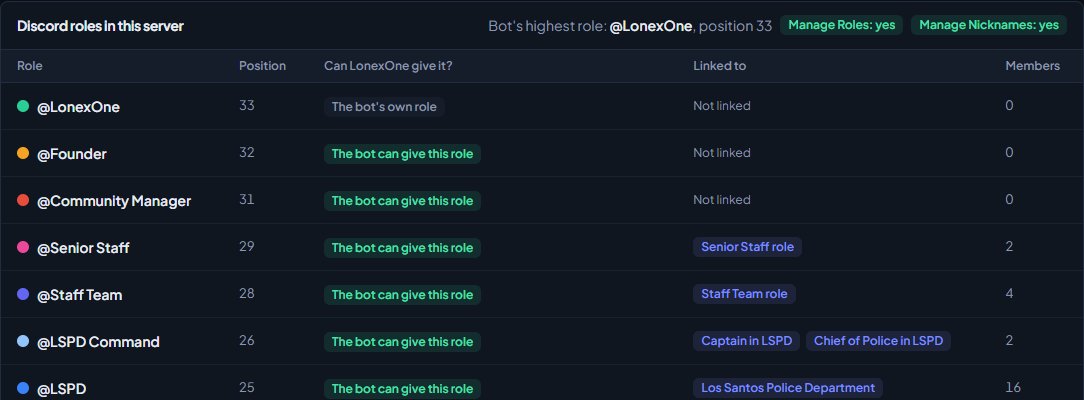
The Role links page lists every role in the server under Discord roles in this server. The Can LonexOne give it? column tells you:
| What it says | What it means |
|---|---|
| The bot can give this role | All good. |
| Above the bot's role | Drag the LonexOne role above it in Discord. |
| Managed by Discord or another bot (can't be given) | Discord won't let any bot hand this out. |
| The bot's own role | The LonexOne role itself. |
If you've just made or moved roles in Discord, click Refresh roles at the top of the page. LonexOne otherwise remembers a server's roles for 5 minutes.
Something not working?#
It says "The bot can't give @Role: At or above the bot's highest role." The role is above the LonexOne role in Discord. Drag the LonexOne role higher in Server Settings, then Roles, click Refresh roles, and link it again.
It says "One of those roles is not in this server. Try refreshing roles." The role was deleted in Discord after the page loaded. Click Refresh roles and try again.
It says "Tick at least one role." You clicked Link roles without ticking a role. Tick one and try again.
I can't see a role in the picker. Roles managed by Discord or another bot, and @everyone, are never listed. In the Discord roles section on a department, rank or division, roles above the bot are left out too. Use the Role links page to see them.
The roles aren't showing up on people. See Fix Discord roles that aren't syncing.
See also
Connect your Discord server
Add the LonexOne bot to your main Discord server, put its role in the right place, and fix the messages you might see while connecting.
Fix Discord roles that aren't syncing
Read the Latest sync results, fix the bot's role and permissions, and sort out members who aren't getting or losing the Discord roles you linked.
Set Discord nicknames from the roster
Have the bot rename members in Discord to match their callsign, name and rank, choose which department wins for people in several, and switch it off again.
Use more than one Discord server
Connect department and division servers alongside your main one, what the main server is used for, and how to switch which server is main.
Can't find what you need?
Open a ticket in our Discord and someone from the team will help. Found a bug, or missing a feature? Tell us on the feedback board.