Post logs to Discord channels
Choose which Discord channel each event goes to, give departments their own channels, filter and colour CAD posts, and send a test message.
LonexOne can post what happens in your community to your Discord channels: people joining departments, promotions, discipline, leave, applications, and, if you use them, CAD calls, Staff Panel bans and training sessions. Each post is an embed with the details and your community's name at the bottom.
You choose a channel for each kind of event. You can send everything to one channel, or give each department its own.
Before you start#
- Connect at least one Discord server. See Connect your Discord server.
- You need to be the owner, or have a role with the Connect Discord servers and link Discord roles permission.
- The bot needs permission to view the channel, send messages and embed links in each channel you pick.
Pick a channel for each event#
-
Click Log channels in the left sidebar. You can also click Log channels on the right of the Discord servers page.
-
Find the event in the Event column.
-
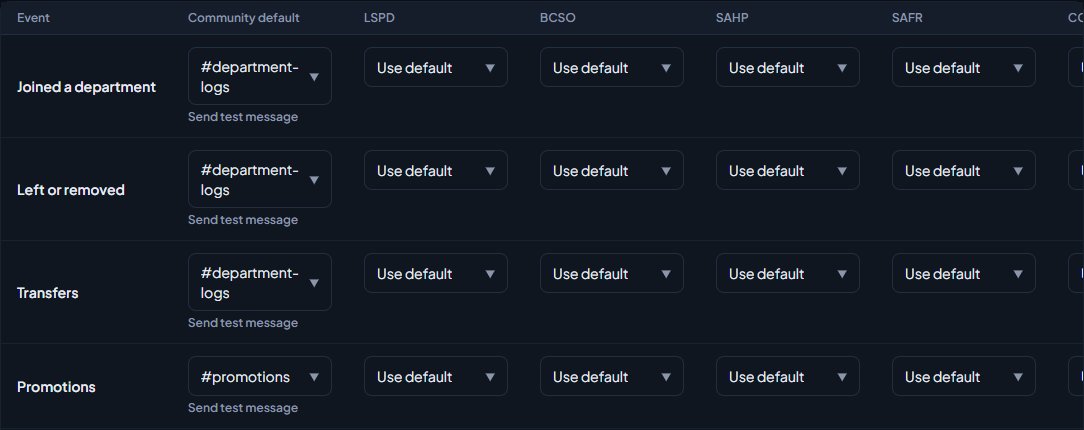
In the Community default column, pick the channel it should go to. Channels are grouped by server.
-
Do the same for every event you want posted.
-
Click Save at the bottom of the page.
You'll see the message Log channels saved. Events you leave on Not posted aren't posted anywhere.
Give a department its own channel#
There's a column for each department next to Community default. A department's channel is used for events in that department. Everything else uses the community default.
- In the row for the event, find the department's column.
- Pick the department's channel. Leave it on Use default to use the community default.
- Click Save.
For example, set Promotions to #promotions in Community default and to #lspd-log in the LSPD column. LSPD promotions go to #lspd-log, and every other department's go to #promotions.
To post nothing for an event, leave both the department and the community default empty.
Shorter channel lists with department servers#
With a lot of Discord servers connected, every list shows every server's channels. To cut that down, give each department server its department: on the Discord servers page, pick the department in Server for under that server and click Save. See Use more than one Discord server.
After that, a department's column lists its own server first, then your main server and any servers for the whole community. Other departments' servers are left out. The Community default column lists only your main server and servers for the whole community.
The events#
| Event | Posted when |
|---|---|
| Joined a department | Someone joins or rejoins a department's roster. |
| Left or removed | Someone leaves or is removed from a department. |
| Transfers | Someone transfers into a department. |
| Promotions | Someone is promoted, with their old and new rank. |
| Demotions | Someone is demoted, with their old and new rank. |
| Discipline | Discipline is issued or revoked. |
| Certifications | A certification is awarded, revoked or about to expire. |
| Leave | A leave request is approved, denied or ended. |
| Letters of interest | A letter of interest is sent, accepted or declined. |
| Applications | An application is sent, accepted or denied, with a link to open it in the panel. |
| Shifts | Every shift that ends, and a warning when a department has had no shifts for a while. |
| Court cases | Court case notices, with the charges and who's on the case. Only shows when the CAD is installed. |
If you have Training, the Staff Panel or the CAD installed, they get their own sections further down the page.
Training#
The Training section has Training sessions, Training results and Requests to join training. Sessions are posted with Attending and Unavailable buttons and kept up to date as people respond. Results are posted when an instructor sends them. Requests are posted when a member asks to join a training programme.
Staff Panel#
The Staff Panel section posts bans, bans waiting for approval, kicks, warnings, commendations, community service, lifted bans and revoked actions, new reports and staff requests, flagged players and possible ban evasion joining, and new appeals.
These go to one channel for the whole community, so there's no department column. Player identifiers, IP addresses and notes are never posted.
CAD#
The CAD section covers new calls, panic buttons, Signal 100, arrests, warrants, BOLOs, reports submitted and returned, units signed off by a supervisor, court verdicts and failed fire inspections. Callers, dates of birth, ID numbers, narratives and medical details are never posted.
It has a few extra settings:
| Setting | What it does |
|---|---|
| Colour | The colour down the side of the embed for that event. |
| Post new calls at | Only post new calls of this priority or more urgent, or Every priority. |
| Only these call types | Tick call types to post only those. Tick none to post every call. Calls made without a type only post when No call type is ticked. 911 calls from the game come in as Ungraded, so tick that to post them. |
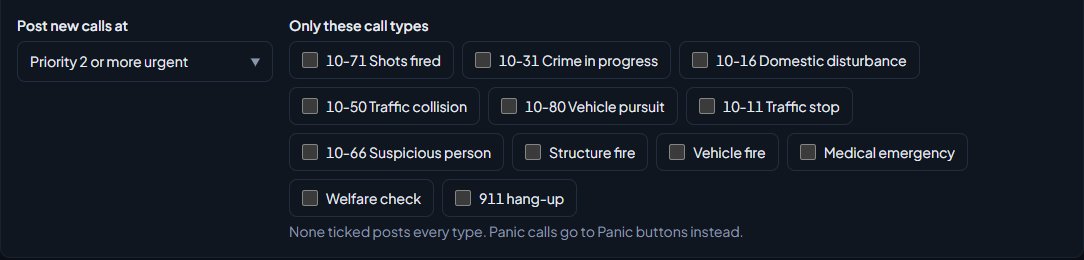
Panic calls aren't posted as new calls. They go to the Panic buttons channel instead.
911 calls and /quickcad calls from the game get the Ungraded call type, unless you picked another type, or none, with Call type for game calls on the Game resource tab. If you've ticked call types, tick Ungraded too to keep posting them.
CAD posts also need Post CAD events to Discord to be ticked under CAD settings, in the Discord section. If it's off, nothing from the CAD is posted, whatever channels you pick, and the CAD section tells you so.
Send a test message#
Once a channel is saved, Send test message appears under it. Click it to post a test embed to that channel. You'll see Test message sent. if it worked.
Other places that post to Discord#
A few features pick their own channel on their own settings page instead of here. For example, each application form can have a Discord channel for new applications, and the status page has Post incidents to Discord.
Something not working?#
My new channel isn't in the list. LonexOne remembers your channels for 5 minutes. Click Refresh channels at the top of the page. Only text and announcement channels are listed.
It says "Could not post the test message. The bot is missing access or permissions." The bot can't see or post in that channel. In Discord, edit the channel's permissions so the LonexOne role can view the channel, send messages and embed links.
It says "Channel 123... isn't a text channel in one of your Discord servers." The channel is in a server that isn't connected to this community, or it isn't a text channel. Pick a channel from one of your connected servers.
There's a box asking for channel IDs instead of a list. LonexOne couldn't get your channels from Discord. Check the message at the top of the page for the reason. You can type a channel ID instead: in Discord, turn on Developer Mode, then right-click a channel and choose Copy Channel ID.
Nothing from the CAD is being posted. Check Post CAD events to Discord is ticked in CAD settings, and that the call's priority and type match your filters.
Posts stopped arriving. If a channel is deleted, or the bot loses permission to post, posts to it are dropped. Pick a new channel and send a test message.
See also
Connect your Discord server
Add the LonexOne bot to your main Discord server, put its role in the right place, and fix the messages you might see while connecting.
Use more than one Discord server
Connect department and division servers alongside your main one, what the main server is used for, and how to switch which server is main.
Link Discord roles to departments and ranks
Give people Discord roles automatically for their department, rank, division, status, certifications and community roles, and take them away when that changes.
Can't find what you need?
Open a ticket in our Discord and someone from the team will help. Found a bug, or missing a feature? Tell us on the feedback board.