Export shift reports
Build a shift report for any department, division, rank and period, read its totals and charts, print it or save it as a PDF, and download the report or every shift as a spreadsheet.
Shift reports pull together everyone's hours for a period, so you can run an activity review, check quotas before a promotion round or keep a record for your command team. You can read the report in the control panel, print it, or download it as a CSV file to open in Excel, Google Sheets or Numbers.
Before you start#
- The Department Panel module needs to be installed.
- You need View shifts, hours and activity or Edit shifts and set activity rules. Reports only include the departments where you have one of them.
Open a report#
- In the left sidebar, under Department Panel, click Shifts & activity.
- Click the Reports tab.
- Choose what to include:
- Department: one department, or all the ones you can see.
- Division and Rank: shown once you've picked a department, to narrow it down further.
- Period: This week, Last 7 days, This month or Custom. For Custom, pick the from and to dates and click Show. A custom period can be up to a year.
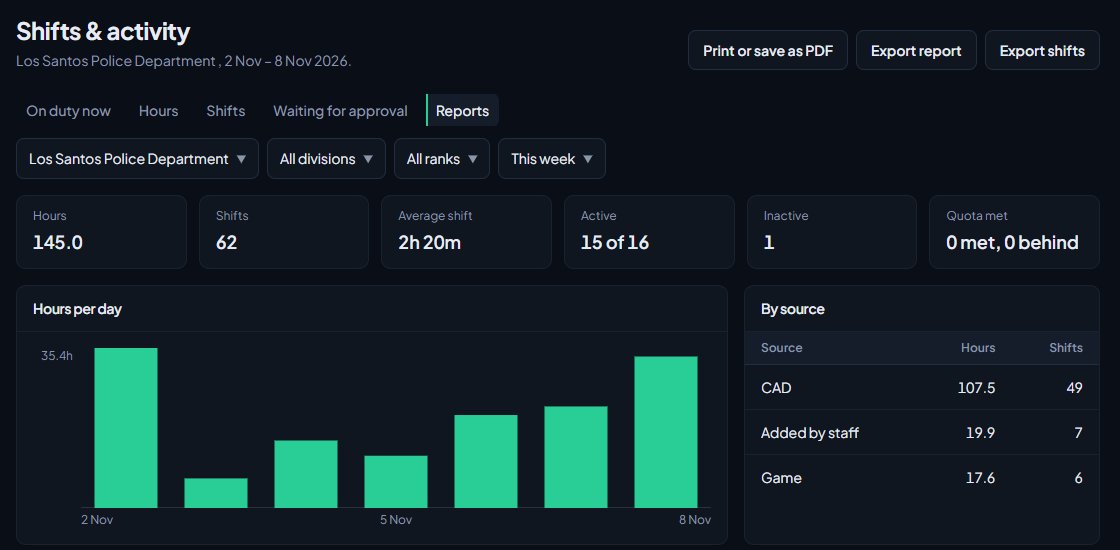
Under the page heading you'll see what the report covers: the department (or All departments), any division and rank, and the dates. Weeks run Monday to Sunday.
What the report shows#
Along the top:
| Total | What it counts |
|---|---|
| Hours | Total hours on duty in the period. |
| Shifts | How many shifts were worked. |
| Average shift | The average shift length. |
| Active | How many people did at least one shift, out of everyone in the report. |
| Inactive | How many did none. |
| Quota met | How many met their rank's quota, and how many are behind. |
Below that, Hours per day charts the hours across the period, and By source splits hours and shifts by where they came from: the CAD, the web clock, Discord voice, staff duty or shifts added by staff.
The main table lists everyone with their hours, number of shifts, average shift and quota status, most hours first.
Who's included:
- Members who are Active, In training or on Leave of absence in the department. Suspended, inactive and former members aren't listed.
- Only the part of each shift inside the period counts. A shift that starts on Sunday night and ends on Monday morning is split between the two weeks.
- Paused time on the web clock doesn't count.
- Shifts members logged from the website only count once they've been approved.
Print or save as PDF#
- Set up the report the way you want it.
- Click Print or save as PDF. A print-friendly copy opens in a new tab.
- Click Print or save as PDF on that page, then choose your printer, or Save as PDF in your browser's print window.
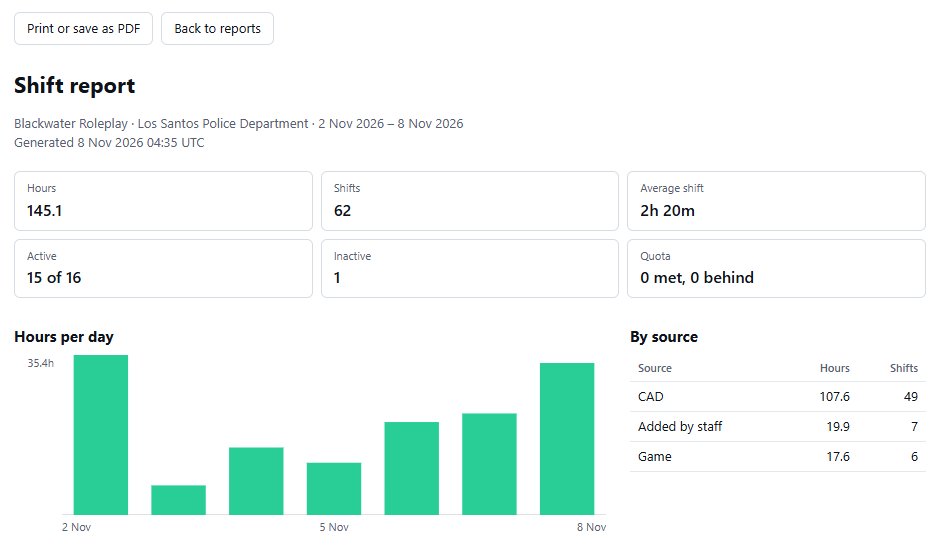
Click Back to reports to return.
Download as a spreadsheet#
There are two downloads. Both use the filters you've set, and the file name includes the department and dates, for example shift-report-lspd-2026-11-03-2026-11-09.csv.
Export report gives one row per person:
| Column | Contents |
|---|---|
| Rank | Their place in the report, by hours. |
| Person | Their roleplay name, or display name if they don't have one. |
| Discord | Their username. |
| Callsign | Their callsign in the department. |
| Department and Department rank | Where they are and their rank. |
| Hours, Shifts, Average shift (hours) | Their totals for the period. |
| Quota (hours) and Quota status | Their quota for the period and whether they met it. |
Export shifts gives one row per shift, with the person, Discord username, callsign, department, start and end, source, minutes paused, the full length of the shift, and the hours that fell inside the period. Shifts still running show On duty as their end. Start and end times are in UTC.
Use Export shifts when you want to check someone's hours shift by shift, or build your own charts. Use Export report for a quick activity review.
Something not working?#
Someone isn't on the report. Check their status. Only active, in training and on leave members are included. Also check the division and rank filters.
The hours don't match what a member sees. Members see this week's hours on their Shifts page. Make sure the report covers the same period. Logged shifts that haven't been approved yet don't count anywhere.
The times in the shifts export look wrong. They're in UTC, not your local time.
See also
Track shifts and hours
Where shifts come from, how to see who's on duty and everyone's hours against their quota, clock someone out, add or fix a shift by hand, and approve shifts members log themselves.
Set activity rules and catch inactive members
Choose whether hours can be added by hand, cap how long a shift can run, set weekly hour quotas for each rank, and flag or set inactive anyone who goes too long without a shift.
See who's ready for promotion
Use the Promotions page to find everyone who meets the requirements for their next rank, and everyone one requirement away, then promote them from the list.
Can't find what you need?
Open a ticket in our Discord and someone from the team will help. Found a bug, or missing a feature? Tell us on the feedback board.