Promote, demote or transfer a member
Move someone up or down one rank from the roster, jump them straight to any rank, promote anyway when they miss a requirement, and transfer them to another department.
Rank changes happen all the time in a roleplay community, so LonexOne lets you do them straight from the roster. When you promote or demote someone, their callsign, Discord roles and nickname follow along, and the change is recorded in their history.
This article covers one-step promotions and demotions, changing to any rank, what happens when someone doesn't meet a rank's requirements, and moving someone to another department.
Before you start#
- You need the Add members, change ranks, callsigns and status permission.
- If that permission is limited to one department (given by a rank, or a role tied to a department), you can only manage people ranked below you there, and you can only give ranks below your own. A sergeant can't promote someone to sergeant or demote a captain.
- Only people with the permission across the whole community can promote someone who doesn't meet the new rank's requirements.
Promote or demote by one rank#
-
Click Roster in the left sidebar.
-
Pick the department's tab.
-
Find the person and click Promote or Demote at the end of their row.
-
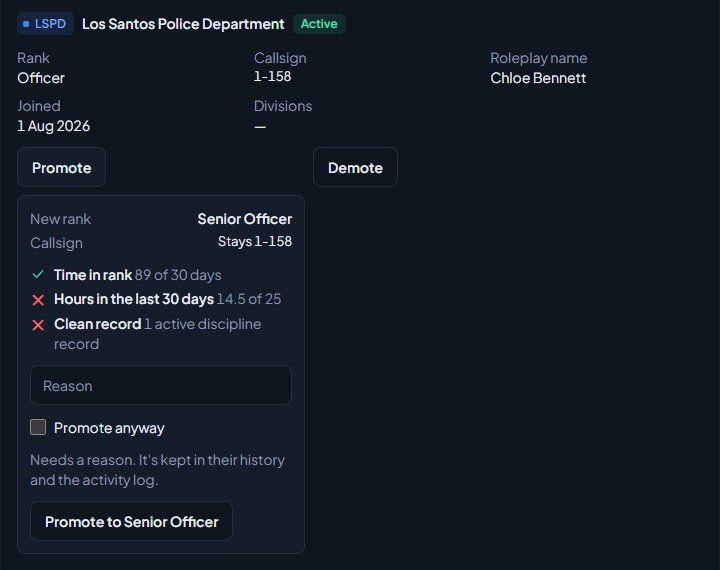
A small panel opens showing the New rank and what happens to their Callsign. If the new rank has promotion requirements, you'll see each one with a tick or a cross.
-
Optionally type a reason. It's kept in their history.
-
Click Promote to or Demote to followed by the rank name.
You'll see a message like Promoted Sam to Sergeant. New callsign 1-S-03. Discord roles and nickname are updating.
The same Promote and Demote buttons are on each department card on the person's profile, under People.
If a button is greyed out, hover over it to see why, for example Already at the top rank. or Already at the bottom rank.
What happens to their callsign#
| Department setting | On a rank change |
|---|---|
| Callsigns follow rank is on | If their callsign still fits the new rank's format and number range, they keep it. If not, they move to the next free callsign for the new rank. |
| Callsigns follow rank is off | Their callsign stays the same. Change it by hand under Manage if you need to. |
The panel shows this before you confirm, for example 1A-12 → 1-S-03, Keeps 1A-12 or Stays 1A-12.
Change to any rank#
Use this to skip ranks, or to put someone back where they were.
- Open People and click the person's name.
- Under Departments, find the department and click Manage.
- Pick the new rank under Rank.
- Optionally type a reason.
- Click Change rank.
When the new rank is higher than their current one, the new rank's requirements are checked. Only that rank's requirements count, not the ranks in between.
When they don't meet the requirements#
Ranks can have promotion requirements: days in the rank below, hours on duty, certifications, a clean discipline record and an open position. You set these on each rank, see Set up ranks and their order.
If someone misses one, the promotion is blocked with a message listing what's missing, like Not ready for Sergeant. Hours in the last 30 days: 4 of 10.
If you manage every department, you can still promote them:
- Open the Promote panel, or Manage on their profile.
- Type a reason. It's required.
- Tick Promote anyway (on the profile it reads Promote anyway if requirements aren't met (give a reason)).
- Click the promote or Change rank button.
The reason and the requirements they missed are saved in their history and the activity log, for example Covering for Sgt Lee (promoted anyway, missing: hours in the last 30 days).
People with department-level access don't get the Promote anyway option. They see They don't meet every requirement for Sergeant yet. instead.
Transfer to another department#
A transfer takes someone out of one department and puts them into another in one step.
-
Open their profile and click Manage under the department they're leaving.
-
Click Transfer to another department.
-
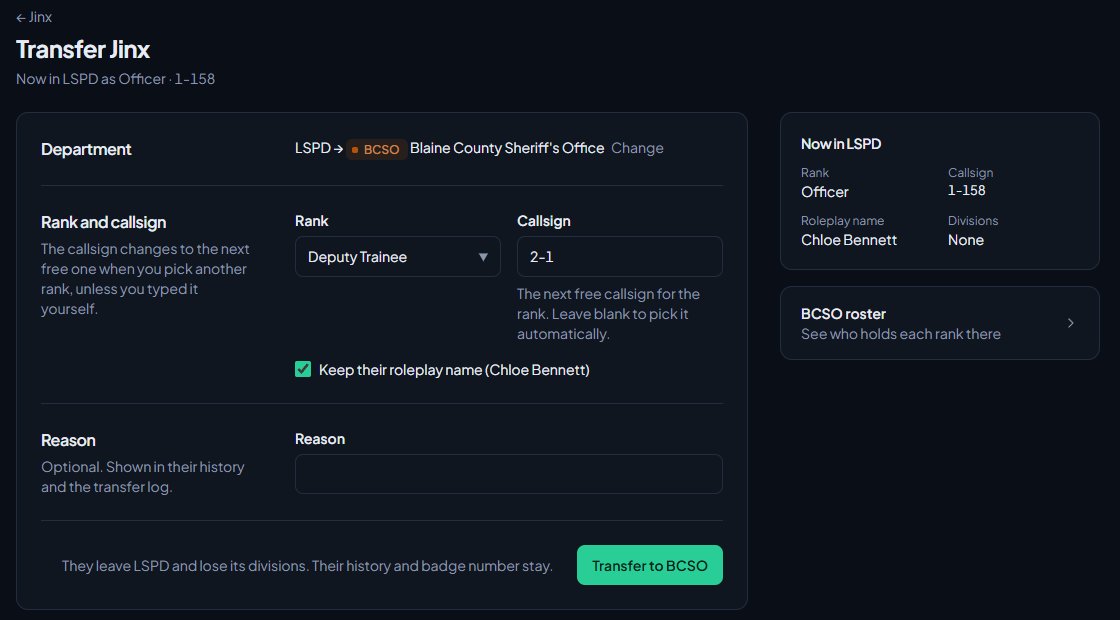
Under Move to, pick the department and click Continue.
-
Choose their Rank in the new department. The lowest rank is picked for you.
-
Check the Callsign. It shows the next free callsign for the rank you picked and changes when you pick another rank, unless you've typed your own. Leave it blank to pick one automatically.
-
Leave Keep their roleplay name ticked to bring their roleplay name across, or untick it.
-
Optionally add a Reason. It shows in their history.
-
Click Transfer to followed by the new department's short name.
After a transfer:
- They're marked as Left in the old department and lose its callsign and divisions.
- They start in the new department as Active, with no divisions.
- Their history and badge number stay.
- Discord roles and nickname update, and they're told about the move if they get Transfers notifications.
To transfer someone you need the permission in both departments: where they are now, and where they're going.
Who gets told#
Members are notified when they're promoted or transferred, on the site, by email or by Discord DM, depending on what they've chosen. Your reason is included in the message, so keep it suitable for them to read. Demotions don't send a notification. If you post logs to Discord, promotions, demotions and transfers can go to their own channels, see Post logs to Discord channels.
Something not working?#
"You can only give ranks below your own, so you can't make them Sergeant." Your access is limited to this department and the next rank is at or above yours. Ask someone with community-wide access.
"Only people who manage every department can promote anyway." You ticked Promote anyway, but your permission only covers this department.
"Say why you are promoting them anyway." Type a reason before promoting someone who misses a requirement.
"There's no other department you can move them to." They're already in every department you manage, or you don't manage any other department.
"They're already in LSPD." They're in the department you're moving them to. Remove them from one of the two instead.
The Promote button isn't on the roster. You don't have the permission over that person. You'll only see buttons for people ranked below you, unless your access is community-wide.
See also
See who's ready for promotion
Use the Promotions page to find everyone who meets the requirements for their next rank, and everyone one requirement away, then promote them from the list.
Add someone to the roster and set their callsign
Put a member into a department at a rank, give them a callsign and roleplay name, change those details later, and remove them from the department.
Set up ranks and their order
Add a department's ranks, put them in order from highest to lowest, give each rank its own callsigns, promotion requirements and permissions, and choose how it shows on the public roster.
Change a member's status
What Active, In training, Leave of absence, Suspended and Inactive each mean, how to change someone's status, and which statuses LonexOne changes for you.
Link Discord roles to departments and ranks
Give people Discord roles automatically for their department, rank, division, status, certifications and community roles, and take them away when that changes.
Can't find what you need?
Open a ticket in our Discord and someone from the team will help. Found a bug, or missing a feature? Tell us on the feedback board.