Add someone to the roster and set their callsign
Put a member into a department at a rank, give them a callsign and roleplay name, change those details later, and remove them from the department.
The roster is the list of everyone in each of your departments, grouped by rank. Being on a department's roster is what lets someone go on duty in the CAD, clock in, request leave and get the department's Discord roles, so it's usually the first thing you do when someone joins.
This article covers adding one person at a time, setting their callsign and roleplay name, and taking them off the roster again. To add lots of people at once, see Import members from a spreadsheet.
Before you start#
- You need a role or rank with the Add members, change ranks, callsigns and status permission. If it's limited to one department, you can only add people to that department, and you can only give ranks below your own.
- The person has to be a member of your community already. People become members the first time they sign in on your community website.
- The department should have its ranks set up. See Set up ranks and their order.
Open the roster#
-
Open your control panel at lonexone.com/panel and pick your community.
-
Click Roster in the left sidebar.
-
Click the department's tab along the top. The number on each tab is how many people are in it.
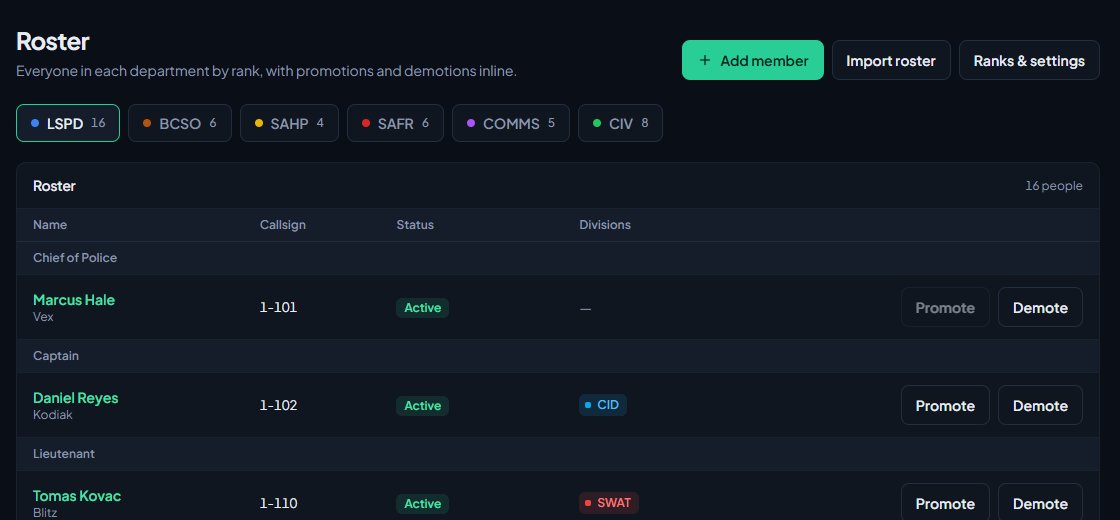
If your community doesn't have the Department Panel module installed, you'll find the same roster by clicking Departments & ranks and then the department.
Add someone to a department#
-
On the roster, with the right department's tab selected, click Add member.
-
Under Person, type part of their name, username or Discord ID in the search box and click Search. You'll see up to 25 people who aren't in the department yet.
-
Pick the person.
-
Choose their Rank. The lowest rank is picked for you.
-
Check the Callsign. What you see here depends on the department's settings (see below). You can type your own.
-
Optionally fill in Roleplay name, the name they use in this department. It can be up to 32 characters.
-
Click Add to followed by the department's short name.
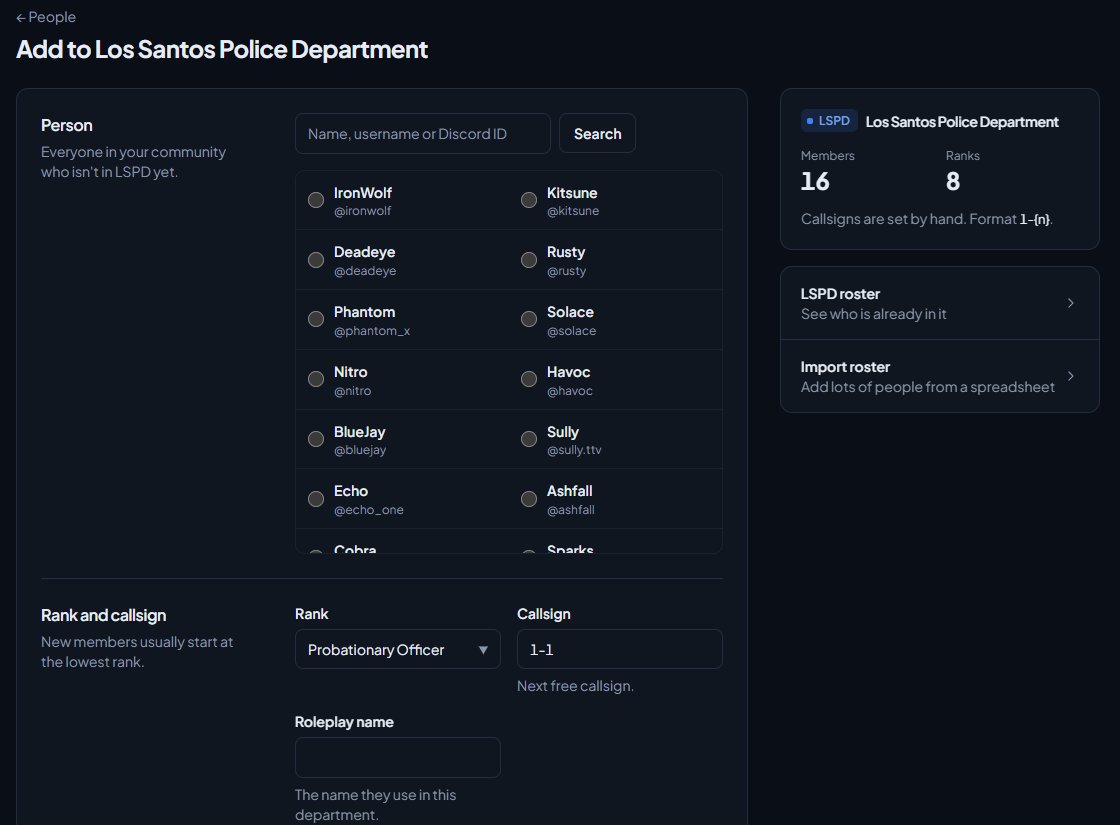
You're taken to their profile, where you'll see a message like Added Sam to LSPD. Their Discord roles and nickname update on their own.
You can also start from someone's profile. Open People, click their name, then pick a department under Departments at the bottom of the card and click Add to department.
How callsigns are filled in#
Each department has a callsign format, like 1-{n}, set when you create the department. Ranks can have their own format and number range, like 1-S-{n} from 1 to 20 for sergeants. Writing {nn} or {nnn} pads the number with zeros, so 1-S-{nn} gives 1-S-05.
| Department setting | What happens when you add someone |
|---|---|
| Callsigns follow rank is on | The callsign box is empty. Leave it blank and they get the next free callsign for their rank. Type one to use that instead. |
| Callsigns follow rank is off | The box is filled with the next free callsign in the department's format, if it has one. Change it or clear it as you like. |
Two people in the same department can't share a callsign. The same callsign can be used in different departments.
Change a callsign or roleplay name#
-
Open People and click the person's name.
-
Under Departments, find the department and click Manage.
-
Change Callsign or Roleplay name.
-
Click Save details.
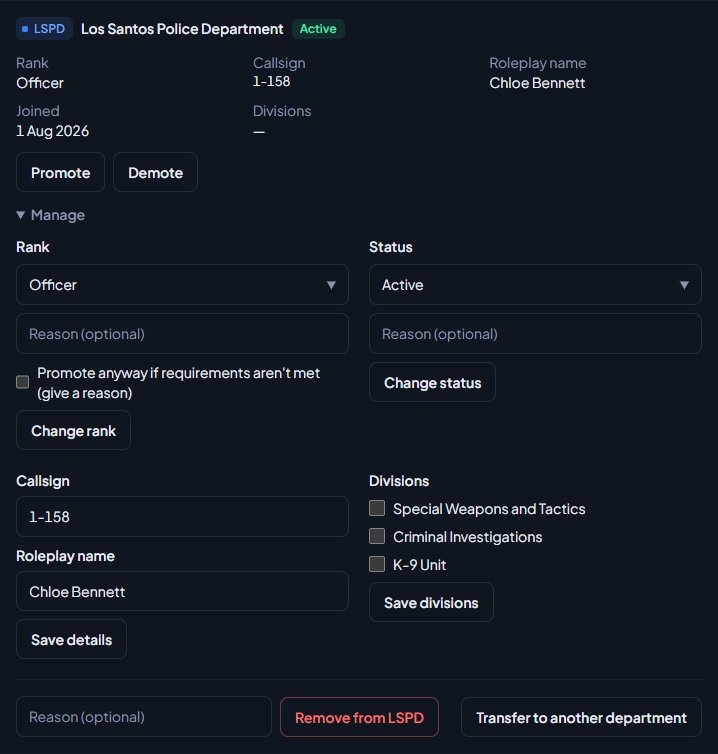
The change shows in their History on the same page, and in the activity log. If your Discord servers set nicknames from the roster, the nickname updates too.
Divisions#
If the department has divisions, like K9 or Traffic, you'll see a Divisions box under Manage on their profile. Tick the divisions they belong to and click Save divisions. See Add divisions like K9 or Traffic.
Remove someone from a department#
- Open their profile and click Manage under the department.
- At the bottom, type a reason if you want one. It's kept in their history.
- Click Remove from followed by the department's short name.
- Confirm when asked.
When someone is removed:
- Their status becomes Left and their callsign is freed for someone else.
- They lose the department's divisions, Discord roles and any fleet vehicles or uniforms assigned to them.
- Their history is kept. If you add them back later, you'll see Welcomed back instead of Added, and their old history is still there.
To move someone to another department in one go instead, see Promote, demote or transfer a member.
Something not working?#
"They're already in LSPD." That person is on the department's roster already. Find them on the roster and change their rank or details instead.
"Bob already uses 1A-12 in LSPD." Someone else in the department has that callsign. Pick another, or leave the box blank when callsigns follow rank and the next free one is picked.
"You can only give ranks below your own." Your permission is limited to this department, so you can only hand out ranks lower than the one you hold there. Ask someone with community-wide access to add them at a higher rank.
"Choose a rank." The department has ranks, so everyone on its roster needs one. Pick a rank from the list.
A message about department limits, like "Sam is already in 1 law enforcement department (LSPD). The limit is 1." Your community limits how many departments one person can be in. You can change the limits under Membership limits on the Departments & ranks page, or remove them from their other department first.
I can't find the person in the search. They need to have signed in on your community website at least once. If they've already joined the department, they won't show either.
See also
Promote, demote or transfer a member
Move someone up or down one rank from the roster, jump them straight to any rank, promote anyway when they miss a requirement, and transfer them to another department.
Change a member's status
What Active, In training, Leave of absence, Suspended and Inactive each mean, how to change someone's status, and which statuses LonexOne changes for you.
Set up ranks and their order
Add a department's ranks, put them in order from highest to lowest, give each rank its own callsigns, promotion requirements and permissions, and choose how it shows on the public roster.
Import members from a spreadsheet
Bring a department's roster into LonexOne from a CSV file or a Google Sheet, match the columns, check the preview, and fix the rows that get skipped.
Set Discord nicknames from the roster
Have the bot rename members in Discord to match their callsign, name and rank, choose which department wins for people in several, and switch it off again.
Create a department
Set up a police, fire, EMS, dispatch or civilian department with its name, type, colour, callsigns and Discord nickname, choose who can see its roster, set membership limits, and delete a department.
Can't find what you need?
Open a ticket in our Discord and someone from the team will help. Found a bug, or missing a feature? Tell us on the feedback board.