Import members from a spreadsheet
Bring a department's roster into LonexOne from a CSV file or a Google Sheet, match the columns, check the preview, and fix the rows that get skipped.
If you already keep your roster in a spreadsheet, FiveRoster or anything else that exports to CSV, you can bring the whole thing into a department in one go instead of adding people one by one. You can import ranks, callsigns, badge numbers, roleplay names, statuses, join dates, divisions and your own custom fields.
Nothing is saved until you've checked a preview of exactly what will happen to each row. You can also run the same import again later to update people who are already in the department.
Before you start#
You need a role or rank with the Add members, change ranks, callsigns and status permission for the department you're importing into. Owners and administrators have it already.
You also need:
- The department, created under Departments & ranks. See Create a department.
- A Discord ID for everyone you import. It's the only column that's required. To copy a Discord ID, turn on Developer Mode in Discord's advanced settings, then right-click the person and choose Copy User ID.
If your ranks use different names in your spreadsheet, it's easiest to create them first. See Set up ranks and their order.
Step 1: Upload your roster#
-
Click People in the left sidebar, or open the department under Departments & ranks.
-
Click Import roster.
-
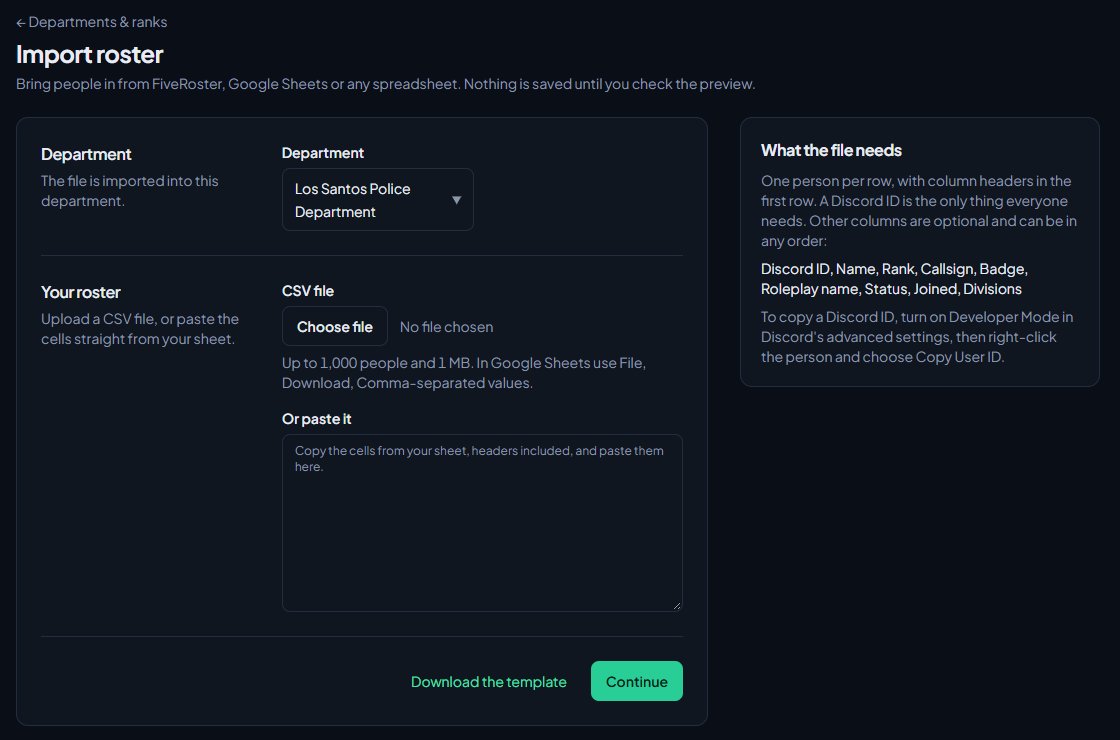
Check the Department box shows the right department.
-
Under CSV file, choose your file. Or copy the cells from your sheet, including the header row, and paste them into Or paste it.
-
Click Continue.
The first row has to be the column headers, with one person per row below it. Files can be .csv, .tsv or .txt, up to 1 MB and 1,000 people. In Google Sheets, use File, Download, Comma-separated values.
Not sure how to lay out your file? Click Download the template on the upload page for a CSV with every column and one example row.
Step 2: Match the columns#
The Match columns page lists each field LonexOne can fill, and which column in your file it will read from. It guesses from your headers, so a column called "Call Sign" or "Badge #" is usually matched already.
- Check each field. Pick the right column from its box, or Don't import to leave it out. First row shows what that column holds in the first person's row, so you can check you picked the right one.
- Make sure Discord ID is matched. It's required.
- Click Preview import.
Your department's custom fields are listed here too, after the standard ones.
Step 3: Check the preview#
The Preview import page shows every row with what will happen to it: Add, Update or Skip, and the reason or any notes.
There are two options at the top:
| Option | What it does |
|---|---|
| Create missing ranks and divisions | Ranks and divisions in your file that the department doesn't have are created. New ranks go at the bottom of the ladder in the order they first appear in the file. |
| Update people already in the department | People already in the department get their rank, callsign, roleplay name, status, badge, divisions and custom fields set from the file. Their joined date stays as it is. Without it, they're skipped. |
- Tick the options you want.
- Click Update preview to see the effect.
- Read through the notes. A note in a row means part of that row will be left out, for example a callsign someone else already uses.
- When you're happy, click Import followed by the number of people.
Step 4: Check the results#
The Import finished page lists everyone under Failed, Added, Updated and Skipped, with the row number from your file and the reason. Click View and the department's short name to see the roster, or Import another file to go again.
People who haven't signed in to LonexOne yet are added by their Discord ID. Their Discord name and picture fill in shortly after, and their Discord roles sync like everyone else's.
How each column is read#
| Column | How it's read |
|---|---|
| Discord ID | 17 to 20 digits. Discord mentions like <@123456789012345678> work too. |
| Name | Shown in the preview and results. Used as the person's name until their Discord name fills in. |
| Rank | Matched to a rank's name or abbreviation, in any case. If it's blank, new people get the lowest rank you can give. |
| Callsign | Tidied to fit the rank's or department's callsign format, so "ls 300" becomes LS-300 for a format of LS-{n}. Up to 32 characters. |
| Badge | Saved as typed, up to 32 characters. |
| Roleplay name | Cut to 32 characters if it's longer. |
| Status | Active, In training (or Training, Trainee, Probation), Leave of absence (or LOA, Leave, On leave), Suspended or Inactive. Blank means Active for new people. |
| Joined | Most date formats. When it could be either, the day comes first, so 03/04/2025 is 3 April. Only used for new people. |
| Divisions | Matched by name or abbreviation. Separate more than one with commas, semicolons or a vertical bar. |
| Custom fields | Read to fit the field's type. A choice has to match one of the field's choices. |
Rules and limits#
- Up to 1,000 people and 1 MB per import. Split bigger rosters into several files.
- Each column can only fill one field.
- Callsigns and badge numbers someone else already has are left out of that row, not the whole row.
- If your permission is limited to the department, you can only give ranks below your own, and people at or above your rank are skipped.
- Your community's membership limits apply. Someone who would go over a limit is skipped.
- An import stays open for 2 hours, and only the person who started it can carry on with it.
Something not working?#
It says "Choose a file or paste your roster." You clicked Continue without a file or any pasted text. Add one and try again.
It says "Nothing to import." Only one row was found, or none. Make sure the first row is your headers and there's at least one person below it.
It says "Upload a .csv file, or paste from your spreadsheet." The file isn't a .csv, .tsv or .txt. Save it as CSV from your spreadsheet first, or copy and paste the cells instead.
It says "Choose the column with Discord IDs." Discord ID has to be matched to a column on the Match columns page.
It says "Each column can only fill one field." Two fields are reading from the same column. Change one of them to Don't import or the right column.
Rows are skipped with "No rank called" a rank name. The rank in your file doesn't exist in the department. Tick Create missing ranks and divisions, rename it in your file, or create the rank first.
Rows are skipped with "Already in" the department. They're already on the roster. Tick Update people already in the department to update them from the file.
Rows are skipped with "isn't a Discord ID". That cell has something other than a Discord ID in it, like a username. Discord IDs are long numbers.
Rows are skipped with "Their rank is the same as or above yours." or "You can only give ranks below your own". Your permission is limited to this department, so you can't change people at or above your rank. Ask someone with community-wide access to run the import.
The import page says "Page not found". The import was started more than 2 hours ago, or by someone else. Start again from Import roster.
See also
Create a department
Set up a police, fire, EMS, dispatch or civilian department with its name, type, colour, callsigns and Discord nickname, choose who can see its roster, set membership limits, and delete a department.
Set up ranks and their order
Add a department's ranks, put them in order from highest to lowest, give each rank its own callsigns, promotion requirements and permissions, and choose how it shows on the public roster.
Add your own fields to a department
Keep extra details for each member of a department, like a specialty or an FTO date, choose whether they show on the roster and whether members can fill them in, and fill them in on profiles.
Add someone to the roster and set their callsign
Put a member into a department at a rank, give them a callsign and roleplay name, change those details later, and remove them from the department.
Can't find what you need?
Open a ticket in our Discord and someone from the team will help. Found a bug, or missing a feature? Tell us on the feedback board.