Create a department
Set up a police, fire, EMS, dispatch or civilian department with its name, type, colour, callsigns and Discord nickname, choose who can see its roster, set membership limits, and delete a department.
Departments are the groups your members belong to, like your police department, fire department or dispatch centre. Each one has its own ranks, divisions and roster, and every module uses them: the CAD, applications, training, documents and Discord role sync all work from the same departments.
Setting up your departments is usually the first thing to do after claiming your community. This article covers creating one, the settings it has, membership limits, and deleting a department.
Before you start#
To create or delete a department, you need a role with the Create and delete departments permission. To change a department's settings and add its ranks afterwards, you also need Edit departments, ranks, divisions and certifications. Owners and administrators have both.
Create a department#
-
Open your control panel and click Departments & ranks in the left sidebar.
-
Click New department.
-
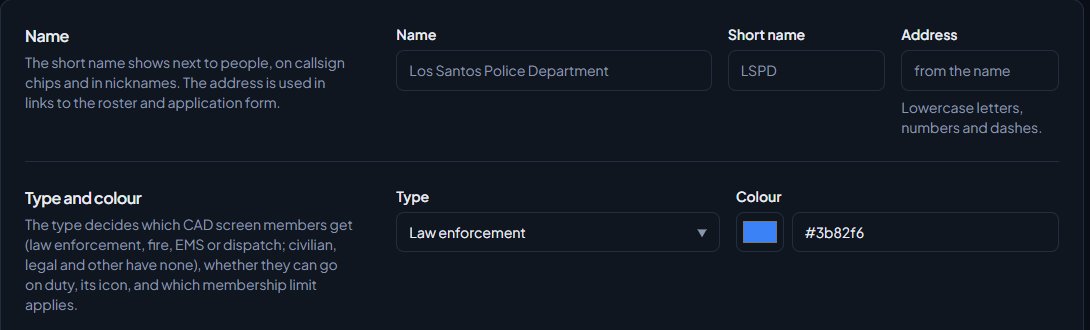
Under Name, fill in:
- Name: the full name, like Los Santos Police Department. Up to 80 characters.
- Short name: like LSPD. Up to 16 characters. It shows next to people, on callsign chips and in Discord nicknames.
- Address: used in links to the department's roster and application form. Leave it blank to make one from the name.
-
Pick a Type. See the table below.
-
Pick a Colour, or type a hex colour like #3b82f6.
-
Optional: fill in the Callsign format, like 1-{n}.
-
Leave Callsigns follow rank ticked if you want callsigns to change automatically on promotion.
-
Optional: fill in the Discord nickname format.
-
Optional: add a Description. It's shown at the top of the department page.
-
Click Create department.
You'll see Created followed by the department name and Add its ranks next. The department's page opens, ready for you to add ranks. See Set up ranks and their order.
Department types#
The type decides which CAD screen members get, whether they can go on duty, the department's icon, and which membership limit it counts against.
| Type | CAD screen | Counts against |
|---|---|---|
| Law enforcement | Law Enforcement | Law enforcement |
| Fire | Fire | Fire & EMS |
| EMS | EMS | Fire & EMS |
| Dispatch | Dispatch | Dispatch |
| Civilian | None | Civilian |
| Legal / DOJ | None | Legal |
| Other | None | Other |
Callsigns#
The Callsign format is how new callsigns are suggested. {n} becomes the next free number, so 1-{n} suggests 1-14 after 1-13. Use {nn} to pad the number to two digits, like 1-05. Each rank can also have its own format.
With Callsigns follow rank ticked, people move to the next free callsign in their new rank's format when they're promoted or demoted, and new members get one automatically.
Discord nickname#
The Discord nickname format is what members of this department are called in your Discord servers. You can use {callsign}, {name}, {rank}, {rank_short}, {badge} and {department}, like {callsign} | {name}. An example updates under the box as you type.
Nicknames only change on servers with nicknames turned on. See Set nicknames from the roster.
Settings you can change after creating it#
Open the department and click Edit department for the same settings as above, plus:
- Public roster: who can see a list of everyone in the department on your community website. Pick Off, This department only, Anyone signed in or Everyone, and tick the Columns to show. Once it's set to Everyone and saved, you'll get a code under Embed on another site to put the roster on another website.
- Custom fields: extra details kept for each member. See Add your own fields to a department.
- Discord roles: roles given to people while they're in the department. See Link Discord roles to departments and ranks.
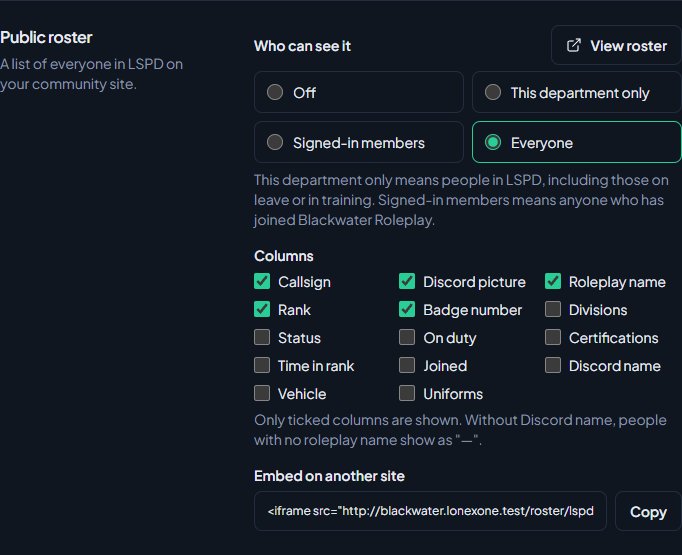
Click Save changes when you're done. You'll see Department saved.
Change the order of departments#
Departments are listed in the order you create them. To change it, click Departments & ranks in the left sidebar and use the ↑ and ↓ buttons on a department's card. You need Create and delete departments to see them.
Set membership limits#
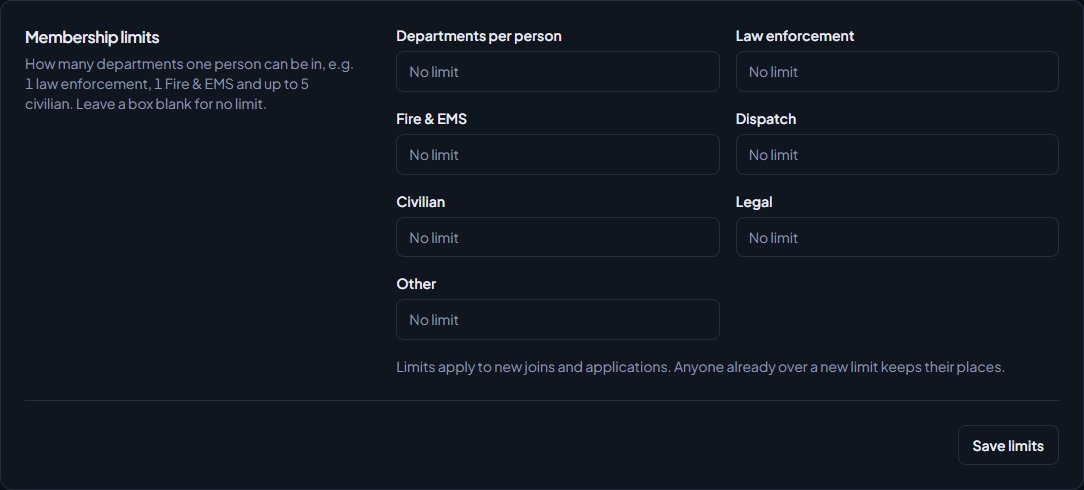
Membership limits stop people joining too many departments, like one law enforcement department and one Fire & EMS department each.
-
Click Departments & ranks in the left sidebar.
-
Scroll to Membership limits at the bottom.
-
Fill in Departments per person and any of Law enforcement, Fire & EMS, Dispatch, Civilian, Legal and Other. Leave a box blank for no limit. A 0 means nobody can join that kind of department.
-
Click Save limits.
You'll see Membership limits saved. Limits apply to new joins and applications. Anyone already over a new limit keeps their places.
Delete a department#
- Open the department and click Edit department. If you can create and delete departments but not edit them, there's no Edit department button: the Delete department section is at the bottom of the department page instead.
- Scroll to Delete department at the bottom.
- If people are still in it, tick the box that starts Also remove its, followed by the number of members. Suspended and inactive members count too. It also takes away their department Discord roles.
- Click Delete department and confirm.
Deleting a department removes its ranks, divisions and roster, and takes away any Discord roles linked to them. This can't be undone.
Something not working?#
I can't see New department. Your role doesn't have Create and delete departments. Ask your community owner to add it.
I created a department but can't add ranks or see Edit department. Adding ranks and changing settings needs Edit departments, ranks, divisions and certifications as well. Ask your community owner to add it to your role.
It says "Another department already uses that address." Each department needs its own address. Type a different one in Address, like lspd-2.
It says "Include {n} where the number goes, like 1-{n}." The callsign format needs {n} somewhere in it, so LonexOne knows where the number goes. Leave the box empty if you don't want suggested callsigns.
It says something "is not a placeholder". The Discord nickname uses a placeholder that doesn't exist. Use only {callsign}, {name}, {rank}, {rank_short}, {badge} and {department}.
It says the department "still has" members. The message reads like LSPD still has 3 members. Tick the box to remove them as well. Tick the box that starts Also remove its and click Delete department again.
See also
Set up ranks and their order
Add a department's ranks, put them in order from highest to lowest, give each rank its own callsigns, promotion requirements and permissions, and choose how it shows on the public roster.
Add divisions like K9 or Traffic
Create divisions inside a department, put people in them from their profile, choose division leads and what they can do, and see where divisions show up, from the roster and the CAD to Discord roles and fleet vehicles.
Add your own fields to a department
Keep extra details for each member of a department, like a specialty or an FTO date, choose whether they show on the roster and whether members can fill them in, and fill them in on profiles.
Import members from a spreadsheet
Bring a department's roster into LonexOne from a CSV file or a Google Sheet, match the columns, check the preview, and fix the rows that get skipped.
Can't find what you need?
Open a ticket in our Discord and someone from the team will help. Found a bug, or missing a feature? Tell us on the feedback board.