Add divisions like K9 or Traffic
Create divisions inside a department, put people in them from their profile, choose division leads and what they can do, and see where divisions show up, from the roster and the CAD to Discord roles and fleet vehicles.
Divisions are groups inside a department, like SWAT, K9, Traffic or Air. Someone keeps their rank in the department and can be in as many of its divisions as you like. Divisions are useful for showing who does what on the roster, giving division members their own Discord roles, and letting units sign on in the CAD as part of a division.
Before you start#
To create, edit and delete divisions, you need a role or rank with the Edit departments, ranks, divisions and certifications permission. Owners and administrators have it already. This permission can be limited to one department.
To put people in a division, you need Add members, change ranks, callsigns and status for that department.
Add a division#
-
Click Departments & ranks in the left sidebar and open the department.
-
In the Divisions box, type the division's Name, like Special Weapons and Tactics. Up to 60 characters.
-
Optional: type an Abbreviation, like SWAT. Up to 16 characters.
-
Optional: pick a Colour. It starts as the department's colour.
-
Click Add division.
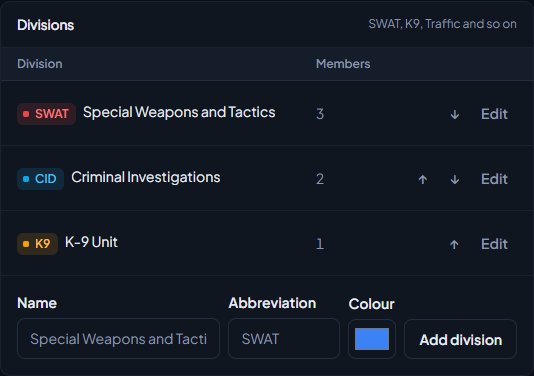
You'll see Added followed by the division name. The abbreviation and colour make up the chip shown next to people in the division. If there's no abbreviation, the full name is used.
Change the order#
Use the up and down arrows next to a division in the Divisions box. This is the order divisions are listed in.
Edit a division#
- In the Divisions box, click Edit next to the division.
- Change the Name, Abbreviation or Colour.
- Click Save changes.
You'll see Saved followed by the division name. The edit page also lists the division's Members, where you choose its leads, and has a Discord roles section for roles given to people in the division.
Put someone in a division#
-
Click People in the left sidebar and open the person's profile.
-
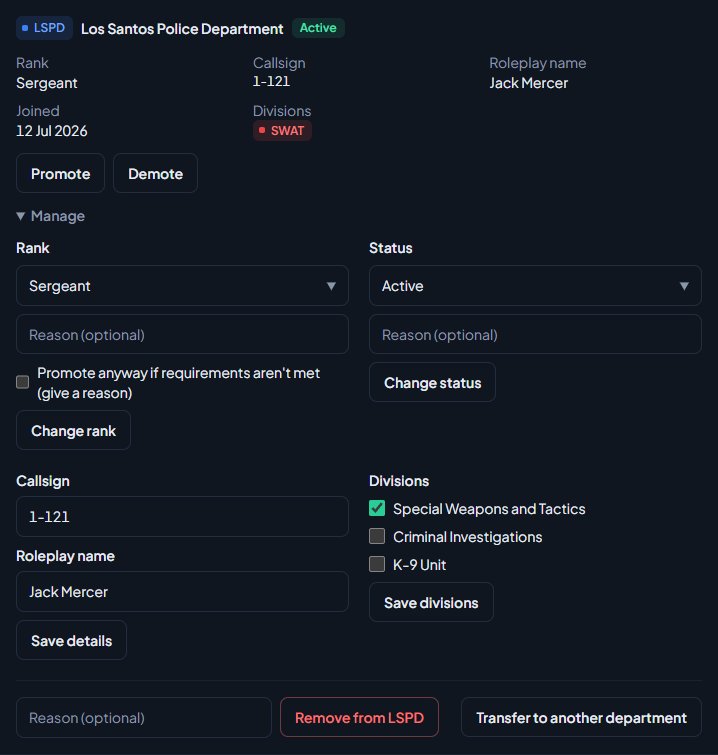
Under Departments, find the department and click Manage.
-
Under Divisions, tick each division they're in, and untick any they've left.
-
Click Save divisions.
You'll see Divisions saved. The division chips show next to their name in the department straight away.
Putting lots of people into divisions? A roster import can do it in one go with a Divisions column. See Import members from a spreadsheet.
Each division also has its own roster. Click the division's name in the Divisions box to open it. You can give a division its own ranks, discipline, applications and training too. See Run a division with its own ranks.
Division leads#
A division can have one or more leads, like the sergeant who runs SWAT. Leads get extra permissions over the people in their division, on top of whatever their rank gives them. Out of the box, leads can approve and deny leave and see shifts and hours for their division.
Like rank permissions, a lead only reaches people below their own rank. A sergeant leading SWAT can approve leave for the officers in SWAT, but not for a captain who is also in SWAT, another sergeant, or anyone outside SWAT. A lead who holds no rank in the department gets nothing from leading.
Make someone a lead#
You need Edit departments, ranks, divisions and certifications for the department, and the person must be below your rank unless your access is community-wide.
- In the Divisions box, click Edit next to the division.
- Under Members, click Make lead next to the person. Click Remove lead to undo it.
You can also do it from their profile: click Manage on the department, tick Lead next to the division, and click Save divisions. The person has to be in the division for it to count.
Leads show as a chip like SWAT Lead on profiles, the department roster and the public roster.
Choose what leads can do#
You need Edit departments, ranks, divisions and certifications for the whole community, the same as for rank permissions.
- Open the department and click Edit.
- Under Division leads, tick what leads should be able to do to the people in their divisions. You can pick from managing the roster, leave, letters of interest, viewing and issuing discipline, and viewing and editing shifts.
- Click Save changes.
The choice applies to every division in the department. Settings that cover the whole department, like shift rules and discipline rules, aren't offered, because they aren't about one person.
Where divisions show#
| Where | What happens |
|---|---|
| Profiles and the department roster | A chip for each division next to the person, with Lead added for leads. |
| The public roster | The Divisions column, if it's ticked under Public roster in the department's settings. Leads show the same way. |
| The CAD | When Divisions at sign-on is turned on in the CAD settings, police, fire and EMS units can pick one of their divisions when they go on duty, and it shows on the board. It's on unless you've turned it off. |
| Discord | Roles linked to a division are given to people while they're in it. See Link Discord roles to departments and ranks. |
| Fleet vehicles | A fleet vehicle can be kept for one division, so only its members can take it out in game. See Manage fleet vehicles and uniforms. |
Delete a division#
- Click Edit next to the division.
- Scroll to Delete division at the bottom.
- Click Delete division and confirm.
Everyone in the division is taken out of it, but they stay in the department with the same rank. Discord roles linked to the division are taken away.
Something not working?#
I can't see Add division or the Edit links. Your role doesn't have Edit departments, ranks, divisions and certifications for this department. Ask your community owner.
There's no Divisions section when I click Manage on someone's profile. The department has no divisions yet. Add one first. If you can't see Manage at all, you don't have Add members, change ranks, callsigns and status for that department, or the person is at or above your rank.
There's no Make lead button next to someone. They're at or above your rank, or your Edit departments, ranks, divisions and certifications permission doesn't cover this department.
A lead can't approve someone's leave. Check the person is in the lead's division and below the lead's rank, and that the lead holds a rank and is active in the department. Then check Division leads in the department's settings includes leave.
It says "Use a hex colour like #22c55e." The colour isn't a valid hex colour. Pick one with the colour picker instead.
Units can't pick a division when they go on duty. Check Divisions at sign-on is turned on in the CAD settings, and that the unit is actually in a division in that department. The division box only shows when they're in at least one.
See also
Run a division with its own ranks
Give a division like SWAT its own rank ladder with permissions, then let its command run the division roster, promotions, discipline, applications and training without department-wide access.
Create a department
Set up a police, fire, EMS, dispatch or civilian department with its name, type, colour, callsigns and Discord nickname, choose who can see its roster, set membership limits, and delete a department.
Set up ranks and their order
Add a department's ranks, put them in order from highest to lowest, give each rank its own callsigns, promotion requirements and permissions, and choose how it shows on the public roster.
Limit a permission to one department
Give department leaders access to their own department only, with a department role, rank permissions or division leads, and how the rank rule stops a sergeant changing a captain.
Link Discord roles to departments and ranks
Give people Discord roles automatically for their department, rank, division, status, certifications and community roles, and take them away when that changes.
Manage fleet vehicles and uniforms
Keep a list of each department's vehicles and uniforms, assign them to members, take vehicles out of service, set which ranks and divisions can have a uniform, and add garage spots for the game.
Can't find what you need?
Open a ticket in our Discord and someone from the team will help. Found a bug, or missing a feature? Tell us on the feedback board.