Limit a permission to one department
Give department leaders access to their own department only, with a department role, rank permissions or division leads, and how the rank rule stops a sergeant changing a captain.
Most communities want department leaders to run their own department without touching anyone else's. The LSPD command team should be able to review LSPD applications and promote LSPD officers, but not discipline firefighters.
You can do that by limiting permissions to one department. There are two ways: a department role, which you give to particular people, or rank permissions, which everyone at a rank gets automatically. To narrow it further, to one division, make someone a division lead.
Before you start#
- To make a department role, you need Manage roles and permissions.
- To set rank permissions, you need Edit departments, ranks, divisions and certifications for the whole community, not just one department.
Owners and administrators can do both.
Which permissions can be limited#
Only some permissions make sense inside one department. These can be limited:
| Group | Permissions |
|---|---|
| Departments | Add members, change ranks, callsigns and status, Award and revoke certifications, Edit departments, ranks, divisions and certifications |
| Department Panel | Every Department Panel permission: applications, application forms, leave, letters of interest, discipline, shifts and fleet |
| Training | Create training programmes, their checklists and tests and Sign off training, run training sessions and decide results |
| Documents | Write and edit documents |
Everything else, like the CAD, Community Site and Staff Panel permissions, is community-wide only. Every permission explained marks which is which.
Option 1: Make a department role#
Use this for a set group of people, like a department's command team.
-
Click Roles & permissions in the left sidebar.
-
Click New role.
-
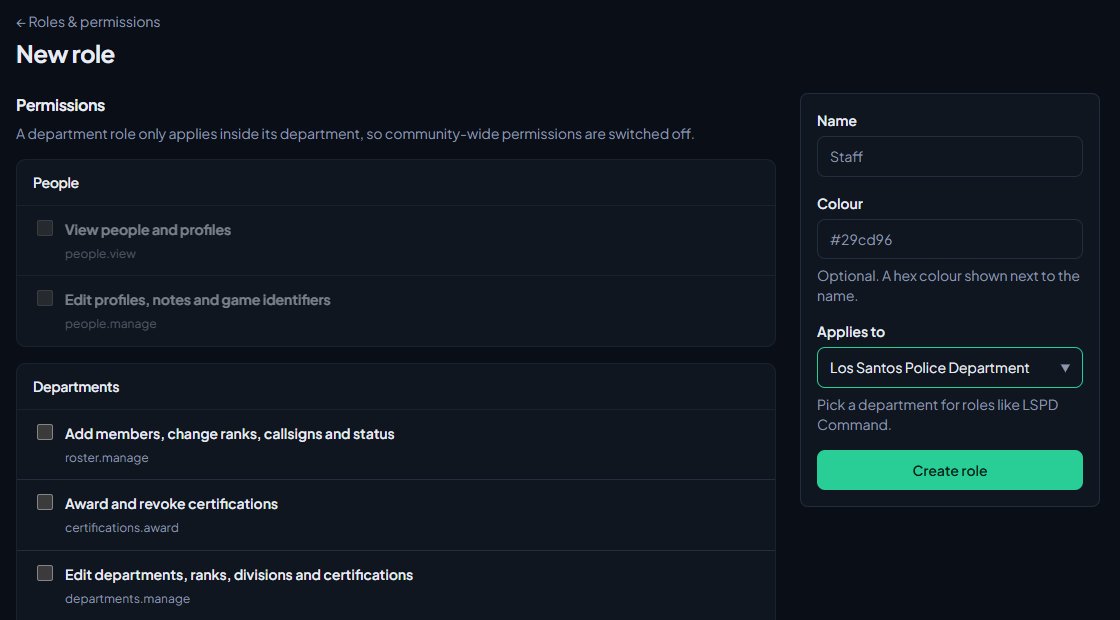
Type a Name, like LSPD Command.
-
Under Applies to, pick the department.
-
Tick the permissions. Community-wide permissions are switched off as soon as you pick a department.
-
Click Create role.
-
Under Members, find each person and click Add.
A department role works for whoever holds it, even if they're not in that department.
Option 2: Give permissions to a rank#
Use this when everyone at a rank should get the same access, like every Sergeant being able to approve leave. It follows people automatically when they're promoted or demoted.
- Click Departments & ranks in the left sidebar and open the department.
- In the Ranks box, click Edit next to the rank.
- Under Permissions, tick what everyone at this rank should get.
- Click Save changes.
To copy permissions from another rank, pick it under Copy from another rank and click Replace with these or Add these, then save.
Rank permissions only apply while the person's status in that department is Active, In training or Leave of absence. If they're suspended, inactive or have left, they lose them.
Option 3: Make someone a division lead#
Use this when someone runs part of a department, like the SWAT lead approving leave for SWAT officers only. A lead gets extra permissions over the people in the divisions they lead, and nobody else. Each department chooses what its leads can do under Division leads in its settings. Out of the box that's approving leave and seeing shifts and hours.
See Add divisions like K9 or Traffic for how to set it up.
The rank rule#
Department-limited access only reaches people below your own rank. If you hold a rank in the department, you can:
- Change the rank, callsign, status and details of people below your rank, but not people at or above it.
- Only give ranks below your own.
- Only edit, move or delete ranks below your own.
That stops a sergeant demoting a captain, or promoting someone to the same rank as themselves. If you don't hold a rank in the department, for example you have a department role but you're not on the roster, the rule doesn't apply and you can manage everyone in it.
Division leads always follow the rule: a lead only reaches people in their divisions who are below their rank, and a lead with no rank reaches no one.
Some things always need community-wide access:
- Changing rank permissions.
- Promoting someone who doesn't meet a rank's promotion requirements.
- Awarding community-wide certifications.
What people with limited access see#
They see the sidebar link for the permission, the same as anyone else with it. Inside, they can only work on their department. For example, Departments & ranks only lists the departments they can manage, and a roster import only offers those departments.
Something not working?#
The permission boxes are greyed out when I pick a department. Those permissions can't be limited to a department. Leave Applies to on Community-wide if the role needs them.
It says "A department role can only have department permissions." The role has a community-wide permission ticked. Untick it, or make the role community-wide.
A sergeant can't change someone's rank. The person is at or above the sergeant's rank, or the rank they're trying to give is. That's the rank rule. Someone with community-wide access can do it.
Someone lost their access when they went inactive. Rank permissions stop while someone is suspended or inactive. Change their status back, or give them a department role if they need access regardless.
Rank permissions say "Only people who manage every department can change rank permissions." Your Edit departments, ranks, divisions and certifications permission is limited to one department. Ask your community owner.
See also
Create a role and choose what it can do
Make a role like Staff or Department command, tick the permissions it gives, hand it to people, and understand how roles work alongside ranks and administrators.
Set up ranks and their order
Add a department's ranks, put them in order from highest to lowest, give each rank its own callsigns, promotion requirements and permissions, and choose how it shows on the public roster.
Every permission explained
A reference list of every permission you can give a role or rank, grouped by module, with what each one lets someone do and whether it can be limited to one department.
Can't find what you need?
Open a ticket in our Discord and someone from the team will help. Found a bug, or missing a feature? Tell us on the feedback board.