Create a role and choose what it can do
Make a role like Staff or Department command, tick the permissions it gives, hand it to people, and understand how roles work alongside ranks and administrators.
Roles decide what your staff can do in the control panel and the CAD. A role is a named set of permissions, like "Staff" that can see people and moderate suggestions, or "Head of Training" that can run Training. Anyone you give the role to gets all of its permissions.
Roles are the way to give someone access without making them an administrator. Give each person only what they need, and change the role later if their job changes.
Before you start#
You need a role with the Manage roles and permissions permission. Owners and administrators have it already.
You can only give out permissions you have yourself. If you're not an owner or administrator, some boxes will be greyed out.
Roles, ranks and administrators#
There are three ways someone gets permissions:
| Way | Who it's for | Where you set it |
|---|---|---|
| Administrator | People who should be able to do everything. | Roles & permissions, under Owner & administrators. See Make someone an administrator. |
| Role | Staff who need certain permissions, across the community or in one department. | Roles & permissions. |
| Rank | Everyone at a rank in a department, inside that department only. | The rank's edit page. See Set up ranks and their order. |
If someone has more than one, they get everything from all of them.
Create a role#
-
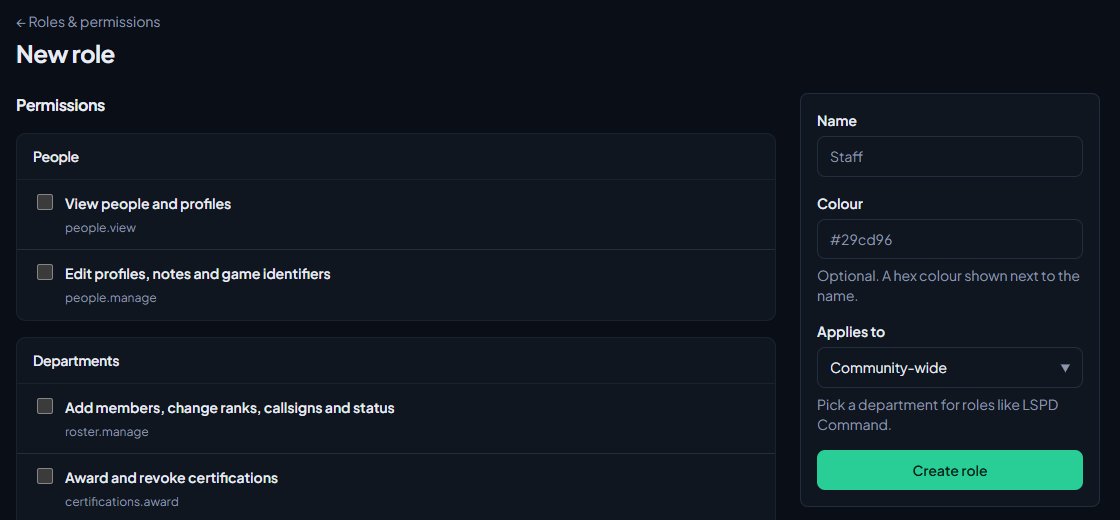
Open your control panel and click Roles & permissions in the left sidebar.
-
Click New role.
-
Type a Name, like Staff. Up to 60 characters.
-
Optional: type a Colour, like #29cd96. It's shown next to the role's name.
-
Leave Applies to on Community-wide, or pick a department to make a department role. See Limit a permission to one department.
-
Tick the permissions the role gives. They're grouped under People, Departments, Community and each module.
-
Click Create role.
You'll see Role created. and the role's page opens, with a Members section underneath.
Every permission is listed, including ones for modules you haven't installed. They start working if you install the module later. For what each one does, see Every permission explained.
Give someone a role#
-
On the role's page, scroll to Members.
-
Type their name, username or Discord ID in the search box and click Find.
-
Click Add next to the right person.
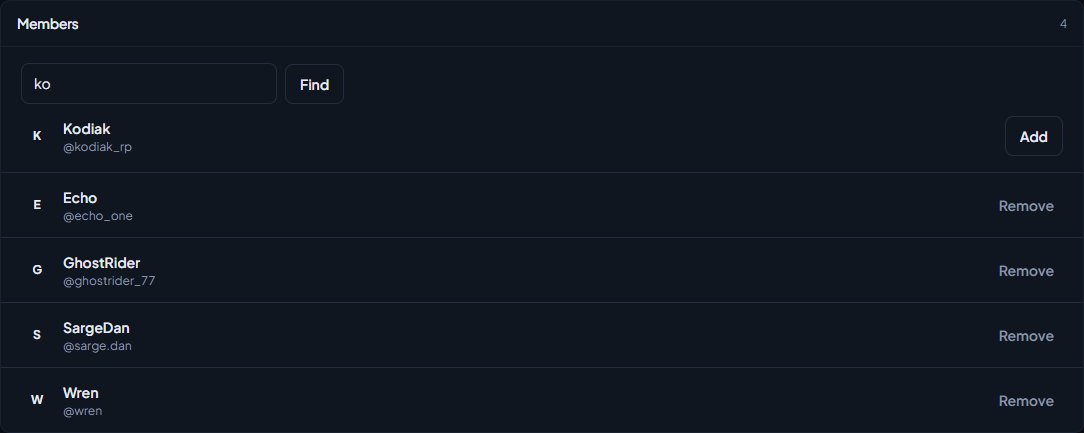
You'll see a message like Gave Jake Hale the Staff role.
You can also do this from the person's profile. Open them on the People page, pick the role under Community roles and click Give.
Their permissions change straight away, and so do any Discord roles linked to the role. Anyone with a role can open your control panel, and they'll only see the pages their permissions allow.
Take a role away#
- On the role's page, find the person under Members.
- Click Remove.
You'll see a message like Removed Jake Hale from Staff. You can also click the cross next to the role under Community roles on their profile.
Change or delete a role#
To change a role, click its name on the Roles & permissions page, change the name, colour, department or permissions, and click Save role. You'll see Role saved.
To change the order roles are listed in, use the arrows next to each one on the Roles & permissions page.
To delete a role, open it and click Delete role at the bottom, then confirm. Everyone who had it loses its permissions, and Discord roles linked to it are taken away.
Rules and limits#
- You can only tick permissions you have yourself. The others say You don't have this one yourself.
- If a role has permissions you don't have, you can't change it, delete it, or give it to anyone. The page says This role has permissions you don't have, so you can't change it or who holds it.
- The owner and administrators always have every permission, whatever roles they hold.
- You can only give roles to people who are in your community.
Something not working?#
I can't see Roles & permissions in the sidebar. Your role doesn't have Manage roles and permissions. Ask your community owner.
It says "You can only give permissions you have yourself. Remove:" and a list. You ticked permissions you don't hold. Untick the ones listed, or ask your community owner to make the role.
It says "You can't hand out or take away this role because it has permissions you don't". The role gives more than you have. Ask your community owner or an administrator to give it out.
It says "They already have this role." They hold it already. Check the Members list.
The search says "No one else in the community matches." They haven't joined your community yet, or they already have the role. People join the first time they sign in on your community website. See Get your members signed in.
Someone has the role but still can't see a page. Check the role has the permission for that page, and that the module is installed. If the role is limited to a department, community-wide permissions are switched off. See Every permission explained.
See also
Every permission explained
A reference list of every permission you can give a role or rank, grouped by module, with what each one lets someone do and whether it can be limited to one department.
Limit a permission to one department
Give department leaders access to their own department only, with a department role, rank permissions or division leads, and how the rank rule stops a sergeant changing a captain.
Make someone an administrator
Give a trusted member every permission in your community, take it away again, and when a role is the better choice. Only the community owner can do this.
Link Discord roles to departments and ranks
Give people Discord roles automatically for their department, rank, division, status, certifications and community roles, and take them away when that changes.
Can't find what you need?
Open a ticket in our Discord and someone from the team will help. Found a bug, or missing a feature? Tell us on the feedback board.