Manage fleet vehicles and uniforms
Keep a list of each department's vehicles and uniforms, assign them to members, take vehicles out of service, set which ranks and divisions can have a uniform, and add garage spots for the game.
Fleet & uniforms is where each department keeps track of its vehicles and uniform sets, and who has them. Assign a patrol car to an officer, mark a damaged one out of service, or record who's been issued the dress uniform. Everything you assign shows on the member's profile in the control panel and in My departments on your community website.
If you use the LonexOne FiveM resource, vehicles can also be set up to spawn in game exactly as you configure them here.
Before you start#
- The Department Panel module needs to be installed.
- You need the Manage vehicles and uniforms and who has them permission. If it's limited to one department, you'll only see that department's fleet. A division rank can carry it too, for that division's vehicles and uniforms only. See Each division's own fleet below.
Open Fleet & uniforms#
-
In the left sidebar, under Department Panel, click Fleet & uniforms.
-
If you manage more than one department, pick it from the list.
-
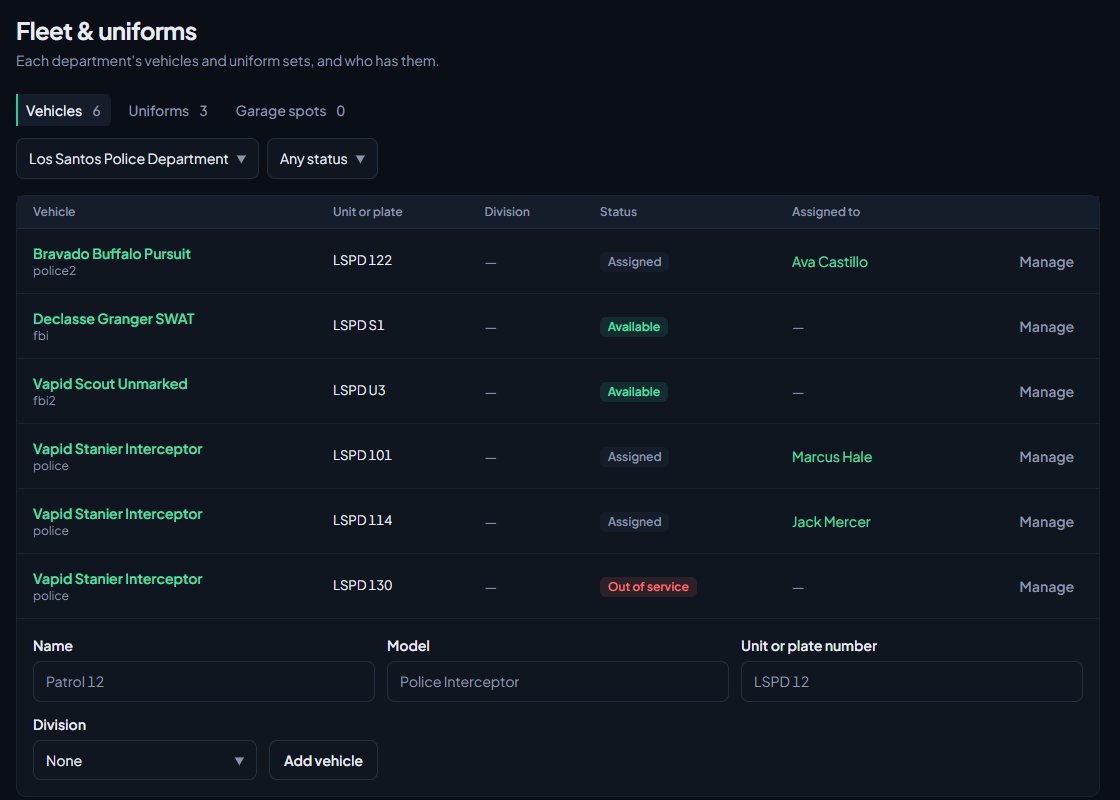
Use the tabs to switch between Vehicles, Uniforms and Garage spots.
Add a vehicle#
- On the Vehicles tab, scroll to the form under the list.
- Type the Name, for example Patrol 12.
- Optionally add the Model and the Unit or plate number.
- If the department has divisions, optionally pick a Division.
- Click Add vehicle.
New vehicles start as Available. Click Manage on a vehicle's row to open its page, where you can add Notes about damage, livery or anything else, and set up how it appears in game.
Add several at once#
- On the Vehicles tab, click Add several at once under the form.
- Type one vehicle per line as name, model, unit or plate, spawn code, for example Patrol 1, Police Interceptor, LSPD 1, police3. Only the name is needed, so Patrol 2 on its own works too.
- If the department has divisions, optionally pick the Division for all of them.
- Click Add vehicles.
You can also copy rows from a spreadsheet with those four columns in that order and paste them straight in. You can add up to 200 at a time. If a line has a problem, nothing is added and you're told which line to fix.
To give them all the same livery, extras and mods, give them the same spawn code, then use Save to all with /vssave in game. See The garage and fleet vehicles in game.
Assign a vehicle#
-
Click Manage on the vehicle.
-
Under Assigned to, pick a member in Assign to. Anyone on the department's roster can be picked.
-
Click Assign.
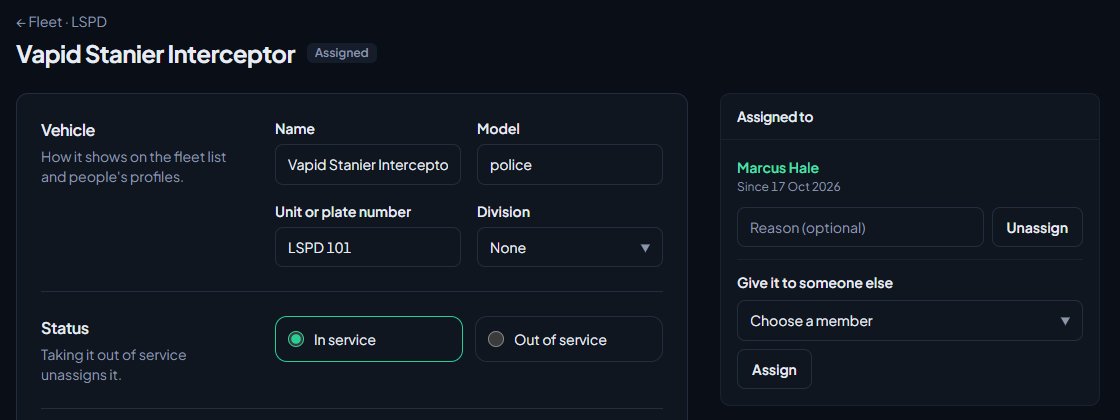
The vehicle's status changes to Assigned. To move it to someone else, pick them in Give it to someone else and click Assign. To take it back, optionally type a reason and click Unassign.
Vehicle statuses#
| Status | Meaning |
|---|---|
| Available | In service and not assigned to anyone. |
| Assigned | In service and assigned to a member. |
| Out of service | Off the road. It can't be assigned. |
To change it, open the vehicle, pick In service or Out of service under Status, and click Save changes. Taking a vehicle out of service unassigns it. Use the status list on the Vehicles tab to show only vehicles with one status.
Set a vehicle up for the game#
On the vehicle's page, the In game section controls how members take it out with the garage command in the LonexOne FiveM resource.
- Spawn code: the model name your server spawns it with, like
police3. Leave it blank to keep the vehicle off the garage. - Ranks: tick the ranks that can take it out, or none to let every rank.
- Livery, Extras, colours, Window tint, Plate style, Plate text and Mods: how it looks when it spawns.
A vehicle with a division only shows for that division, and an assigned vehicle only shows for the person it's assigned to. For how members use the garage in game, see The garage and fleet vehicles in game.
Garage spots#
Garage spots are the parking bays where vehicles appear when members take them out in game. Without any, vehicles appear in front of whoever takes them out. Once a department has at least one spot, members can only take vehicles out within 40 m of a spot, and each car appears in the nearest free bay.
Spots are usually added in game, but you can add one here:
- On the Garage spots tab, type a Name, like Mission Row bay 1.
- Paste the Position and heading as x, y, z and the heading, like
452.3, -1017.4, 28.4, 90. - Click Add spot.
Click Remove next to a spot to delete it. Each department can have up to 100 spots.
Add a uniform#
- On the Uniforms tab, scroll to the form under the list.
- Type the Name, like Class A, and optionally a Description.
- Optionally pick a Lowest rank. Only people at that rank or above can be given it.
- Optionally pick a Division. Only people in that division can be given it.
- Click Add uniform.
Give out a uniform#
-
Click Manage on the uniform.
-
Under Who has it, tick everyone who has it and untick anyone who's handed it back.
-
Click Save who has it.
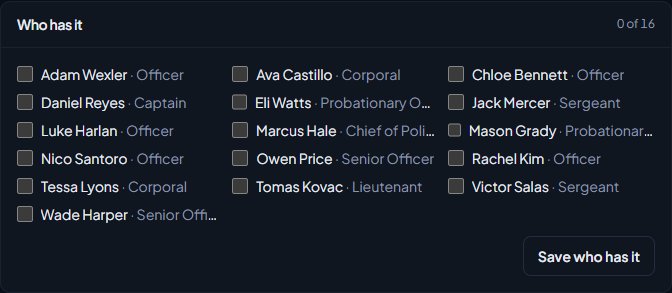
People who don't meet the rank or division rule are greyed out. Hover over their name to see why. If you tighten the rules later, people who already have the uniform keep it.
Set up the clothes for the game#
With the LonexOne FiveM resource, a uniform can carry the actual clothes, so members put it on in game with one click instead of picking each piece from a clothing menu. Fleet managers save the clothes by dressing in the uniform and typing /uniformsave, or by typing the numbers in under Clothes in game on the uniform's page. See Save a uniform's clothes for the game.
Uniforms with clothes saved show In game on the Uniforms tab. Members put them on with /uniform, and they can go on and off with duty. See Put on a uniform in game.
Each division's own fleet#
A vehicle or uniform with a division belongs to that division, like a SWAT Bearcat or a Traffic hi-vis jacket.
- On the division's page. Open the division from its department. Under the roster, Vehicles and Uniforms list the division's own, with who has each. Click Manage to open them on Fleet & uniforms.
- On Fleet & uniforms. Pick a division from the list next to the department to see only that division's vehicles or uniforms. New ones you add then go in that division.
- Division managers. On a division rank, tick Manage the division's vehicles and uniforms and who has them. People at that rank see Fleet & uniforms in the sidebar with only their division's vehicles and uniforms. Anything they add goes in their division, they can't move it out, and they can only give vehicles to people in the division. Garage spots stay with whoever manages the whole department's fleet. See Run a division with its own ranks.
Duplicate a vehicle or uniform#
To make a variant, like a Class A for each rank, click Duplicate on its row or at the top of its page. The copy opens straight away, named like Class A (copy), with everything the original has: the description, rank and division rules, the clothes for both characters, or the vehicle's model, notes and in-game setup. Change what's different and click Save changes, or Save clothes for the clothes.
The copy isn't given to anyone and starts with no history. A vehicle's copy is unassigned and its Unit or plate number is left blank, so add the new one.
History and removals#
Each vehicle and uniform page has a History of who it was given to and taken from, when, by whom and why.
When someone leaves or is removed from the department, their vehicles and uniforms are taken back automatically, with Left the department as the reason.
To delete a vehicle, open it and click Delete vehicle. To delete a uniform, open it and click Delete uniform. Anyone who has it hands it back. Assignment history stays on people's profiles.
Something not working?#
"Patrol 12 is out of service. Mark it available first." Open the vehicle, pick In service under Status and save, then assign it.
"Choose someone in LSPD." You can only assign vehicles and uniforms to people on that department's roster.
"Can't give it to Sam. Class A is for Sergeant and above." The uniform's Lowest rank or Division rule doesn't allow them. Change the rule on the uniform, or promote them first.
"Spawn codes are letters, numbers, dashes and underscores, like police3." Remove spaces and other characters from the spawn code.
"Paste the spot as x, y, z and the heading, like 452.3, -1017.4, 28.4, 90."
The position needs three or four numbers. A vector3 or vector4 copied from the game works too.
"Class A has no clothes saved for the female character yet."
The uniform only has clothes for the other character. Save them with /uniformsave while playing the female character, or type them in on the uniform's page.
"You haven't been given a uniform with clothes set up yet." Give the member the uniform under Who has it, and make sure it has clothes saved for the game.
"This department has the most garage spots it can have." Remove a spot you don't use before adding another.
See also
The garage and fleet vehicles in game
Let units take fleet vehicles out in game with /vs, set up liveries, extras and plates on the website, add garage bays, and save a car's look with /vssave.
Save a uniform's clothes for the game
Dress in a uniform in game and save it with /uniformsave, or type the drawable and texture numbers in on the uniform's page, for both the male and female characters.
Put on a uniform in game
How members put on the uniforms they've been given with /uniform, change back into their own clothes, and get their uniform on and off automatically with duty.
Set up duty loadouts
Build weapon loadouts with attachments and ammo for each department, limit them to ranks or divisions, and choose whether they're taken back off duty.
Add divisions like K9 or Traffic
Create divisions inside a department, put people in them from their profile, choose division leads and what they can do, and see where divisions show up, from the roster and the CAD to Discord roles and fleet vehicles.
Add someone to the roster and set their callsign
Put a member into a department at a rank, give them a callsign and roleplay name, change those details later, and remove them from the department.
Can't find what you need?
Open a ticket in our Discord and someone from the team will help. Found a bug, or missing a feature? Tell us on the feedback board.