Add your own fields to a department
Keep extra details for each member of a department, like a specialty or an FTO date, choose whether they show on the roster and whether members can fill them in, and fill them in on profiles.
Custom fields let you keep details LonexOne doesn't track out of the box, like someone's specialty, their FTO sign-off date, their timezone or a link to their personnel file. Each department has its own fields, so your fire department can track different things from your police department.
You choose whether each field shows on the roster, and whether members can fill it in themselves.
Before you start#
To add, edit or delete fields, you need a role or rank with the Edit departments, ranks, divisions and certifications permission for the department. Owners and administrators have it already.
To fill in fields on someone's profile, you need Add members, change ranks, callsigns and status for that department.
Add a field#
- Click Departments & ranks in the left sidebar and open the department.
- Click Edit department.
- Scroll down to Custom fields, or click Custom fields on the right.
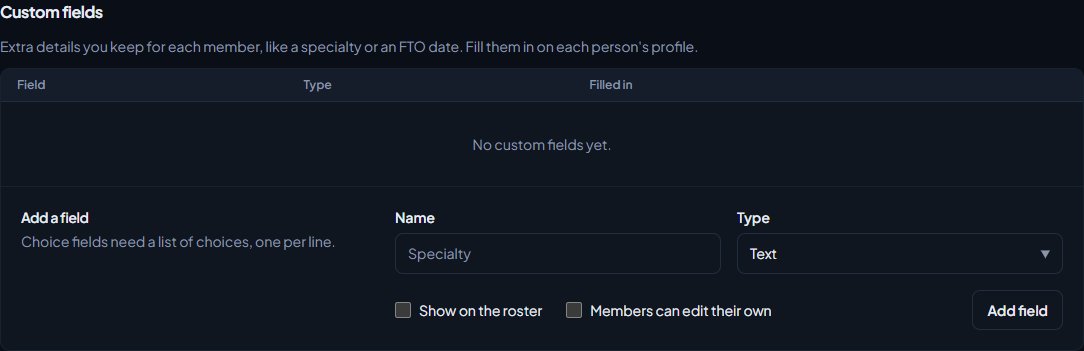
- Under Add a field, type the field's Name, like Specialty. Up to 60 characters.
- Pick a Type. See the table below.
- If you picked Choice from a list, type the Choices, one per line.
- Tick Show on the roster if you want it as a column on the roster.
- Tick Members can edit their own if members should fill it in themselves.
- Click Add field.
You'll see Added followed by the field name, and it appears in the list above.
Field types#
| Type | What it holds |
|---|---|
| Text | Anything, up to 255 characters. |
| Number | A number. |
| Date | A date, picked from a calendar. |
| Choice from a list | One of the choices you set. Up to 50 choices, each up to 60 characters. |
| Link | A full web address starting with http:// or https://. |
Who sees a field#
| Setting | What it does |
|---|---|
| Neither ticked | Shown as Staff only in the list. Staff fill it in, and it shows on the person's profile in the control panel. |
| Show on the roster | Adds it as a column on the department roster in the control panel and on the public roster. Members also see their own value on their My departments page. |
| Members can edit their own | Members fill it in on their My departments page on your community website. |
"Staff only" fields aren't hidden from other staff. Anyone who can open a person's profile in the control panel can see every field.
The public roster only shows to the people allowed to see it under Public roster in the department's settings. See Create a department.
Fill in a field for someone#
- Click People in the left sidebar and open the person's profile.
- Under Departments, find the department and click Manage.
- Under Custom fields, fill in the boxes.
- Click Save fields.
You'll see Saved followed by the names of the fields that changed, or Nothing changed. To clear a field, empty its box and save.
You can also fill in fields for a whole department at once with a roster import. Each field gets its own row on the Match columns page. See Import members from a spreadsheet.
Change the order#
Use the up and down arrows next to a field in the Custom fields list. This is the order they show on profiles and as roster columns.
Edit a field#
- Click Edit next to the field.
- Change the Name, the Choices, or the settings under Who sees it.
- Click Save changes.
You can't change a field's type. Delete it and add a new one instead. If you remove a choice, members who picked it keep it until someone changes it.
Delete a field#
- Click Edit next to the field.
- Scroll to Delete field and click it.
- Confirm when you're asked Delete this field and everything filled in for it?
Everything filled in for that field is deleted too. This can't be undone.
Rules and limits#
- Up to 30 custom fields per department.
- Choices are matched without caring about capitals, and repeated choices are removed.
- Fields belong to one department. If someone is in two departments, each one has its own fields for them.
Something not working?#
It says "A department can have up to 30 custom fields." Delete a field you no longer need before adding another.
It says "Add at least one choice, one per line." A Choice from a list field needs at least one choice. Type them in the Choices box, each on its own line.
It says "Keep it to 50 choices." or "Each choice can be up to 60 characters." Shorten the list or the choices. If you need more, a Text field might suit better.
It says "Enter a full link starting with https://." A Link field needs the whole address, like https://docs.google.com/your-file.
I can't see Custom fields under Manage on someone's profile. The department has no custom fields yet, or you don't have Add members, change ranks, callsigns and status for that department.
Members can't see the field on My departments. Members only see fields that are ticked Show on the roster or Members can edit their own.
See also
Create a department
Set up a police, fire, EMS, dispatch or civilian department with its name, type, colour, callsigns and Discord nickname, choose who can see its roster, set membership limits, and delete a department.
Import members from a spreadsheet
Bring a department's roster into LonexOne from a CSV file or a Google Sheet, match the columns, check the preview, and fix the rows that get skipped.
Add someone to the roster and set their callsign
Put a member into a department at a rank, give them a callsign and roleplay name, change those details later, and remove them from the department.
What members see on their profile
For staff helping members: what a member profile shows, where it comes from, what members can edit or hide, who can see it, and where members find their own pages.
Can't find what you need?
Open a ticket in our Discord and someone from the team will help. Found a bug, or missing a feature? Tell us on the feedback board.