What members see on their profile
For staff helping members: what a member profile shows, where it comes from, what members can edit or hide, who can see it, and where members find their own pages.
Every member of your community gets a profile page on your website. Most of it fills itself in from what LonexOne already knows: their departments and rank, certifications, team page groups and recent activity. Members can add a short bio and links to their streams and socials, and choose what to hide.
This article is for staff. It explains what's on a profile and where each part comes from, so you can answer members' questions and fix things when a profile looks wrong.
Turn profiles on or off#
Profiles are set by the owner, an administrator, or anyone with Edit the community site: pages, navigation and branding.
- Open your control panel and click Domain, SEO & links in the left sidebar.
- Click the Search & sharing tab.
- Under Member profiles, choose:
- Anyone can see them: visitors who aren't signed in can open profiles too.
- Anyone signed in: the default. Visitors are asked to sign in first. Anyone with an account can sign in, and signing in makes them a member.
- Off: no profiles. Members can't edit theirs, and names around the site stop linking to profiles.
- Click Save.
What's on a profile#
A profile's address is your site with /members/ and, usually, the member's Discord username on the end, for example yourcommunity.lonexone.com/members/alex.
| Part | Where it comes from |
|---|---|
| Name and picture | Their roleplay name if they have one from a department, otherwise their Discord name, with their Discord picture. If the two differ, the Discord name shows under it. |
| Joined | The month they joined your community. |
| Team page groups | The team page groups they're in, with their position if you've set one. That includes groups filled from a Discord role they hold. Groups they're hidden in aren't shown. |
| About | The bio they write themselves. |
| Links | The Twitch, YouTube, TikTok, X and Steam links they add. |
| Departments | Each department they're in, with their rank, callsign and divisions. Needs the Department Panel. |
| Certifications and training | Certifications they currently hold and the date they got them. Needs the Training module. |
| Recent activity | Up to five each of: news posts they wrote, events they went to, and suggestions they posted. |
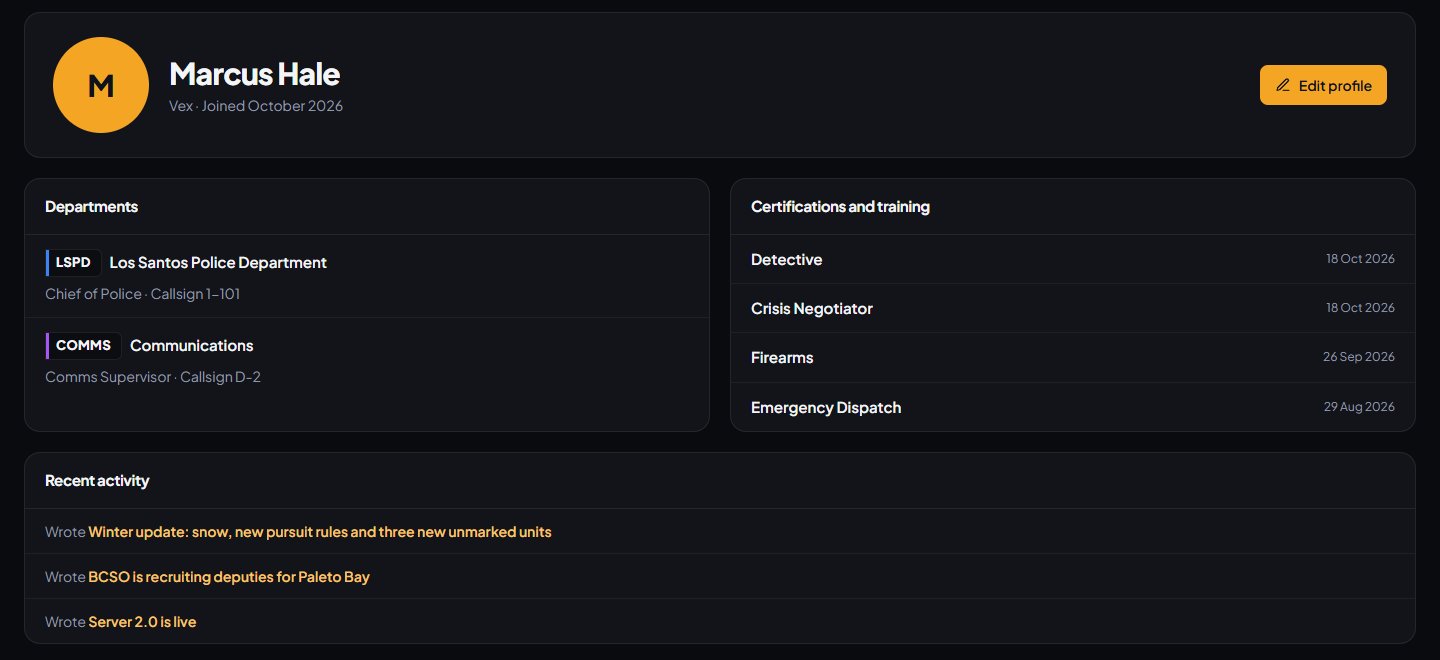
If there's no bio, departments, certifications or activity, the profile says "Nothing to show here yet."
Discipline, medical records and CAD records are never shown on a profile.
Who sees the departments#
A department only shows on a profile to people who could see that department's roster anyway:
- If the department's roster is for Anyone signed in, only signed-in people see it on the profile.
- If it's This department only, or the roster is Off, only people in that department see it.
- If it's Everyone, it shows to everyone who can see the profile.
Members always see their own departments on their own profile.
The roster setting is under Public roster when you edit a department in Departments & ranks.
What members can change#
Members edit their profile from My profile in the account menu (their picture at the top right of your site), or the Profile link in the member bar.
They can:
- Write About you, up to 600 characters of plain text.
- Add Links to Twitch, YouTube, TikTok, X and Steam. Each has to be a full https address on that site.
- Under Privacy, tick:
- Hide my profile: nobody else can open it, and links to it disappear.
- Hide certifications and training.
- Hide my recent activity: news they wrote, events they went to and their suggestions.
Then they click Save profile. View profile shows them what others see.
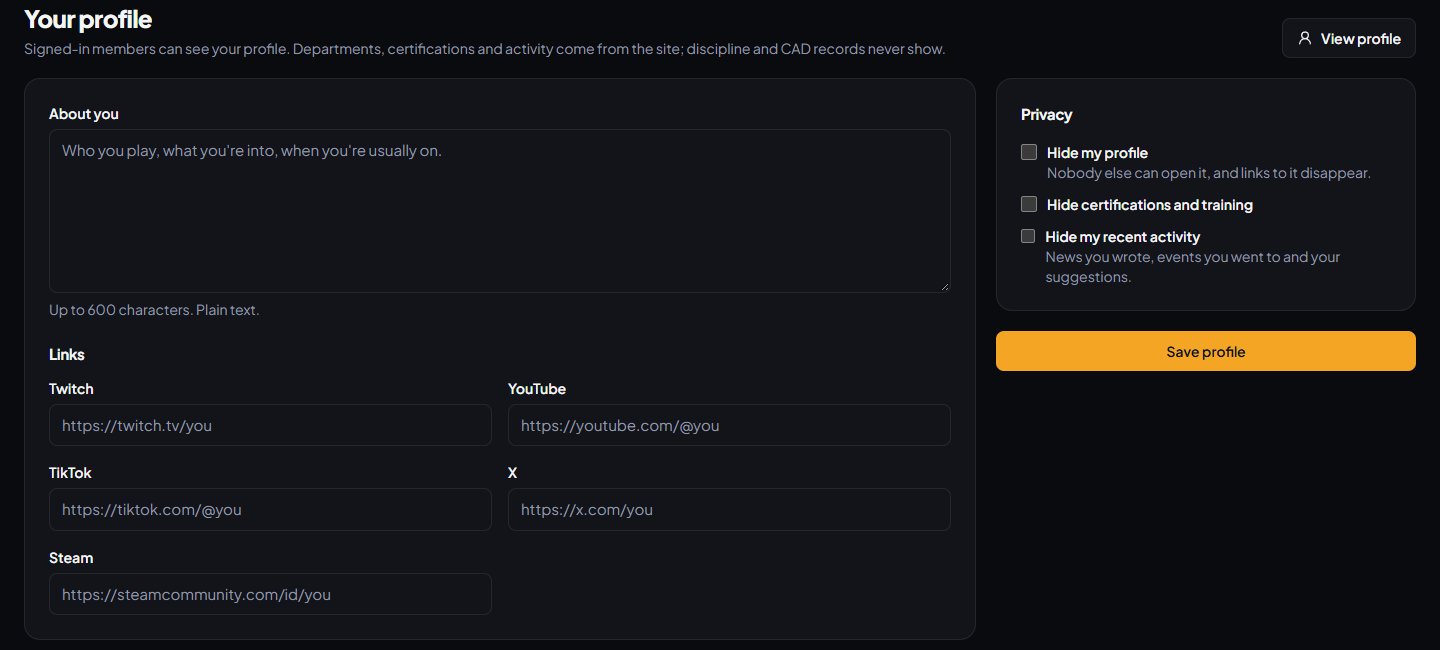
Everything else on a profile comes from your community's records. If a member's rank, callsign, roleplay name or certifications are wrong, fix them in the control panel, and the profile updates.
Hidden profiles#
When a member hides their profile, other members get "Page not found" if they open it. The member can still see their own, with the message "This profile is hidden. Only you and site managers can see it."
Staff with Edit the community site: pages, navigation and branding can still open hidden profiles, which helps when a member asks for help with theirs.
Where members find their own pages#
The account menu at the top right of your site has, depending on what your community uses:
- Dashboard, if the Department Panel is installed.
- My tickets, if support tickets are on.
- My profile, if profiles are on.
- Account, for their LonexOne sign-in methods.
- Control panel, for staff.
- Sign out.
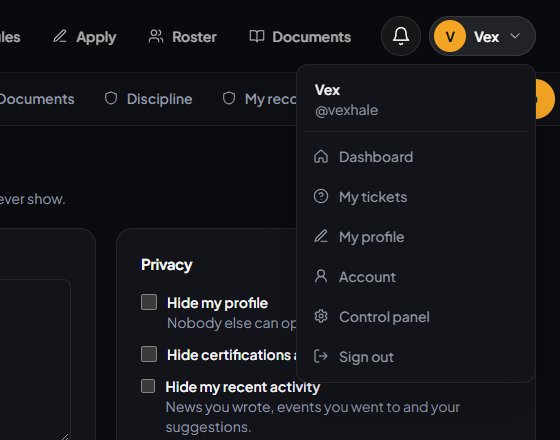
If the Department Panel or Training is installed, signed-in members also get a member bar under the header. With the Department Panel it has Dashboard and My departments, and, when it applies to them, Shifts, Leave, Training, Applications, Tickets, Documents, Discipline, My record and Profile. Numbers on the links show things waiting, like open tickets or pending leave requests.
The bell next to their picture shows their notifications. See Choose what members are notified about.
Something not working?#
A member says their profile shows "Page not found". Profiles are Off, the member hasn't signed in on your site yet so they aren't a member, or someone else hid it. Check Member profiles under Search & sharing.
Visitors see "Sign in to see member profiles." Profiles are set to Anyone signed in. Change it to Anyone can see them if you want them public.
"That doesn't look like a Twitch link." The link has to be a full address on that site, starting with https://, like https://twitch.tv/name. The same goes for the other links.
A department is missing from someone's profile. They may have left it, or the department's roster is limited to people who can't see it, such as This department only.
Their certifications don't show. They may have ticked Hide certifications and training, the certification may have expired, or the Training module isn't installed.
There's no member bar for our members. The member bar comes with the Department Panel. Without it, members use the account menu.
See also
Show your staff on the team page
Build a public team page in groups like Owners and Moderators, filled by hand or from Discord roles, with positions, short bios, names and departments.
Choose what members are notified about
Pick which notifications go out on the site, by email and by Discord DM for each kind of update, see what members can turn off themselves, and check for Discord DMs that didn't arrive.
Set up SEO and social links
Control how your site looks in Google and in link previews on Discord and X, hide it from search engines if you're private, and add your social links to the footer.
Get your members signed in
How members join your community by signing in on your website, where they land, and how to get them into your departments.
Can't find what you need?
Open a ticket in our Discord and someone from the team will help. Found a bug, or missing a feature? Tell us on the feedback board.