Set up SEO and social links
Control how your site looks in Google and in link previews on Discord and X, hide it from search engines if you're private, and add your social links to the footer.
When someone searches for your community, or pastes a link to your site into Discord, they see a title, a short description and usually a picture. LonexOne fills these in for you from your community name, tagline and banner, but you can set your own so every link looks the way you want.
This article covers the Search & sharing settings, hiding your site from search engines, and adding your social links.
Before you start#
You need to be the owner, or have a role with the Edit the community site: pages, navigation and branding permission.
Set your description and share image#
- Open your control panel.
- In the sidebar, under Modules, click Community Site, then Domain, SEO & links.
- Click the Search & sharing tab.
- Under Description, write a line or two about your community. Around 150 characters reads best, and the most you can use is 300. Leave it blank to use your tagline.
- Under Share image, choose a picture. 1200 by 630 pixels works everywhere. Without one, your home page banner is used.
- Click Save.
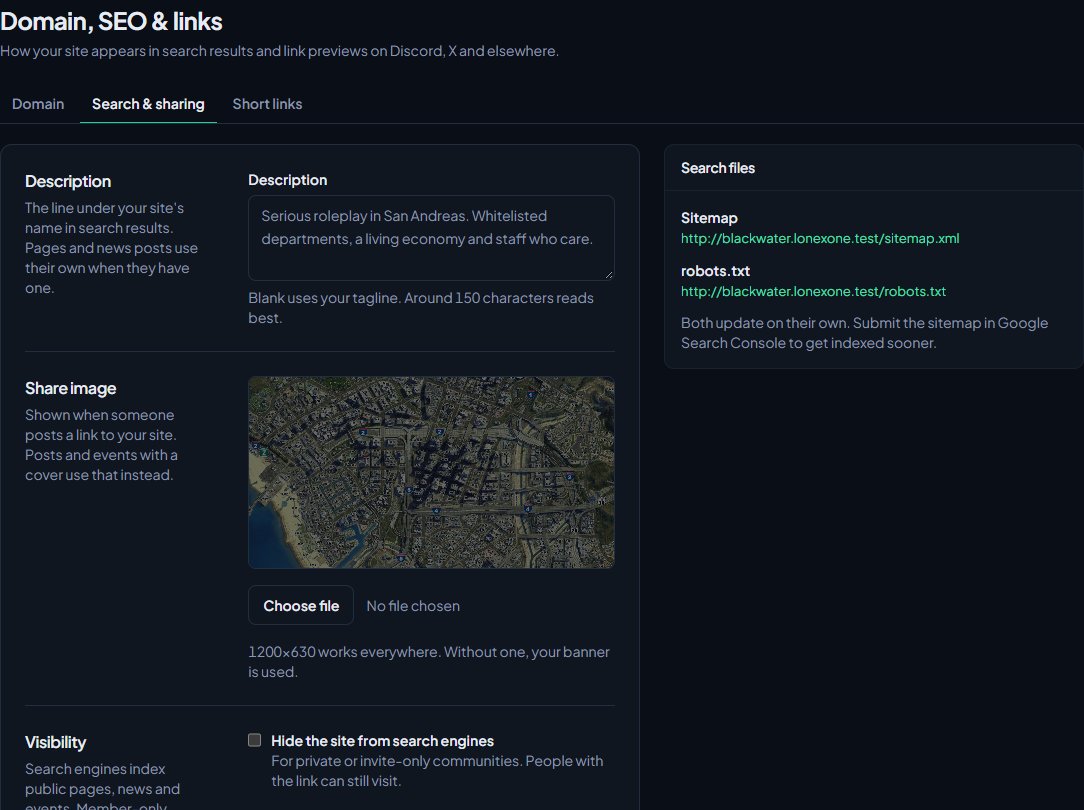
You'll see Saved. Discord and other apps keep link previews for a while, so a link you've already shared may not change straight away.
Which description and picture each link uses#
Some parts of your site use their own description and picture when they have one, and fall back to your site's settings when they don't:
| Link to | Description | Picture |
|---|---|---|
| A page | The page's Search description, set in its page settings | The first image on the page |
| A news post | The post's Summary, or the start of the post | The post's cover image |
| An event | The start of the event's description | The event's cover image |
| Anything else | Your site's description, or your tagline | Your share image, or your banner |
The title is the page's own title followed by your community name. Your home page uses just your community name.
To set a page's search description, open it in the page editor, click Settings and fill in Search description. See Build a page with the page editor.
What search engines see#
Search engines can list your home page, published pages set to Everyone, and your news posts and events that are open to everyone. Anything set to Anyone signed in is never listed. Your members' area, the CAD, sign-in pages and the control panel are always kept out.
LonexOne keeps two files up to date for search engines, and shows their addresses under Search files on the right:
- Sitemap: a list of every public page on your site.
- robots.txt: tells search engines what they may visit.
Both update by themselves. To get your site into Google sooner, add your site in Google Search Console and submit the sitemap address there.
Hide your site from search engines#
If your community is private or invite-only:
- On the Search & sharing tab, tick Hide the site from search engines.
- Click Save.
Search engines are asked not to list any of your site, and your sitemap is emptied. People with the link can still visit, so this isn't a lock. Your site is also hidden from search engines by itself while maintenance mode is on.
Member profiles#
The Member profiles setting on the same tab decides who can see members' profile pages on your site:
| Option | Who can see profiles |
|---|---|
| Anyone can see them | Everyone, including visitors who aren't signed in. |
| Anyone signed in | Anyone who signs in to your site. Anyone with an account can sign in, and signing in makes them a member. This is the default. |
| Off | Nobody. Profiles are switched off. |
Profiles show a member's departments, certifications and recent activity. Members can hide their own. Profiles are never listed by search engines, whichever option you pick.
Add your social links#
Your social links and Discord invite live on the branding page:
- In the sidebar, under Community Site, click Branding & content.
- Scroll to Links.
- Paste your Discord invite, and the addresses for any of YouTube, TikTok, X / Twitter, Twitch, Instagram and Website you use.
- Click Save changes.
They show in your site's footer, and your Discord invite is also used for the Discord buttons on your home page. Search engines are told about these links too, which helps them connect your site to your socials.
Something not working?#
My Discord link preview still shows the old picture or text. Discord keeps previews for a while after a link is first posted. Posting the link with something on the end, like ?new, usually gets a fresh preview.
It says "The seo image field must be an image." The file isn't an image we can use. Choose a PNG, JPG or WebP file.
A social link says "Use a full address starting with https://." Each social link has to be a full address starting with https://, for example https://youtube.com/@yourcommunity.
My site isn't showing in Google. Check that Hide the site from search engines is off, and that maintenance mode isn't on. New sites can take a few weeks to appear. Submitting your sitemap in Google Search Console can speed it up.
A page isn't in the sitemap. Only published pages set to Everyone are included. Check the page's Visible to setting and that it's published.
See also
Brand your site: logo, colours and home page
Set your community's name, logo, favicon and accent colour, choose how your home page looks to visitors, and add your Discord invite and social links.
Build a page with the page editor
Create pages for your community site, write and format them, add images and tables, choose who can see them, and publish your changes when they're ready.
Use your own domain name
Put your community site on a domain you own, like sunnysiderp.com, by adding two DNS records. Covers making it your main address and removing it again.
Make short links like yoursite.com/discord
Create short addresses on your community site that send people to your Discord, your server, your store or anywhere else, and see how often each one is used.
Can't find what you need?
Open a ticket in our Discord and someone from the team will help. Found a bug, or missing a feature? Tell us on the feedback board.