Build a page with the page editor
Create pages for your community site, write and format them, add images and tables, choose who can see them, and publish your changes when they're ready.
Pages are where you put everything about your community that doesn't have its own section: your rules, an about page, guides, department information, server info. Every new community starts with an About page and a Rules page, already published and in the site menu, so you can edit those first.
The page editor saves as you type. Your readers keep seeing the last published version until you click Publish changes, so you can work on a page over several sittings without anyone seeing it half done.
Before you start#
You need to be the owner, or have a role with the Edit the community site: pages, navigation and branding permission. The Community Site module has to be installed.
Create a page#
-
Open your control panel.
-
In the sidebar, under Modules, click Community Site, then Pages.
-
Click New page at the bottom of the page list. A page called Untitled opens.
-
Click the title and type a name for your page.
-
Click below the title and start writing.
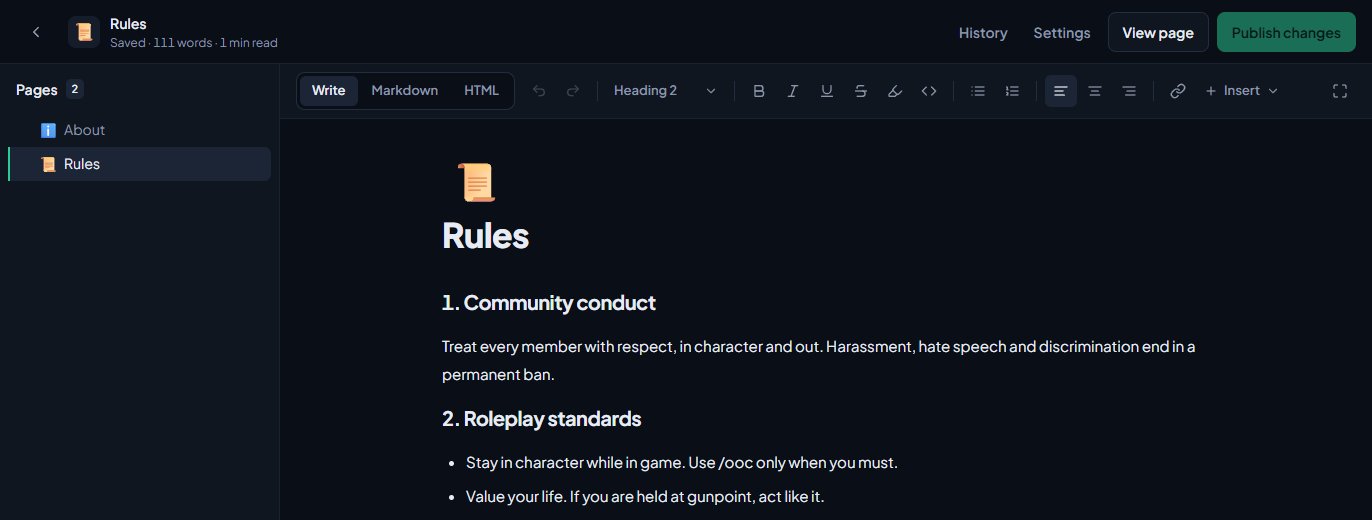
The page is saved a moment after you stop typing. The line under the title in the top bar shows Saving…, then Saved, along with a word count and reading time. You can also press Ctrl S to save straight away.
To add a page inside another one, hover over a page in the list and click the + next to it, or right-click it and choose Add sub-page.
Write and format#
The editor has three tabs above the page:
| Tab | What it's for |
|---|---|
| Write | The normal editor, with a toolbar. Most people only need this one. |
| Markdown | The page as Markdown, if you'd rather type it that way or paste from somewhere that uses it. |
| HTML | The page as HTML. |
You can switch between them at any time and your work carries across.
In Write, the toolbar has:
- Undo and Redo.
- A text style menu: Paragraph, Heading 1, Heading 2, Heading 3, Quote and Code block.
- Bold, Italic, Underline, Strikethrough, Highlight and Inline code.
- Bulleted list and Numbered list.
- Align left, Align centre and Align right.
- Link. Select some text, click it, then type a web address or an address on your site like /rules.
- Insert, which adds a Table, an Image from a link, an Upload image, a Divider, a Note, Tip or Warning box, or a Collapsible section.
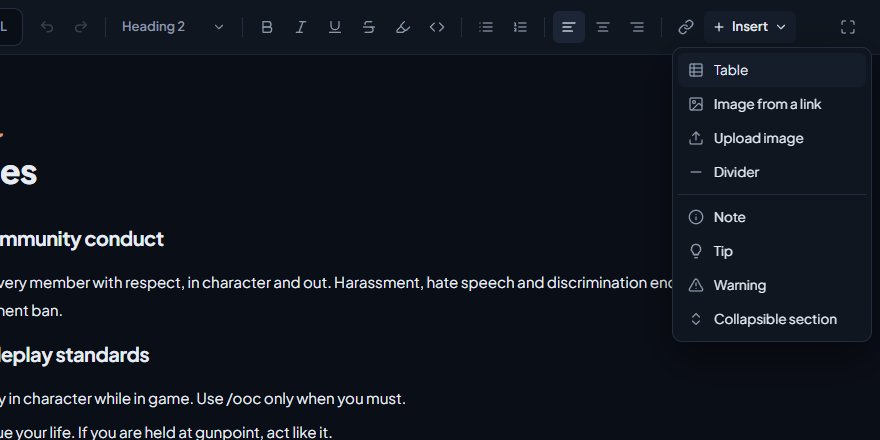
When your cursor is inside a table, a Table menu appears for adding and deleting rows and columns.
Add an icon#
Click Add icon above the title to pick an emoji. It shows next to the page in your page list, which makes long lists easier to scan.
Add images#
You can add an image in three ways:
- Click Insert, then Upload image, and choose a file.
- Paste an image straight into the page.
- Drag an image file onto the page.
Images can be JPG, PNG, GIF or WebP, up to 5 MB each.
Publish the page#
- Click Publish at the top right. For a page that's already live, the button says Publish changes.
- You'll see Published. Readers now see this version.
Each time you publish, that version is saved in the page's history. See Bring back an older version of a page.
While a page has never been published, a banner across the top says it isn't published and only people who can edit the site see it. Once it's live, a banner appears whenever you have edits that aren't published yet, and the page list shows a dot next to it.
Page settings#
Click Settings at the top right to open the page settings.
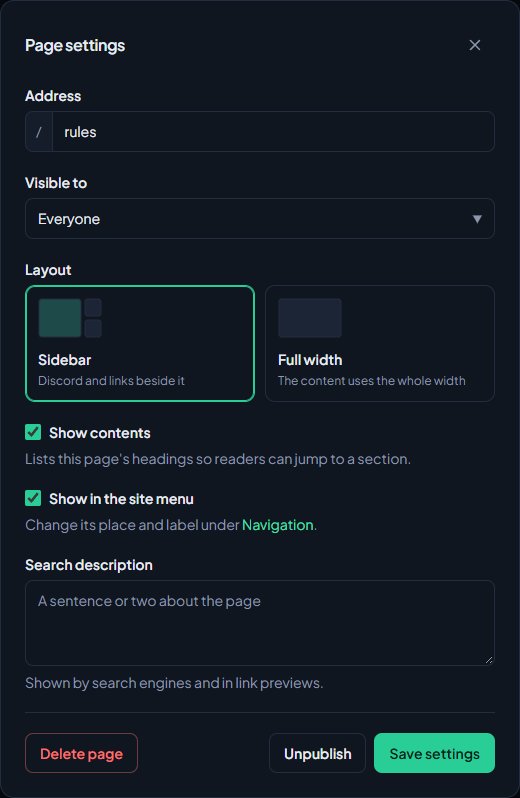
| Setting | What it does |
|---|---|
| Address | The end of the page's web address, for example /rules. Until a page is first published, the address follows the title unless you've changed it. After that it stays put, so links to it keep working. |
| Visible to | Everyone, or Anyone signed in. |
| Layout | Sidebar puts your Discord invite and links to your other pages beside the content. Full width uses the whole width for the content. |
| Show contents | Lists the page's headings so readers can jump to a section. It shows when the page has at least two Heading 2 or Heading 3 headings. |
| Show in the site menu | Adds the page to your site's header menu, or takes it off. |
| Search description | A sentence or two shown by search engines and in link previews. |
Click Save settings when you're done. You'll see Settings saved. Settings take effect straight away. You don't need to publish for them.
Anyone who signs in on your site becomes a member, so Anyone signed in keeps a page away from search engines and casual visitors, not away from people who want to see it. Don't put anything secret on a page.
Organise your pages#
- Reorder: drag a page up or down the list.
- Nest: drag a page onto the middle of another page to put it inside it. Pages go three levels deep at most. Nesting only organises your list in the editor. Every page's address stays at the top level, like /training-guide.
- Rename: double-click a page in the list.
- More options: right-click a page for Rename, Add sub-page, Duplicate, Unpublish and Delete.
Duplicate makes an unpublished copy with "(copy)" on the end of the title. Unpublish takes the page off your site without deleting it.
Delete a page#
- Right-click the page in the list and click Delete. You can also click Delete page in the page settings.
- Confirm.
Any sub-pages move up a level instead of being deleted. Deleting a page also deletes its history, and it can't be undone. If you might want it later, unpublish it instead.
Things to know#
- Your Rules page is used by the Join us button and the Read the rules card on your home page, as long as its address stays /rules and it's published for everyone.
- Some addresses are taken by built-in parts of your site, such as /news, /events, /store, /roster and /cad.
- For safety, pages can't run scripts or embed other sites. Anything like that pasted into the HTML tab is removed when the page saves.
Something not working?#
It says "That address is used by a built-in page." Your site already uses that address for something else, like /news or /support. Pick a different one.
It says "Another page uses that address." Two pages can't share an address. Change this one, or change the other page's address first.
It says "The menu is full. Remove a link under Navigation first." The header menu holds up to 12 links. Remove one under Navigation, then try again. See Change your site's menu.
It says "Pages go 3 levels deep at most." You tried to put a page, or a page with sub-pages, too deep in the list. Move it up a level.
Visitors get a "Page not found" error. The page isn't published. Open it and click Publish.
Visitors see "Sign in to see this page." The page is set to Anyone signed in. Change Visible to to Everyone in the page settings if you want everyone to see it.
The title says "Not saved". Your last change didn't reach us, usually because of a connection problem. Check your connection and keep typing, or press Ctrl S to try again.
See also
Bring back an older version of a page
Every time you publish a page, that version is kept. Look back through a page's history, preview an old version and restore it.
Change your site's menu
Choose the links in your community site's header, put them in order, give them icons, move some into the Links menu and turn one into a button.
Brand your site: logo, colours and home page
Set your community's name, logo, favicon and accent colour, choose how your home page looks to visitors, and add your Discord invite and social links.
Set up SEO and social links
Control how your site looks in Google and in link previews on Discord and X, hide it from search engines if you're private, and add your social links to the footer.
Can't find what you need?
Open a ticket in our Discord and someone from the team will help. Found a bug, or missing a feature? Tell us on the feedback board.