Bring back an older version of a page
Every time you publish a page, that version is kept. Look back through a page's history, preview an old version and restore it.
Each time someone publishes a page on your community site, LonexOne keeps a copy of that version. If a page gets broken, someone deletes a section by mistake, or you just preferred how it read last month, you can open its history and bring an older version back.
Restoring is safe. It puts the old version into your draft, so nothing changes on your site until you publish it.
Before you start#
You need to be the owner, or have a role with the Edit the community site: pages, navigation and branding permission.
Look through a page's history#
- Open your control panel.
- In the sidebar, under Modules, click Community Site, then Pages.
- Click the page in the page list.
- Click History at the top right. On a small screen, it's in the More menu (the three dots).
The History panel lists every published version, newest first, up to the last 50. Each one shows:
- The page's title at the time.
- Live next to the version your readers see now.
- Who published it, when, and how many words it had.

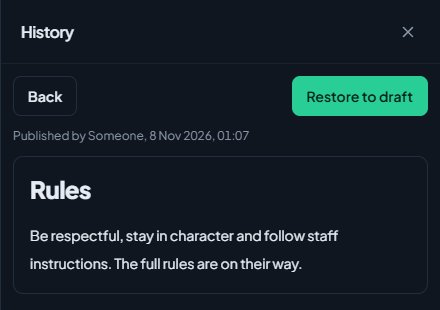
Click a version to see a preview of it. Click Back to go back to the list.
The history only holds versions that were published. Autosaved drafts aren't kept, so if you overwrite a draft that was never published, you can't get it back from here.
Restore an older version#
-
Open the page's History and click the version you want.
-
Check the preview to make sure it's the right one.
-
Click Restore to draft.
-
You'll be asked: Replace your current draft with this version? The live page stays as it is until you publish. Click Restore.
-
The editor reloads with the old version in it. Read it through and make any changes.
-
Click Publish changes to put it live.
The restored version brings back the page's title and content. It doesn't change the page's address, icon or settings.
Publishing the restored version adds it to the top of the history as a new version, so the version you replaced is still there if you change your mind.
Restoring replaces whatever is in your current draft. If you have unpublished edits you want to keep, publish them first, or copy them somewhere safe.
Find out who changed a page#
The History panel shows who published each version. Your activity log also records when pages are created, published, unpublished and deleted, and who did it. See See who changed what in the activity log.
Something not working?#
History says "Nothing published yet. Each time you publish, that version is kept here." The page has never been published, so there's no history yet. Click Publish to save its first version.
I can't see the version I want. History shows the last 50 published versions. Older ones aren't listed.
I restored a version but my site hasn't changed. Restoring only changes your draft. Click Publish changes to put it live.
I deleted a page and want it back. Deleting a page deletes its history too, so it can't be restored. Next time, use Unpublish instead, which takes the page off your site but keeps it and its history.
The History button is missing. History shows once a page is open. If you have no pages yet, create one first. See Build a page with the page editor.
See also
Build a page with the page editor
Create pages for your community site, write and format them, add images and tables, choose who can see them, and publish your changes when they're ready.
Change your site's menu
Choose the links in your community site's header, put them in order, give them icons, move some into the Links menu and turn one into a button.
See who changed what in the activity log
The activity log records changes made in your community, who made them and when. Here's how to read it and who can see it.
Can't find what you need?
Open a ticket in our Discord and someone from the team will help. Found a bug, or missing a feature? Tell us on the feedback board.