Change your site's menu
Choose the links in your community site's header, put them in order, give them icons, move some into the Links menu and turn one into a button.
The menu is the row of links across the top of your community site. You decide what goes in it: your own pages, built-in parts of the site like News or Events, and links to other websites like your Discord or a wiki.
You can have up to 12 links. The first six show in the header, and the rest go into a Links menu so the header never gets crowded. One link can be a highlighted button on the right.
Before you start#
You need to be the owner, or have a role with the Edit the community site: pages, navigation and branding permission.
Open the menu settings#
- Open your control panel.
- In the sidebar, under Modules, click Community Site, then Navigation.
At the top there's a Preview of your header. It updates as you edit, but nothing changes on your site until you click Save navigation.
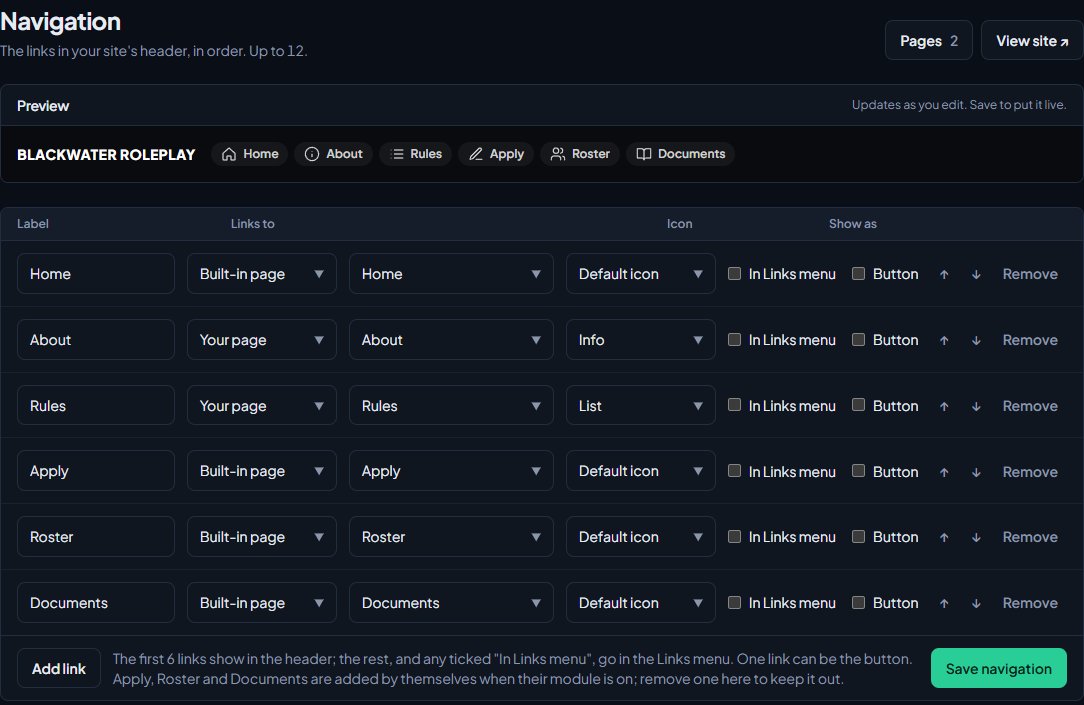
Add a link#
- Click Add link at the bottom of the list.
- Type the Label, the text people see. Labels can be up to 40 characters.
- Under Links to, choose what kind of link it is:
- Built-in page: a part of your site LonexOne provides. Pick it from the list.
- Your page: one of the pages you've made in the page editor. Drafts are marked (draft).
- Web address: any other website. It has to start with https://.
- Choose an Icon, or leave it on Default icon. Pick No icon for text only.
- Click Save navigation.
You'll see Navigation saved.
These are the built-in pages you can link to:
| Built-in page | Shows on your site when |
|---|---|
| Home | Always. |
| Apply, Roster | The Department Panel module is installed. |
| Documents | The Documents module is installed. |
| News, Events, Team, Support, Suggestions, Status | That part of the site is switched on. |
| Store | Your Tebex store is connected and switched on, or you've set a store link under Branding & content. |
If a built-in page isn't available, its link is hidden from your site until it is. It stays in your list, so you don't have to add it again.
You can also add a page to the menu from the page editor. Open the page, click Settings and tick Show in the site menu. It's added to the end of the list, and you can move it here.
Change the order#
Use the ↑ and ↓ buttons on each row to move a link up or down, then click Save navigation. Links show in the header from left to right in the same order.
Use the Links menu and the button#
Each row has two boxes under Show as:
- In Links menu: puts the link in the Links drop-down instead of the header row. Good for things people need now and then, like a wiki or a staff application.
- Button: shows the link as a coloured button on the right of the header, in your accent colour. Only one link can be the button. Ticking it on one row unticks it on the others.
If you have more than six links in the header row, the extra ones go into the Links menu by themselves. The button doesn't count towards the six.
Remove a link#
- Click Remove on the link's row.
- Click Save navigation.
Removing a link only takes it off the menu. The page it pointed to isn't deleted.
Links that add themselves#
When the Department Panel is installed, Apply and Roster are added to your menu on their own. Documents is added when the Documents module is installed. If you don't want one of them, remove it and save. It won't come back unless you add it again.
New communities also start with Home, About and Rules in the menu.
Who sees which links#
- Links to your own pages only show once the page is published.
- Links to pages set to Anyone signed in only show to people who are signed in.
- Links to other websites open in a new tab.
- On phones and smaller screens, all the links are in one menu, opened with the menu button at the top right.
Something not working?#
It says a link "needs a web address starting with https://." The link named in the message has a web address that doesn't start with https://, like one starting with http:// or with nothing in front. Your changes are still on screen: put https:// at the start of that address and save again.
It says "Check the highlighted links: every link needs a label and somewhere to go." One of your rows is missing a label, or a web address is missing. Fill it in, or remove that row, then save again.
A link is in my list but not on my site. Check that the page is published, or that the built-in part of the site it points to is switched on. For example, the News link only shows when the News page is turned on. See Post news to your site.
Add link is greyed out, or it says "You can have up to 12 links. Remove one to add another." The menu holds 12 links at most. Remove one you don't need, or link to a page that lists the rest.
Apply came back after I removed it. If you removed Apply or Roster while the Department Panel wasn't installed, and then installed it, they're added again. Remove them once more and save.
See also
Build a page with the page editor
Create pages for your community site, write and format them, add images and tables, choose who can see them, and publish your changes when they're ready.
Brand your site: logo, colours and home page
Set your community's name, logo, favicon and accent colour, choose how your home page looks to visitors, and add your Discord invite and social links.
Post news to your site
Write news posts for your community site, schedule them for later, pin the important ones, sort them into categories and send them to a Discord channel when they go live.
Add events to the calendar
Put community events, trainings and meetings on your site's calendar, let members reply Going or Maybe, cap the places with a waitlist, send reminders and set your timezone.
Can't find what you need?
Open a ticket in our Discord and someone from the team will help. Found a bug, or missing a feature? Tell us on the feedback board.