Add events to the calendar
Put community events, trainings and meetings on your site's calendar, let members reply Going or Maybe, cap the places with a waitlist, send reminders and set your timezone.
The Events page on your community site is a shared calendar for everything your community has planned: car meets, ride-alongs, department trainings, staff meetings. Members can see what's coming up, reply to say they're going, and get a reminder before it starts.
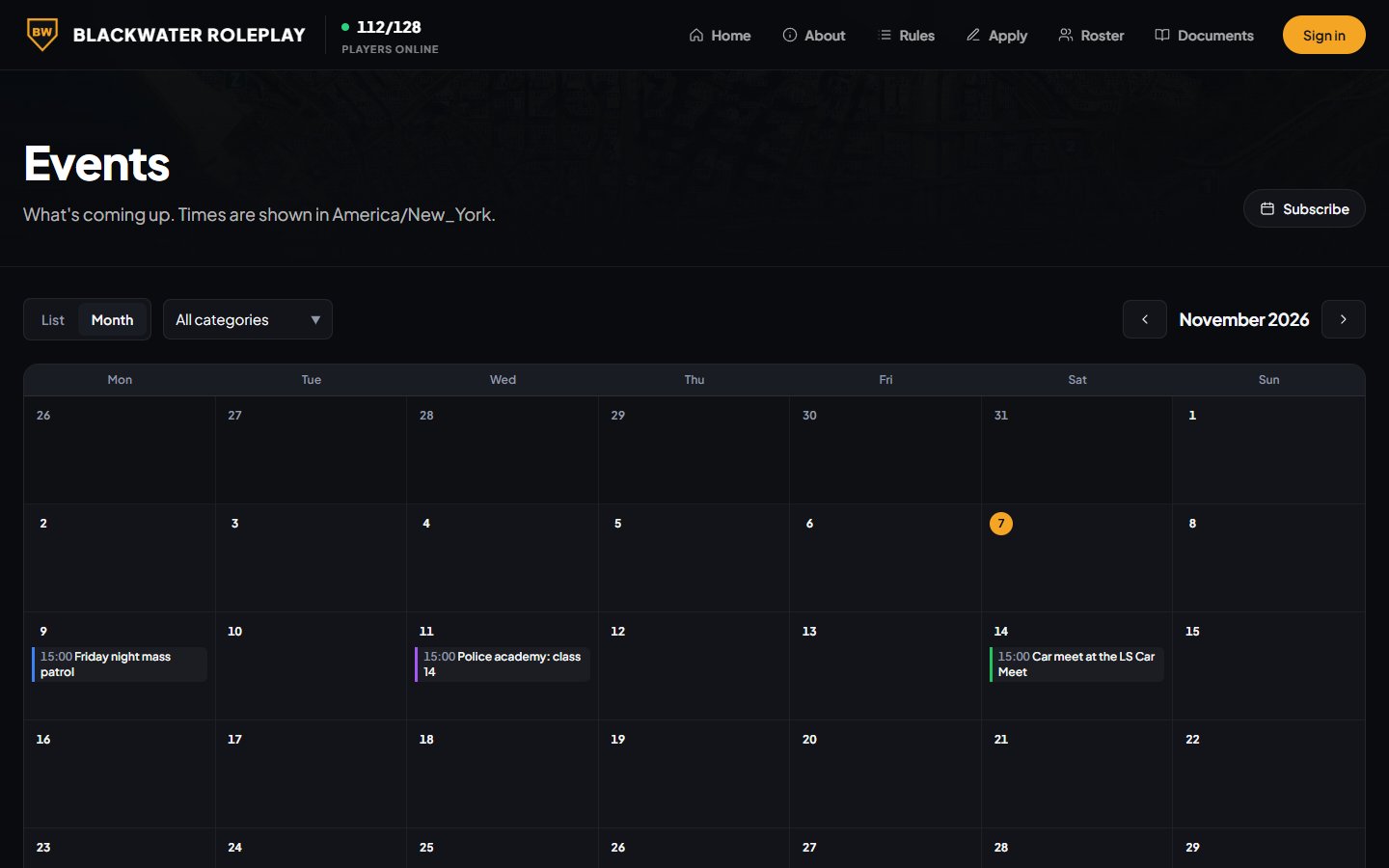
Events show as a list or a month calendar on your site, and your upcoming events can also appear on your home page.
Before you start#
- To add and edit events, you need to be the owner, or have a role with the Create and edit events on the calendar permission.
- To change the timezone, reminders and other event settings, you also need Edit the community site: pages, navigation and branding.
Set your community timezone before you add your first event. Event times are entered and shown in that timezone, and it starts on UTC. See Calendar settings below.
Add an event#
- Open your control panel.
- In the sidebar, under Modules, click Community Site, then Events.
- Click New event.
- Type a Title.
- Set when it Starts. Ends is optional. If you leave it blank, the event counts as two hours long.
- Add a Location if it helps, like a postal, a building or a Discord channel.
- Write a Description: what's happening, what to bring and who it's for.
- Check the settings on the right (see below).
- Click Save.
You'll see Event published., or Draft saved. if you unticked Published.
Settings for each event#
| Setting | What it does |
|---|---|
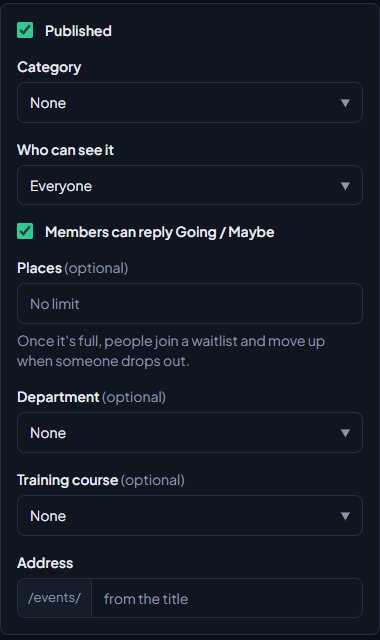
| Published | Ticked, the event is on your site. Unticked, it's a draft only your staff can see. |
| Category | Colours the event on the calendar and lets people filter by it. |
| Who can see it | Everyone, or Anyone signed in. Anyone with an account can sign in, and signing in makes them a member, so this keeps an event off the open web rather than secret. |
| Members can reply Going / Maybe | Lets signed-in members reply Going, Maybe or Not going. |
| Places | The most people who can be going. Leave it blank for no limit. |
| Department | Shows the event is for one department. |
| Training course | Shows the event is a training for one of your Training programmes. |
| Address | The end of the event's web address, after /events/. Leave it blank to make one from the title. |
| Cover image | A wide picture, 16:9 works best. Used on the event and in link previews. |
Department only shows once you have departments, and Training course once you have training programmes.
Replies and the waitlist#
When replies are on, each event shows who's going and who might come. In the control panel, open the event to see everyone's reply under Replies, split into Going, Waitlist, Maybe and Not going.
If you set Places, then once the event is full, anyone else who says they're going joins a waitlist. When someone going changes their reply, the first person on the waitlist moves up. Raising the number of places also lets people in from the waitlist.
Replies close when the event is over or cancelled.
Reminders#
Members who replied Going get a reminder before the event starts. By default that's 1 day before and 1 hour before. Reminders are sent on the channels set under Notifications. If someone replies late, they only get the next reminder due, not the ones already missed.
Cancel an event#
- Open the event.
- Tick Cancelled.
- Click Save event.
Everyone who replied Going, Maybe or joined the waitlist is told it's been cancelled. The event stays on your calendar crossed out, so people who look for it can see it's off. To remove it completely, click Delete event at the bottom and confirm. That deletes its replies too.
Calendar settings#
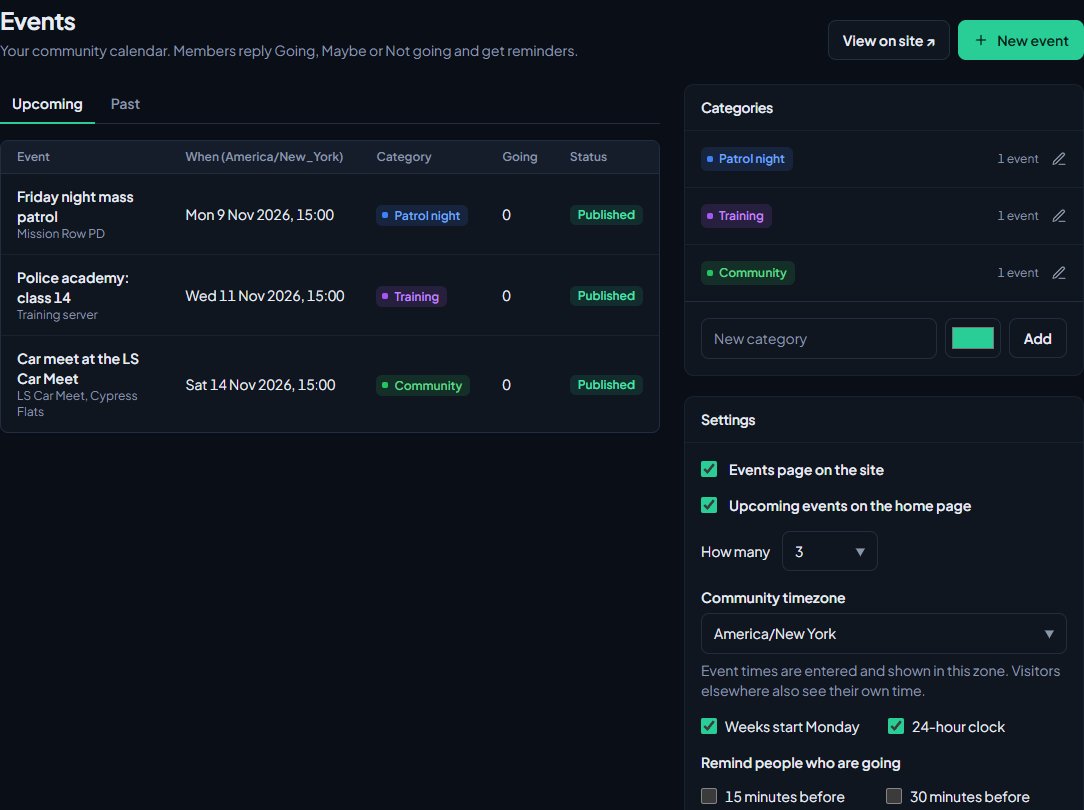
People with the Edit the community site: pages, navigation and branding permission see a Settings box on the right of the Events page:
| Setting | What it does |
|---|---|
| Events page on the site | Turns the Events page on or off. |
| Show training sessions to guests | Shows training sessions to visitors who aren't signed in too. Members always see them. |
| Upcoming events on the home page | Shows your next events on your home page. How many sets the number, from 1 to 12. |
| Community timezone | The timezone event times are entered and shown in. Visitors elsewhere also see the time in their own timezone. Scheduled news and banner times use it too. |
| Weeks start Monday | Starts the month calendar on Monday instead of Sunday. |
| 24-hour clock | Shows times like 19:00. Untick it for a 12-hour clock. |
| Remind people who are going | When reminders go out: 15 minutes, 30 minutes, 1 hour, 3 hours, 1 day, 2 days or 1 week before. Untick them all to send none. |
Click Save settings. While the Events page is on, Events is added to your site's header by itself. To move or remove it, use Navigation. See Change your site's menu.
Categories#
New communities start with four categories: Community, Training, Patrol and Meeting. Change them on the right of the Events page. Click a category to rename it, change its colour or delete it. Deleting a category keeps its events, without a category.
What members see#
On your site's Events page, members can switch between List and Month, filter by category, and look back at past events. Each event has an Add to calendar button that downloads it for their calendar app. Subscribe on the Events page copies a feed link that puts every public event into their calendar app and keeps it up to date. Events set to Anyone signed in aren't in the feed.
Application forms with an opening or closing date show on the calendar for everyone, as Applications open or Applications close. Clicking one opens the form. See Build an application form.
If you use Training, scheduled training sessions also show on the Events page for anyone signed in (and for guests, if you tick Show training sessions to guests), marked Training, with how many people are attending. Clicking one opens the session, where members say whether they're attending. Cancelled sessions are left off, and training sessions aren't in the feed or shown when a category is picked.
Something not working?#
A banner says "The Events page is switched off, so visitors can't see these." Tick Events page on the site in the Settings box and save. If you don't see the Settings box, ask someone who can edit the community site to turn it on.
It says "The end has to be after the start." The Ends time is the same as or before Starts. Change one of them, or clear Ends.
It says "Another event uses that address." Each event needs its own address. Change the Address, or leave it blank to make one from the title.
The times are an hour or more out. Your community timezone isn't set to where you are. Change Community timezone in the Settings box. Events you've already added keep the same moment in time, so check their times afterwards.
Members aren't getting reminders. Reminders only go to people who replied Going, and only for published events that aren't cancelled. Check that at least one reminder time is ticked under Remind people who are going, and that the Events page is switched on.
Members can't reply to an event. Check that Members can reply Going / Maybe is ticked, and that the event isn't over or cancelled. Members have to be signed in to reply.
See also
Post news to your site
Write news posts for your community site, schedule them for later, pin the important ones, sort them into categories and send them to a Discord channel when they go live.
Run an announcement banner
Put a coloured bar across the top of your community site for restarts, wipes and anything else nobody should miss. Schedule it, limit it to some pages and let visitors close it.
Change your site's menu
Choose the links in your community site's header, put them in order, give them icons, move some into the Links menu and turn one into a button.
Choose what members are notified about
Pick which notifications go out on the site, by email and by Discord DM for each kind of update, see what members can turn off themselves, and check for Discord DMs that didn't arrive.
Can't find what you need?
Open a ticket in our Discord and someone from the team will help. Found a bug, or missing a feature? Tell us on the feedback board.