Post news to your site
Write news posts for your community site, schedule them for later, pin the important ones, sort them into categories and send them to a Discord channel when they go live.
News is where you tell your community what's going on: server updates, rule changes, new departments, event results. Posts appear on your site's News page and on your home page, and you can send each one to a Discord channel as it goes live.
You can write a post now and schedule it for later, so a patch note can go out at the same moment as the update.
Before you start#
- To write posts, you need to be the owner, or have a role with the Write news posts and run the announcement banner permission.
- To switch the News page on or off and change the home page settings, you also need Edit the community site: pages, navigation and branding.
- To post to Discord, your Discord server needs to be connected with the LonexOne bot in it. See Connect your Discord server.
Write a post#
-
Open your control panel.
-
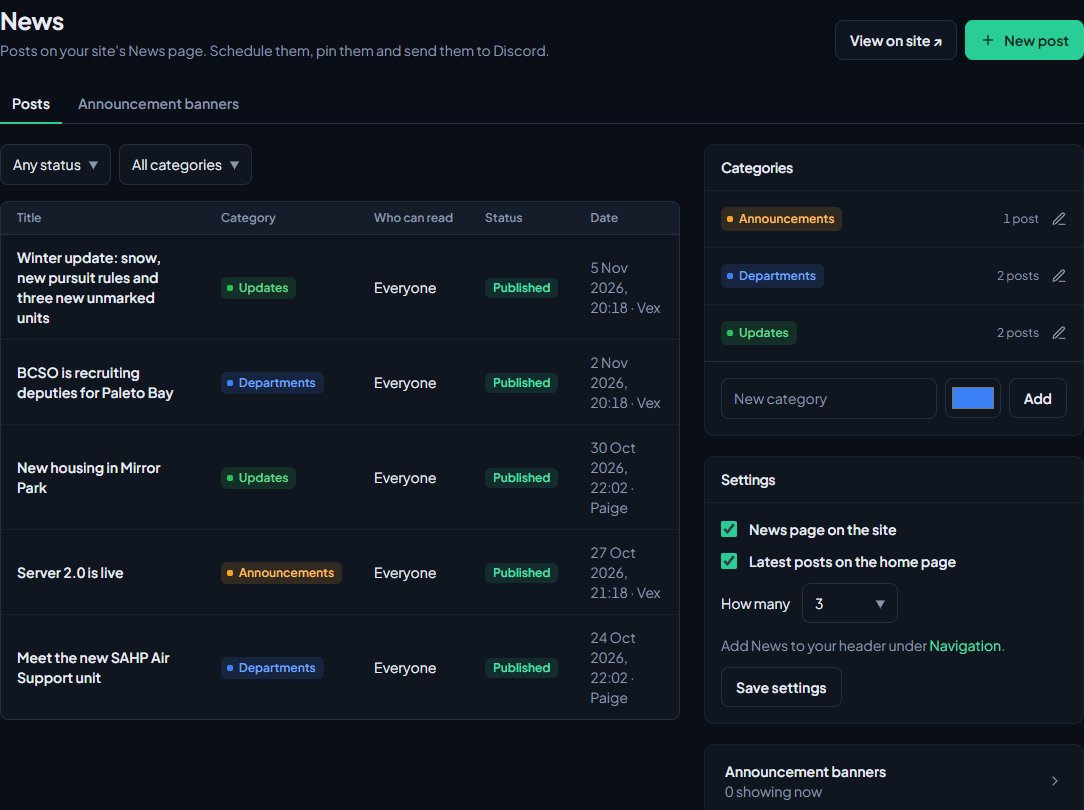
In the sidebar, under Modules, click Community Site, then News.
-
Click New post.
-
Type a Title.
-
Add a Summary if you like. It's one or two lines shown in the news list, on Discord and in link previews. Without one, the start of the post is used.
-
Write the post in Post. The toolbar has headings, bold, lists, links, tables, note boxes and images. You can paste or drag images straight in.
-
Under Publishing, choose Publish now, Schedule or Save as draft.
-
Click Save.
You'll see Published., Draft saved. or Scheduled for followed by the date.
Post settings#
The panel on the right of the post has these settings:
| Setting | What it does |
|---|---|
| Publishing | Save as draft keeps it hidden. Publish now puts it live. Schedule puts it live at the time you pick in Goes live. |
| Category | Sorts the post, and lets members follow the categories they care about. |
| Who can read it | Everyone, or Anyone signed in. Anyone with an account can sign in, and signing in makes them a member, so this keeps a post off the open web rather than secret. |
| Pin to the top of News | Keeps the post above newer ones on the News page and the home page. |
| Address | The end of the post's web address, after /news/. Leave it blank to make one from the title. |
| Cover image | A wide picture, 16:9 works best. Shown on the news list, at the top of the post, on Discord and in link previews. |
| Post to Discord when it goes live | Sends the post to the Discord Channel you pick. |
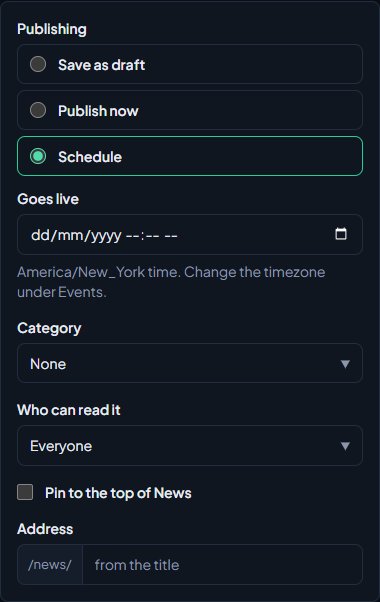
Scheduled times are in your community's timezone, which is shown under the box. To change it, see Add events to the calendar.
If you choose Schedule with a time that's already passed, the post goes live straight away.
Send a post to Discord#
- On the post, tick Post to Discord when it goes live.
- Pick the Channel. The list shows the text channels in your connected Discord servers.
- Save the post.
When the post goes live, now or at its scheduled time, the bot posts it to that channel with its title, summary, cover image and a link to read it on your site. The channel you pick is remembered for your next post.
Each post is only sent to Discord once. Afterwards, the post shows when it was posted to Discord, and editing the post doesn't send it again. In the posts list, a Discord icon next to a title means it's been posted.
A post set to Anyone signed in is still sent to Discord if you tick the box, but only its title and a link. The summary and cover image stay on your site, and the post says to sign in to read it.
Who gets told about a new post#
Members can follow news categories from their notification settings on your site. When a post in a category goes live, everyone following that category is notified, apart from the person who wrote it. Posts without a category don't send notifications. See Choose what members are notified about.
Edit or delete a post#
- On the News page, click the post.
- Make your changes and click Save post.
To delete it, click Delete post at the bottom and confirm. A deleted post can't be brought back.
On the News page you can filter the list by Any status, Published, Scheduled or Draft, and by category.
Categories#
New communities start with three categories: Announcements, Server updates and Community. You can change them on the right of the News page:
- Add one: type a name under New category, pick a colour and click Add.
- Rename or recolour one: click it, make your change and click Save.
- Delete one: click it, then Delete. Its posts stay, without a category.
News page settings#
People with the Edit the community site: pages, navigation and branding permission see a Settings box on the right of the News page:
- News page on the site turns the News page on or off.
- Latest posts on the home page shows your newest posts on your home page.
- How many sets how many posts the home page shows, from 1 to 12.
Click Save settings. To put News in your site's header, add it under Navigation. See Change your site's menu.
Something not working?#
A banner says "The News page is switched off, so visitors can't see these posts." Tick News page on the site in the Settings box and save. If you don't see the Settings box, ask someone who can edit the community site to turn it on.
It says "Pick the channel to post it in." You ticked Post to Discord when it goes live without choosing a channel. Pick one, or untick the box.
It says "That isn't a text channel in your Discord servers." The channel couldn't be found in your connected servers. Pick one from the list. If there's no list, check that the LonexOne bot is in your Discord server.
It says "Couldn't check the channel with Discord. Try again in a minute." We couldn't reach Discord to check the channel. Wait a minute and save again.
It says "Another post uses that address." Each post needs its own address. Change the Address, or leave it blank to make one from the title.
It says "Pick when it goes live." You chose Schedule without a time. Fill in Goes live.
My scheduled post went live at the wrong time. Check your community timezone under Events. Scheduled times use that timezone, not your computer's.
The post didn't appear in Discord. Check that the bot can post in that channel. If it was removed from the server, or the channel's permissions block it, the post can't be sent.
See also
Run an announcement banner
Put a coloured bar across the top of your community site for restarts, wipes and anything else nobody should miss. Schedule it, limit it to some pages and let visitors close it.
Add events to the calendar
Put community events, trainings and meetings on your site's calendar, let members reply Going or Maybe, cap the places with a waitlist, send reminders and set your timezone.
Change your site's menu
Choose the links in your community site's header, put them in order, give them icons, move some into the Links menu and turn one into a button.
Post logs to Discord channels
Choose which Discord channel each event goes to, give departments their own channels, filter and colour CAD posts, and send a test message.
Can't find what you need?
Open a ticket in our Discord and someone from the team will help. Found a bug, or missing a feature? Tell us on the feedback board.