Run an announcement banner
Put a coloured bar across the top of your community site for restarts, wipes and anything else nobody should miss. Schedule it, limit it to some pages and let visitors close it.
An announcement banner is a bar across the top of your community site with a short message, like "Server restart at 18:00 tonight" or "Applications for the EMS academy close on Friday". It shows above everything else on the page, so it's hard to miss.
You can run a banner on every page or just a few, set it to start and stop on its own, and add a link for people who want to know more.
Before you start#
You need to be the owner, or have a role with the Write news posts and run the announcement banner permission.
Add a banner#
- Open your control panel.
- In the sidebar, under Modules, click Community Site, then News.
- Click the Announcement banners tab.
- Under New banner, type your Message. Up to 300 characters.
- If you want a link, fill in Link and Link text. Leave Link text blank to show Read more.
- Choose a Type: Info (blue), Warning (amber) or Urgent (red).
- Choose Where it shows (see below).
- Leave On ticked for it to show.
- Click Add banner.
You'll see Banner added. If it has no start time, it shows on your site straight away.
Banner settings#
| Setting | What it does |
|---|---|
| Message | The text in the bar. |
| Link | A web address starting with https://, or an address on your own site starting with /, like /news/server-update. |
| Link text | The words for the link, up to 40 characters. |
| Type | The colour of the bar. |
| On | Untick to hide the banner without deleting it. |
| Visitors can close it | Adds a close button. Once someone closes a banner, it stays closed for them in that browser. |
| Starts and Ends | Optional. The banner only shows between these times. Times are in your community's timezone. |
| Where it shows | Every page, or Only some pages. |
Show a banner on some pages only#
- Under Where it shows, choose Only some pages.
- Tick the pages you want. The list has Home, News, Events, Team, Member area, Apply, Roster and Documents, and every published page you've made.
- To add any other address on your site, type it in Other addresses, with commas between them, for example /events/summer-meet, /roster.
- Save the banner.
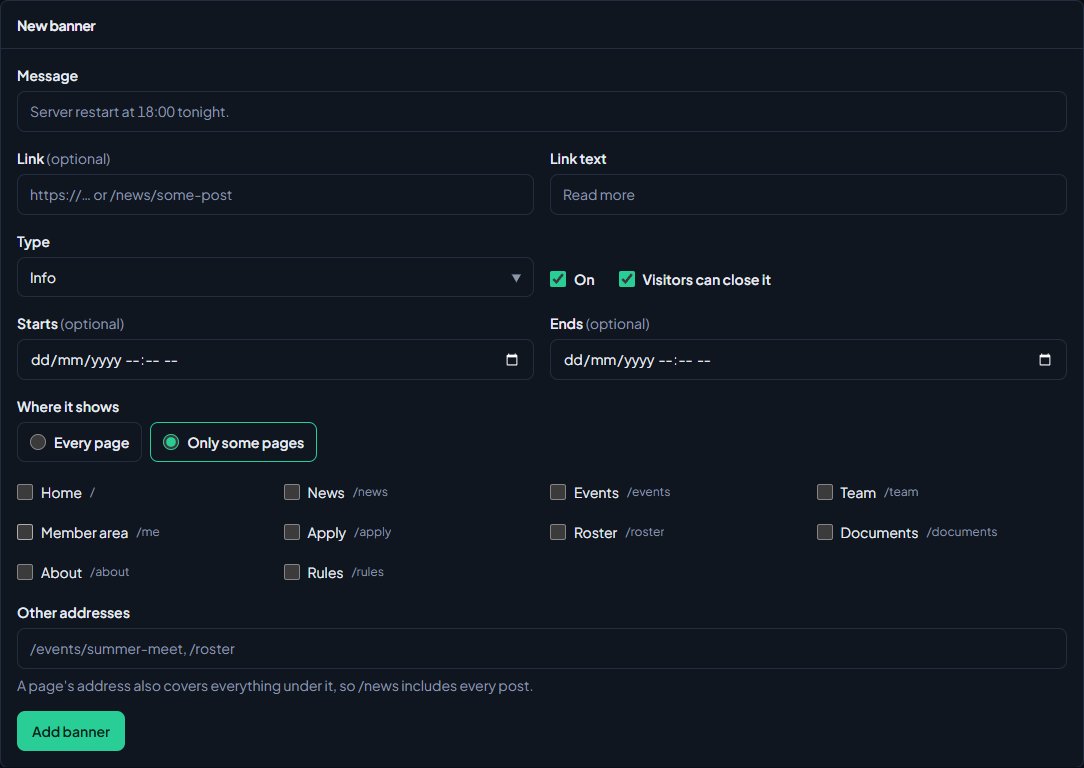
An address also covers everything under it. Picking News (/news) shows the banner on the News page and on every post.
Schedule a banner#
To have a banner appear and disappear by itself, fill in Starts, Ends or both. For example, set a restart notice to start an hour before the restart and end just after.
The list of banners shows each one's state:
| State | What it means |
|---|---|
| Showing | On, and live on your site now. |
| Scheduled | On, but its start time hasn't come yet. |
| Ended | Its end time has passed. |
| Off | On is unticked. |
The News page also shows how many banners are showing now.
Edit or delete a banner#
- On the Announcement banners tab, click the banner in the list.
- Change anything you like and click Save banner. Or click Delete and confirm.
When you edit a banner, it shows again for everyone, including people who had closed it. That way a changed message is always seen. If you only want to stop it showing, untick On rather than deleting it, so you can reuse it later.
More than one banner#
If several banners are showing on the same page, they stack, newest at the top. Your site can also show its own bars alongside yours: a notice when your status page has an incident, a donation goal bar if you've set one up, and a notice for staff when maintenance mode is on.
Something not working?#
It says "Links start with https:// or / for a page on your site." Use a full address starting with https://, or an address on your site starting with /. Addresses starting with http:// aren't allowed.
It says "Pick at least one page, or show it everywhere." You chose Only some pages but didn't tick or type any. Tick at least one page, or choose Every page.
It says "The end has to be after the start." Your Ends time is the same as or before your Starts time. Change one of them.
My banner isn't showing. Check its state in the list. If it's Scheduled, it hasn't started yet. If it's Ended or Off, change the dates or tick On. If you closed it yourself on the site, it stays closed in your browser until the banner is edited.
It shows on more pages than I wanted. An address covers every page under it. For example, /events covers every event. Pick the exact addresses you want instead.
See also
Post news to your site
Write news posts for your community site, schedule them for later, pin the important ones, sort them into categories and send them to a Discord channel when they go live.
Add events to the calendar
Put community events, trainings and meetings on your site's calendar, let members reply Going or Maybe, cap the places with a waitlist, send reminders and set your timezone.
Post an incident or turn on maintenance mode
Tell players what's wrong and when it's fixed, schedule planned maintenance, post updates to Discord, and take your website offline with maintenance mode while staff still get in.
Change your site's menu
Choose the links in your community site's header, put them in order, give them icons, move some into the Links menu and turn one into a button.
Can't find what you need?
Open a ticket in our Discord and someone from the team will help. Found a bug, or missing a feature? Tell us on the feedback board.