Post an incident or turn on maintenance mode
Tell players what's wrong and when it's fixed, schedule planned maintenance, post updates to Discord, and take your website offline with maintenance mode while staff still get in.
When a server goes down, players want to know you're on it. An incident puts a short, dated update on your status page, and optionally a banner across your site and a post in Discord. Planned maintenance does the same ahead of time, so players know when to expect downtime.
Maintenance mode is different: it takes your whole community website offline behind a maintenance page while you work on it, and lets your staff carry on using it.
Before you start#
- You need the Community Site module installed.
- You need to be the owner or an administrator, or have a role with Run the status page: game servers, incidents and maintenance mode or Edit the community site: pages, navigation and branding.
- Incidents show on the status page, so turn it on first. See Run a status page for your game servers.
Post an incident#
-
Open your control panel and click Status & servers in the left sidebar.
-
Click the Incidents tab.
-
Under Type, choose Incident.
-
Type a Title, like "Main server is down".
-
Choose the Impact: Minor, Major or Outage.
-
Choose the Status. Incidents start at Investigating unless you pick another.
-
Under What's happening, write a short update for players.
-
If you have more than one server, tick the Servers affected. Ticking none means all of them.
-
Click Post.
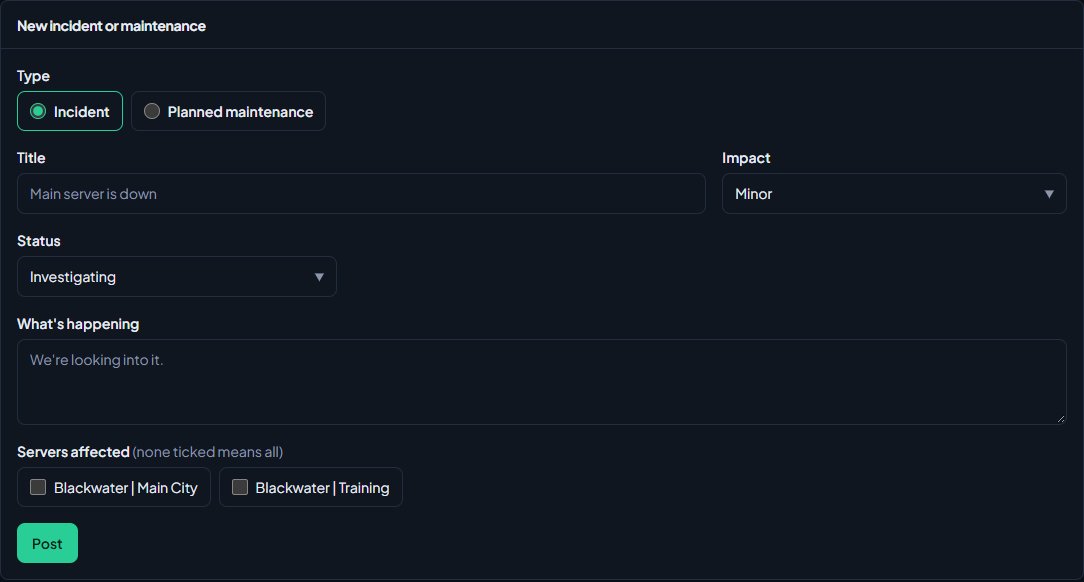
The incident appears under Right now on your status page. If you turned on Show a banner across the site while an incident is open, a strip appears at the top of every page with the title, its status and a link to the status page. If you picked a Discord channel under Post incidents to Discord, it's posted there too.
Post an update#
Players like to see progress. Each update is added to the incident's timeline with the time and who posted it.
- On the Incidents tab, open the incident under Open.
- Pick the new Status. For incidents these are Investigating, Identified, Monitoring and Resolved.
- Change the Impact if it's better or worse than you thought.
- Write the Update.
- Click Post update.
Choosing Resolved closes the incident. It moves to Resolved in the panel and to Past 14 days on the status page, and the banner goes away.
Schedule planned maintenance#
- On the Incidents tab, choose Planned maintenance under Type.
- Type a Title, like "Server move".
- Set Starts. Times are in your community's time zone, which is shown next to the label.
- Optionally set Ends. It has to be after the start.
- Choose the Status: Scheduled, In progress or Completed.
- Write What's happening and tick the Servers affected.
- Click Post.
Until the start time, the maintenance is listed under Planned maintenance on the status page. Once the start time passes it moves to Right now, the headline changes to "Under maintenance", and the banner shows if it's on.
At the start time an update saying it has started is posted with the status In progress. If you set Ends, an update with the status Completed is posted at that time and the maintenance moves to Past 14 days. Both go to Discord too if incidents are posted there. Without an end time, post an update with the status Completed yourself when you're done.
Delete an incident#
Open it and click Delete, then confirm. It's removed from the status page straight away. Use this for mistakes; for real problems it's better to resolve them, so players can see what happened.
Turn on maintenance mode#
-
On Status & servers, click the Maintenance mode tab.
-
Tick Put the website in maintenance mode.
-
Write a Message for visitors, like "We're moving to a new server. Back tonight."
-
Optionally set Back by. The site comes back on its own at this time.
-
Choose who still gets in (see below).
-
Click Save.
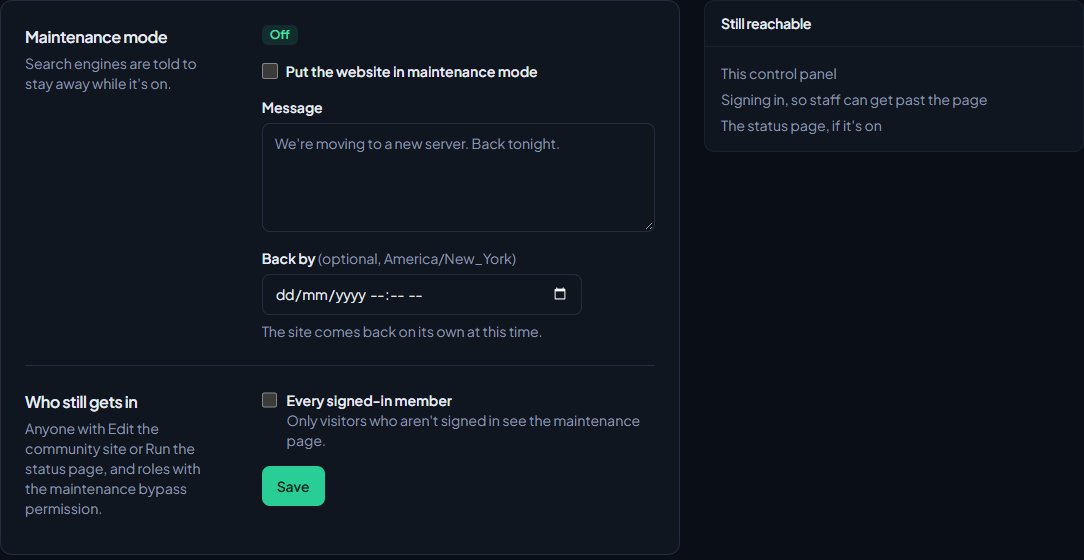
You'll see "Maintenance mode is on." and the status tag changes to On. To turn it off, untick the box and click Save.
While it's on, visitors see a maintenance page with your message instead of your website, and search engines are told to stay away and come back later.
Who still gets in#
These people can use the site as normal while maintenance mode is on:
- The owner and administrators.
- Anyone with Edit the community site: pages, navigation and branding or Run the status page: game servers, incidents and maintenance mode.
- Anyone whose role has Get into the site while it is in maintenance mode. Use this for testers or trusted members.
- Members who joined before maintenance began, if you tick Members who joined before maintenance began. They sign in to get past. Anyone who joins while maintenance is on still sees the maintenance page.
People who get in see a yellow strip at the top: "Maintenance mode is on. Visitors see the maintenance page; you can see the site because of your role."
These always stay reachable, so staff can get past and players can check on progress:
- Your control panel, which is on lonexone.com rather than your site.
- Signing in.
- The status page, if it's on.
Anyone can sign in on your site, and signing in makes them a member. That's why only people who were already members when maintenance began get past. Saving the settings again while maintenance is on doesn't change that moment; turning maintenance off and on again does.
Something not working?#
"Pick a time in the future, or leave it blank." Back by is in the past. Pick a later time, or clear it.
"The end has to be after the start." For planned maintenance, Ends is before or the same as Starts.
Maintenance mode turned itself off. The Back by time passed. Turn it on again with a new time, or leave Back by blank so it stays on until you turn it off.
There's no banner for my incident. Check Show a banner across the site while an incident is open is ticked on the Servers tab, and that the status page is on. The banner doesn't show on the status page itself, and only the newest incident is shown. Planned maintenance only shows a banner once it has started.
Incidents aren't posting to Discord. Pick a channel under Post incidents to Discord on the Servers tab and click Save. The bot needs to be in that server and able to post in the channel.
I can't see the Incidents or Maintenance mode tabs. They only show when the Community Site module is installed.
See also
Run a status page for your game servers
List your game servers with live player counts and a Connect button, pick your main server for the header, choose who sees each one, and switch on the public status page.
Run an announcement banner
Put a coloured bar across the top of your community site for restarts, wipes and anything else nobody should miss. Schedule it, limit it to some pages and let visitors close it.
Post logs to Discord channels
Choose which Discord channel each event goes to, give departments their own channels, filter and colour CAD posts, and send a test message.
Can't find what you need?
Open a ticket in our Discord and someone from the team will help. Found a bug, or missing a feature? Tell us on the feedback board.