Run a status page for your game servers
List your game servers with live player counts and a Connect button, pick your main server for the header, choose who sees each one, and switch on the public status page.
The status page tells players whether your servers are up before they launch FiveM. It lists each game server with whether it's online, how many players are on, a graph of the last 24 hours and a Connect button. It also shows any incidents and planned maintenance you post.
Your servers are added once on the Status & servers page in your control panel. The same list is used for your header's player count, the join button on your site and the keys the LonexOne FiveM resource uses.
Before you start#
- To add and edit servers you need to be the owner or an administrator, or have a role with Run the status page: game servers, incidents and maintenance mode, Edit the community site: pages, navigation and branding or Set up the CAD: call types, statuses, penal code, designs and AOP.
- The public status page, incidents and maintenance mode need the Community Site module. Without it you can still add servers and make keys for the FiveM resource.
Add a server#
- Open your control panel and click Status & servers in the left sidebar.
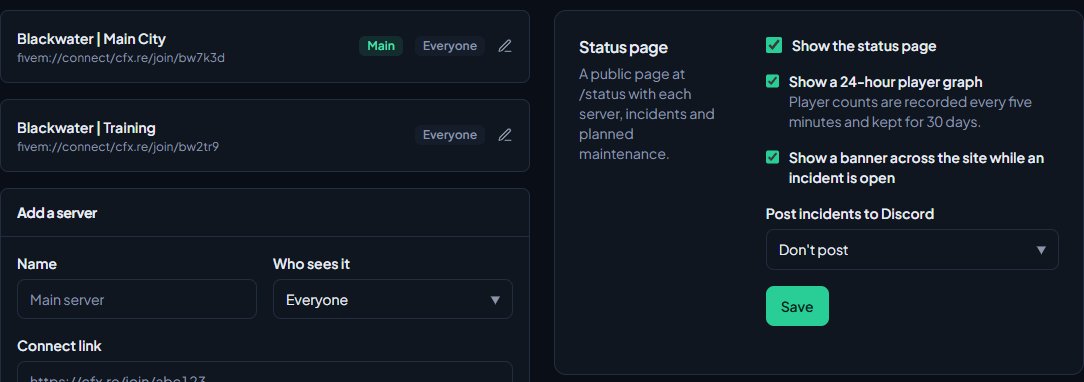
- Under Add a server, type a Name, like "Main server".
- Choose Who sees it (see below).
- Paste the server's Connect link. Any link with a cfx.re/join code in it shows live players, like https://cfx.re/join/abc123 or fivem://connect/cfx.re/join/abc123. A fivem://connect/ link without a cfx.re/join code only works for the Connect button, unless the server runs the LonexOne FiveM resource.
- Optionally add a Description, like "Whitelisted. Apply on the site first."
- Click Add server.
The first server you add becomes your main server.
Who sees it#
| Option | Who sees the server on the status page |
|---|---|
| Everyone | Anyone visiting your site. |
| Anyone signed in | Anyone who signs in on your site. Signing in makes someone a member, so this keeps a server off the public list, not secret. |
| Hidden | Nobody. Use it for a dev or test server that still needs a key for the FiveM resource. |
Your main server#
The main server is the one your header's player count and your site's join button use. It's marked Main in the list.
To change it, click the server to open it and click Make main server. If you delete the main server, the next one in the list takes over.
Use the up and down arrows on a server to change the order servers are listed in.
Turn on the status page#
- On Status & servers, find Status page on the right.
- Tick the options you want:
- Show the status page puts the page at your site's address with /status on the end.
- Show a 24-hour player graph adds a graph and an "Up, last 24h" figure to each server. Player counts are recorded every five minutes and kept for 30 days.
- Show a banner across the site while an incident is open puts a strip at the top of every page while something is going on.
- Optionally pick a channel under Post incidents to Discord.
- Click Save.
All three options are on for new communities. To add the page to your header, open Navigation, click Add link, choose Built-in page and then Status, and click Save navigation.
What players see#
The status page has a headline at the top, then four sections:
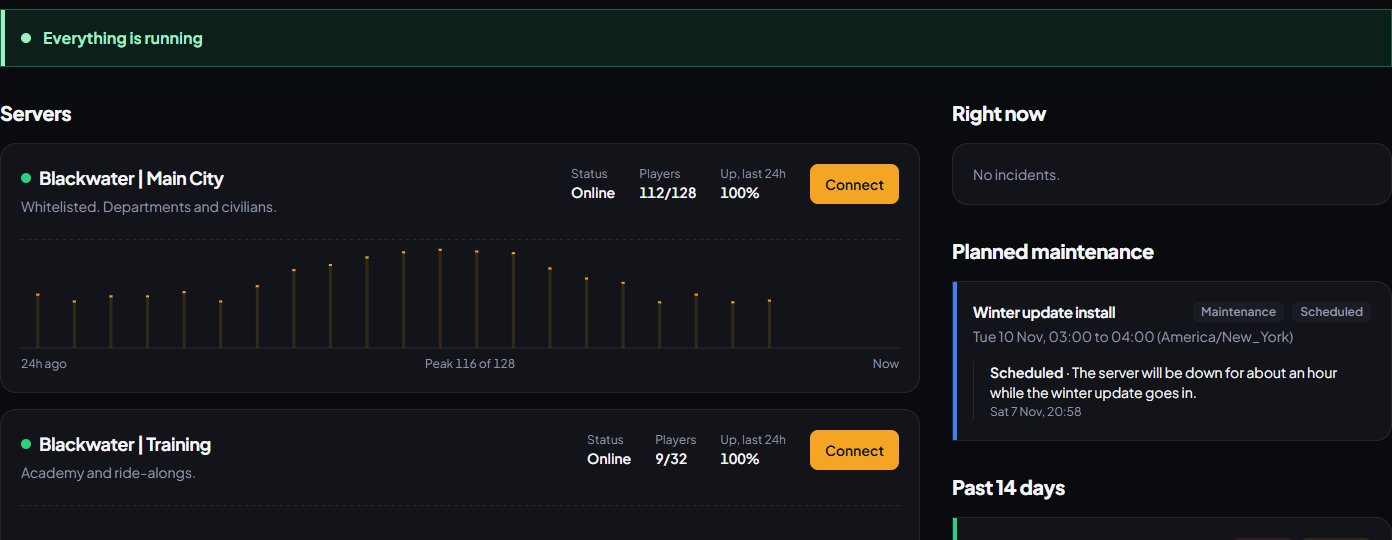
- Servers: each server's status, players and the Connect button.
- Right now: incidents that are open and maintenance that has started, or "No incidents".
- Planned maintenance: maintenance that hasn't started yet.
- Past 14 days: incidents and maintenance that finished in the last two weeks.
The headline picks the most serious thing going on:
| Headline | When |
|---|---|
| Major outage | An open incident has the impact Outage. |
| Some things are affected | An open incident has the impact Minor or Major. |
| Under maintenance | Maintenance has started and isn't completed. |
| A server is offline | The server isn't answering: the LonexOne resource has stopped calling in, or the FiveM server list can't see it. |
| Everything is running | None of the above. |
To post incidents and maintenance, see Post an incident or turn on maintenance mode.
The status page stays reachable while your site is in maintenance mode, so players can still check on progress.
Server keys for the FiveM resource#
Each server also has a Game connection section, where you make the key the LonexOne FiveM resource uses to talk to your community. That's covered in Connect your game server.
Edit or delete a server#
- Click the server in the list to open it.
- Change what you need and click Save server, or click Delete and confirm.
Deleting a server also deletes its player history.
Something not working?#
"Use a cfx.re/join link or fivem://connect/…" The connect link has to start with https:// or fivem://. Copy the join link from your server's listing.
A server shows no players or no graph. Live players and the graph come from the LonexOne FiveM resource when the server runs it, which works even if your server is unlisted. Without the resource, they need a connect link with a cfx.re/join code in it, and the server has to be on the FiveM server list. A fivem://connect/ link with an IP address only gives you the Connect button. The graph also needs Show a 24-hour player graph turned on.
The status page says "Page not found". Show the status page is turned off. Turn it on under Status page and click Save.
A server isn't on the status page. Check Who sees it. Hidden servers never show, and Anyone signed in servers only show to people who are signed in.
"Pick a channel from one of your Discord servers." The channel ID isn't one the bot can see. Pick it from the list instead.
There are no Incidents or Maintenance mode tabs. Those tabs only show when the Community Site module is installed.
I get "No access" when I open Incidents or Maintenance mode. They need the Run the status page or Edit the community site permission. The CAD setup permission only covers the Servers and Game resource tabs.
See also
Post an incident or turn on maintenance mode
Tell players what's wrong and when it's fixed, schedule planned maintenance, post updates to Discord, and take your website offline with maintenance mode while staff still get in.
Connect your game server with a server key
Add your game server in Status & servers, make its server key, put it in server.cfg, check it's connected, and choose the in-game duty rules.
Change your site's menu
Choose the links in your community site's header, put them in order, give them icons, move some into the Links menu and turn one into a button.
Install the LonexOne FiveM resource
Claim the free resource through Tebex, download it from Keymaster, add it to your server with screenshot-basic and the optional camera prop, and start it.
Can't find what you need?
Open a ticket in our Discord and someone from the team will help. Found a bug, or missing a feature? Tell us on the feedback board.