Connect your game server with a server key
Add your game server in Status & servers, make its server key, put it in server.cfg, check it's connected, and choose the in-game duty rules.
Each game server talks to LonexOne with its own server key. The key tells LonexOne which community and which server the resource belongs to, so keep it private.
This article covers adding your server, making its key, adding the key to server.cfg, and the duty rules that decide how in-game and website duty work together.
Before you start#
- Install the resource first. See Install the LonexOne FiveM resource.
- You need to be the owner, or have a role with one of these permissions: Run the status page: game servers, incidents and maintenance mode, Edit the community site: pages, navigation and branding or Set up the CAD: call types, statuses, penal code, designs and AOP.
- Most of what the resource does needs the CAD. Without it, the resource still connects, and the Staff Panel and other modules work through it.
Add your game server#
-
Open your control panel and click Status & servers in the left sidebar.
-
On the Servers tab, find Add a server.
-
Fill in the Name, for example Main server.
-
Choose Who sees it: Everyone, Signed-in members or Hidden. This is for your status page and doesn't affect the resource.
-
Add a Connect link if you have one, like a cfx.re/join link. It's optional.
-
Click Add server.
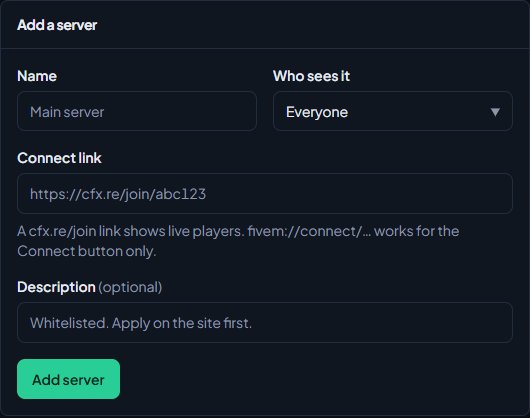
The first server you add becomes your main server.
Make a server key#
- Click your server's name on the Servers tab to open it.
- Under Game connection, click Make a server key.
- The key appears in the Server key box. Click Copy.
The key is only shown once. Copy it now. If you lose it, make a new one.
Add the key to server.cfg#
-
Open your server's
server.cfg. -
Add this line above
ensure lonexone, with your own key:set lonexone_key "lx_..." -
Restart your server.
Use set, not setr. setr would send your key to every player who joins.
When it works, the server console prints Connected to LonexOne: followed by your community and server name.
Check it's connected#
Open the server on the Servers tab. Under Game connection you'll see a tag:
- Last heard from a few seconds ago, in green, means the server is talking to LonexOne.
- Not connected yet means LonexOne hasn't heard from it since the key was made.
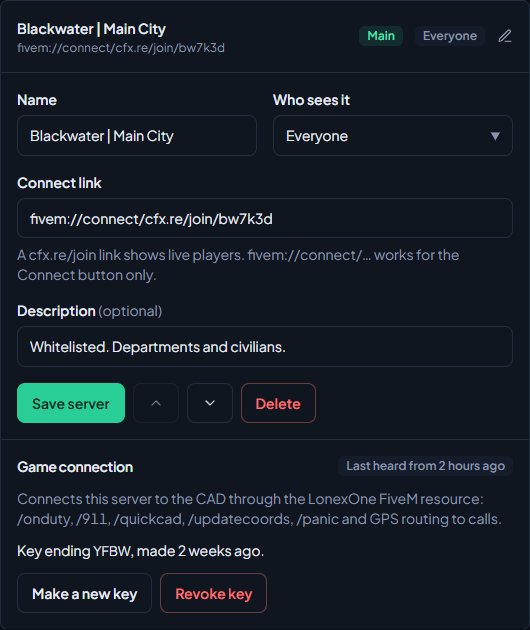
The resource checks in at least once a minute, even when the server is empty, so the tag stays green while the server is running.
More than one game server#
Add each server separately and give each one its own key. Players can go on duty from any of them, and units from every server show in the CAD together.
Make a new key or revoke one#
If your key leaks, or you've lost it:
- Click Make a new key to replace it. The old key stops working straight away, so update
server.cfgand restart. - Click Revoke key to stop the server talking to the CAD altogether.
Both ask you to confirm first.
Choose the duty rules#
On the Game resource tab, the CAD box has switches that control how in-game and website duty work together:
| Switch | What it does | Starts |
|---|---|---|
| Sign on only while in game | Units can only go on duty while they're on one of your game servers. Dispatchers can sign on from anywhere. | Off |
| Sign off when leaving the game | A unit who leaves the game server is signed off the CAD and their shift ends. | On |
Change them and click Save. You'll see Saved. Game servers pick up the change within a few seconds.
"In game" means the player was on one of your servers in the last 90 seconds, matched by their Discord account.
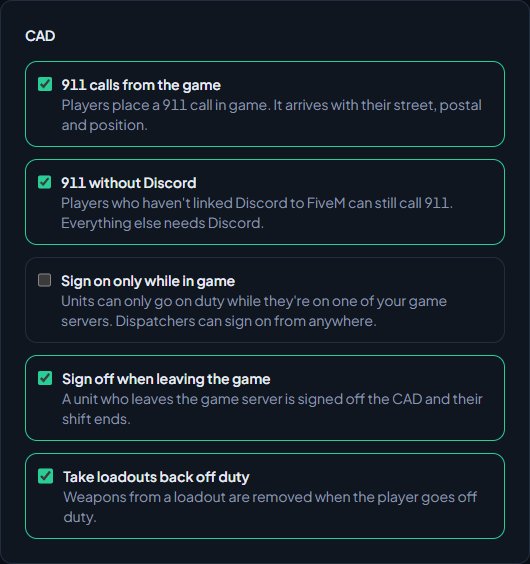
The same box has switches for 911 calls and loadouts. See 911 calls from the game and Set up duty loadouts.
Everything else the resource does, like command names, keys and how messages look, is on the Game resource tab too. See Every in-game command.
Something not working?#
It still says Not connected yet. Check the server is running and the console shows Connected to LonexOne, then see Fix the FiveM resource not connecting.
The console says "LonexOne rejected the key in lonexone_key. Check it in the LonexOne panel under Status & servers."
The key is wrong, or it was replaced or revoked. Make a new key, update server.cfg and restart.
The Game resource tab says "No game server is connected yet." None of your servers has a key. Make one on the Servers tab.
The Game resource tab says "The CAD is switched off for this community, so the CAD commands do nothing in game." Install the CAD from Install modules in the sidebar.
Units can't sign on from the website: "Join one of the community's game servers first, then sign on here or with /onduty in game." Sign on only while in game is on. The unit needs to be on one of your servers, with the same Discord account they use on the website. Turn the switch off if you don't want this.
See also
Install the LonexOne FiveM resource
Claim the free resource through Tebex, download it from Keymaster, add it to your server with screenshot-basic and the optional camera prop, and start it.
Fix the FiveM resource not connecting
What each LonexOne message in your server console means, why the server shows Not connected yet, and how to fix players who can't use the CAD in game.
Every in-game command
Every command the LonexOne resource adds, who can use it and what it does, plus how to rename commands, set the panic and tablet keys and change how messages look.
Go on duty in the CAD
Sign on with your department and callsign, skip the panel screen with a default, go off duty, and fix the messages that stop you signing on.
Can't find what you need?
Open a ticket in our Discord and someone from the team will help. Found a bug, or missing a feature? Tell us on the feedback board.