Every in-game command
Every command the LonexOne resource adds, who can use it and what it does, plus how to rename commands, set the panic and tablet keys and change how messages look.
The LonexOne resource adds a set of chat commands to your game server, from going on duty to calling 911. This article lists every one of them, then covers renaming them, the panic and tablet keys, and how messages from the CAD look in game.
All of this is set on the Game resource tab of Status & servers in your control panel. Changes reach your game servers within a few seconds.
Before you start#
To change these settings you need to be the owner, or have one of these permissions: Run the status page: game servers, incidents and maintenance mode, Edit the community site: pages, navigation and branding or Set up the CAD: call types, statuses, penal code, designs and AOP.
Every command except /911, /gps, /hud and /seatbelt needs the player to have Discord linked in FiveM, with the same account they use on your community's website.
The commands#
These are the default names. Your community may have renamed some.
| Command | Who can use it | What it does |
|---|---|---|
| /onduty | Members of a police, fire or EMS department | Opens the duty menu. Pick a department, check your callsign, pick a division and loadout, and click Go on Duty. If you're already on duty, it shows your callsign with Go Off Duty. |
| /offduty | Anyone on duty | Signs you off the CAD and ends your shift. |
| /911 what is happening | Everyone | Sends a 911 call from where you're standing. See 911 calls from the game. |
| /quickcad description | Units on duty | Creates a call where you are, like a traffic stop, and attaches you to it. |
| /updatecoords | Units on duty, on a call | Moves your call to where you are, and re-routes the other units on it. |
| /cr | Units on duty, on a call | Sets your GPS to the call you're assigned to. |
| /comment note | Units on duty, on a call | Adds a note to your call, as if you'd typed it in the CAD. |
| /panic | Units on duty | Presses your panic button and creates a panic call at your location. |
| /gps postal or road | Everyone | Sets a waypoint to a postal, like /gps 412, or the nearest point on a road, like /gps Vinewood Blvd. On its own, it clears your waypoint. |
| /vs | Units on duty | Lists the fleet vehicles you can take out, and spawns the one you pick. See The garage and fleet vehicles in game. |
| /garagespot name | Fleet managers on duty | Marks where you stand as a garage bay for your department. |
| /vssave | Fleet managers | Saves the look of the car you're driving onto a fleet vehicle with the same spawn code, or onto all of them at once. |
| /uniform | Members given a uniform, and fleet managers | Lists your uniforms and puts the one you pick on. Change back into my own clothes puts back what you wore. See Put on a uniform in game. |
| /uniformsave | Fleet managers | Saves the clothes you're wearing onto a uniform, for the male or female character you're playing. See Save a uniform's clothes for the game. |
| /photo evidence number caption | Units on duty | Takes a photo for the CAD. See Photos, headshots and mugshots. |
| /headshot | Members with a civilian | Takes a photo of your face for your civilian's ID. |
| /mugshot | Police on duty | Photographs the person in front of you for their civilian's photo. |
| /showid | Members with a civilian | Shows your civilian's ID card to you and anyone within 4 metres. |
| /registervehicle name or /regveh name | Members with a civilian, in the driver's seat | Registers the car you're driving to your civilian, with its plate, make, model and colour. The name is optional and picks which civilian. With a DMV, it sends an application instead. See Create a civilian character. |
| /tablet | Members | Opens the CAD inside the game, already signed in. See Use the CAD in game on the tablet. |
| /placecamera | People who can manage cameras | Places a speed or plate camera where you're looking. Needs the Cameras module. See Place speed and plate cameras. |
| /alpr | Police on duty | Opens the ONE 3000 remote, which turns the plate reader in your car on and off and sets it up. The reader shows the plates and speeds of the cars in front and behind, and warns about plate hits. Needs the Cameras module. See Use the plate reader in police cars. |
| /spawnpoint name | People who can set up the spawn selector | Adds where you stand, facing the way you face, to the spawn selector. Needs the Mechanics module. See Set up the spawn selector. |
| /hud, /hud off or /hud on | Everyone | Opens the HUD menu, where you pick a design and switch parts off, when your community allows it. /hud off hides the HUD and /hud on brings it back. Needs the HUD under Mechanics. See Set up the HUD. |
| /seatbelt | Everyone, in a vehicle | Buckles or unbuckles your seatbelt. B does the same, and you can change the key in the game's key settings. Only when the HUD uses its own seatbelt. |
| /aop area | People who can change the AOP and peacetime | Sets the AOP for the CAD and every player's HUD straight away, and tells everyone in chat, like "AOP changed to Sandy Shores by Sam". On its own, /aop shows the AOP. Needs the CAD or the HUD. See Change the AOP and peacetime. |
| /peacetime or /pt, with on or off if you like | People who can change the AOP and peacetime | Turns peacetime on or off. While it's on, players can't shoot, fight or draw a weapon. Everyone is told in chat. Needs the CAD or the HUD. |
| /priority or /prio, with start, end, hold, clear or cooldown | Everyone; hold, clear and cooldown for staff | Shows the priority status, starts or ends your own priority, or for staff puts priorities on hold, clears them or starts a cooldown, like /priority cooldown 30. Needs priority cooldowns switched on. See Use priority cooldowns. |
| /refreshperms | Anyone | Reads the player's Discord roles again and updates their in-game permissions. Changes made on the website reach the game on their own, so it's only needed straight after a Discord role change. It can be used once every 30 seconds. Needs Game Permissions. See Set up game permissions. |
| /myperms | Anyone | Shows the player their game permission groups in chat, why they have each one, and how many locked vehicles, weapons and peds they can use. Only they see it. Needs Game Permissions. |
| /character | Everyone | Saves how your character looks and opens the character screen, to play as another of your characters or make a new one. Needs Character select under Mechanics. See Set up character select. |
| /doors | People with the Door locks permission | Opens the door manager: look at a door to add it, choose who can open it, and lock buildings down. Needs Door locks under Mechanics. See Set up door locks. |
| /revive id | Medics on duty | Gets the downed player next to you up where they are. Add a server ID to pick who. Needs Death & hospital under Mechanics. See Set up death and hospital. |
| /hospital id hospital | Medics on duty | Takes the downed player next to you to the nearest hospital, or the one you name. Needs Death & hospital under Mechanics. |
| /hospitalspot hospital | People with the Set up death and hospital permission | Marks where you stand as where patients leave that hospital and where people wake up. |
| /hospitalbed hospital | People with the Set up death and hospital permission | Adds a bed where you are to the nearest hospital, or the one you name. |
Commands with an italic part need you to type something after them. Every command also shows a hint in the chat box as you type it.
If your community has the Staff Panel, the resource adds staff commands and the /report and /calladmin commands too. See In-game staff tools.
What happens on duty#
While you're on duty in the CAD, from the game or the website:
- When a dispatcher assigns you to a call, you get a message with the call number, what it is and where, and a waypoint is set to it.
- If the call is moved, your waypoint moves with it and you're told the new location.
- When you're cleared from a call, you get a message saying so.
- If you're signed off in the CAD (for example by a supervisor), you're told you're off duty.
- If Uniforms on and off with duty is switched on, going on duty puts on the first uniform you've been given in that department, and going off duty changes you back into your own clothes.
Rename or turn off a command#
-
Open your control panel and click Status & servers in the left sidebar.
-
Click the Game resource tab.
-
Under Commands, change the name in the box for that command. Leave the box empty to turn the command off.
-
Click Save at the bottom of the page.
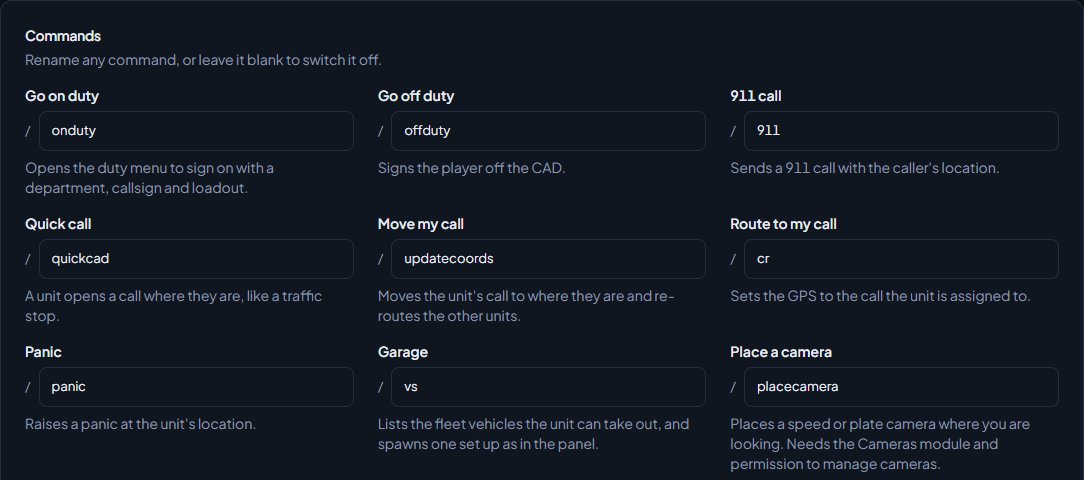
Names can use letters, numbers, dashes and underscores, up to 24 characters. Two commands can't share a name.
/registervehicle has a second, shorter name, /regveh, with its own box. Leave that box empty to keep only the long name, or empty both to turn vehicle registration from the game off.
FiveM doesn't let a resource remove a command once it's added. After you rename one, the old name does nothing until the server restarts.
Set the panic and tablet keys#
In the In game box on the Game resource tab:
| Setting | What it does |
|---|---|
| Panic key | A key that presses the panic button, the same as /panic. |
| Tablet key | A key that opens and closes the CAD tablet, the same as /tablet. |
| Wait between 911 calls | How long, in seconds, a player has to wait between 911 calls. |
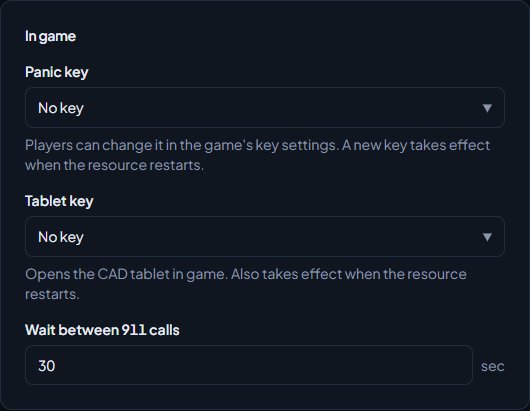
For each key you can pick No key, Players pick their own in the game's key settings, or a key such as F5, HOME or NUMPAD1. Players can change the key in the game's key settings.
A new panic or tablet key only takes effect after the resource restarts. Pick No key and players can't bind one at all.
Change how messages look#
The Notifications section controls how messages from the CAD look in game: calls, panics, camera alerts and replies to commands.
| Setting | What it does |
|---|---|
| Show messages as | On-screen notification or Chat message. |
| Position | Where notifications stack: top right, top middle, top left, middle right or bottom right. |
| Title | The text in the title bar. Starts as CAD. |
| Show each for | How many seconds each one stays, from 3 to 30. Panics and camera alerts stay a few seconds longer. |
| Most on screen at once | From 1 to 8. |
| Show the department | Adds the unit's department to the title while they're on duty. |
| Title bar, Message box, Text, Panics and camera hits | The colours. |
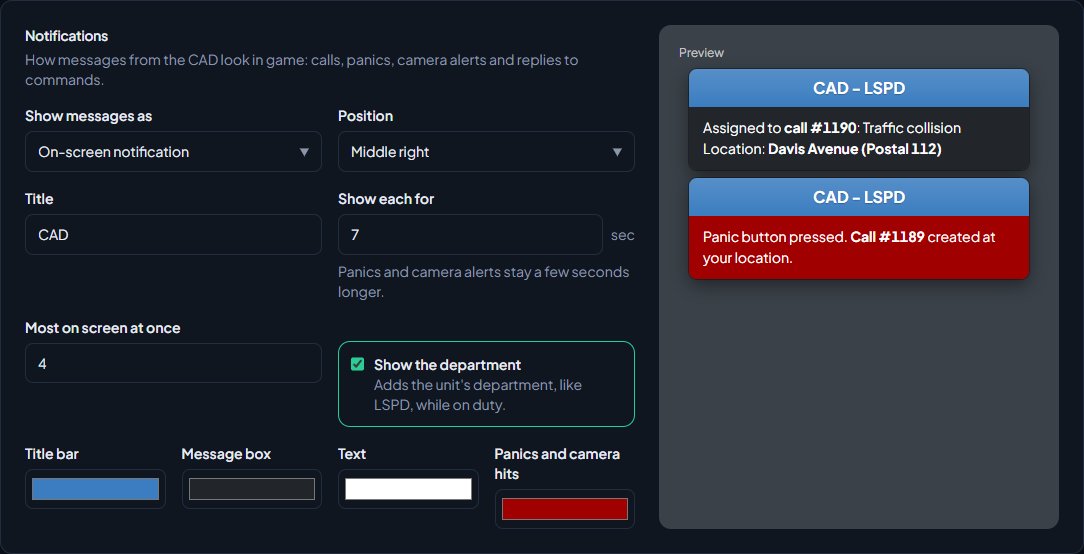
The Preview on the right shows how a call and a panic will look as you change things. Click Save when you're happy.
Something not working?#
Players see "Link Discord to FiveM to use the CAD". FiveM can't see their Discord account. They need the Discord desktop app running before they start FiveM.
Players see "Your Discord isn't linked to [community] on LonexOne. Sign in on the community website with Discord first." They've never signed in to your community's website, or they used a different Discord account there. They should sign in on your website with the Discord account they use in FiveM.
Players see "You aren't on duty in the CAD. Use /onduty first." or "You need to be on duty in the CAD". That command is for units on duty. They need to go on duty first.
Players see "You aren't on a call. Ask dispatch to attach you first." /updatecoords and /comment need you to be attached to a call.
/gps says "No postals are set up yet." Your community has no postals. Set them up under CAD settings, on the Postals & streets tab. See Choose a map and postal set.
It says "/name is already used by another command." Two commands have the same name. Give one of them a different name.
A command does nothing. It may be turned off or renamed. Check the Commands section on the Game resource tab.
See also
Connect your game server with a server key
Add your game server in Status & servers, make its server key, put it in server.cfg, check it's connected, and choose the in-game duty rules.
Set up duty loadouts
Build weapon loadouts with attachments and ammo for each department, limit them to ranks or divisions, and choose whether they're taken back off duty.
The garage and fleet vehicles in game
Let units take fleet vehicles out in game with /vs, set up liveries, extras and plates on the website, add garage bays, and save a car's look with /vssave.
Photos, headshots and mugshots from the game
Take evidence and scene photos with /photo, ID photos with /headshot and booking photos with /mugshot, and show an ID card with /showid.
911 calls from the game
Let players call 911 in game with their location and postal, choose whether players without Discord can call, set the wait between calls, or switch it off.
Go on duty in the CAD
Sign on with your department and callsign, skip the panel screen with a default, go off duty, and fix the messages that stop you signing on.
Set up the HUD
Put speed, fuel, seatbelt, compass, roads, postal and more on screen in game. Pick one of seven designs, choose your colours, where it sits and what it shows, let players change it with /hud, and swap the minimap for a postal map.
Change the AOP and peacetime
Move the AOP and turn peacetime on or off from the game with /aop and /peacetime, on the HUD page or from the top of the CAD. Everyone is told in chat and sees it on their HUD straight away.
Set up game permissions
Give players permissions in game from their Discord roles, website roles, ranks, divisions and CAD duty. LonexOne makes the ACE groups and gives them to the right players, so you don't keep a permissions.cfg or a Discord bot token on your server.
Can't find what you need?
Open a ticket in our Discord and someone from the team will help. Found a bug, or missing a feature? Tell us on the feedback board.