Place speed and plate cameras
Put speed and plate cameras on your roads from inside the game, choose what makes a plate a hit and how far over the limit counts, then edit, switch off or remove cameras in the control panel.
Cameras catch players speeding or driving a car the CAD knows about, like a stolen car or one with a BOLO out on it. You place them in game where you want them, and from then on every player who drives past is checked. Alerts go to your officers in the CAD and in game.
Only players' own vehicles are checked. AI traffic never sets a camera off.
Before you start#
- The CAD and the Cameras modules both need to be installed. Cameras works on top of the CAD. See Add or remove modules for your community.
- Your game server needs the LonexOne resource connected. See Install the LonexOne FiveM resource.
- To place and edit cameras you need Place cameras in game, edit them and choose who they alert.
- To place cameras in game, you need Discord linked in FiveM, and to have signed in on your community website with the same Discord account.
Place a camera#
- Join your game server.
- Go to where you want the camera and type /placecamera. Your community can rename this command.
- A see-through camera pole appears where you're looking, up to about 15 metres away, with a green arrow showing the direction of traffic it watches.
- Look where you want it to stand. Press Q or E to turn it, or scroll to turn it in bigger steps. Point the arrow the way the traffic you want to check is driving.
- Press G to change the model, if you want a different pole.
- Press Enter.
- In the New camera form, type a Name, like Route 68 eastbound.
- Pick the Type: Speed, Plate hits or Speed and plate hits.
- For speed cameras, type the Speed limit.
- Optionally, add a Reference, like CAM-003. It's shown on alerts.
- Pick the Direction: One way checks traffic going the way the arrow points, Both ways checks both directions.
- Click Place camera.
The camera appears straight away, and on every one of your servers within a few seconds. It's also listed on the Cameras page in your control panel.
To stop without placing anything, press Backspace or Esc while moving the camera. Cancelling the form takes you back to moving the camera.
Camera models#
| Model | Notes |
|---|---|
| CCTV pole | The standard model. |
| Tall CCTV pole | |
| CCTV pole with arm | |
| Speed camera (needs the optional camera add-on) | Needs the optional LonexOne camera add-on resource running on your server. Without it, the standard pole is shown. |
How a camera checks traffic#
- A vehicle is checked when it comes within the camera's range (25 metres to start with) heading in a direction the camera watches. Its speed is taken at that moment.
- Only the driver's game reports a pass, so passengers don't count twice.
- Boats, helicopters, planes and trains are never checked.
- The same vehicle is only checked once a minute per camera, so stopping next to a camera doesn't flood your officers.
Choose what counts#
- In your control panel, click Cameras under Cameras.
- Go to the Settings box on the right.
- Set Speeds in to mph or km/h.
- Set Alert when over by. It's 5 to start with, so in a 35 a speed camera alerts at 41 and over.
- Set Same plate on the same camera alerts again after, in minutes. It's 5 to start with. 0 alerts every time.
- Under A plate is a hit when, tick what should make a plate camera alert.
- Click Save settings.
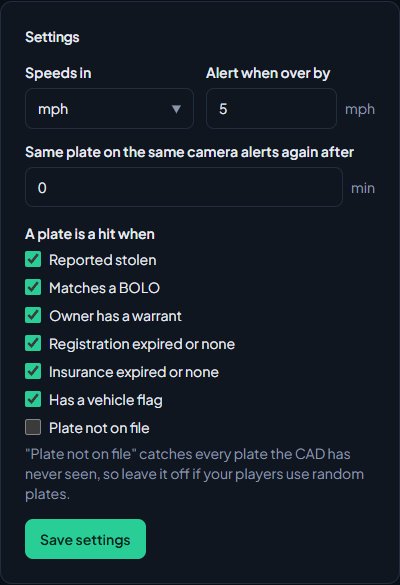
| Check | Ticked to start with |
|---|---|
| Reported stolen | Yes |
| Matches a BOLO | Yes |
| Owner has a warrant | Yes |
| Registration expired or none | Yes |
| Insurance expired or none | Yes |
| Has a vehicle flag | Yes |
| Plate not on file | No |
Plates are matched ignoring spaces and dashes, so 4KJX 221 in the CAD matches 4KJX221 in game.
Plate not on file alerts on every plate the CAD has never seen. If your players drive cars with random plates, leave it off or your officers will be swamped.
Changing Speeds in converts every camera's speed limit and past speeding alerts to the new unit, rounded to the nearest whole number. A camera set to 35 mph becomes 56 km/h. Alert when over by isn't converted, so check it after switching.
Edit a camera#
-
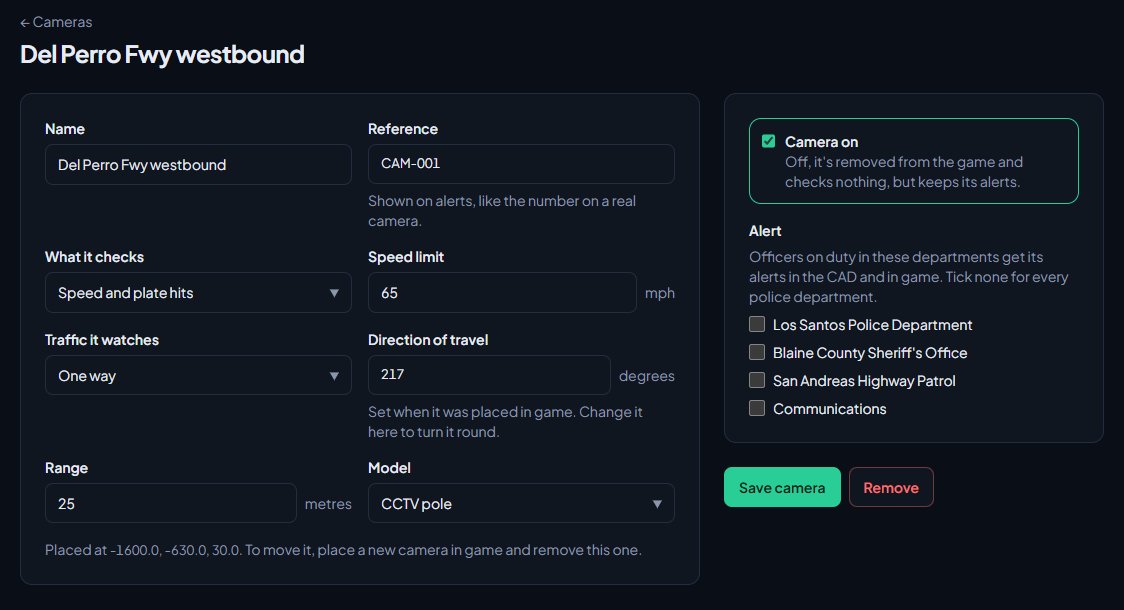
On the Cameras page, click Edit next to the camera.
-
Change the Name, Reference, What it checks, Speed limit, Traffic it watches, Direction of travel (in degrees), Range (5 to 100 metres) or Model.
-
Untick Camera on to switch it off. It's taken out of the game and checks nothing, but its alerts are kept.
-
Under Alert, pick which departments it alerts. See Choose who camera alerts go to.
-
Click Save camera.
Game servers pick up the change within a few seconds.
You can't move a camera from the control panel. To move one, place a new camera in game and remove the old one.
Remove a camera#
- Open the camera with Edit.
- Click Remove and confirm.
The camera disappears from the game within a few seconds. Its alerts are deleted with it, so switch it off instead if you want to keep them.
Something not working?#
In game it says "You can't place cameras" or "You need permission to manage cameras to place one." Your roles don't include Place cameras in game, edit them and choose who they alert.
It says "Cameras aren't switched on for this community. Install the Cameras module in the LonexOne panel." Install the Cameras module, and the CAD if you haven't already.
It says "Name the camera, like Route 68 eastbound." Every camera needs a name.
It says "Set the speed limit this camera checks." Speed cameras need a limit between 5 and 300.
A speed camera didn't go off. Check the camera is on, that you drove past heading the way the arrow points (or the camera checks both ways), that you were over the limit by more than Alert when over by, and that you were driving, not a passenger. If the same plate alerted on that camera in the last few minutes, the repeat setting holds it back.
A plate camera didn't go off for a stolen car. The plate in game has to match a vehicle in the CAD that's marked stolen, and Reported stolen has to be ticked in the settings.
A speed camera shows as a plain CCTV pole. You picked Speed camera (needs the optional camera add-on), but the add-on resource isn't running on your server, so the standard pole is shown instead. The camera still works. Install the add-on to see the speed camera model.
See also
Choose who camera alerts go to
Pick which departments each camera alerts, what officers see in the CAD and in game when a camera goes off, and who can see the list of alerts in the control panel.
Install the LonexOne FiveM resource
Claim the free resource through Tebex, download it from Keymaster, add it to your server with screenshot-basic and the optional camera prop, and start it.
Add or remove modules for your community
Install the CAD, Training, the Staff Panel and the rest from your control panel, and what happens to your data when you remove one.
Put out a BOLO and clear it
Tell every unit to be on the lookout for a person or vehicle, see BOLOs on plate searches, and clear them once the subject is found.
Can't find what you need?
Open a ticket in our Discord and someone from the team will help. Found a bug, or missing a feature? Tell us on the feedback board.