Use the staff menu and staff commands in game
Open the in-game staff menu, go on staff duty, use the chat commands, teleport, spectate, freeze, run sits and announcements, and rename or switch off any command.
Your staff can do most of their work without leaving the game. The staff menu shows everyone on the server with a short record, lets staff take action, add notes and handle reports, and has tools like noclip, spectate and freeze. The same things can be done with chat commands.
LonexOne checks every action and tool against the staff member's permissions before it happens, so the menu only shows what they're allowed to use.
Before you start#
- Staff need See the player database: profiles, playtime, past names and linked accounts to open the menu. Each tool needs its own permission, listed below.
- Staff need Discord linked in FiveM, and must have signed in on your community website with the same Discord account. See Set up the Staff Panel.
Open the staff menu#
Press F7, or type /staff. Your community can change both under In game in Staff settings. Players can also change the key for themselves in FiveM's key bindings, where it's called LonexOne staff menu.
The menu has three tabs:
| Tab | What's on it |
|---|---|
| Players | Everyone on the server, with their server ID, playtime, warnings, kicks, bans, notes, trust score and flags. New players are marked New. Click a player to see their record and act on them. |
| Reports | Open and claimed reports on this server. See Handle player reports. |
| Tools | Staff duty, noclip, teleport to waypoint, player names and blips, stop spectating, vehicle clean-up and announcements. |
Act on a player from the menu#
- On the Players tab, click the player.
- Use the buttons at the top of their record: Go to, Bring, Start sit, Spectate, Freeze, Unfreeze or Heal.
- To take action, pick the type under Take action, pick the Rule broken, and for a ban the Length.
- Type the reason and click the button, for example Give warn.
You can add a note at the bottom of their record. The rules, guidelines and ban limits work exactly as they do in the control panel. See Warn, kick and ban players.
Staff duty#
Staff go on and off staff duty with /staffduty, or the duty button on the Tools tab. Duty time counts towards their weekly quota on the Staff team page. Leaving the server takes them off duty.
If you tick Staff must be on staff duty to use the in-game menu, commands and tools on the Staff team page, staff who aren't on duty are told to go on duty first when they try to take action or use a tool. They can still open the menu and look at players. See Your staff team: hours, quotas and infractions.
Chat commands#
These are the names they start with. Replace id with the player's server ID.
| Command | What it does | Permission |
|---|---|---|
| /staff | Opens the staff menu. | See the player database: profiles, playtime, past names and linked accounts |
| /warn id reason | Warns a player. | Warn players |
| /kick id reason | Kicks a player. | Kick players |
| /ban id length reason | Bans a player. Lengths look like 30m, 6h, 3d, 2w or perm. | Ban players, up to the longest temporary ban set in the staff settings |
| /commend id reason | Commends a player. | Commend players |
| /service id tasks reason | Gives community service. | Give community service |
| /goto id | Takes you to a player. | In game: noclip, go to and bring players, and teleport to a waypoint |
| /bring id | Brings a player to you. | The same |
| /noclip | Turns noclip on or off. | The same |
| /sit id | Starts a sit: brings the player to you. | The same |
| /endsit outcome | Ends your sit and sends them back. The outcome is optional. | None extra |
| /spectate id | Spectates a player. | In game: spectate players and see names and map blips for everyone |
| /freeze id | Freezes a player, or unfreezes them if they're frozen. | In game: freeze and heal players |
| /announce message | Shows a message to everyone on the server. | In game: send announcements to everyone on the server |
| /staffduty | Goes on or off staff duty. | None extra |
| /servicearea, /servicespot, /servicereset | Set up community service. See Commendations and community service. | Set up the Staff Panel: rules, guidelines and settings |
| /report id reason | For every player: reports someone to staff. | None |
| /calladmin reason | For every player: asks for staff help. | None |
The tools#
- Noclip: fly with W, A, S and D, Q to go up and E to go down. Scroll to change speed, and hold Shift to go faster.
- Spectate: watch a player from their view. Click Stop spectating on the Tools tab to come back.
- Freeze: the player can't move, but can still look around, chat and use push to talk.
- Sits: Start sit in the menu, or /sit, brings the player to you and starts a sit on their record. By default it also freezes them and deletes the vehicle they were in, if nobody else is in it. Turn either off in the Staff Panel settings under In game. While you're in a sit, the button in the menu changes to End sit. End sit, or /endsit with an outcome, unfreezes them and sends them back to where they were. Sits show on the player's profile and count on the Staff team page.
- Player names and Player blips: show everyone's name above their head and on your map. Only you see them.
- Teleport to waypoint: set a waypoint on your map first.
- Delete empty vehicles: warns everyone that empty vehicles will be deleted in 15 seconds, then deletes every vehicle with nobody in it. It needs In game: delete empty vehicles across the server.
Going to, bringing, spectating, freezing, healing, announcements and clean-ups are recorded in the activity log. Noclip and teleporting to a waypoint aren't.
Rename or switch off commands#
- Click Staff settings under Staff Panel.
- Go to In game.
- Change Staff menu key if you want a different key. You can pick F1 to F12, HOME, END, INSERT, DELETE, PAGEUP or PAGEDOWN.
- Change any command's name. Clear a name to switch that command off.
- Click Save settings.
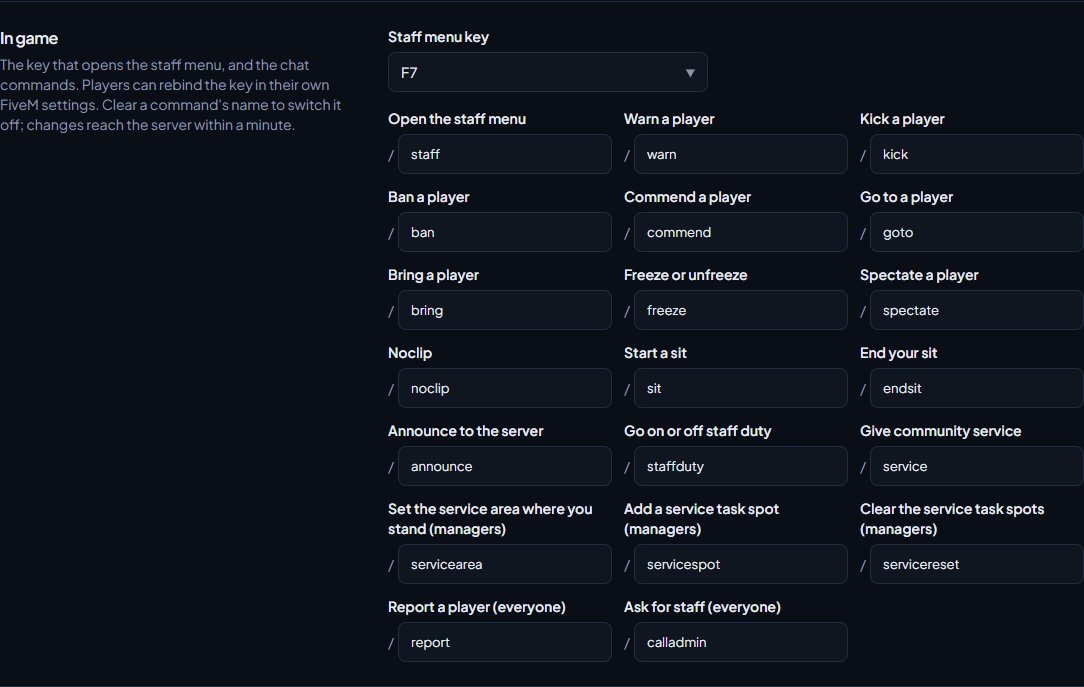
Command changes reach your servers within a minute. The menu key is set when a player joins, so a new key applies from their next visit.
Something not working?#
It says "Link Discord to FiveM to use the staff menu". FiveM isn't passing on their Discord account. Link Discord in FiveM's settings, start the Discord app, and restart FiveM.
It says "You aren't staff here". Their roles don't include See the player database: profiles, playtime, past names and linked accounts, or their Discord account isn't a member of your community. Changes to roles can take up to a minute to reach the game.
It says "Go on staff duty first with /staffduty." Your community needs staff to be on duty. Type /staffduty.
It says "You don't have permission to do that." That tool needs a permission their roles don't have.
It says "That player isn't on record yet. Try again in a few seconds." The player has only just joined. Wait a few seconds for LonexOne to record them.
It says "Two commands have the same name." Two commands in In game share a name. Change one.
It says "Command names use letters, numbers, - and _ only." Remove spaces and other characters from the command name.
See also
Set up the Staff Panel
Install the Staff Panel, connect your game server, give your staff the right permissions and work through the staff settings before you start moderating.
Warn, kick and ban players
Give warnings, kicks and bans from a player's profile, pick the rule they broke, attach evidence, choose what players see, and set up automatic kicks or bans after repeated warnings.
Handle player reports and staff requests
How players report each other and ask for help in game, how staff are alerted, and how to claim, investigate and resolve reports from the control panel or the staff menu.
Your staff team: hours, quotas and infractions
See how each staff member is doing, set weekly staff duty quotas by role, count staff duty as department shifts, fix duty time the game missed, and record infractions against staff.
Every in-game command
Every command the LonexOne resource adds, who can use it and what it does, plus how to rename commands, set the panic and tablet keys and change how messages look.
Can't find what you need?
Open a ticket in our Discord and someone from the team will help. Found a bug, or missing a feature? Tell us on the feedback board.