Warn, kick and ban players
Give warnings, kicks and bans from a player's profile, pick the rule they broke, attach evidence, choose what players see, and set up automatic kicks or bans after repeated warnings.
When a player breaks your rules, staff can warn, kick or ban them from the control panel or from the in-game staff menu. Every action gets a six-character reference, goes on the player's record, and reaches the player in game within a few seconds if they're online.
This article covers giving actions from the control panel. For the in-game menu and chat commands, see In-game staff tools.
Before you start#
| To give | You need |
|---|---|
| A warning | Warn players |
| A kick | Kick players |
| A ban up to your temporary ban limit | Ban players, up to the longest temporary ban set in the staff settings |
| A longer or permanent ban | Give bans of any length, including permanent, and approve bans waiting for a second staff member |
You also need See the player database: profiles, playtime, past names and linked accounts to open player profiles.
Give an action#
-
In your control panel, click Players under Staff Panel and open the player's profile.
-
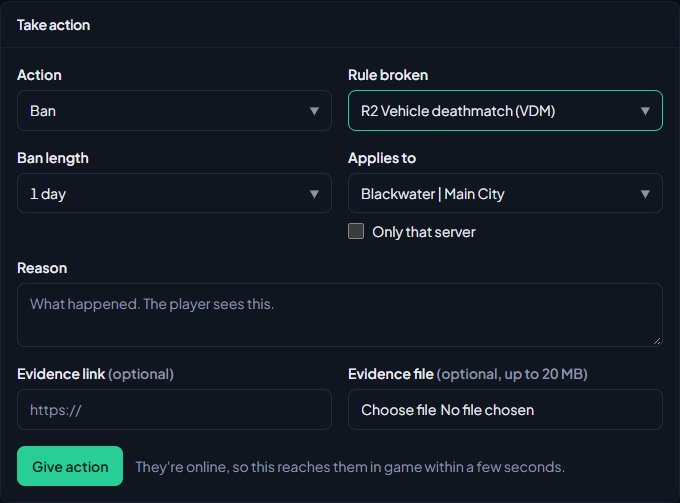
In the Take action box, pick the Action: Warning, Kick or Ban. You'll only see the ones you can give. Commend and Community service are in the same list; see Commendations and community service.
-
Under Rule broken, pick the rule, or leave it on No rule. If the rule has a guideline, the form moves to the suggested action for this player's offence, and tells you what it is. See Set your rules and punishment guidelines.
-
For a ban, pick the Ban length, or Other length… to type a number of minutes.
-
For a ban, if you have more than one game server, choose which server under Applies to, and tick Only that server if the ban shouldn't cover your other servers.
-
Type the Reason. The player sees this, so keep it clear.
-
If you went against the guideline, say why in Why not the guideline?. Leadership sees this on the action.
-
Optionally, add an Evidence link or an Evidence file (images, video, PDF or text, up to 20 MB).
-
Click Give action.
You'll see a message like Warning given. Reference K7MPQ2. The action shows in the player's History and in the Moderation log.
If your community needs a second staff member for long bans, a ban over that length doesn't start straight away. You'll see Ban K7MPQ2 is waiting for a second staff member to approve it. See Bans that need a second staff member.
Ban lengths#
You can pick 1 hour, 6 hours, 12 hours, 1 day, 3 days, 7 days, 14 days, 30 days, 90 days, Permanent, or type your own number of minutes. Lengths above your community's temporary ban limit say (needs long bans) and can't be picked unless you have the Give bans of any length permission.
What the player sees#
| Action | If they're online | If they're offline |
|---|---|---|
| Warning | A message in game straight away. | The message shows about 20 seconds after they next join. |
| Kick | They're removed from the server with your kick message. | Nothing happens, but it stays on their record. |
| Ban | They're removed with your ban screen. | They see your ban screen when they next try to join. |
Bans cover every server unless you ticked Only that server. When a ban runs out, the player can join again by themselves.
Change the messages#
- Click Staff settings under Staff Panel.
- Go to Messages to players.
- Edit the Ban screen, Kick, Warning, Community service and Commendation messages.
- Optionally, set an Appeal link.
- Click Save settings.
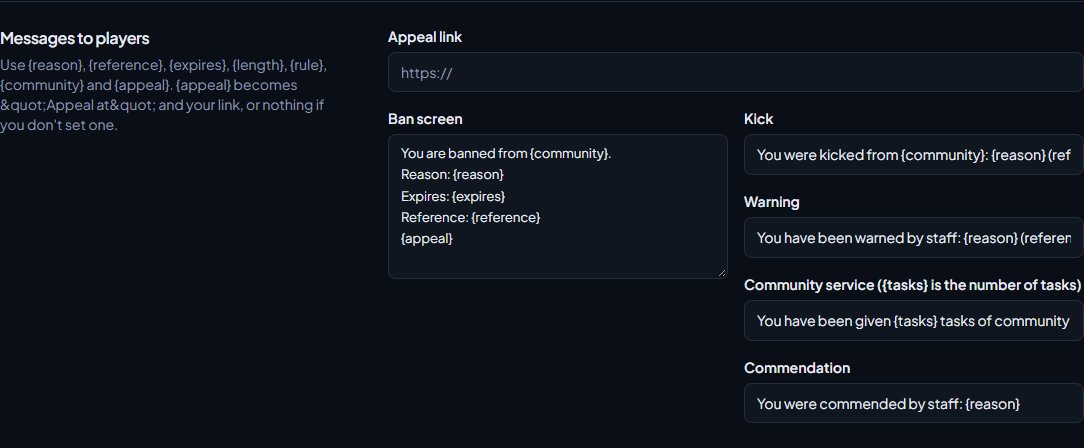
You can use these in any message:
| Placeholder | Becomes |
|---|---|
| {reason} | The reason you typed. |
| {reference} | The action's reference. |
| {expires} | When a ban ends, in UTC, or "Never". |
| {length} | The ban length, like "3 days". |
| {rule} | The rule picked. |
| {community} | Your community's name. |
| {appeal} | "Appeal at" and your appeal link, or nothing if there isn't one. |
If you don't set an Appeal link and players can appeal on your community site, {appeal} links to their record there instead. See Decide ban appeals.
Who staff can act on#
Before an action is given, LonexOne checks:
- Rank. If the player's game account is linked to a member, staff can only act on members below them. The owner is highest, then administrators, then members by their highest role in the order listed under Roles & permissions.
- Immunity. Members with Can't be warned, kicked or banned can't be warned, kicked or banned by anyone. The owner and administrators have every permission, so they're immune too. Commendations still work.
- Your own account. Nobody can take action on their own game account.
If one of these stops you, the form shows why and the Give action button is greyed out.
Automatic escalation#
You can have LonexOne kick or ban a player automatically after a number of warnings.
- Click Staff settings under Staff Panel.
- Go to Automatic escalation.
- Set Warnings (between 2 and 20) and Within (days).
- Under Then, pick Kick or Ban. For a ban, pick the Ban length.
- Click Save settings.
With 3 warnings in 30 days, the third warning in that time is followed straight away by the kick or ban, with the reason Automatic: 3 warnings in 30 days. It's credited to the staff member whose warning tipped it over. It happens again at the sixth warning, the ninth, and so on. Leave Warnings blank to switch it off.
Posting to Discord#
Commendations, warnings, kicks, community service, bans, bans waiting for approval and lifted bans can be posted to Discord channels. Pick the channels under Log channels. Posts include the reference, rule, reason and staff member, but never a player's identifiers or notes. See Post logs to Discord channels.
Something not working?#
It says "You can give bans of up to 7 days. Longer and permanent bans need someone with the Give bans of any length permission." The number is your community's Longest temporary ban (days). Pick a shorter length, or ask someone with Give bans of any length, including permanent, and approve bans waiting for a second staff member to give the ban.
It says the player "is the same rank as you or higher, so someone above them has to do this." The player's game account belongs to a member who is at or above your rank. Ask someone higher up.
It says they "can't be warned, kicked or banned: their roles make them immune." One of their roles has Can't be warned, kicked or banned. If they need to be dealt with, the owner or an administrator has to change their roles first.
It says "You can't take action on your own game account." The player is linked to you. Ask another staff member.
It asks you to say why you're going another way. You picked a rule with a guideline and chose a different action or length. Fill in Why not the guideline?, or switch to the suggested action.
I kicked someone and nothing happened. Kicks only work on players who are online. Check they were on a server at the time.
See also
Bans that need a second staff member
Make long and permanent bans wait for a second staff member to approve them, set your temporary ban limit, and approve or deny bans that are waiting.
Set your rules and punishment guidelines
Add your server rules to the Staff Panel so staff can cite them, and give each rule a ladder of punishments so every player gets the same outcome for the same offence.
Search the moderation log and change or undo actions
Find any commendation, warning, kick or ban, export the log to a spreadsheet, add evidence and comments, change a ban's length, and lift bans or revoke actions.
Use the staff menu and staff commands in game
Open the in-game staff menu, go on staff duty, use the chat commands, teleport, spectate, freeze, run sits and announcements, and rename or switch off any command.
Commendations and community service
Reward good roleplay with commendations, set up a community service area in game, and send players to do tasks there instead of kicking or banning them.
Let players appeal and decide their appeals
Turn on the player portal so players can see their record and appeal bans, kicks and warnings on your community site, then read each appeal alongside their history and accept or deny it.
Can't find what you need?
Open a ticket in our Discord and someone from the team will help. Found a bug, or missing a feature? Tell us on the feedback board.