Search the moderation log and change or undo actions
Find any commendation, warning, kick or ban, export the log to a spreadsheet, add evidence and comments, change a ban's length, and lift bans or revoke actions.
The moderation log lists every action your staff have taken, newest first. It's where leadership checks what's been happening, where waiting bans get approved, and where mistakes get put right.
Before you start#
| To do this | You need |
|---|---|
| See the log, open actions, add comments | See the player database: profiles, playtime, past names and linked accounts |
| Add evidence to someone else's action | Lift bans, revoke warnings and change ban lengths, on anyone's actions |
| Change ban lengths, lift bans, revoke actions | Lift bans, revoke warnings and change ban lengths, on anyone's actions |
| Approve or deny waiting bans | Give bans of any length, including permanent, and approve bans waiting for a second staff member |
Find an action#
-
In your control panel, click Moderation log under Staff Panel.
-
Use the filters at the top: All actions (or one type), All staff (or one staff member), All rules (or one rule), and a from and to date.
-
Click Filter.
-
Use the buttons below to show one status: All, Active, Awaiting approval, Denied or Revoked.
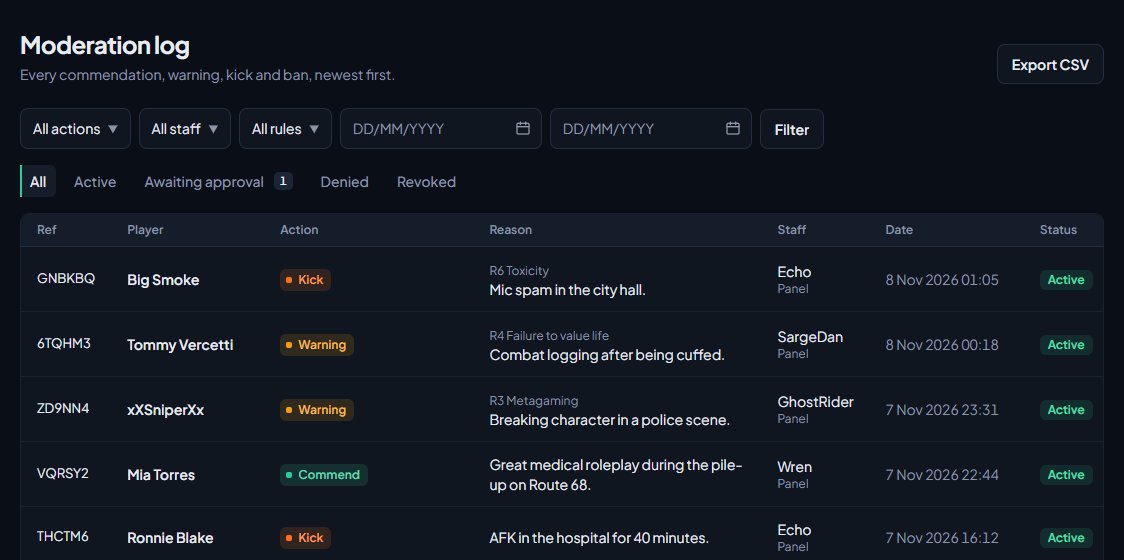
Each row shows the reference, player, action, rule, reason, staff member, where it came from (Panel, In game, Automatic after repeated warnings, or Imported), the date and the status. Actions where the staff member went against a rule's guideline are marked Off guideline. Revoked and denied actions are faded.
Statuses#
| Status | Means |
|---|---|
| Active | In force, or still counting against the player. |
| Expired | A ban that has run out. |
| Awaiting approval | A ban waiting for a second staff member. |
| Denied | A ban a second staff member turned down. |
| Revoked | Taken back. A lifted ban shows this too. |
Export the log#
- Filter the log to what you want.
- Click Export CSV.
You get a spreadsheet of up to 10,000 actions matching your filters, with the reference, date in UTC, type, length, status, player, player ID, rule, reason, staff member and where it came from.
Open an action#
Click any row. The action page shows:
- Details: the player, rule, reason, and for bans the length, which servers it covers and when it ends. If a guideline applied, whether it was followed, and the reason given if not.
- Evidence: links and files attached. Images show as a preview.
- Staff discussion: comments from staff. Players never see these.
- Player's other actions: their last 10 other actions.
Add evidence#
The staff member who gave the action, and anyone with Lift bans, revoke warnings and change ban lengths, on anyone's actions, can add more evidence.
- In the Evidence box, paste a link, or choose a file (images, video, PDF or text, up to 20 MB).
- Click Add evidence.
Evidence files are private. Only people who can see the player database can open them.
Add a comment#
- In Staff discussion, type your comment.
- Click Comment.
Change a ban's length#
- Open the ban.
- Under Manage, pick a new length from Change length, or Other length… to type minutes.
- Click Change length.
The new length counts from when the ban started (or was approved), not from today. Shortening a 30 day ban to 7 days after 10 days ends it straight away.
Lift a ban or revoke an action#
-
Open the action.
-
Under Manage, type a reason in the box. It's kept on the record.
-
Click Lift ban (for a ban) or Revoke (for anything else).
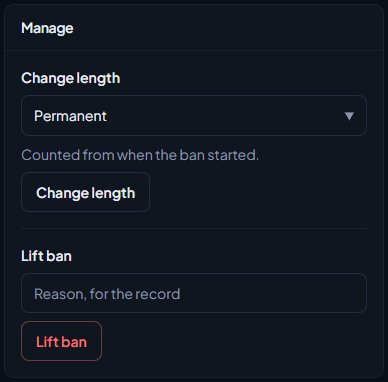
Afterwards:
- The action shows as Revoked, with who did it, when, and the reason.
- It stops counting against the player: it no longer counts towards guidelines, automatic escalation or their trust score.
- A lifted ban stops keeping them out straight away.
- It's posted to your Bans lifted and actions revoked log channel on Discord, if you've set one.
- On the Staff team page, it counts as overturned for the staff member who gave it, unless they revoked it themselves.
Revoking can't be undone. If you revoke something by mistake, give the action again.
Something not working?#
I can't see the Manage box. You need Lift bans, revoke warnings and change ban lengths, on anyone's actions. It's also hidden once an action is revoked or denied.
I can't see the box to add evidence. Only the staff member who gave the action, or someone with Lift bans, revoke warnings and change ban lengths, on anyone's actions, can add evidence.
See also
Warn, kick and ban players
Give warnings, kicks and bans from a player's profile, pick the rule they broke, attach evidence, choose what players see, and set up automatic kicks or bans after repeated warnings.
Bans that need a second staff member
Make long and permanent bans wait for a second staff member to approve them, set your temporary ban limit, and approve or deny bans that are waiting.
Let players appeal and decide their appeals
Turn on the player portal so players can see their record and appeal bans, kicks and warnings on your community site, then read each appeal alongside their history and accept or deny it.
Your staff team: hours, quotas and infractions
See how each staff member is doing, set weekly staff duty quotas by role, count staff duty as department shifts, fix duty time the game missed, and record infractions against staff.
Look up a player's history
Find any player who has joined your servers, and read their profile: playtime, past names, linked accounts, warnings and bans, sits and the event log of kills, damage and chat.
Can't find what you need?
Open a ticket in our Discord and someone from the team will help. Found a bug, or missing a feature? Tell us on the feedback board.