Look up a player's history
Find any player who has joined your servers, and read their profile: playtime, past names, linked accounts, warnings and bans, sits and the event log of kills, damage and chat.
Every player who joins a server running the LonexOne resource gets a record in the Staff Panel. Before you take action on someone, their profile tells you who they are, how long they've been around, what staff have done before and whether they might be someone else's second account.
Before you start#
You need the See the player database: profiles, playtime, past names and linked accounts permission. IP addresses and hardware tokens are only shown to people who also have See players' IP addresses and hardware tokens.
Find a player#
- In your control panel, click Players under Staff Panel.
- Type in the search box. You can search by a player's current name, a name they used before, the member they're linked to, or an identifier such as a Discord ID or Rockstar license. You can paste an identifier with or without its prefix, so license:abc123 and abc123 both work.
- Click Search.
- Click a player to open their profile.
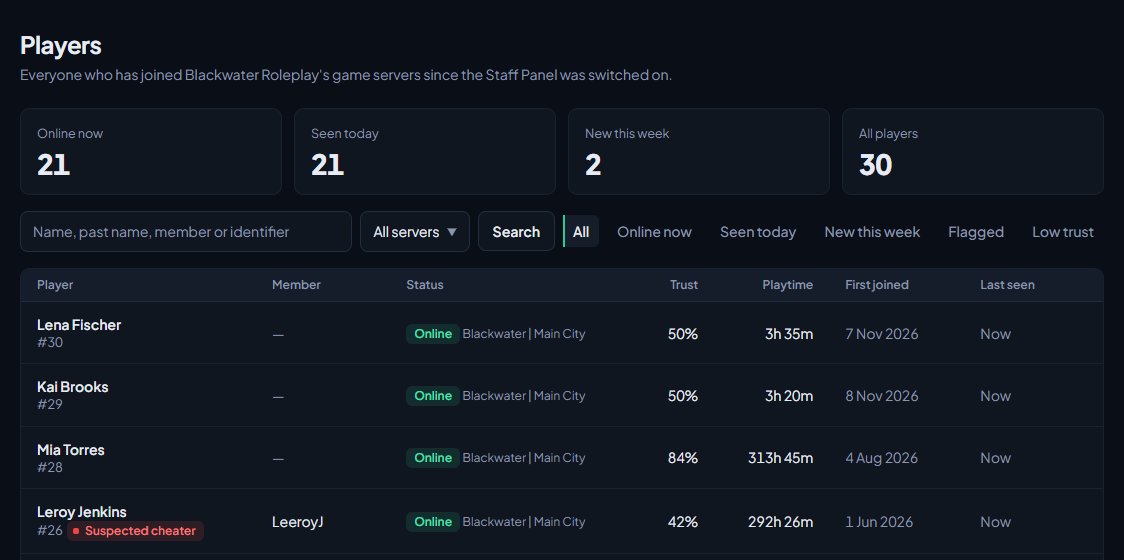
The cards at the top show how many players are Online now, Seen today, New this week and in total. You can narrow the list with the buttons next to the search:
| Filter | Shows |
|---|---|
| All | Everyone, most recently seen first. |
| Online now | Players on one of your servers right now. |
| Seen today | Players who have been on since midnight. |
| New this week | Players who first joined in the last 7 days. |
| Flagged | Players with any flag. |
| Low trust | Players with a trust score under 40%. |
If you have more than one game server, you can also pick a server to only see players who have played on it.
What's on a profile#
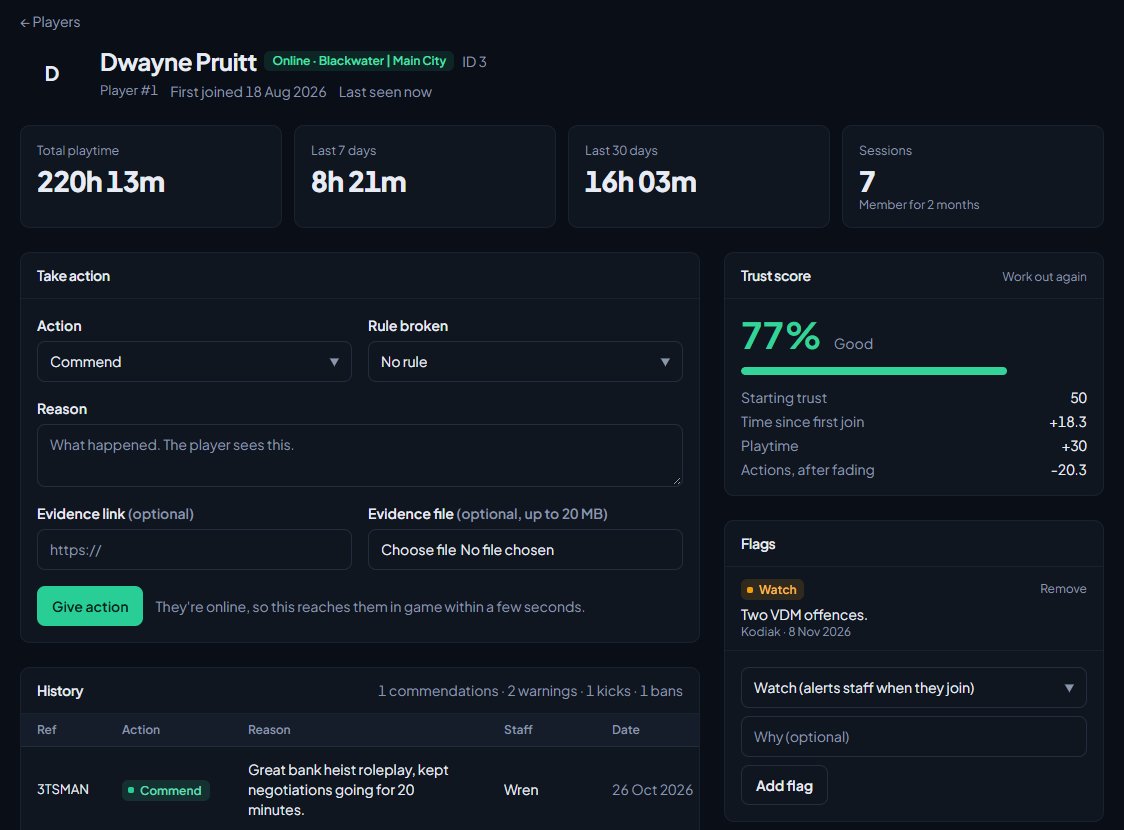
At the top you'll see whether they're online (and their server ID in game if they are), their player number, when they first joined and when they were last seen. Below that are their total playtime, their playtime over the last 7 and 30 days, and how many sessions they've played.
If the player is banned, or has a ban waiting for approval, a red banner says so, with the reason and a button to open the ban.
| Section | What it shows |
|---|---|
| Take action | The form for giving a commendation, warning, kick, community service or ban. Only shown if you can give at least one. See Warn, kick and ban players. |
| History | Every action on their record, with its reference, rule, reason, staff member and status. Revoked and denied actions are faded. Click a row to open it. |
| Staff notes | Notes other staff have left. Players never see these. See Notes and flags on players. |
| Linked accounts | Other players who share an identifier with this one, such as a Discord account, Steam account or hardware token. The strongest links are listed first. |
| Event log | The latest 40 kills, damage and chat involving them, newest first. |
| Recent sessions | Their last 15 sessions and how long each lasted. |
| Names | Every name they've played under and when, plus other players who have used the same names. |
| Trust score | Their score and how it's made up. See Trust scores and the reward ladder. |
| Flags | Labels staff have put on them. |
| Community member | The member they're linked to, with their departments and ranks. |
| Identifiers | Every identifier they've joined with. Click Copy next to one to copy it. |
| Sits | Their last 10 sits, who ran them and the outcome. Only shown if they've had one. |
| Playtime by server | Only shown if they've played on more than one server. |
Linked accounts#
A shared Discord account, Steam account or hardware token is a strong sign that two players are the same person. A shared IP address alone is weak evidence, because households, universities and VPNs share them, so IP links are shown in grey.
If your community has ban evasion alerts switched on, a player who shares an identifier with a banned player is flagged as Possible ban evasion when they join. See Control who can join your servers.
The event log#
The resource records kills, damage and, if you allow it, chat. Events are kept for 14 days to start with. You can change that, or stop recording chat, under Reports and the event log in Staff settings. Commands typed in chat (anything starting with /) are never recorded.
How players are linked to members#
A player is linked to a member when their Discord account matches someone who has signed in to your community site. If the player wasn't using Discord when they joined, or hasn't signed in on the website, the Community member card says they're not linked. If you have permission to see people, the member's name links to their page under People.
Something not working?#
A player I know has played isn't listed. Players are only recorded while the Staff Panel is installed and the resource is connected. Anyone from before that isn't there unless you import them. See Import players from txAdmin or LonexStaff.
The same person shows up as two players. LonexOne matches a joining player on their Rockstar license first, then other identifiers. Someone joining with a different Rockstar account gets a new player record. Check Linked accounts on either profile to see the connection.
The Identifiers card says IP addresses and hardware tokens are hidden. You need the See players' IP addresses and hardware tokens permission. Ask your community owner to add it to your role if you need it.
The event log is empty. Nothing has been recorded involving them in the time events are kept, or the resource isn't connected. Old events are deleted every night once they're older than the number of days in your settings.
A player shows as online but left a while ago. If a server stops reporting, LonexOne ends its players' sessions after about 3 minutes. If they're still showing, check the resource is connected.
See also
Notes and flags on players
Leave notes for other staff on a player, flag players to watch them, choose which flags alert staff when the player joins, and make your own flags.
Warn, kick and ban players
Give warnings, kicks and bans from a player's profile, pick the rule they broke, attach evidence, choose what players see, and set up automatic kicks or bans after repeated warnings.
Trust scores and the reward ladder
How each player's trust score is worked out, how to tune it, how to use it to keep players out or gate applications, and how to reward regular players with tiers and Discord roles.
Search the moderation log and change or undo actions
Find any commendation, warning, kick or ban, export the log to a spreadsheet, add evidence and comments, change a ban's length, and lift bans or revoke actions.
Watch your servers on the live staff map
See every player on your game servers on a map in the control panel, find a player by name or server ID, and spot staff on duty and flagged players at a glance.
Can't find what you need?
Open a ticket in our Discord and someone from the team will help. Found a bug, or missing a feature? Tell us on the feedback board.