Trust scores and the reward ladder
How each player's trust score is worked out, how to tune it, how to use it to keep players out or gate applications, and how to reward regular players with tiers and Discord roles.
Every player gets a trust score from 1 to 100%. It rises as they spend time on your servers and falls when staff take action on them, so at a glance your staff can tell a long-standing regular from a brand new account with three warnings.
The reward ladder works the other way round: it gives players tiers, and optionally Discord roles, for hours played or commendations earned.
Before you start#
To change these settings you need Set up the Staff Panel: rules, guidelines and settings. Both are under Staff settings in the Staff Panel section of the sidebar.
How the score is worked out#
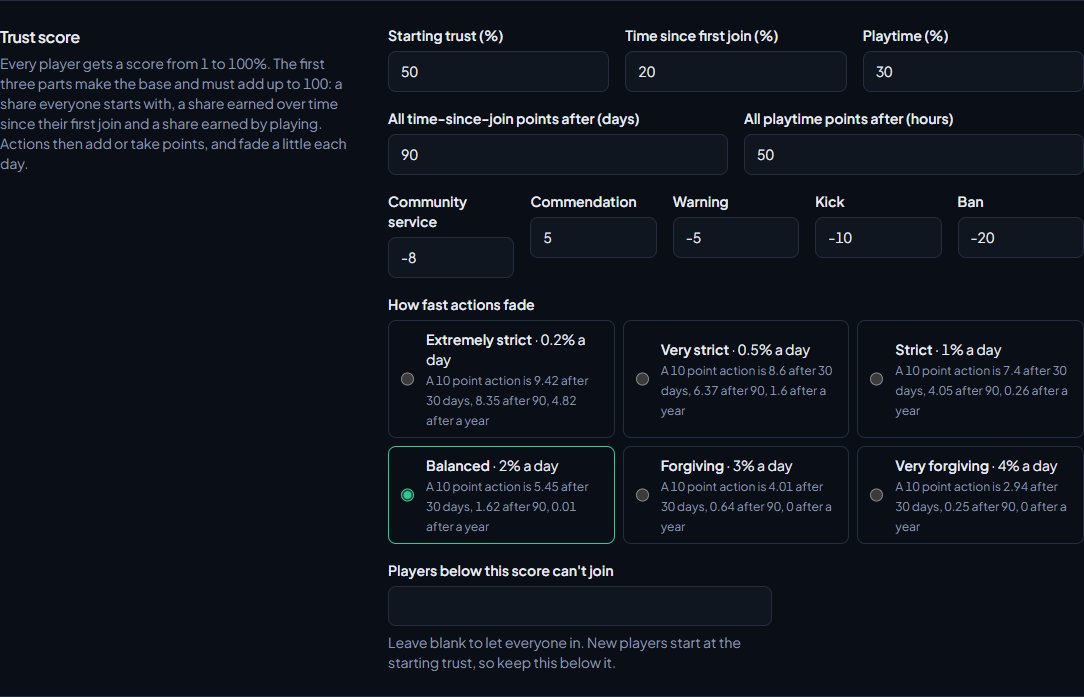
The score has a base made of three parts that add up to 100:
| Part | Starts at | What it means |
|---|---|---|
| Starting trust (%) | 50 | What every player gets from their first join. |
| Time since first join (%) | 20 | Earned bit by bit until All time-since-join points after (days), 90 days to start with. |
| Playtime (%) | 30 | Earned bit by bit until All playtime points after (hours), 50 hours to start with. |
So with the starting settings, a new player starts at 50%, and someone who has been around for 90 days and played 50 hours has 100%.
Actions then add or take away points:
| Action | Points to start with |
|---|---|
| Commendation | +5 |
| Warning | -5 |
| Community service | -8 |
| Kick | -10 |
| Ban | -20 |
Only actions that are still active count. If a warning is revoked or a ban is lifted, its points go. A ban waiting for a second staff member doesn't count until it's approved.
Actions fade over time#
An action's effect fades a little every day, so a player who behaves well slowly earns their way back. Pick how fast under How fast actions fade. Each choice shows how much of a 10 point action is left after 30 days, 90 days and a year.
| Choice | Fades by |
|---|---|
| Extremely strict | 0.2% a day |
| Very strict | 0.5% a day |
| Strict | 1% a day |
| Balanced (the default) | 2% a day |
| Forgiving | 3% a day |
| Very forgiving | 4% a day |
Change how trust is worked out#
- Click Staff settings under Staff Panel.
- Go to the Trust score section.
- Change the three base parts. They must add up to 100.
- Change how many days and hours it takes to earn all of the time and playtime points.
- Change the points for each kind of action. Use a minus sign for actions that take points away.
- Pick how fast actions fade.
- Click Save settings.
Where the score shows#
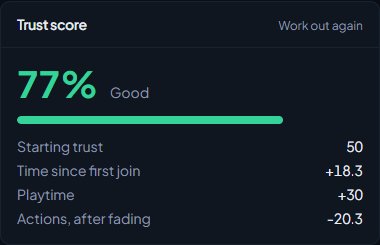
- On each player's profile, with a breakdown of the four parts and a label: Excellent (80% and up), Good (60%), Fair (40%), Caution (25%) or At risk (under 25%).
- On the Players page, where scores under 40% are shown in red and the Low trust filter finds them.
- In the in-game staff menu and on the live staff map.
- On the appeal page, so whoever decides an appeal can see it.
- To players themselves on My record, unless you untick Show players their own trust score under Player portal and appeals.
The score is worked out again whenever the player joins and whenever staff take action on them. To work it out straight away, click Work out again on the Trust score card of their profile.
Use the score#
Keep low-trust players out#
Under Trust score, set Players below this score can't join. Players already on record whose score is below it are refused when they connect, with a message saying their trust score is too low and that it rises again over time. Leave it blank to let everyone in.
New players start at your Starting trust, so keep this number below it, or new players who pick up a warning early may be locked out.
Ask for a score on an application form#
Application forms can ask for a Minimum trust score (%) and Hours on our game servers first. Someone who doesn't meet them sees what they're short of and can't apply yet. See Build an application form.
The reward ladder#
The ladder gives players tiers as they play, for example Regular at 20 hours and Veteran at 100 hours. Each tier can give a Discord role in your main Discord server, so your regulars stand out.
Set up the ladder#
- Click Staff settings under Staff Panel.
- Go to the Reward ladder section.
- Tick Use the reward ladder.
- Under Tiers are earned by, pick Hours played or Commendations.
- In each empty tier row, type a name, the number of hours or commendations needed, and pick a Discord role (or leave No Discord role).
- Set Back to the bottom after this many punishments and Within (days). With 3 in 30 days, a player who gets three warnings, kicks, bans or community service within 30 days drops back to the bottom. Set it to 0 to never reset.
- Tick Keep the roles of lower tiers too if players should keep every tier's role as they climb, rather than only the one for their current tier.
- Click Save settings.
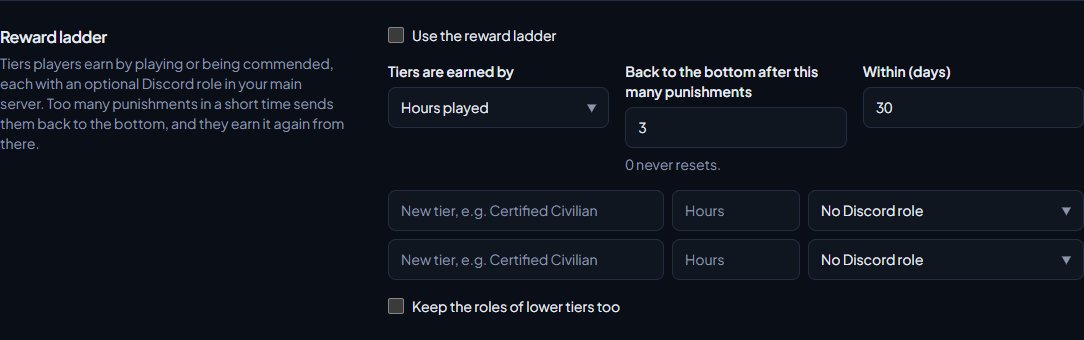
You can have up to 12 tiers. Two empty rows are shown at a time, so save and come back to add more. Tiers are sorted by the number needed when you save.
How tiers are earned#
A player's tier is worked out again when they join and whenever staff take action on them. When they reach a new tier, LonexOne gives them that tier's Discord role, using the Discord account they joined with.
When a player is sent back to the bottom, they don't lose their hours. They earn the tiers again from that point, counting only what they do after the reset.
Something not working?#
It says "Starting trust, time since first join and playtime must add up to 100." The three base parts don't add up to exactly 100. Change one of them so they do.
The Discord role list is empty and asks for a role ID instead. LonexOne couldn't read the roles in your main Discord server. Check the bot is still in your server (see Connect your Discord server). You can paste a role ID in the meantime.
A player reached a tier but didn't get the role. LonexOne gives the role to the Discord account the player joined the game with. If they weren't using Discord in FiveM, there's nothing to give it to. Also check the bot's role is above the tier roles in your Discord server settings.
A player's score on the Players page looks out of date. The list shows the score from the last time it was worked out. Open their profile and click Work out again.
See also
Look up a player's history
Find any player who has joined your servers, and read their profile: playtime, past names, linked accounts, warnings and bans, sits and the event log of kills, damage and chat.
Control who can join your servers
How LonexOne checks every player as they connect: bans and ban evasion, a minimum trust score, and an allowlist that only lets in staff, chosen roles and accepted applicants.
Warn, kick and ban players
Give warnings, kicks and bans from a player's profile, pick the rule they broke, attach evidence, choose what players see, and set up automatic kicks or bans after repeated warnings.
Set up the Staff Panel
Install the Staff Panel, connect your game server, give your staff the right permissions and work through the staff settings before you start moderating.
Build an application form
Create an application form for a department or the whole community, add questions, set requirements like Discord account age and a wait after denial, and open it for applications.
Can't find what you need?
Open a ticket in our Discord and someone from the team will help. Found a bug, or missing a feature? Tell us on the feedback board.