Set up the Staff Panel
Install the Staff Panel, connect your game server, give your staff the right permissions and work through the staff settings before you start moderating.
The Staff Panel is where your staff team looks after your game servers. It keeps a record of every player who joins, lets staff warn, kick and ban them from the website or in game, collects player reports and ban appeals, and tracks your staff team's duty hours.
Everything the Staff Panel knows about players comes from the LonexOne FiveM resource, so setting it up is mostly a matter of getting the resource running, giving your staff the right permissions, and choosing how strict you want things to be.
Before you start#
- To install the module you need to be the owner, or have the Install and remove modules permission.
- To change the staff settings and rules you need Set up the Staff Panel: rules, guidelines and settings.
- You need the LonexOne FiveM resource installed on at least one game server. See Install the LonexOne FiveM resource.
1. Install the module#
- Open your control panel and click Install modules at the bottom of the left sidebar.
- Find Staff Panel and click Install.
The Staff Panel now appears under Modules in the sidebar. For more on modules, see Add or remove modules for your community.
2. Connect your game server#
Follow Connect your game server if you haven't already. Once the resource is connected and the Staff Panel is installed, the resource starts sending LonexOne who joins and leaves. Players appear on the Players page as they join. Nobody from before the module was installed is listed, unless you bring them over with Import players from txAdmin or LonexStaff.
3. Give your staff their permissions#
Staff Panel permissions are given through roles, like everything else in LonexOne. Open Roles & permissions, create or edit a role for each level of your staff team, and turn on what that level should be able to do. See Create a role and choose what it can do.
The one permission every staff member needs is See the player database: profiles, playtime, past names and linked accounts. Without it, someone can't open the Staff Panel pages or the in-game staff menu, and they won't be counted on the Staff team page.
| Permission | What it lets someone do |
|---|---|
| See the player database: profiles, playtime, past names and linked accounts | Open the Players, Dashboard, Live map, Moderation log and Leave pages, and the in-game staff menu. |
| See players' IP addresses and hardware tokens | See and search those identifiers. Everyone else has them hidden. |
| Add notes to players, and delete your own | Write staff notes on a player. |
| Delete anyone's notes on players | Remove notes written by other staff. |
| Commend players | Give commendations. |
| Warn players | Give warnings. |
| Kick players | Kick players. |
| Give community service | Send players to community service. |
| Ban players, up to the longest temporary ban set in the staff settings | Give short bans. |
| Give bans of any length, including permanent, and approve bans waiting for a second staff member | Give long and permanent bans, and approve other staff members' bans. |
| Lift bans, revoke warnings and change ban lengths, on anyone's actions | Undo or change any action. |
| Can't be warned, kicked or banned | Protects that person's own game account. |
| Flag players, for example to watch them, and remove flags | Add and remove flags. |
| Decide appeals: accepting one lifts the ban or revokes the action | Work the Appeals page. |
| Handle player reports and staff requests: get alerts in game, claim and resolve them | Work the Reports page and get report alerts in game. |
| In game: noclip, go to and bring players, and teleport to a waypoint | Movement tools, and starting sits. |
| In game: spectate players and see names and map blips for everyone | Spectate, player names and blips. |
| In game: freeze and heal players | Freeze, unfreeze and heal. |
| In game: send announcements to everyone on the server | Server-wide announcements. |
| In game: delete empty vehicles across the server | The vehicle clean-up tool. |
| See the staff team: duty hours, quotas and how each member is doing | Open the Staff team page. |
| Manage the staff team: infractions, duty corrections and leave approval | Set quotas, record infractions, fix duty time and approve leave. |
| Set up the Staff Panel: rules, guidelines and settings | Open Rules & guidelines, Staff settings and Import players. |
Your community's owner and administrators can do everything without a role.
Staff can only act on players below them. Someone can't warn, kick or ban a player whose game account belongs to a member of the same rank or higher. The owner sits at the top, then administrators, then members by their highest role in the order roles are listed under Roles & permissions.
4. Make sure your staff link Discord#
LonexOne recognises staff in game by their Discord account. Each staff member needs to:
- Sign in on your community website with Discord, so they're a member of the community.
- Have Discord linked in FiveM, with the Discord app running before they start FiveM.
Players are matched to members the same way. When a player's Discord matches someone who has signed in to your community site, their profile shows them as a community member.
5. Choose your settings#
Click Staff settings under Staff Panel in the sidebar. Every section has sensible defaults, so you can come back to this later. Click Save settings at the bottom when you're done.
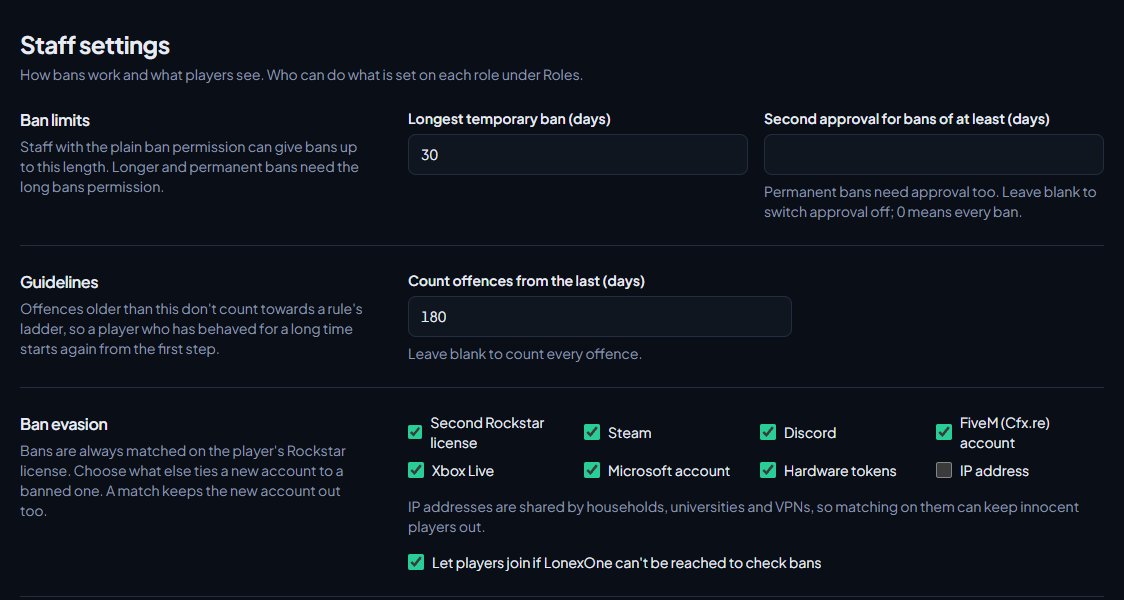
| Section | What it controls | More detail |
|---|---|---|
| Ban limits | The longest ban someone with the plain ban permission can give (7 days to start with), and whether long bans need a second staff member. | Bans that need a second staff member |
| Guidelines | How far back offences count towards a rule's guideline (180 days to start with). | Set your rules and punishment guidelines |
| Ban evasion | Which identifiers tie a new account to a banned one, and what happens if LonexOne can't be reached. | Control who can join your servers |
| Messages to players | The ban screen and the kick, warning, community service and commendation messages, plus your appeal link. | Warn, kick and ban players |
| Trust score | How each player's trust score is worked out, and a minimum score to join. | Trust scores and the reward ladder |
| Automatic escalation | A kick or ban after a number of warnings. | Warn, kick and ban players |
| Flags | The labels staff can put on players. | Notes and flags on players |
| Player portal and appeals | Whether players can see their record and appeal. | Decide ban appeals |
| Allowlist | Only letting in staff, certain roles and accepted applicants. | Control who can join your servers |
| Reward ladder | Tiers and Discord roles players earn by playing. | Trust scores and the reward ladder |
| Reports and the event log | How long kills, damage and chat are kept, and the report cooldown. | Handle player reports |
| In game | The staff menu key and the names of the chat commands. | In-game staff tools |
6. Finish setting up#
- Add your server rules under Rules & guidelines, so staff can pick the rule that was broken. See Set your rules and punishment guidelines.
- If you want to use community service, set up the area in game. See Commendations and community service.
- Set weekly duty quotas for your staff roles on the Staff team page. See Your staff team: hours, quotas and infractions.
- If you want staff actions posted to Discord, pick channels for them under Log channels. See Post logs to Discord channels.
Something not working?#
The Players page says "No players yet". Players appear as they join a server running the LonexOne resource. Check the resource is connected (see Fix the FiveM resource not connecting), then join the server yourself.
A staff member gets "You aren't staff here" or "You aren't staff on" your community in game. Their roles don't include See the player database: profiles, playtime, past names and linked accounts, or LonexOne can't match their Discord to a member. Check their role, and that they've signed in on your community website with the same Discord account they have linked in FiveM.
In game it says "Link Discord to FiveM to use the staff menu". FiveM didn't pass on a Discord account. Ask them to link Discord in FiveM, start the Discord app, then restart FiveM.
It says "The Staff Panel isn't switched on for this community." The module isn't installed. Install it from Install modules.
A staff member can't see some Staff Panel pages. Each page needs its own permission. For example, Rules & guidelines and Staff settings need Set up the Staff Panel: rules, guidelines and settings. Check their role.
See also
Install the LonexOne FiveM resource
Claim the free resource through Tebex, download it from Keymaster, add it to your server with screenshot-basic and the optional camera prop, and start it.
Connect your game server with a server key
Add your game server in Status & servers, make its server key, put it in server.cfg, check it's connected, and choose the in-game duty rules.
Create a role and choose what it can do
Make a role like Staff or Department command, tick the permissions it gives, hand it to people, and understand how roles work alongside ranks and administrators.
Warn, kick and ban players
Give warnings, kicks and bans from a player's profile, pick the rule they broke, attach evidence, choose what players see, and set up automatic kicks or bans after repeated warnings.
Use the staff menu and staff commands in game
Open the in-game staff menu, go on staff duty, use the chat commands, teleport, spectate, freeze, run sits and announcements, and rename or switch off any command.
Import players from txAdmin or LonexStaff
Bring your player records, notes, warnings and bans over from txAdmin's playersDB.json or a LonexStaff database export, so nothing is lost when you move to the Staff Panel.
Can't find what you need?
Open a ticket in our Discord and someone from the team will help. Found a bug, or missing a feature? Tell us on the feedback board.