Your staff team: hours, quotas and infractions
See how each staff member is doing, set weekly staff duty quotas by role, count staff duty as department shifts, fix duty time the game missed, and record infractions against staff.
The Staff team page shows everyone on your staff team and how they're doing: how much staff duty they've done this week against their quota, how many actions they've taken, how quickly they pick up reports, and how often other staff have had to undo their decisions.
Managers can also set quotas, correct duty time and keep a record of infractions, like warnings and strikes against a staff member.
Before you start#
| To do this | You need |
|---|---|
| See the Staff team page | See the staff team: duty hours, quotas and how each member is doing |
| Set quotas, add or remove duty time, record infractions | Manage the staff team: infractions, duty corrections and leave approval |
Who's on the staff team#
Everyone whose roles include See the player database: profiles, playtime, past names and linked accounts, plus your community's owner and administrators. To add someone, give them a role with that permission under Roles & permissions.
Read the Staff team page#
- In your control panel, click Staff team under Staff Panel.
- Pick Last 7 days, Last 30 days or Last 90 days at the top.
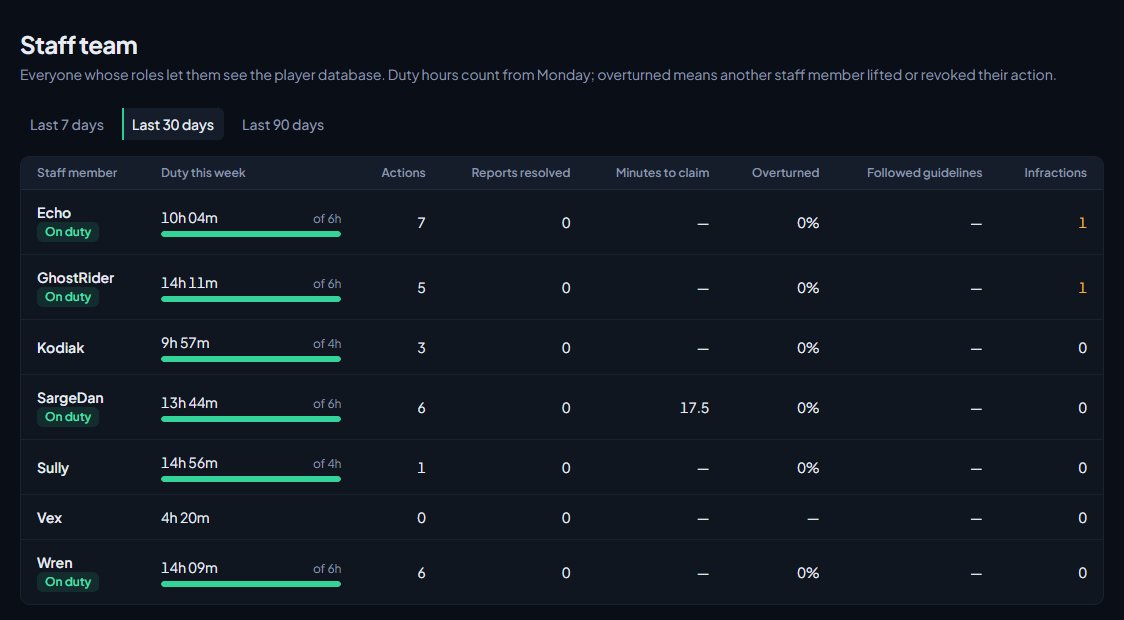
| Column | What it shows |
|---|---|
| Staff member | Their name, with On duty if they're on staff duty now, and On leave until if they're on approved leave. |
| Duty this week | Staff duty since Monday 00:00 UTC, with a bar towards their quota if they have one. The bar is grey while they're on leave. |
| Actions | Commendations, warnings, kicks, community service and bans they gave in the period. Automatic actions aren't counted. |
| Reports resolved | Reports they resolved in the period. |
| Minutes to claim | On average, how long reports waited before they claimed them. |
| Overturned | The share of their actions that another staff member lifted or revoked, including by accepting an appeal. 20% or more is shown in red. |
| Followed guidelines | Of their actions under a rule with a guideline, the share that followed it. |
| Infractions | Infractions in force against them, not counting notes. |
The Duty this week column always shows the current week. The other columns use the period you picked.
Look at one staff member#
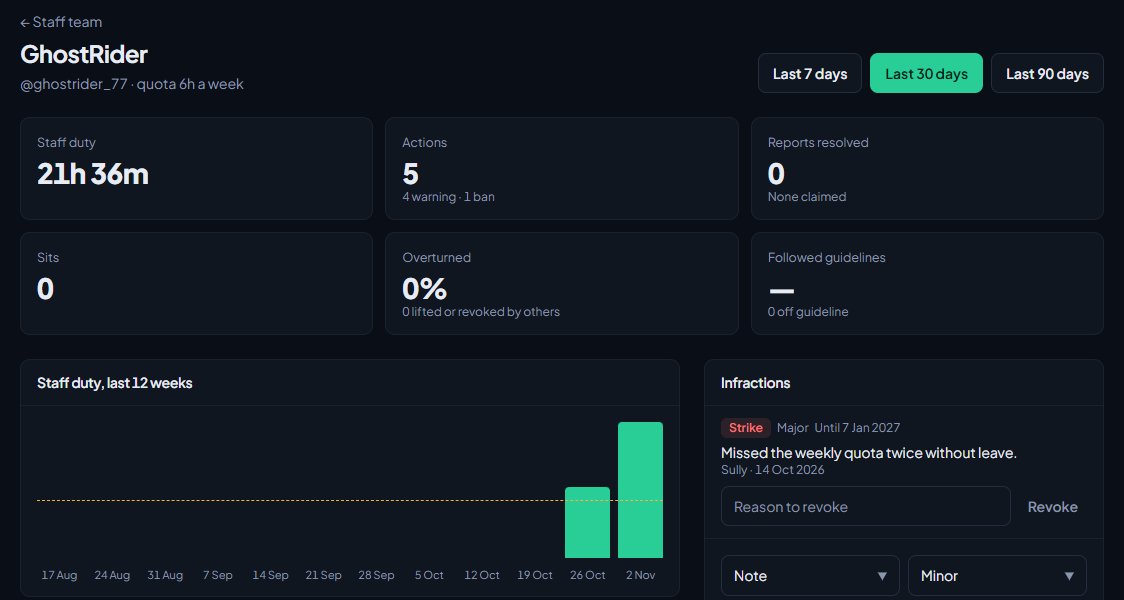
Click a name to open their page. It shows:
- their staff duty, actions, reports resolved, sits, overturned and followed guidelines for the period you pick at the top,
- a chart of their staff duty for the last 12 weeks, with a dashed line at their quota,
- their last 25 duty sessions,
- their infractions and their last 10 leave requests.
Set weekly quotas#
- On the Staff team page, scroll to Staff duty.
- Type the weekly hours expected for each role. Leave a role blank for no quota.
- Click Save.
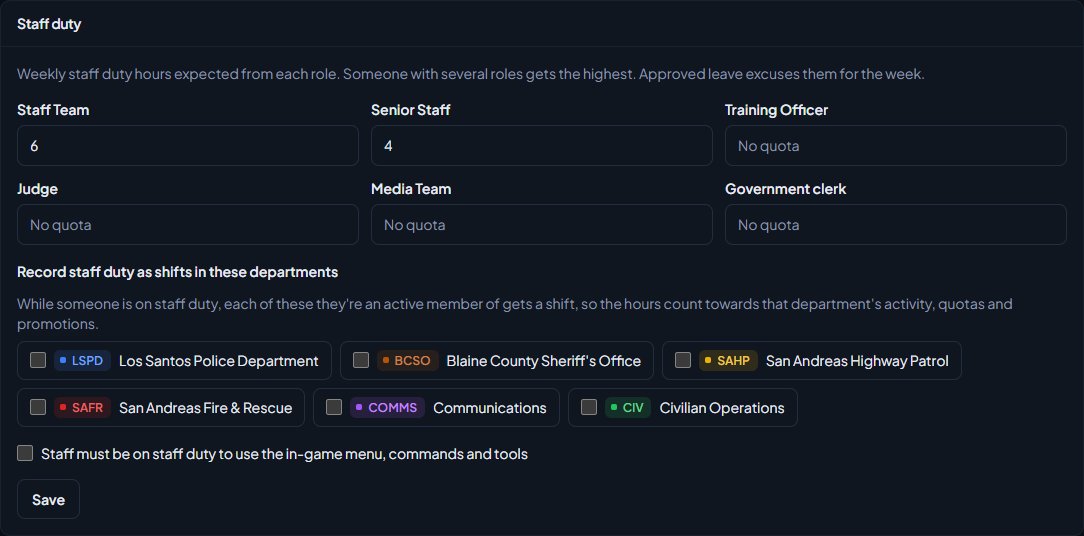
Someone with several roles gets the highest quota of their roles. Weeks run from Monday 00:00 UTC.
Quotas are a guide for managers. Missing one doesn't do anything automatically, and approved leave shows the member as on leave rather than changing their hours.
Count staff duty as department shifts#
If some of your staff are also in a department, staff duty can count towards that department's hours.
- Under Record staff duty as shifts in these departments, tick the departments.
- Click Save.
While someone is on staff duty, they get a shift in each ticked department they're an active member of, so the hours count towards that department's activity rules, quotas and promotions. The shift ends when staff duty ends. If they're already on shift in that department some other way, nothing changes. See Track shifts and hours.
Make staff go on duty to use their tools#
Tick Staff must be on staff duty to use the in-game menu, commands and tools and click Save. Staff then have to type /staffduty before they can take action or use tools in game. See Use the staff menu and staff commands in game.
Add or remove duty time#
Staff duty is recorded in game, from /staffduty until they go off duty or leave the server. If the game missed some, for example because it crashed, a manager can add it by hand.
- Open the staff member's page.
- Under Duty sessions, fill in Started and Ended.
- Pick the Server, or leave it on None.
- Fill in Why it's added by hand, for example Game crashed before /staffduty off.
- Click Add duty time.
You can add finished sessions of up to 24 hours. Added sessions show as Added: followed by your reason.
To remove a session, click Remove next to it and confirm. Adding and removing duty time is recorded in the activity log.
Record an infraction#
- Open the staff member's page.
- In the Infractions box, pick the type: Note, Warning, Strike, Demotion or Removed from staff.
- For a warning or strike, pick the severity: Minor, Major or Critical.
- Type what happened.
- Optionally, type a number of days in Expires after (days, optional).
- Click Record.
Infractions are a record for your leadership. Recording a Demotion or Removed from staff doesn't change anyone's roles, so change those under Roles & permissions too.
To take one back, type a reason under it and click Revoke. You can't record an infraction against yourself.
Something not working?#
The page says "No staff yet." No role has See the player database: profiles, playtime, past names and linked accounts. Give a role that permission and add your staff to it.
Someone's duty hours look too low. Staff duty only counts while they're on /staffduty, and ends when they leave the server. Check their Duty sessions, and add any missing time by hand.
It says "Add finished sessions of up to 24 hours." The session you're adding is longer than 24 hours or ends in the future. Split it into smaller sessions, or wait until it's over.
Staff duty isn't making department shifts. Check the department is ticked, and that the staff member is an active member of it. Members on leave of absence, suspended or inactive don't get a shift.
See also
Use the staff menu and staff commands in game
Open the in-game staff menu, go on staff duty, use the chat commands, teleport, spectate, freeze, run sits and announcements, and rename or switch off any command.
Ask for and approve staff leave
How staff ask for time away from staff duties, how managers approve or deny it, and where you can see who's away.
Read the staff dashboard
What each part of the staff dashboard shows: players online, staff on duty, open reports, bans waiting for approval, the last two weeks of actions and your own duty hours.
Search the moderation log and change or undo actions
Find any commendation, warning, kick or ban, export the log to a spreadsheet, add evidence and comments, change a ban's length, and lift bans or revoke actions.
Track shifts and hours
Where shifts come from, how to see who's on duty and everyone's hours against their quota, clock someone out, add or fix a shift by hand, and approve shifts members log themselves.
Can't find what you need?
Open a ticket in our Discord and someone from the team will help. Found a bug, or missing a feature? Tell us on the feedback board.