Control who can join your servers
How LonexOne checks every player as they connect: bans and ban evasion, a minimum trust score, and an allowlist that only lets in staff, chosen roles and accepted applicants.
With the Staff Panel installed, the LonexOne resource checks every player while they connect, before they're let in. While it checks, players see Checking your record with followed by your community's name.
A player is turned away if any of these apply, checked in this order:
- They're banned, or they share an identifier with a banned player that your settings match bans on.
- Their trust score is below your minimum, if you've set one.
- Your servers are allowlisted and they're not on the list.
Before you start#
To change these settings you need Set up the Staff Panel: rules, guidelines and settings. They're all under Staff settings in the Staff Panel section of the sidebar.
Bans and ban evasion#
Bans are always matched on the player's Rockstar license. You can also match them on other identifiers, so a banned player can't get back in on a second Rockstar account that uses the same Discord or PC.
- Click Staff settings under Staff Panel.
- Go to Ban evasion.
- Tick each identifier that should tie a new account to a banned one.
- Click Save settings.

| Identifier | Ticked to start with |
|---|---|
| Second Rockstar license | Yes |
| Steam | Yes |
| Discord | Yes |
| FiveM (Cfx.re) account | Yes |
| Xbox Live | Yes |
| Microsoft account | Yes |
| Hardware tokens | Yes |
| IP address | No |
A player who matches is refused with your ban screen, filled in from the original ban, including its reference.
Think carefully before ticking IP address. Households, universities and VPNs share IP addresses, so matching on them can keep innocent players out.
Alerts for possible ban evasion#
Separately from blocking, LonexOne can warn you about players who might be evading a ban. Under Flags, tick Flag and alert on possible ban evasion. It's on to start with.
When it's on and someone joins who shares any identifier with a banned player (including an IP address, even if you don't block on IPs), LonexOne:
- adds the Possible ban evasion flag to them, with a note saying what they share and with whom,
- tells staff on that server in game,
- posts to your Flagged players and possible ban evasion joining log channel, if you've set one.
Check the player's Linked accounts before acting on it. See Look up a player's history.
If LonexOne can't be reached#
If your game server can't reach LonexOne while someone connects, it can't check their record. Under Ban evasion, Let players join if LonexOne can't be reached to check bans decides what happens:
- Ticked (the default): players are let in, so an outage doesn't lock everyone out.
- Unticked: players are refused with We could not check your record right now. Try again in a minute.
A minimum trust score#
Under Trust score, set Players below this score can't join. Players already on record with a lower score are refused with a message that their trust score is too low to join right now, and that it rises over time as older actions fade. If you've set an Appeal link, it's added to the message. Without one, a link to their record on your community site is added while players can see their record and appeal there.
Leave it blank to let everyone in. See Trust scores and the reward ladder for how scores work.
Allowlist your servers#
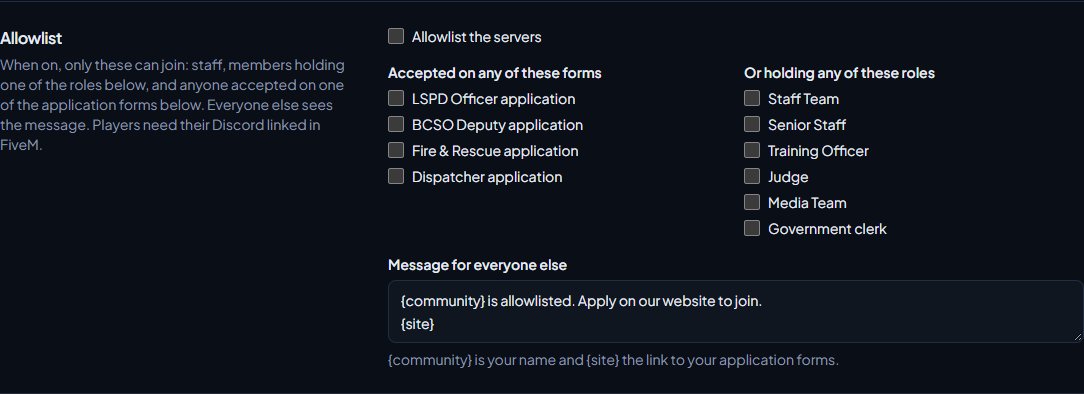
An allowlist only lets in people you've approved. When it's on, these can join:
- Staff (anyone with See the player database: profiles, playtime, past names and linked accounts, plus the owner and administrators).
- Members holding any of the roles you pick.
- Anyone whose application was accepted on any of the forms you pick.
Everyone else sees your allowlist message.
- Click Staff settings under Staff Panel.
- Go to Allowlist.
- Tick Allowlist the servers.
- Under Accepted on any of these forms, tick the application forms that should let someone in.
- Under Or holding any of these roles, tick the roles that should let someone in.
- Change Message for everyone else if you like. {community} becomes your community's name and {site} a link to your application forms.
- Click Save settings.
The allowlist works by Discord. Players need Discord linked in FiveM and need to be a member of your community, which means they've signed in on your community website with that Discord account. Anyone without that is refused, even if they'd otherwise qualify.
Something not working?#
Someone was refused but they aren't banned. They may share an identifier with a banned player that you match bans on. Ask them for their Discord ID or Steam ID and search for it on the Players page: the banned player who shares it comes up. Open that player's ban to decide whether the match is fair.
An allowlisted player can't get in. Check they have Discord linked in FiveM, that they've signed in on your community website with the same Discord account, and that they hold one of the allowlisted roles or have an accepted application on one of the ticked forms.
Nobody can join and they see "We could not check your record right now." Your game server can't reach LonexOne and Let players join if LonexOne can't be reached to check bans is unticked. Check your server's connection (see Fix the FiveM resource not connecting), or tick the box to let players in while you fix it.
A new player with a warning can't join. Their trust score has dropped below Players below this score can't join. Lower the minimum so it's below your Starting trust, or revoke the warning if it was a mistake.
See also
Warn, kick and ban players
Give warnings, kicks and bans from a player's profile, pick the rule they broke, attach evidence, choose what players see, and set up automatic kicks or bans after repeated warnings.
Trust scores and the reward ladder
How each player's trust score is worked out, how to tune it, how to use it to keep players out or gate applications, and how to reward regular players with tiers and Discord roles.
Notes and flags on players
Leave notes for other staff on a player, flag players to watch them, choose which flags alert staff when the player joins, and make your own flags.
Build an application form
Create an application form for a department or the whole community, add questions, set requirements like Discord account age and a wait after denial, and open it for applications.
Set up the Staff Panel
Install the Staff Panel, connect your game server, give your staff the right permissions and work through the staff settings before you start moderating.
Can't find what you need?
Open a ticket in our Discord and someone from the team will help. Found a bug, or missing a feature? Tell us on the feedback board.