Build an application form
Create an application form for a department or the whole community, add questions, set requirements like Discord account age and a wait after denial, and open it for applications.
Application forms are how people ask to join a department, or your community as a whole. You build the form in the control panel, and people fill it in on your community website. When you accept an application for a department, the applicant is added to its roster for you.
You can have as many forms as you like: one per department you recruit for, plus a community-wide form for things like a whitelist.
Before you start#
- The Department Panel module needs to be installed.
- You need the Create and edit application forms permission. If it's limited to one department, you can only build forms for that department. Community-wide forms need the permission across the whole community.
Create a form#
-
In the left sidebar, under Department Panel, click Application forms.
-
Click New form.
-
Give it a Title, for example LSPD application.
-
Optionally write a Description. It's shown above the questions. You can use Markdown:
## Heading,**bold**and- list item. -
Add your questions (see below).
-
Fill in the settings on the right (see below).
-
Tick Open for applications when you're ready for people to apply. New forms start closed.
-
Click Create form.
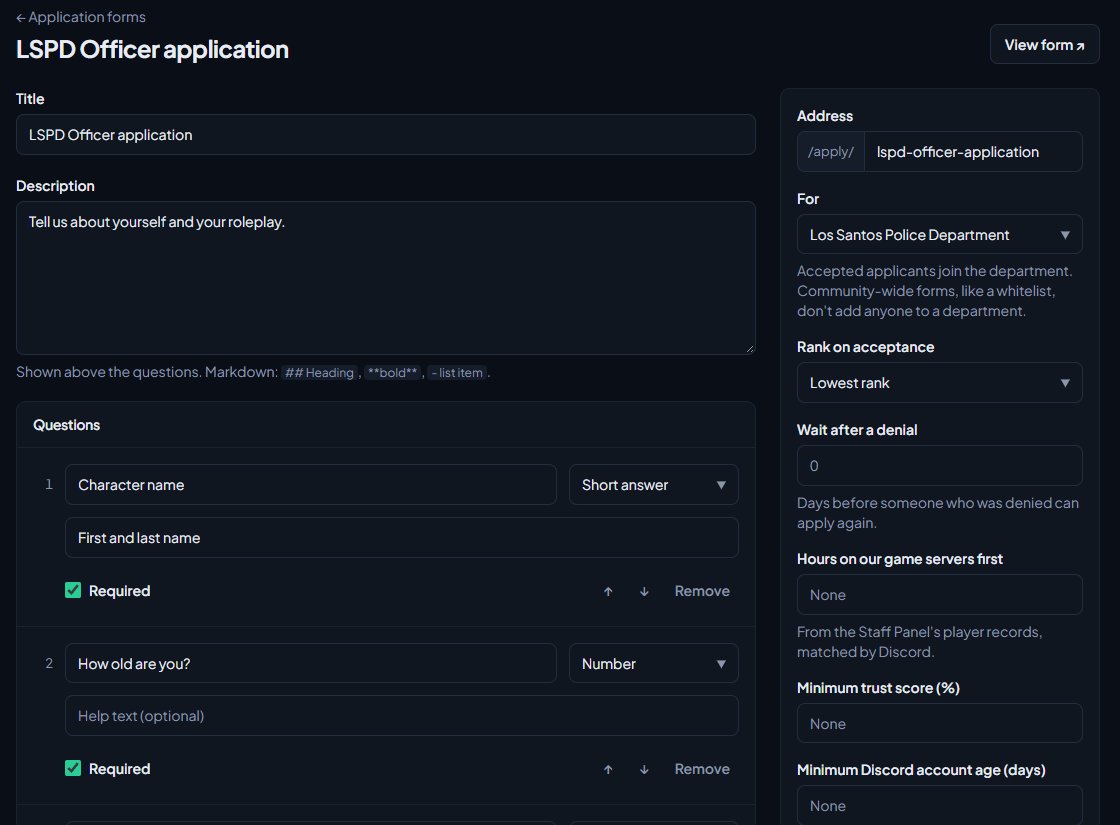
You'll see Form created. and stay on the form, where you can click View form to see it as applicants will.
Add questions#
Every form needs at least one question, and can have up to 50.
- Type the question in the Question box.
- Pick an answer type.
- Optionally add Help text to explain what you're looking for.
- Tick or untick Required.
- Click Add question for the next one.
| Answer type | What the applicant gets |
|---|---|
| Short answer | A single line of text. |
| Paragraph | A large text box. |
| Number | A number box. |
| Dropdown | A list to pick one choice from. |
| Checkboxes | A list where they can tick several. |
| Yes or no | A yes or no choice. |
For Dropdown and Checkboxes, a Choices box appears. Put one choice per line, up to 50.
Use the ↑ and ↓ buttons to reorder questions, and Remove to delete one. Changes only take effect when you save the form.
Each application keeps a copy of the questions it was sent with, so editing a form later never changes answers people have already sent.
Form settings#
| Setting | What it does |
|---|---|
| Address | The end of the form's link, after /apply/. Leave it blank to make one from the title. Each form needs its own address. |
| For | The department the form is for, or The whole community. Accepted applicants join the department. Community-wide forms don't add anyone to a department. |
| Rank on acceptance | The rank accepted applicants start at. Leave it on Lowest rank to use the department's lowest rank. Only shown for department forms. |
| Wait after a denial | Days before someone who was denied can apply to this form again. Leave it at 0 for no wait. |
| Hours on our game servers first and Minimum trust score (%) | Only shown when the Staff Panel is installed. Applicants need this much playtime, or this trust score, from the Staff Panel's player records, matched by their Discord account. |
| Minimum Discord account age (days) | Pick Flag only to warn reviewers about younger accounts, or Block to stop younger accounts applying at all. |
| Votes needed | How many approve votes reviewers should collect. It's advice only: reviewers can still accept without them. |
| Discord channel for new applications | A channel ID. New applications are posted there. The bot must be in that channel's Discord server. |
To get a channel ID, right-click the channel in Discord and click Copy Channel ID. If you don't see that option, turn on Developer Mode in Discord's advanced settings.
Where people apply#
Members find open forms at your community website's address with /apply on the end, for example yourcommunity.lonexone.com/apply. Each form has its own page at /apply/ followed by its address. Closed forms don't appear on the list.
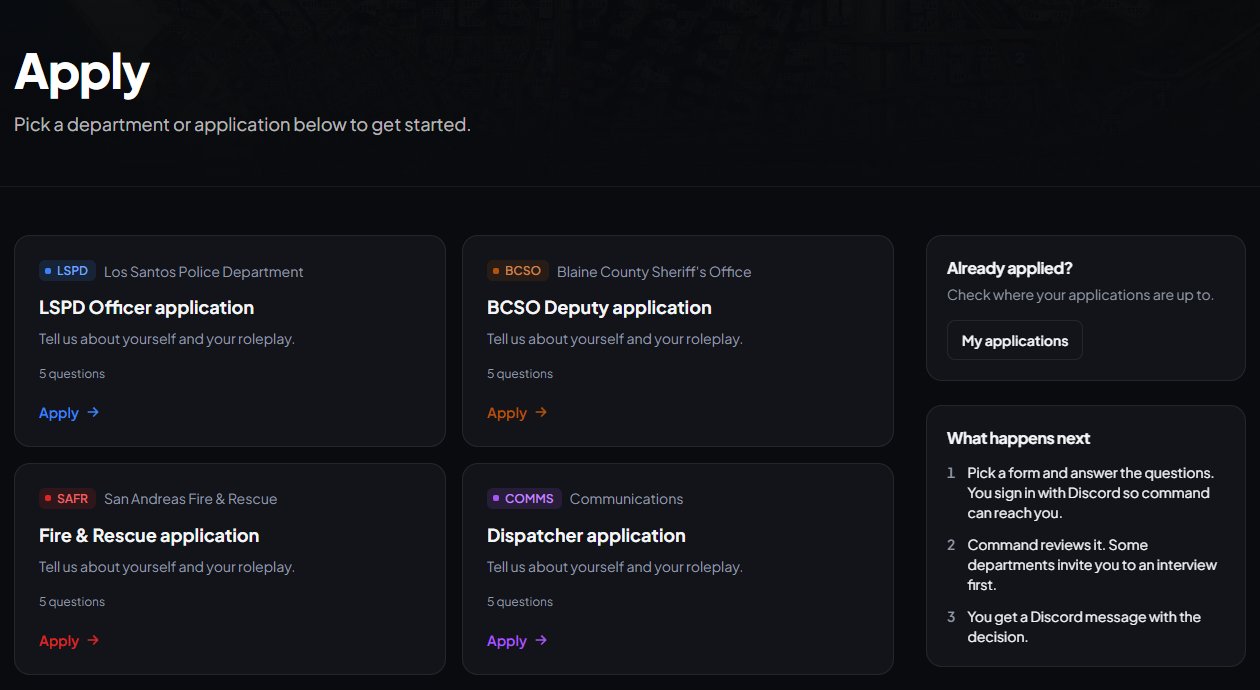
You can also point people to a form from your public roster. On a rank's edit page, under Public roster, set Open positions to Apply, using the department's application form. Open positions for that rank then show an Apply link while the department has an open form.
Applicants need to be signed in to send a form. They can't send one if:
- they already have an application in review for that form,
- they were denied and the Wait after a denial hasn't passed,
- their Discord account is younger than the minimum and the form is set to Block,
- they're short of the playtime or trust score,
- joining the department would put them over your community's department limits.
Once sent, they can follow it at /my-applications on your community website, and withdraw it while it's still in review.
Close or delete a form#
To stop new applications, untick Open for applications and click Save form. Applications already sent stay open for review.
Open and close on set dates#
Under Open for applications, set Opens on and Closes on to have the form open and close by itself. Times are in your site's time zone, set under Events → Settings. You can set one date or both.
The dates show on your community's Events calendar as Applications open and Applications close, so people know when to apply. Each date is used once: if you open or close the form by hand after it, your change sticks.
To delete a form:
- Open the form and scroll to Delete form.
- If people have applied with it, tick Also delete its applications. They're deleted with the form, along with their notes, and this can't be undone.
- Click Delete form and confirm.
Something not working?#
"Another form already uses that address." Two forms can't share an address. Change the Address.
"Every question needs a label." One of your questions is empty. Fill it in or click Remove on it.
"Add the choices, one per line." A Dropdown or Checkboxes question has no choices yet.
"Paste the channel ID: digits only." The Discord channel box needs the channel's number, not its name or a link.
"Pick a rank in the chosen department." The Rank on acceptance belongs to a different department. Pick the department first, then the rank.
"You can't manage forms for that." Your permission doesn't cover the department you picked, or you picked The whole community without community-wide access.
New applications aren't being posted to Discord. Check the bot is in your main Discord server and can post in that channel. See Connect your Discord server.
See also
Review and accept applications
Read applications, check the warnings about each applicant, leave notes and votes for other reviewers, invite people to interview, and accept or deny them.
Take letters of interest for a rank
Let members already in a department write a letter asking to be considered for a rank, then accept or decline each letter and change their rank when you're ready.
Create a department
Set up a police, fire, EMS, dispatch or civilian department with its name, type, colour, callsigns and Discord nickname, choose who can see its roster, set membership limits, and delete a department.
Set up ranks and their order
Add a department's ranks, put them in order from highest to lowest, give each rank its own callsigns, promotion requirements and permissions, and choose how it shows on the public roster.
Connect your Discord server
Add the LonexOne bot to your main Discord server, put its role in the right place, and fix the messages you might see while connecting.
Can't find what you need?
Open a ticket in our Discord and someone from the team will help. Found a bug, or missing a feature? Tell us on the feedback board.