Review and accept applications
Read applications, check the warnings about each applicant, leave notes and votes for other reviewers, invite people to interview, and accept or deny them.
When someone fills in one of your application forms, it lands on the Applications page in your control panel. Reviewers can read the answers, see anything worth knowing about the applicant, talk it over in private notes, vote, and then make a decision. Accepting a department application adds the person to that department's roster straight away.
Before you start#
- The Department Panel module needs to be installed.
- You need the Review, accept and deny applications permission. If it's limited to one department, you'll only see applications for that department's forms. Community-wide forms need the permission across the whole community.
Find applications#
-
In the left sidebar, under Department Panel, click Applications.
-
Use the tabs to switch between Open, Accepted, Denied, Withdrawn and All. The number on each tab is how many there are.
-
Use the lists at the top to show one form or one department.
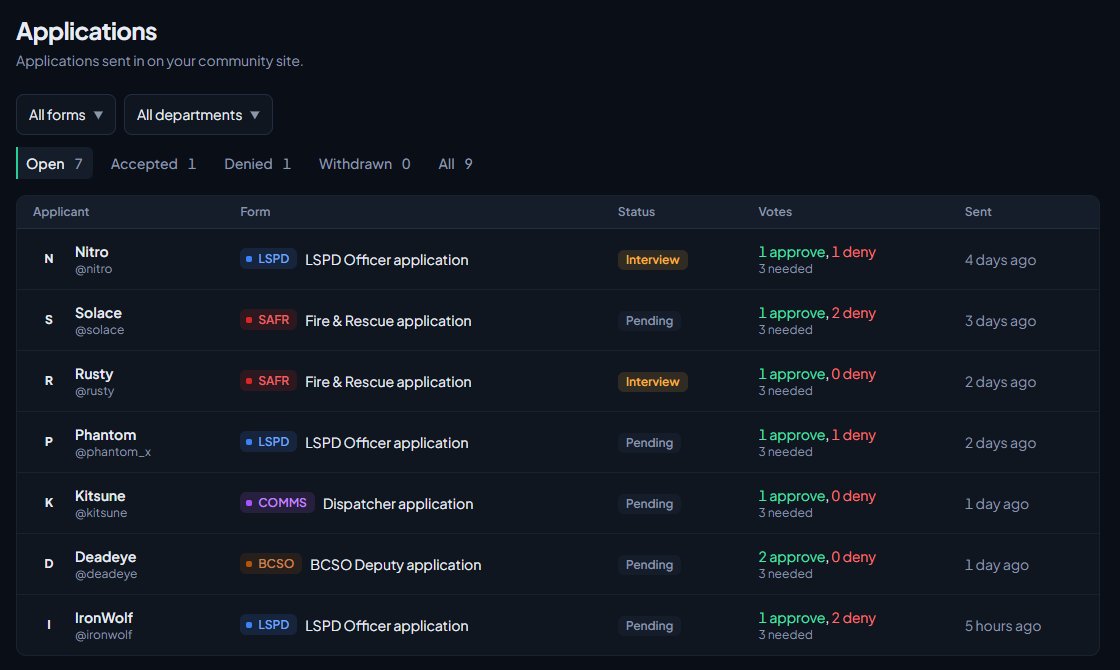
Open holds everything still waiting for a decision, oldest first, including applications marked for interview. Each row shows the applicant, the form, the status, approve and deny votes so far, and when it was sent.
Click a row to open the application.
Read an application#
The application page shows:
- Answers: every question and the applicant's answer.
- Checks: things worth knowing about the applicant, with warnings first.
- Reviewer notes: private notes from your team.
- Votes: who voted and how.
- Decision: the buttons to interview, accept or deny.
Under their name you'll see which departments they're in now, and how many other applications they've sent.
What the checks mean#
Checks are worked out when the application is sent, so the picture doesn't change later. Two of them, other open applications and already being in the department, are kept up to date while the application is open.
| Check | Type |
|---|---|
| Discord account is younger than the form's minimum age | Warning |
| Discord account is less than 30 days old | Info |
| Denied before for this form, or any form for the same department | Warning |
| Withdrew before | Info |
| Was in the department before and left | Info |
| A suspension or termination on record that hasn't been revoked | Warning |
| Has other applications in review | Info |
| Already in the department | Info |
If nothing stands out, you'll see Nothing to flag.
Leave a note#
- Type in the Add a note box under Reviewer notes.
- Click Add note.
Notes are only for reviewers. The applicant never sees them.
Vote#
Votes let your reviewers show where they stand before someone makes the call.
- Under Votes, pick Approve or Deny.
- Optionally add a comment.
- Click Vote.
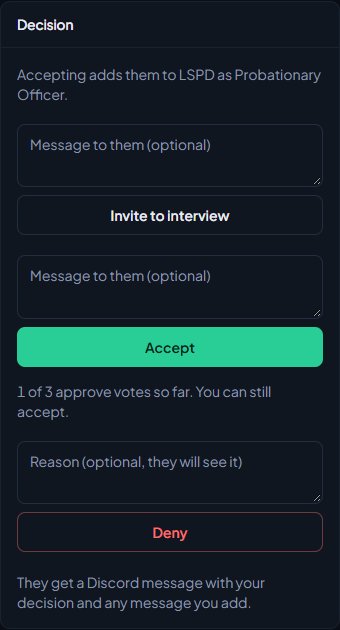
You can change your vote with Change vote, or take it back with Remove vote, until the application is decided. If the form has Votes needed set, the Decision section shows how many approve votes there are so far. Votes are advice only: anyone who can review can still accept or deny at any time.
Invite to interview#
- Under Decision, optionally type a message to the applicant.
- Click Invite to interview.
The status changes to Interview and the applicant is told they've moved to the next stage, with your message. The application stays open, so you can accept or deny it after the interview. You can only invite pending applications.
Accept or deny#
To accept:
- Optionally type an acceptance message.
- Click Accept.
For a department form, the Decision section tells you what will happen, for example Accepting adds them to LSPD as Cadet. They're added at the form's Rank on acceptance, or the lowest rank, with the next free callsign if the department's callsigns follow rank. You'll see Accepted and added to LSPD. If they're already in the department, accepting doesn't change their rank and you'll just see Accepted.
Community-wide forms, like a whitelist, don't add anyone to a department.
To deny:
- Optionally type a reason. The applicant will see it.
- Click Deny and confirm.
If the form has a Wait after a denial, they can't apply to it again until that many days have passed.
What the applicant sees#
The applicant is told about each decision with your message, on the site, by email or by Discord DM, depending on the Application decisions setting they've chosen. They can see where every application stands at /my-applications on your community website. See Choose what members are notified about.
Once an application is accepted, denied or withdrawn, it can't be changed. The Decision section then shows the outcome, when it was decided, by whom and the message you sent.
Something not working?#
"This application has already been decided." Someone else decided it first, or the applicant withdrew it. Refresh the page to see the outcome.
A message about department limits when accepting, like "Sam is already in 1 law enforcement department (LSPD). The limit is 1." Accepting would put them over your community's department limits, so the application stays open. Change the limits under Membership limits on the Departments & ranks page, or remove them from their other department, then accept again.
I can't see an application someone says they sent. Your permission may be limited to a department that doesn't own that form. Check the All tab, and ask someone with community-wide access if it's a community-wide form.
Accepted, but they're not on the roster. Check the form's For setting. Community-wide forms don't add people to a department. Add them yourself from the roster.
See also
Build an application form
Create an application form for a department or the whole community, add questions, set requirements like Discord account age and a wait after denial, and open it for applications.
Add someone to the roster and set their callsign
Put a member into a department at a rank, give them a callsign and roleplay name, change those details later, and remove them from the department.
Take letters of interest for a rank
Let members already in a department write a letter asking to be considered for a rank, then accept or decline each letter and change their rank when you're ready.
Choose what members are notified about
Pick which notifications go out on the site, by email and by Discord DM for each kind of update, see what members can turn off themselves, and check for Discord DMs that didn't arrive.
Can't find what you need?
Open a ticket in our Discord and someone from the team will help. Found a bug, or missing a feature? Tell us on the feedback board.