Choose a map and postal set for the live map
Switch on the live map, pick a ready-made map that matches your server's postal script, load the matching postals, and decide how postals and street names work on calls.
The live map shows your units and open calls where they are in the game, updated every couple of seconds. Dispatchers and units on duty open it from the CAD in its own window, so it can sit on a second screen.
For the map to be useful, it has to match what your players see. If your server uses New Postals and the map shows a different set, a call at postal 412 lands in the wrong place. So you pick two things: the map picture, and the list of postal codes with their positions. This article covers the ready-made ones. To use your own map image or postal file, see Upload your own map image and postals.
Before you start#
- You need the Set up the CAD: call types, statuses, penal code, designs and AOP permission.
- Unit positions come from the game, so the map needs the LonexOne FiveM resource running on your server. See Install the LonexOne FiveM resource. Without it, calls with a postal still show on the map, but units don't.
Step 1: Pick the map#
- Open your control panel and click CAD settings in the sidebar.
- Click Map & places along the top, then Live map.
- Under Map, click the map that matches your server's postal script.
- Click Save map.
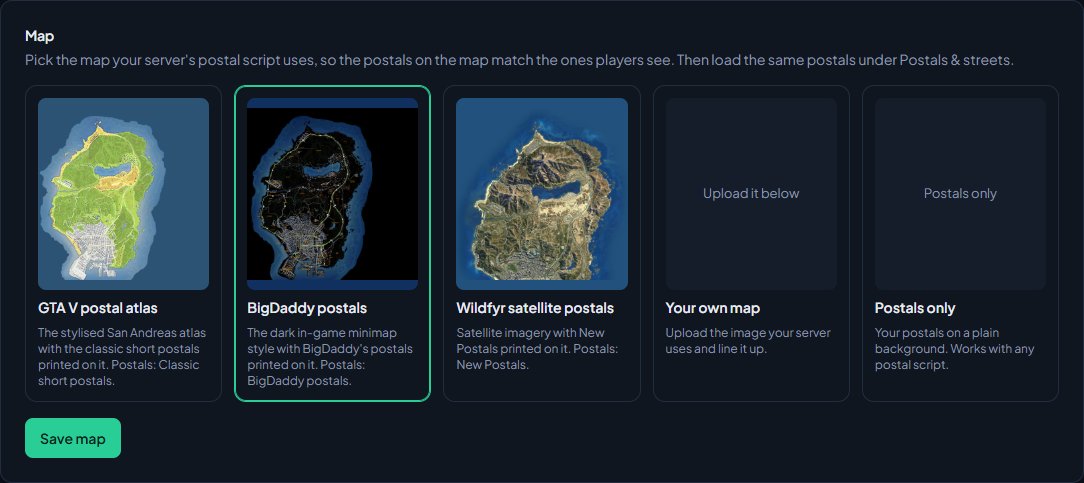
| Map | What it looks like | Matching postal set |
|---|---|---|
| GTA V postal atlas | The stylised San Andreas atlas with New Postals printed on it. | New Postals |
| BigDaddy postals | The dark in-game minimap style with BigDaddy's postals printed on it. | BigDaddy postals |
| Wildfyr satellite postals | Satellite imagery with New Postals printed on it. | New Postals |
| Oulsen satellite postals | Satellite imagery with Oulsen's own postals, road names and a grid printed on it. | Oulsen satellite postals |
| Your own map | An image you upload and line up yourself. | Whichever set your image uses |
| Postals only | Your postals on a plain background. Works with any postal script. | Any |
The matching postal set is also written under each map on the page. A map marked Not on this server yet can't be picked at the moment.
If you run a postal map in game through HUD under Mechanics, the live map and postals follow it on their own. See Set up the HUD.
If your server's postal map isn't one of the ready-made ones, pick Postals only to start with. It works with any postal set, and you can upload your own map image later.
Step 2: Load the matching postals#
- Click Postals & streets under Map & places.
- Under Postals, pick a set in Use a ready-made set.
- If you already have postals and want this set instead, tick Replace the postals I have.
- Click Import postals.
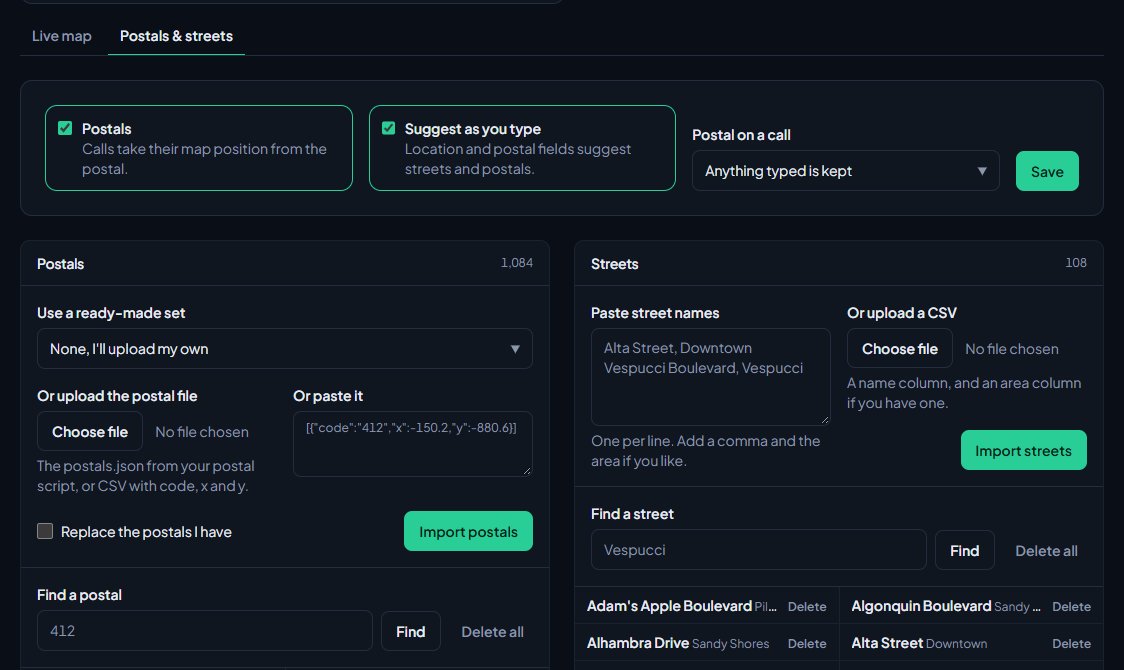
You'll see how many postals were added and how many were moved.
| Ready-made set | What it is |
|---|---|
| New Postals | The set most FiveM postal scripts use (nearest-postal's new postals): 1,687 codes across the map. |
| Classic short postals | The older short set: about 450 codes from 1 to 1378. |
| BigDaddy postals | The BigDaddy postal layout: 1,084 codes from 10000, Cayo Perico included. |
| OCRP postals | The OCRP postal map: 865 codes from 3001. |
| Oulsen satellite postals | The postals on Oulsen's free satellite map: 946 codes from 001. |
OCRP postals don't have a ready-made map. Use them with Postals only, or upload the map image that goes with them.
Step 3: Make sure the live map is on#
- Go back to Live map.
- Check Live map is ticked in the box on the right. It's on to start with.
- Click Save.
To check it, click Open the live map at the top right of the page.
Choose how postals and streets work on calls#
At the top of the Postals & streets page:
| Setting | What it does |
|---|---|
| Postals | Calls take their map position from the postal. Off, postals aren't used to place calls. |
| Suggest as you type | Location and postal fields in the CAD suggest your streets and postals. |
| Postal on a call | Anything typed is kept, or Must be on the list. With the second, a call can only be saved with a postal from your list. |
Click Save after changing them.
Street names#
The Streets card holds the street names the location fields suggest. On an empty list, click Load starter for a list of San Andreas streets with their areas. You can also paste your own, one per line with a comma and the area if you like, and click Import streets, or add them one at a time with Add street.
What units and dispatchers see#
- Units and dispatchers on duty get a Map button in the CAD (an icon in Realistic and on the Classic unit screen). It opens the live map in its own window.
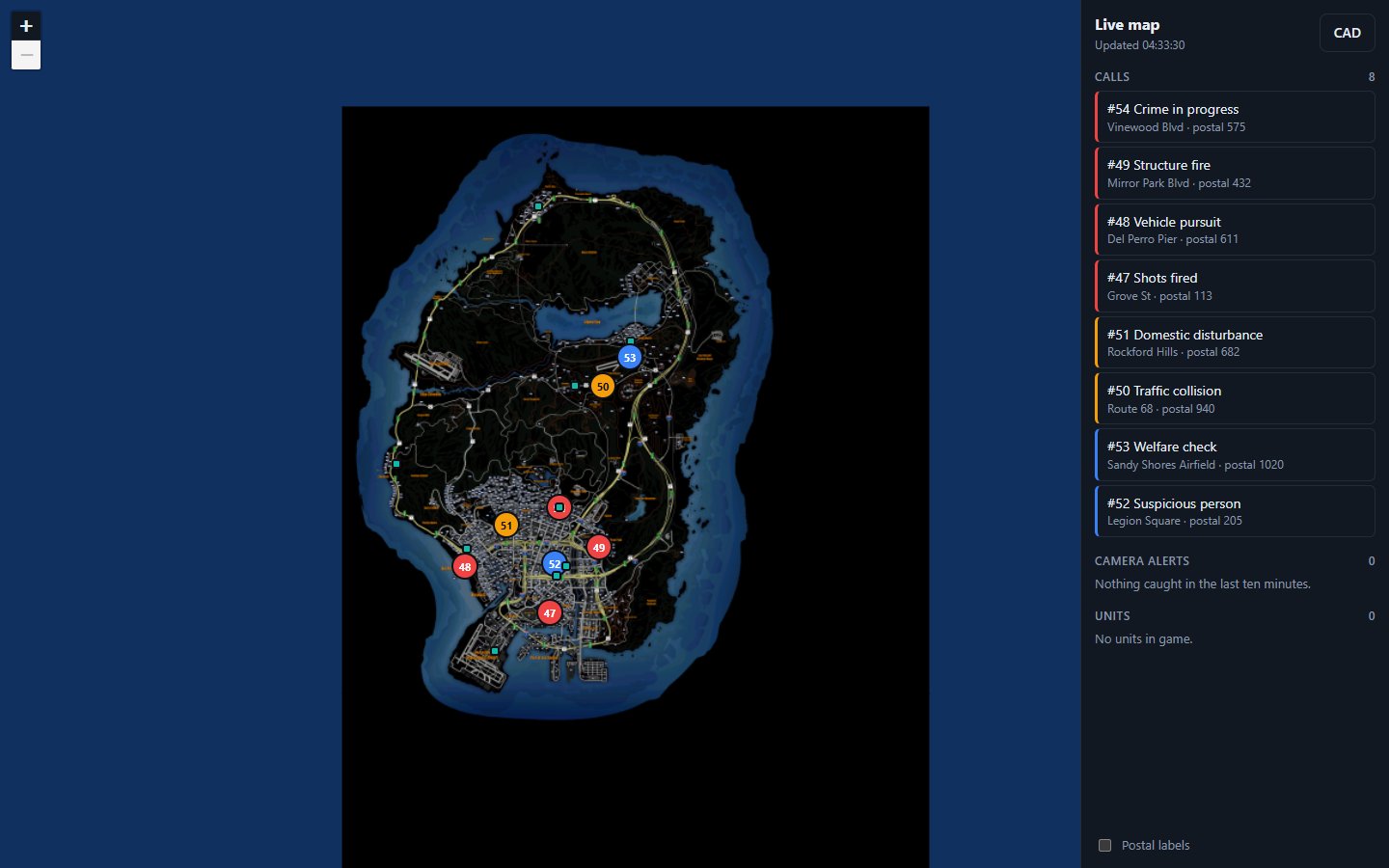
- The map shows open calls and units, with lists of each down the right. Click an item in a list to find it on the map.
- Postal labels can be switched off at the bottom of the list.
- A unit that hasn't sent a position for two minutes drops off the map.
- Anyone not on duty sees Go on duty to see units and calls.
Something not working?#
Calls show up in the wrong place. Your postal set doesn't match your server's postal script. Load the right set with Replace the postals I have ticked.
The map says "Not on this server yet". That map's files aren't available right now. Pick another map, or use Postals only, and message us in the LonexLabs Discord.
Calls show but units don't. Unit positions come from the FiveM resource. Check it's installed and connected. See Fix the FiveM resource not connecting.
There's no Map button in the CAD. Live map is switched off. Tick it on the Live map page and click Save. The button only shows while you're on duty.
It says "Postal ... isn't on the map. Pick one from the list." Postal on a call is set to Must be on the list, and that postal isn't one of yours. Pick one from the suggestions, or change the setting to Anything typed is kept.
It says "That would take the community over 5,000 postals. Replace the list instead." Tick Replace the postals I have and import again.
See also
Upload your own map image and postals
Use your server's own postal map on the live map. Upload the postals.json from your postal script, upload the map image, and line the image up with the game so units and calls land in the right place.
Set up the CAD for your community
Install the CAD, set up the departments that sign on to it, give your staff access, and work through the CAD settings in the order that gets you running fastest.
Install the LonexOne FiveM resource
Claim the free resource through Tebex, download it from Keymaster, add it to your server with screenshot-basic and the optional camera prop, and start it.
Create calls and dispatch units to them
Open a call, attach units, change priority and details, then clear it with a disposition. Also covers merging duplicates and reopening a call that closed too early.
Can't find what you need?
Open a ticket in our Discord and someone from the team will help. Found a bug, or missing a feature? Tell us on the feedback board.