Create calls and dispatch units to them
Open a call, attach units, change priority and details, then clear it with a disposition. Also covers merging duplicates and reopening a call that closed too early.
As a dispatcher, the call board is where you work. You open a call for each incident, send units to it, keep its details up to date and clear it when it's finished. Everyone on duty sees the same board, live, whichever CAD design they use.
This article is written for dispatchers. Units can open their own calls too, which is covered in Work a call as a unit.
Before you start#
You need to be signed on as a dispatcher. See Go on duty in the CAD.
Create a call#
-
Open the new call form:
- Modern: click New call above the calls list.
- Classic: click New Call in the top bar.
- Realistic: click New Call on the toolbar, choose File then New 911 Call, or press F1.
-
Pick a Call type. If nothing fits, leave it on Other and type what's happening in Nature.
-
Check the Priority. Picking a call type brings its usual priority with it, but you can change it.
-
Fill in the Location and Postal. As you type, the CAD suggests street names and postals your community has set up.
-
Add the Caller, a Callback number, and any details.
-
Click Create call (Create Call in Realistic).
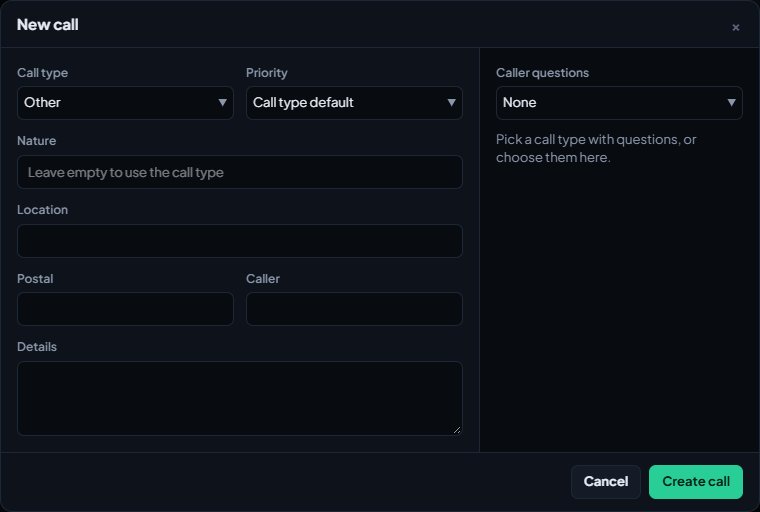
The call gets the next number, for example #0042, and starts as Pending. Everyone on duty hears the new call tone for its priority. Priority 4 calls are silent unless your community has picked a tone for them.
| Priority | Meaning |
|---|---|
| P1 | Emergency |
| P2 | Urgent |
| P3 | Routine |
| P4 | Low |
If your community uses caller scripts, a set of questions appears beside the form when you pick a call type. The answers suggest a priority and are added to the call's details. See Caller scripts for dispatchers.
Send units to a call#
Select the call first, then use any of these:
- Modern: click Attach unit in the call's Units box and pick the unit. You can also click a unit's status code in the units list and choose Attach to #0042.
- Classic: pick the unit in Attach a unit... under Assigned units and click Attach, or click the unit's status and choose Attach to #0042.
- Realistic: double-click the call to open it, pick the unit in Attach a unit… and click Attach. You can also click a unit in the units grid and choose Attach to selected call.
If your community allows it, you can also drag a unit from the units list straight onto a call.
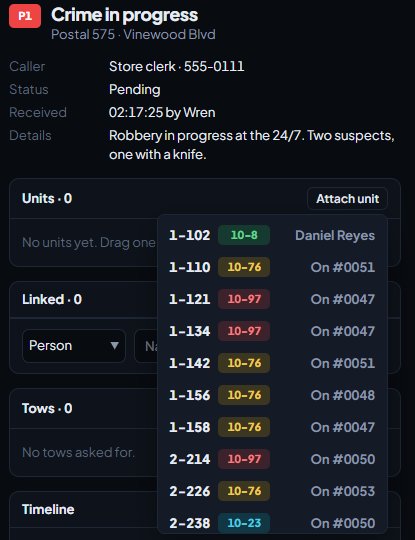
The first unit attached becomes the primary unit. The call changes to Dispatched, and the unit hears the assigned tone. A unit can only be on one call at a time, so attaching a unit that's already busy moves it off its old call.
Change a unit's status#
- Modern: click the status code next to the unit and pick a new one.
- Classic: click the unit's status and pick a new one. On a selected call, En route and On scene set every unit on it at once.
- Realistic: click the unit in the units grid and pick one under Set status.
When a unit on a call goes en route or on scene, the call's status follows, and the times are logged for supervisor stats.
Update a call#
- Priority: use Change priority (Modern), the P1 to P4 buttons (Classic), or the priority box in the call's header (Realistic).
- Details: click Edit call (Modern), Edit (Classic) or Edit Call (Realistic). You can change the call type, priority, location, postal and details, then click Save changes.
- Notes: type in the note box under the timeline and click Add. Every change and note is written to the call's timeline with your callsign.
To take a unit off a call, click the × next to it in the call's unit list. In Realistic you can also click the unit in the grid and choose Clear from call.
Clear a call#
- Select the call.
- Click Close call (Modern) or Clear call (Classic). In Realistic, click Clear Call.
- Type a disposition, for example "Report taken". Classic offers quick picks like Arrest made and Unfounded. It's optional.
- Confirm with Close call, Clear call or Confirm Clear.
Every unit on the call is cleared from it, and any Signal 100 on that call ends.
Merge a duplicate call#
When two calls are about the same incident, fold one into the other. This only shows when your community has Merge and reopen calls switched on and there's more than one open call.
- Select the duplicate.
- Click Merge into… (Modern) or Merge (Classic and Realistic).
- Pick the call to keep and click Merge.
The duplicate's notes, units and linked people and vehicles move over, and the duplicate closes as "Merged into #0041".
Reopen a call#
If a call was cleared too early, you can reopen it within your community's window, 60 minutes unless they've changed it.
- Modern: find it under Recently closed below the BOLOs and click Reopen.
- Classic: click Closed in the top bar, then Reopen.
- Realistic: choose View then Recently Closed Calls, then Reopen.
The call goes back to Pending with its units cleared, so attach them again.
Calls that close on their own#
An open call with no activity for a while is closed automatically, after 120 minutes unless your community has changed it. Its disposition says "Closed automatically after 120 minutes". Calls left open longer than your community's limit, 20 minutes by default, are highlighted on the board so they don't get forgotten.
Something not working?#
It says "Pick a call type or say what the call is." You left the call type on Other without typing a nature. Pick a call type or fill in Nature.
It says "Postal 412 isn't on the map. Pick one from the list." Your community only accepts postals from its own list. Pick one from the suggestions as you type.
I don't see Merge or Recently closed. Merging and reopening are switched off for your community, or there's only one open call. Ask your CAD admins about Merge and reopen calls in the CAD settings.
It says "That call closed too long ago to reopen." It's outside the reopen window. Create a new call instead. A call that was merged can't be reopened either: you'll see "That call was merged into another."
I can't drag units onto calls. Your community has switched off dragging. Use Attach unit instead.
See also
Go on duty in the CAD
Sign on with your department and callsign, skip the panel screen with a default, go off duty, and fix the messages that stop you signing on.
Work a call as a police, fire or EMS unit
Set your status, attach yourself to calls, add notes, link people and vehicles, open your own calls and clear them when you're done.
Write caller scripts for your dispatchers
Give dispatchers a list of questions to ask a caller for each call type. Each answer scores points, the score suggests a priority, and the questions and answers are added to the call for you.
Add your own call types
Set up the call types dispatchers and units pick from, with an optional code and a starting priority. Rename the starter set, add your own, change the order and delete what you don't use.
Can't find what you need?
Open a ticket in our Discord and someone from the team will help. Found a bug, or missing a feature? Tell us on the feedback board.