See supervisor stats for the CAD
Check open calls, units by status and today's response times on duty, and look back over up to 90 days of calls, response times and paperwork in the control panel.
Supervisor stats show how your CAD is running. On duty, a compact view tells you what's happening right now: how many calls are waiting and who's free. In the control panel, a full page looks back over a date range, with response times, the busiest hours and postals, and who's writing the paperwork.
Before you start#
Your community needs the Supervisor stats module switched on in the CAD settings. It's on unless someone has turned it off.
- On duty, you need See supervisor stats: response times, call volumes and paperwork or Supervise on duty: sign units off, set a Signal 100 and read private messages.
- In the control panel, you need See supervisor stats: response times, call volumes and paperwork or Set up the CAD: call types, statuses, penal code, designs and AOP.
Shift stats on duty#
- Sign on to the CAD.
- Open the stats:
- Modern: click Stats in the tabs above the right-hand column.
- Classic: click Stats in the top bar.
- Realistic: open Tools and choose Supervisor Stats.
You'll see:
| Stat | What it shows |
|---|---|
| Open calls | Every call not yet cleared |
| Waiting for a unit | Open calls with nobody attached yet |
| Units on duty | Police, fire and EMS units signed on. Dispatchers and riders aren't counted |
| Calls in the last hour | New calls in the last 60 minutes, with today's total underneath |
| Median response today | The typical time from a unit being attached to arriving on scene today, and the time 90% of arrivals were within |
| Units by status | How many units are on each status, as bars |
| Oldest waiting call | The call that's been waiting longest for a unit. Click it to open it |
The numbers are taken when you open the view. Click Refresh (Modern) or open it again to update them.
The CAD stats page#
- Open your control panel.
- Click CAD stats under CAD in the sidebar.
- Pick a range with From and To and click Show, or click Today, 7 days, 30 days or 90 days. You can look at up to 90 days at a time. It opens on the last 7 days.
What's on the page#
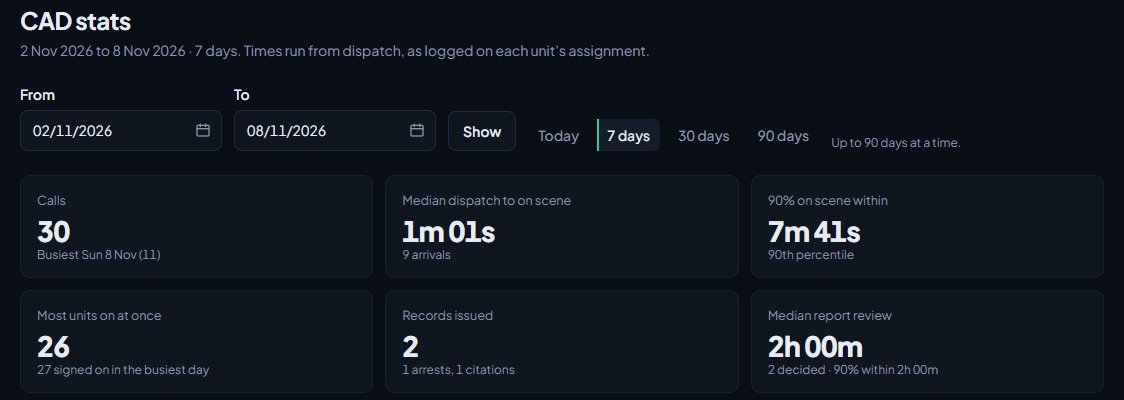
- Totals along the top: calls, the median time from dispatch to on scene, the time 90% of units were on scene within, the most units on at once, records issued and the median time a report waited for review.
- Calls per day and Calls by hour of day: when your community is busiest.
- Response times: split three ways with the tabs By department, By priority and By call type. Each row shows how many assignments there were and the median and 90% times for each stage.
- Most units on duty at once: the peak for each day.
- Busiest postals: the ten postals with the most calls.
- Records by officer and Records by department: citations, warnings and arrests on file.
- Report review turnaround: how long reports waited for a decision, by department.
Response time stages#
| Stage | From | To |
|---|---|---|
| Dispatch to en route | The unit is attached to the call | The unit sets an en route status |
| En route to on scene | The unit sets an en route status | The unit sets an on scene status |
| Dispatch to on scene | The unit is attached to the call | The unit sets an on scene status |
The median is the middle value: half the units were quicker, half slower. The 90% figure means nine in ten were at least that quick, which shows your slow responses without one very slow call skewing it.
Response times only count when units use their en route and on scene statuses. If your times look empty, check your statuses are set up with those meanings and that units use them. See Set up unit statuses and 10-codes.
What isn't counted#
- Dispatchers aren't counted in response times, in units on duty, or in the most units on at once.
- Records waiting for approval or sent back aren't counted until they're approved.
- Merged calls aren't counted in busiest postals.
Something not working?#
I can't see CAD stats in the sidebar, or Stats in the CAD. Check your role has one of the permissions above. If nobody can see it, the Supervisor stats module is switched off in the CAD settings.
Response times show a dash. No unit set an en route or on scene status in that range. A dash means there's nothing to measure yet.
The range changed when I clicked Show. Ranges are kept to 90 days. If you pick a longer one, it's shortened to the 90 days up to your To date.
See also
Supervise units on duty and sign them off
The tools supervisors get on duty: signing another unit off with a reason, checking on units whose status timer has run out, and reading every private message.
Create calls and dispatch units to them
Open a call, attach units, change priority and details, then clear it with a disposition. Also covers merging duplicates and reopening a call that closed too early.
Review and approve reports
Approve reports or send them back with a comment, from the control panel or on duty, plus citations, warnings and arrests that wait for approval.
Set up unit statuses and 10-codes
Choose the statuses police, fire and EMS units set themselves to, with your own 10-codes, colours and status-check timers, and learn what each status meaning does.
Can't find what you need?
Open a ticket in our Discord and someone from the team will help. Found a bug, or missing a feature? Tell us on the feedback board.