Review and approve reports
Approve reports or send them back with a comment, from the control panel or on duty, plus citations, warnings and arrests that wait for approval.
When a unit submits a report, it waits in the review queue until a supervisor looks at it. You either approve it, which locks it, or send it back with a comment saying what to fix. The author fixes it and resubmits, and it comes back to the queue.
If your community wants it, citations, warnings and arrests can wait for approval too, so they only land on a person's record once a supervisor has checked them.
You can review in the control panel or on duty in the CAD. Both show the same queue.
Before you start#
You need a role with the Review reports: approve them or send them back permission. To review in the CAD, you also need to be on duty, as a unit or a dispatcher.
Your community can set two rules in the CAD settings, under Reports:
| Setting | When it's on |
|---|---|
| Reviewers can approve their own reports | You can approve or return reports you wrote yourself. Off, someone else has to |
| Reviewers only review reports from their own departments | You only see and review reports from departments you're in. Off, you can review any department's |
The same rules apply to citations, warnings and arrests waiting for approval.
Review in the control panel#
-
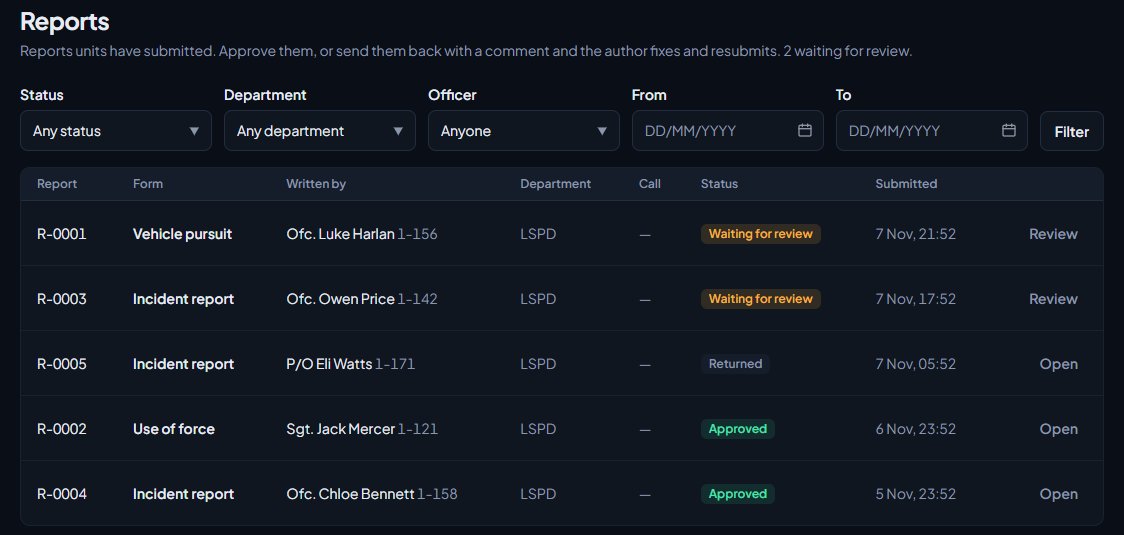
Open your control panel and click Reports under CAD in the sidebar. The page heading tells you how many are waiting for review.
-
Reports waiting for review are at the top. Use Status, Department, Officer, From and To to narrow the list, then click Filter.
-
Click Review next to a report.
-
Read the report on the left. The History on the right shows who started and submitted it, and any earlier returns.
-
Then either:
- Click Approve, or
- Write what needs fixing under Send back with a comment and click Return to followed by the author's name.
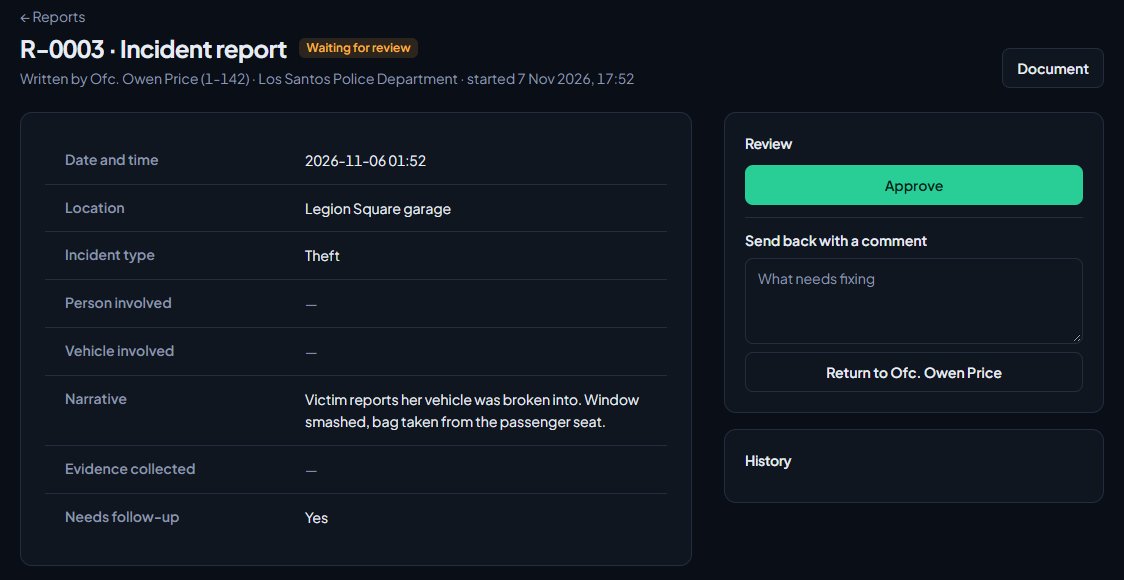
Click Document at the top to see the report laid out as paperwork.
Review in the CAD#
- Sign on to the CAD.
- Open the review queue:
- Modern: click Reports, then To review.
- Classic: click Reports, then To review.
- Realistic: click Reports on the toolbar, then Review Queue on the left.
- Click a report to open it. The oldest is at the top.
- Then either:
- Click Approve, or
- Type what needs fixing in Comment, if sending it back (Comment (to send it back) in Realistic) and click Return to author. The button is Return in Classic and Return To Author in Realistic.
The number next to To review or Review Queue counts reports and records waiting for you.
What happens next#
| You | The author sees | The report |
|---|---|---|
| Approve | Approved in their reports | Locked. Nobody can change it |
| Return | Returned, with your comment at the top | Back with the author to fix and resubmit |
Every decision goes in the report's history with your name and the time. The control panel also writes it to your community's activity log.
Citations, warnings and arrests waiting for approval#
Your CAD admins turn this on under Records in the CAD settings, in Filing records, by choosing Records go to a supervisor for approval first and ticking which types need it. Until a record is approved, it isn't on the person's record: no points, no warrants served.
In the control panel#
- Open Reports under CAD. Records waiting for approval is at the top of the page.
- Click Paper to read a record laid out in full.
- Then either:
- Click Approve and confirm, or
- Type what needs changing in the box next to it and click Return.
In the CAD#
Open the review queue as above. Records waiting for approval is under the reports. To return one, type your comment in the box above the list first, then click Return on the record. To approve, click Approve and confirm.
When you approve an arrest, any warrants the officer ticked to serve are marked served, and licence points are added. A returned record goes back to the officer, who clicks Fix and resend.
Something not working?#
I can't see Reports in the control panel or the CAD. Your role needs the review permission. In the CAD you also need to be on duty.
A report I expected isn't in the queue. If Reviewers only review reports from their own departments is on, reports from departments you're not in don't show at all. If it's your own report and you can't approve your own, it isn't in your queue either.
It says "You can't review your own report. Someone else has to." Your community doesn't let reviewers approve their own reports. Ask another reviewer. For records, the message is "You can't approve your own record. Someone else has to."
It says "That report is from a department you're not in." Your community limits reviewers to their own departments. Ask a reviewer from that department.
It says "Say what needs changing." Returning needs a comment, so the author knows what to fix.
It says "That report isn't waiting for review." Someone else has already approved or returned it, or the author took it back.
See also
Write a report and send it for review
Start a report from one of your community's templates or straight from a call, fill it in, save it as a draft, submit it and fix it if it comes back.
Write citations, written warnings and arrests
File a citation, warning or arrest on a person's record, add charges and see the totals, attach a booking photo, serve warrants, set caution flags and send a record to court.
Build report templates for your units
Make the report forms units fill in on duty, with your own fields, required boxes, drop-down lists and links to people and vehicles on file. Load the starter templates, and switch diagrams on or off.
Request, approve and serve warrants
Police request arrest and search warrants from the CAD, approvers sign or deny them in the control panel or the court docket, and officers serve them with an arrest.
See supervisor stats for the CAD
Check open calls, units by status and today's response times on duty, and look back over up to 90 days of calls, response times and paperwork in the control panel.
Can't find what you need?
Open a ticket in our Discord and someone from the team will help. Found a bug, or missing a feature? Tell us on the feedback board.