Write a report and send it for review
Start a report from one of your community's templates or straight from a call, fill it in, save it as a draft, submit it and fix it if it comes back.
Reports are the paperwork for what happened on a shift: an incident report, a use of force form, a vehicle pursuit report or whatever your community uses. Your community builds the forms, and you fill them in from the CAD while you're on duty. When you're done, you submit the report and a supervisor approves it or sends it back for changes.
This article covers reports built from your community's templates. Patient care and fire incident reports have their own forms: see Write fire and patient care reports.
Before you start#
- You need to be on duty as a police, fire or EMS unit. Dispatchers don't write reports.
- Your community needs at least one report template for your kind of unit. CAD admins add them under Report templates in the CAD settings. See Report templates.
Start a report#
-
Open your reports:
- Modern: click Reports in the tabs above the right-hand column.
- Classic: click Reports in the top bar.
- Realistic: click Reports on the toolbar.
-
Click New report. In Realistic, the forms are listed under New Report on the left.
-
Click the form you want.
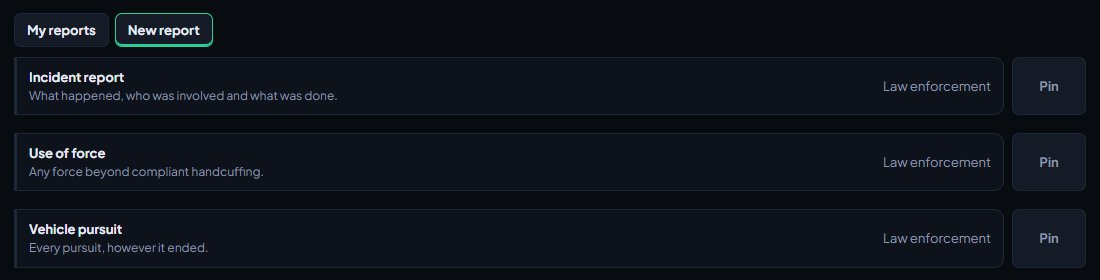
The report opens as a draft with its own number, like R-0042.
Start one from a call#
If the report is about a call, start it from the call instead. Open the call and click Write report (Create Report in Realistic), then pick the form. The report is linked to the call, and any time or location fields are filled in from it.
Pin the forms you use most#
If your community allows it, click Pin next to a form (the pin icon in Classic and Realistic) to keep it at the top of the list. Click it again to unpin it. Your pins are your own.
Fill it in#
Each form has its own fields. A * next to a field means the field is required before you can submit.
- People, vehicles and businesses: click Find a person, Find a vehicle or Find a business (Find Person and so on in Realistic), search, and click the right one. Click Change to pick someone else. Only police can search vehicles and businesses.
- Prefill: the bar at the top of the form lets you attach a call, or pick from people and plates you've searched in the last 24 hours, to fill the form in for you.
- Diagram fields: draw the scene or crash right on the form, if your community uses them.
- Improve wording: if your community has it switched on, this button under a long text box suggests clearer wording. Pick Use suggestion or Keep mine, and check every fact before you use it.
You don't have to finish in one go. Click Save draft to keep your progress and come back to it from My reports later.
Submit it#
- Check the required fields are filled in.
- Click Submit for review.
You'll see a message like "R-0042 submitted for review." The report moves to Waiting for review and shows in the review queue for your supervisors.
Some templates let you submit with required fields left empty. If yours does, the message lists what's still missing, and the report's history notes it for the reviewer.
Take a report back#
Spotted a mistake after submitting? As long as nobody has reviewed it yet, open it from My reports and click Take back to draft (Take back in Classic and Realistic). It's a draft again, so you can change it and submit it again.
When a report comes back#
If a reviewer returns your report, its status changes to Returned and you'll see their comment at the top under Returned for changes (RETURNED in Realistic).
- Open it from My reports.
- Make the changes the reviewer asked for.
- Click Resubmit.
When a report is approved, it's locked. Nobody can change it after that.
Discard a draft#
To throw away a draft you started by mistake, open it and click Discard, then confirm. You can only discard a draft that has never been submitted.
Your reports list#
My reports shows the last 50 reports you've written, newest first, with their number, form, call and status:
| Status | Meaning |
|---|---|
| Draft | You're still working on it |
| Waiting for review | Submitted, waiting for a supervisor |
| Returned | Sent back to you with a comment |
| Approved | Signed off and locked |
Each report also has a Document button that shows it laid out as paperwork, and a history of who started, submitted, returned and approved it.
Citations, warnings and arrests#
These aren't reports. Police write them from a person's record, or from New record (Modern), Actions (Classic) or Forms (Realistic). If your community makes them wait for approval, they show under Your records waiting for approval in your reports, and a returned one has a Fix and resend button. See Review and approve reports.
Something not working?#
I don't see New report or any forms. Your community has no templates for your kind of unit yet, or you're signed on as a dispatcher. You'll see "No report templates for your unit yet."
It says a field "is required." Fill in every field marked *, then submit again.
It says "This report is waiting for review." You can't change a submitted report. Take it back to a draft first, if nobody has reviewed it yet.
It says "This report is approved and can't be changed." Approved reports are locked. Ask a supervisor if something needs correcting.
It says "Only a report waiting for review can be taken back." A reviewer has already acted on it. If it was returned, you can edit it straight away.
See also
Review and approve reports
Approve reports or send them back with a comment, from the control panel or on duty, plus citations, warnings and arrests that wait for approval.
Write citations, written warnings and arrests
File a citation, warning or arrest on a person's record, add charges and see the totals, attach a booking photo, serve warrants, set caution flags and send a record to court.
Build report templates for your units
Make the report forms units fill in on duty, with your own fields, required boxes, drop-down lists and links to people and vehicles on file. Load the starter templates, and switch diagrams on or off.
Write fire and patient care reports
Fill in a patient care report for each patient you treat, write a fire incident report after a fire call, and send both for review.
Work a call as a police, fire or EMS unit
Set your status, attach yourself to calls, add notes, link people and vehicles, open your own calls and clear them when you're done.
Can't find what you need?
Open a ticket in our Discord and someone from the team will help. Found a bug, or missing a feature? Tell us on the feedback board.